> ## Documentation Index
> Fetch the complete documentation index at: https://docs.m1amdocs.com/llms.txt
> Use this file to discover all available pages before exploring further.
# Working with Billing Plans
From this page, you can define your Billing Plan, its billing periods and pricing structure, and add custom data.
**Note:** You can create a Billing Plan for each Product, or share a Billing Plan across Products.
To apply eligibility rules, configure the relevant fields in the **Custom Billing Plan Data** section. For information about the fields, see the **Custom Billing Plan Data** table below. For information about configuring eligibility rules, see [Configuring Eligibility Rules](eligibilityRuleConfiguration).
To work with a Billing Plan:
1. Select your starting point from the following options:
* To create a new Billing Plan, click the **+ New** button and select **Billing Plan**.
* To duplicate an existing Billing Plan, select the relevant existing Billing Plan from **Catalog** > **Billing Plans** and click **Duplicate**.
* To edit an existing Billing Plan, select the relevant existing Billing Plan from **Catalog** > **Billing Plans** and click **Edit**.
The Billing Plan page appears.
 2. Define the Billing Plan fields as needed. Refer to the tables below for guidance regarding the fields.
3. (Optional.) To apply eligibility rules, configure the relevant fields in the **Custom Billing Plan Data** section. Refer to the **Custom Billing Plan Data** table below for guidance regarding the fields.
4. When you're done, click **Save** or **Update**.
You can return and continue editing the saved Billing Plan at any time before it is activated.
**Note:** You can edit the Billing Plan at any time prior to its use by subscriptions. It is important to understand that any changes will impact all subscriptions (existing and new) using the Billing plan. Please consider this before making a change. The user interface will show an orange caution at the top of the page stating that the **Billing Plan is in use on Subscriptions**.
2. Define the Billing Plan fields as needed. Refer to the tables below for guidance regarding the fields.
3. (Optional.) To apply eligibility rules, configure the relevant fields in the **Custom Billing Plan Data** section. Refer to the **Custom Billing Plan Data** table below for guidance regarding the fields.
4. When you're done, click **Save** or **Update**.
You can return and continue editing the saved Billing Plan at any time before it is activated.
**Note:** You can edit the Billing Plan at any time prior to its use by subscriptions. It is important to understand that any changes will impact all subscriptions (existing and new) using the Billing plan. Please consider this before making a change. The user interface will show an orange caution at the top of the page stating that the **Billing Plan is in use on Subscriptions**. 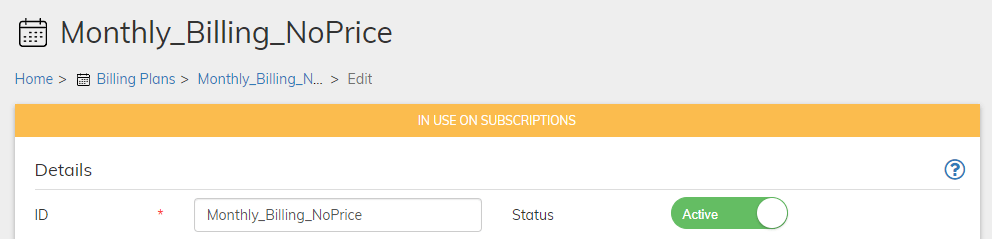 5. When the Billing Plan has been saved and completed, activate it by clicking **Activate** in the **Actions** panel on the right.
6. Disable the Billing Plan at any time, by clicking **Disable** in the **Actions** panel on the right. Note that the Billing Plan will no longer be offered to new customers (or appear in the catalog). However, existing subscriptions of the Billing Plan will continue uninterrupted.
* **[Billing Plan Details Pane](billingPlanWorking#billing-plan-details-pane)**
* **[Billing Plan Periods Pane](billingPlanWorking#billing-plan-periods-pane)**\
In the Billing Periods pane you can define multiple Billing Periods. For each, set a cycle length, which defines the length of the billing period; and the number of times to repeat the cycle, which defines the length of the subscription. Cycle length can be days, weeks, months, or years. Customers are billed on the first day of the billing cycle. Billing Periods are active sequentially, according to their order in the Billing Plan. The first Billing Period in the list will be in effect when the subscription is first purchased, and it will remain in effect until it completes its defined number of cycles.
* **[Billing Plan Advanced Behavior Pane](billingPlanWorking#billing-plan-advanced-behavior-pane)**\
The Advanced Behavior pane enables you to configure more complex billing scenarios. You can configure Commerce Engine to repeat billing periods in specific ways.
* **[Custom Billing Plan Data](billingPlanWorking#custom-billing-plan-data)**\
Enter the field name and the appropriate value based on your desired billing plan configuration. To apply eligibility rules, refer to the table below for field names, descriptions, value sources, and example values.
**Parent topic:**[Billing Plans](billingPlanAbout)
## Billing Plan Details Pane
| Field | Guidance | Relevancy |
| - | - | - |
| **ID** | Your unique ID for the Billing Plan. The ID can't be changed or reused. **Note:** use of the forward slash character (/) in identifiers is not allowed. | Required |
| **Description** | An informative description of the Billing Plan. | Optional |
| **Email** | Enter the number of days prior to the end of a billing cycle that you want a pre-billing notification sent to a customer. If **Days Before Billing** is empty or set to 0 (zero), no pre-billing notification is sent for this Billing Plan. | Optional |
| **Skip the initial Billing Notification** | Indicates whether a notification is sent to the customer for the first billing period. Use the toggle switch to select either **Yes** or**No**. Default value is No. | Optional |
| **Grace Period Override** | Grace period is a Reseller (Service Provider) level setting, which defines the period that a subscription can stay active even if the recurring transaction billing failed. You can decide to override the global Grace Period setting and designate a grace period specifically for this Billing Plan. Define the number of days that the subscription using this billing plan stays active even if the billing attempt failed. | Optional |
| **Status** | Use the toggle switch to set the status of the billing plan to **Active**/**Inactive**. This field lets you manage when a billing plan is available to associate with a product or subscription. Default value is Inactive. | Optional |
| **Bills In** | Billing Plans can be priced in multiple currencies or not at all. If desired, use the toggle switch to select if the billing plan is billed in **Currency**. The default value is Currency. If you don't want to associate a price for this billing plan, do nothing. **Tip:** If you'd like the billing plan priced, in the Actionspanel, select **Manage Currency** to add or remove currencies for pricing. The Currency pricing is added in the Billing Periods pane. **Note:** When creating a subscription, the Billing Plan Bills In choice must be aligned to the subscription's payment method. | Required |
| **End Date** | Click the calendar icon to specify when the billing plan ceases to be available. Leave this field blank if you want no end date for the billing plan. | Optional |
| **Created On** | A field created automatically once the billing plan is saved. This is the initial date on which the billing plan was created. | N/A |
| **Tax Classification** | Commerce Engine leverages its supported tax vendor (currently Avalara AvaTax) to calculate applicable taxes according to the tax classification value entered, your Reseller (Service Provider) nexus (may refer to your location, the type of business and product you sell, the regions in which you sell), and any unique tax rules configured by Amdocs for your business. In this field, enter the text string provided by your tax vendor for this billing plan (based on the type of related product such as physical goods, software, or electronic data). Your Amdocs implementation resource can assist you with identifying the proper value. **Note:** To access tax codes used by the Avalara AvaTax system, see [https://taxcode.avatax.avalara.com.](https://taxcode.avatax.avalara.com/). | Required for regions where tax is not inclusive and only if the billing plan is billed. |
| **Parent topic:**[Working with Billing Plans](billingPlanWorking) | | |
## Billing Plan Periods Pane
In the Billing Periods pane you can define multiple Billing Periods. For each, set a cycle length, which defines the length of the billing period; and the number of times to repeat the cycle, which defines the length of the subscription. Cycle length can be days, weeks, months, or years. Customers are billed on the first day of the billing cycle. Billing Periods are active sequentially, according to their order in the Billing Plan. The first Billing Period in the list will be in effect when the subscription is first purchased, and it will remain in effect until it completes its defined number of cycles.
| Field | Guidance | Relevancy |
| - | - | - |
| **Cycle Length** | Cycle length defines the duration until the next billing date. Enter a number and select a time frequency (Days, weeks, Months or Years) from the dropdown menu. | Required |
| **Repeat Cycle** | Enter the number of times to repeat the cycle. Select **Unlimited** to have the billing cycle repeat indefinitely, or select **Times** and enter a value. For example, a **Repeat Cycle** value of **4** with a **Cycle Length** of **3 Months** defines a one year subscription that bills four times. | Required |
| **Trial Period** | Trial periods are free and override the price of the billing plan and/or product. If you wish to set a free trial period, use the toggle to select **Yes**. Then add a second billing period. | Optional |
| **Email On First Bill** | Select **Yes** to generate a customer notification on the first billing date of the period. If the Billing Period is free, select **No** to prevent your customer receiving contradictory billing notices. Default value is No. | Optional |
| **Email Before Expiration** | To send a warning notice indicating that the subscription is set to expire to your customers, enter a value for the number of days before this billing period ends. If you leave this field empty, no expiration notice is sent. | Optional |
| **Manage Currencies** | If you would like to set a price for billing the billing plan by **Currencies**:1. Click **Manage Currencies** in the **Actions** panel. 2. Place your cursor in the box and select the relevant pricing options. 3. Enter the price of the Billing Plan in the currency box with the national flag icon representing each country. 4. If no price was entered, the Billing Period displays as **Free**. | Optional |
| **Add Billing Period** | Available when creating or editing the billing plan, click to add another billing period. | Optional |
| **Parent topic:**[Working with Billing Plans](billingPlanWorking) | | |
## Billing Plan Advanced Behavior Pane
The Advanced Behavior pane enables you to configure more complex billing scenarios. You can configure Commerce Engine to repeat billing periods in specific ways.
| Field | Guidance | Relevancy |
| - | - | - |
| **Repeat Billing Plan** | | |
| **Repeat Billing Plan** | Specify how many times the billing plan can repeat. Select from **Forever** — repeat the billing plan in a continuous loop or enter the number of **Times** to repeat the set of billing periods. This field is available only if billing periods were not set to Unlimited. | Required |
**Parent topic:**[Working with Billing Plans](billingPlanWorking)
## Custom Billing Plan Data
Enter the field name and the appropriate value based on your desired billing plan configuration. To apply eligibility rules, refer to the table below for field names, descriptions, value sources, and example values.
| Field Name | Description | Required | Value Source | Example Value |
| - | - | - | - | - |
| **maxUsage** | The billing plan can be used up to the specified number of times per customer. For example, if the limit is set to `1`, a customer who cancels and repurchases the offer will not receive the billing plan again. | No | N/A | `1` |
| **maxUsageActive** | The customer can have up to the specified number of *active* billing plans at a time. For example, if the limit is set to `1`, the customer becomes eligible for the billing plan again only after it becomes inactive, expires, or they cancel. | No | N/A | `1` |
| **quantityRange** | The eligible range for the total number of products a user can have—combining both existing active subscription products and new purchases. For example: `2:5` denotes two to five products is the eligible range. | No | N/A | `2:5` |
| **tier** | The eligible customer account attribute (tier). To apply multiple tiers, enter each tier in the **Value** field, separated by commas. For example: `Tier1,Tier2`. If you specify multiple tiers, the customer must have all the specified tiers to be eligible for the billing plan. | No | The tier name in the Reseller's system**Note:** If the customer account tier metadata includes multiple comma-separated values, the customer is eligible for the billing plan as long as any one of those values matches a tier you’ve specified for the billing plan in Commerce Engine. | `GoldTier` |
| **Parent topic:**[Working with Billing Plans](billingPlanWorking) | | | | |
This documentation is built and hosted on [Mintlify](https://mintlify.com), a developer documentation platform.
5. When the Billing Plan has been saved and completed, activate it by clicking **Activate** in the **Actions** panel on the right.
6. Disable the Billing Plan at any time, by clicking **Disable** in the **Actions** panel on the right. Note that the Billing Plan will no longer be offered to new customers (or appear in the catalog). However, existing subscriptions of the Billing Plan will continue uninterrupted.
* **[Billing Plan Details Pane](billingPlanWorking#billing-plan-details-pane)**
* **[Billing Plan Periods Pane](billingPlanWorking#billing-plan-periods-pane)**\
In the Billing Periods pane you can define multiple Billing Periods. For each, set a cycle length, which defines the length of the billing period; and the number of times to repeat the cycle, which defines the length of the subscription. Cycle length can be days, weeks, months, or years. Customers are billed on the first day of the billing cycle. Billing Periods are active sequentially, according to their order in the Billing Plan. The first Billing Period in the list will be in effect when the subscription is first purchased, and it will remain in effect until it completes its defined number of cycles.
* **[Billing Plan Advanced Behavior Pane](billingPlanWorking#billing-plan-advanced-behavior-pane)**\
The Advanced Behavior pane enables you to configure more complex billing scenarios. You can configure Commerce Engine to repeat billing periods in specific ways.
* **[Custom Billing Plan Data](billingPlanWorking#custom-billing-plan-data)**\
Enter the field name and the appropriate value based on your desired billing plan configuration. To apply eligibility rules, refer to the table below for field names, descriptions, value sources, and example values.
**Parent topic:**[Billing Plans](billingPlanAbout)
## Billing Plan Details Pane
| Field | Guidance | Relevancy |
| - | - | - |
| **ID** | Your unique ID for the Billing Plan. The ID can't be changed or reused. **Note:** use of the forward slash character (/) in identifiers is not allowed. | Required |
| **Description** | An informative description of the Billing Plan. | Optional |
| **Email** | Enter the number of days prior to the end of a billing cycle that you want a pre-billing notification sent to a customer. If **Days Before Billing** is empty or set to 0 (zero), no pre-billing notification is sent for this Billing Plan. | Optional |
| **Skip the initial Billing Notification** | Indicates whether a notification is sent to the customer for the first billing period. Use the toggle switch to select either **Yes** or**No**. Default value is No. | Optional |
| **Grace Period Override** | Grace period is a Reseller (Service Provider) level setting, which defines the period that a subscription can stay active even if the recurring transaction billing failed. You can decide to override the global Grace Period setting and designate a grace period specifically for this Billing Plan. Define the number of days that the subscription using this billing plan stays active even if the billing attempt failed. | Optional |
| **Status** | Use the toggle switch to set the status of the billing plan to **Active**/**Inactive**. This field lets you manage when a billing plan is available to associate with a product or subscription. Default value is Inactive. | Optional |
| **Bills In** | Billing Plans can be priced in multiple currencies or not at all. If desired, use the toggle switch to select if the billing plan is billed in **Currency**. The default value is Currency. If you don't want to associate a price for this billing plan, do nothing. **Tip:** If you'd like the billing plan priced, in the Actionspanel, select **Manage Currency** to add or remove currencies for pricing. The Currency pricing is added in the Billing Periods pane. **Note:** When creating a subscription, the Billing Plan Bills In choice must be aligned to the subscription's payment method. | Required |
| **End Date** | Click the calendar icon to specify when the billing plan ceases to be available. Leave this field blank if you want no end date for the billing plan. | Optional |
| **Created On** | A field created automatically once the billing plan is saved. This is the initial date on which the billing plan was created. | N/A |
| **Tax Classification** | Commerce Engine leverages its supported tax vendor (currently Avalara AvaTax) to calculate applicable taxes according to the tax classification value entered, your Reseller (Service Provider) nexus (may refer to your location, the type of business and product you sell, the regions in which you sell), and any unique tax rules configured by Amdocs for your business. In this field, enter the text string provided by your tax vendor for this billing plan (based on the type of related product such as physical goods, software, or electronic data). Your Amdocs implementation resource can assist you with identifying the proper value. **Note:** To access tax codes used by the Avalara AvaTax system, see [https://taxcode.avatax.avalara.com.](https://taxcode.avatax.avalara.com/). | Required for regions where tax is not inclusive and only if the billing plan is billed. |
| **Parent topic:**[Working with Billing Plans](billingPlanWorking) | | |
## Billing Plan Periods Pane
In the Billing Periods pane you can define multiple Billing Periods. For each, set a cycle length, which defines the length of the billing period; and the number of times to repeat the cycle, which defines the length of the subscription. Cycle length can be days, weeks, months, or years. Customers are billed on the first day of the billing cycle. Billing Periods are active sequentially, according to their order in the Billing Plan. The first Billing Period in the list will be in effect when the subscription is first purchased, and it will remain in effect until it completes its defined number of cycles.
| Field | Guidance | Relevancy |
| - | - | - |
| **Cycle Length** | Cycle length defines the duration until the next billing date. Enter a number and select a time frequency (Days, weeks, Months or Years) from the dropdown menu. | Required |
| **Repeat Cycle** | Enter the number of times to repeat the cycle. Select **Unlimited** to have the billing cycle repeat indefinitely, or select **Times** and enter a value. For example, a **Repeat Cycle** value of **4** with a **Cycle Length** of **3 Months** defines a one year subscription that bills four times. | Required |
| **Trial Period** | Trial periods are free and override the price of the billing plan and/or product. If you wish to set a free trial period, use the toggle to select **Yes**. Then add a second billing period. | Optional |
| **Email On First Bill** | Select **Yes** to generate a customer notification on the first billing date of the period. If the Billing Period is free, select **No** to prevent your customer receiving contradictory billing notices. Default value is No. | Optional |
| **Email Before Expiration** | To send a warning notice indicating that the subscription is set to expire to your customers, enter a value for the number of days before this billing period ends. If you leave this field empty, no expiration notice is sent. | Optional |
| **Manage Currencies** | If you would like to set a price for billing the billing plan by **Currencies**:1. Click **Manage Currencies** in the **Actions** panel. 2. Place your cursor in the box and select the relevant pricing options. 3. Enter the price of the Billing Plan in the currency box with the national flag icon representing each country. 4. If no price was entered, the Billing Period displays as **Free**. | Optional |
| **Add Billing Period** | Available when creating or editing the billing plan, click to add another billing period. | Optional |
| **Parent topic:**[Working with Billing Plans](billingPlanWorking) | | |
## Billing Plan Advanced Behavior Pane
The Advanced Behavior pane enables you to configure more complex billing scenarios. You can configure Commerce Engine to repeat billing periods in specific ways.
| Field | Guidance | Relevancy |
| - | - | - |
| **Repeat Billing Plan** | | |
| **Repeat Billing Plan** | Specify how many times the billing plan can repeat. Select from **Forever** — repeat the billing plan in a continuous loop or enter the number of **Times** to repeat the set of billing periods. This field is available only if billing periods were not set to Unlimited. | Required |
**Parent topic:**[Working with Billing Plans](billingPlanWorking)
## Custom Billing Plan Data
Enter the field name and the appropriate value based on your desired billing plan configuration. To apply eligibility rules, refer to the table below for field names, descriptions, value sources, and example values.
| Field Name | Description | Required | Value Source | Example Value |
| - | - | - | - | - |
| **maxUsage** | The billing plan can be used up to the specified number of times per customer. For example, if the limit is set to `1`, a customer who cancels and repurchases the offer will not receive the billing plan again. | No | N/A | `1` |
| **maxUsageActive** | The customer can have up to the specified number of *active* billing plans at a time. For example, if the limit is set to `1`, the customer becomes eligible for the billing plan again only after it becomes inactive, expires, or they cancel. | No | N/A | `1` |
| **quantityRange** | The eligible range for the total number of products a user can have—combining both existing active subscription products and new purchases. For example: `2:5` denotes two to five products is the eligible range. | No | N/A | `2:5` |
| **tier** | The eligible customer account attribute (tier). To apply multiple tiers, enter each tier in the **Value** field, separated by commas. For example: `Tier1,Tier2`. If you specify multiple tiers, the customer must have all the specified tiers to be eligible for the billing plan. | No | The tier name in the Reseller's system**Note:** If the customer account tier metadata includes multiple comma-separated values, the customer is eligible for the billing plan as long as any one of those values matches a tier you’ve specified for the billing plan in Commerce Engine. | `GoldTier` |
| **Parent topic:**[Working with Billing Plans](billingPlanWorking) | | | | |
This documentation is built and hosted on [Mintlify](https://mintlify.com), a developer documentation platform.