> ## Documentation Index
> Fetch the complete documentation index at: https://docs.m1amdocs.com/llms.txt
> Use this file to discover all available pages before exploring further.
# Working with Campaigns
* Make sure you've created a Product and Billing Plan first.
* To apply eligibility rules, configure the relevant fields in the **Custom Campaign Data** section. For information about the fields, see the **Custom Campaign Data** table below. For information about configuring eligibility rules, see [Configuring Eligibility Rules](eligibilityRuleConfiguration).
* You can create a dedicated Campaign for each Product, or reuse a single Campaign across multiple Products, depending on your use case.
* Only one Campaign should apply to a Product at a time.
1. Select your starting point from the following options:
* To create a new Campaign, click the **+ New** button and select **Campaign**.
* To clone an existing Campaign, select the relevant existing campaign from **Catalog** > **Campaigns** and click **Clone**.
* To edit an existing inactive Campaign, select the relevant existing campaign (ID) from **Catalog** > **Campaigns** and click **Edit**.
The Campaign page appears.
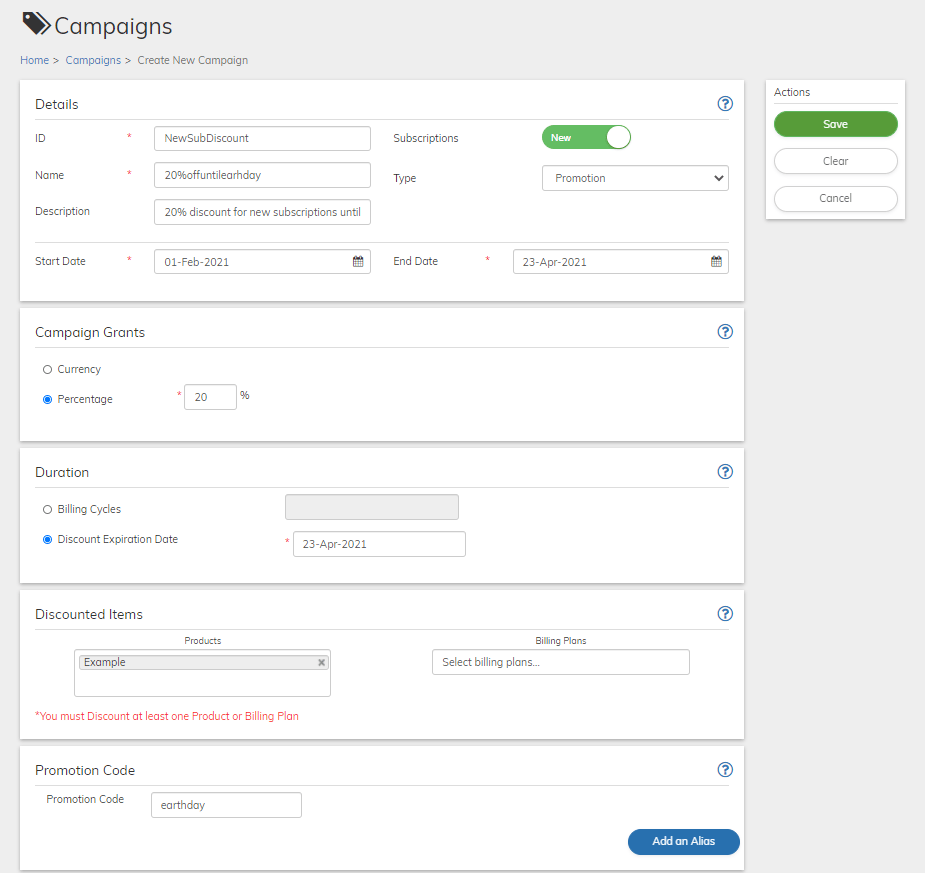 2. Define the Campaign fields as needed. Refer to the tables below for guidance regarding the fields.
3. When you're done, click **Save** or **Update**.
The Campaign is saved in Pending state.
4. Click the **Activate** button that appears in the **Actions** panel.
5. To temporarily stop the campaign, click the **Deactivate** button that appears in the **Actions** panel.
6. To permanently stop the campaign, click the **Cancel** button that appears in the **Actions** panel.
A confirmation message appears. Click **Cancel Campaign** to continue.
* **[Campaign Details Pane](campaignWorking#campaign-details-pane)**
* **[Campaign Grants Pane](campaignWorking#campaign-grants-pane)**\
A Campaign Grant is the discount that you want to offer
* **[Campaign Duration Pane](campaignWorking#campaign-duration-pane)**\
Campaign Duration is the period of time for which the discount is granted.
* **[Campaign Discounted Items Pane](campaignWorking#campaign-discounted-items-pane)**\
Discounted Items are the Product and/or Billing Plans that are eligible for the discount.
* **[Campaign Promotion Code Pane](campaignWorking#campaign-promotion-code-pane)**\
A promotion code is not unique to individual users and is typically publicly available through mass distribution. You can define any alphanumeric string as your promotion code.
* **[Custom Campaign Data](campaignWorking#custom-campaign-data)**\
Enter the field name and the appropriate value based on your desired campaign configuration. To apply eligibility rules, refer to the table below for field names, descriptions, value sources, and example values.
**Parent topic:**[Campaigns](campaignAbout)
## Campaign Details Pane
| Field | Guidance | Relevancy |
| - | - | - |
| **ID** | A unique Reseller (Service Provider)-defined ID assigned to the Campaign. **Note:** - IDs are defined once for each campaign and can't be edited or changed. - A cloned campaign will require a new unique ID. | Required |
| **Name** | Enter a meaningful name for the campaign. | Required |
| **Description** | A short description of the campaign | Optional |
| **Subscriptions** | Toggle to define whether the campaign discount is relevant for new subscriptions or for both new and existing subscriptions. Toggle right to apply to **New** subscriptions or left for **Any**. By default, set to Any. | Required |
| **Type** | From the drop-down list, select the following type of campaign:- **Promotion Campaign**: Allows you to define a single Campaign code that can be distributed to multiple customers. A promotion code is not unique to individual users and is typically publicly available through mass distribution. | Required |
| **Start and End Date** | Specify the discount offer period during which a customer can submit a Campaign Code and redeem the discount. The discount period itself can extend beyond the end date. | Required |
| **Start Time and End Time** | Specify from what hour and minutes and until what hour and minute the Campaign Code can be redeemed. These fields allow you to create single day campaigns. | Optional |
| **Parent topic:**[Working with Campaigns](campaignWorking) | | |
## Campaign Grants Pane
A Campaign Grant is the discount that you want to offer
| Field | Guidance | Relevancy |
| - | - | - |
| Select one of the radio buttons: | | Required |
| **Currency** | This allows you to offer a flat rate discount or in other words a specific discount amount. Enter the amount in the currency field. A grant can be provided in a single currency. | Optional |
| By default, the US Dollars currency is displayed. If you need to change or add additional currencies, do the following:1. Click the down pointing arrow to the right of USD. A list of ISO currencies appears 2. Place your cursor in the search box and enter the letters of the desired currency 3. Select the desired currency from the list.
2. Define the Campaign fields as needed. Refer to the tables below for guidance regarding the fields.
3. When you're done, click **Save** or **Update**.
The Campaign is saved in Pending state.
4. Click the **Activate** button that appears in the **Actions** panel.
5. To temporarily stop the campaign, click the **Deactivate** button that appears in the **Actions** panel.
6. To permanently stop the campaign, click the **Cancel** button that appears in the **Actions** panel.
A confirmation message appears. Click **Cancel Campaign** to continue.
* **[Campaign Details Pane](campaignWorking#campaign-details-pane)**
* **[Campaign Grants Pane](campaignWorking#campaign-grants-pane)**\
A Campaign Grant is the discount that you want to offer
* **[Campaign Duration Pane](campaignWorking#campaign-duration-pane)**\
Campaign Duration is the period of time for which the discount is granted.
* **[Campaign Discounted Items Pane](campaignWorking#campaign-discounted-items-pane)**\
Discounted Items are the Product and/or Billing Plans that are eligible for the discount.
* **[Campaign Promotion Code Pane](campaignWorking#campaign-promotion-code-pane)**\
A promotion code is not unique to individual users and is typically publicly available through mass distribution. You can define any alphanumeric string as your promotion code.
* **[Custom Campaign Data](campaignWorking#custom-campaign-data)**\
Enter the field name and the appropriate value based on your desired campaign configuration. To apply eligibility rules, refer to the table below for field names, descriptions, value sources, and example values.
**Parent topic:**[Campaigns](campaignAbout)
## Campaign Details Pane
| Field | Guidance | Relevancy |
| - | - | - |
| **ID** | A unique Reseller (Service Provider)-defined ID assigned to the Campaign. **Note:** - IDs are defined once for each campaign and can't be edited or changed. - A cloned campaign will require a new unique ID. | Required |
| **Name** | Enter a meaningful name for the campaign. | Required |
| **Description** | A short description of the campaign | Optional |
| **Subscriptions** | Toggle to define whether the campaign discount is relevant for new subscriptions or for both new and existing subscriptions. Toggle right to apply to **New** subscriptions or left for **Any**. By default, set to Any. | Required |
| **Type** | From the drop-down list, select the following type of campaign:- **Promotion Campaign**: Allows you to define a single Campaign code that can be distributed to multiple customers. A promotion code is not unique to individual users and is typically publicly available through mass distribution. | Required |
| **Start and End Date** | Specify the discount offer period during which a customer can submit a Campaign Code and redeem the discount. The discount period itself can extend beyond the end date. | Required |
| **Start Time and End Time** | Specify from what hour and minutes and until what hour and minute the Campaign Code can be redeemed. These fields allow you to create single day campaigns. | Optional |
| **Parent topic:**[Working with Campaigns](campaignWorking) | | |
## Campaign Grants Pane
A Campaign Grant is the discount that you want to offer
| Field | Guidance | Relevancy |
| - | - | - |
| Select one of the radio buttons: | | Required |
| **Currency** | This allows you to offer a flat rate discount or in other words a specific discount amount. Enter the amount in the currency field. A grant can be provided in a single currency. | Optional |
| By default, the US Dollars currency is displayed. If you need to change or add additional currencies, do the following:1. Click the down pointing arrow to the right of USD. A list of ISO currencies appears 2. Place your cursor in the search box and enter the letters of the desired currency 3. Select the desired currency from the list. 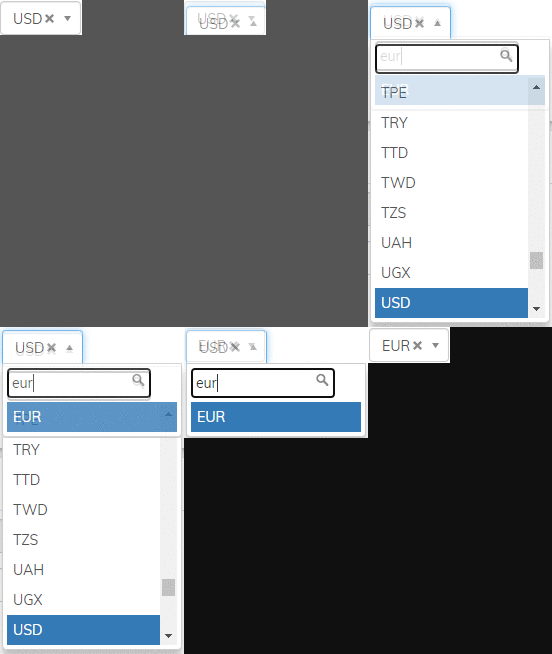 | Optional | |
| **Percentage** | Enter the discount percentage in the percentage field. For example, enter 10 to offer a 10% discount. | Optional |
| Field | Guidance | Relevancy |
| ----- | -------- | --------- |
| **Campaign Type** | The type of campaign. Either **Promotion** or **Coupon**. | View Only |
| **Discount and Duration** | The **Currency** or **Percentage** amount and the expiration date of the discount. | View Only |
| **Fixed Period** | The specific end date up to which the discount is valid. | View Only For Campaigns with a specified **Discount Expiration Date** |
| **Rolling Period** | The defined number of Billing Cycles for a discount. | View Only For Campaigns with Fixed **Billing Cycles** |
**Parent topic:**[Working with Campaigns](campaignWorking)
## Campaign Duration Pane
Campaign Duration is the period of time for which the discount is granted.
| Field | Guidance | Relevancy |
| - | - | - |
| Select one of the radio buttons: | | Required |
| **Billing Cycles** | This allows you to offer the discount over several billing cycles. Enter the number of cycles for which the discount is relevant. For example, for a subscription billed monthly, enter 3 to grant the discount for a 3 month period. | Optional |
| **Discount Expiration Date** | Specify a specific expiration date. The discount is applied up to the specified date. 1. Place your cursor in the relevant field. A calendar drop-down appears. 2. Select the relevant date. The selected date is spelled out in the field. | Optional |
| **Parent topic:**[Working with Campaigns](campaignWorking) | | |
## Campaign Discounted Items Pane
Discounted Items are the Product and/or Billing Plans that are eligible for the discount.
| Field | Guidance | Relevancy |
| - | - | - |
| Select at least one of the following: | You may enter multiple items for Products and/or Billing Plans | Required |
| **Products** | 1. Place your cursor in the Products field. A list of the existing Products appears. 2. Enter the first letters of the relevant Product or scroll and select. The Product name appears 3. To add an additional product, place your cursor in the field below the listed product and perform the previous steps again. | Optional |
| **Billing Plans** | 1. Place your cursor in the Billing Plans field. A list of the existing Billing Plans appears. 2. Enter the first letters of the relevant Billing Plans or scroll and select. The Billing Plan name appears 3. To add an additional Billing Plan, place your cursor in the field below the listed Billing Plans and perform the previous steps again. | Optional |
| **Parent topic:**[Working with Campaigns](campaignWorking) | | |
## Campaign Promotion Code Pane
A promotion code is not unique to individual users and is typically publicly available through mass distribution. You can define any alphanumeric string as your promotion code.
| Field | Guidance | Relevancy |
| - | - | - |
| **Promotion Code** | Define an alphanumeric string as the Promotion code. This code will be used by customers to redeem the promotional discount. | Required |
| **Alias** | An alias is an alternate promotion code that Commerce Engine will accept to redeem the promotional discount.1. Click the **Add an Alias** button. An Aliases field appears. 2. Enter an alternate alphanumeric string to be used as the promotional code to redeem the campaign discount. 3. To add additional aliases, perform the previous steps again. 4. To remove an Alias that you entered, click the **X** by the relevant field. | Optional |
| **Parent topic:**[Working with Campaigns](campaignWorking) | | |
## Custom Campaign Data
Enter the field name and the appropriate value based on your desired campaign configuration. To apply eligibility rules, refer to the table below for field names, descriptions, value sources, and example values.
| Field Name | Description | Required | Value Source | Example Value |
| - | - | - | - | - |
| **maxUsage** | The campaign discount can be used up to the specified number of times per customer. For example, if the limit is set to `1`, a customer who cancels and repurchases the offer will not receive the discount again. | No | N/A | `1` |
| **maxUsageActive** | The customer can have up to the specified number of *active* campaign discounts at a time. For example, if the limit is set to `1`, the customer becomes eligible for the discount again only after it becomes inactive, expires, or they cancel. | No | N/A | `1` |
| **quantityRange** | The eligible range for the total number of products a user can have—combining both existing active subscription products and new purchases. For example: `2:5` denotes two to five products is the eligible range. | Yes | N/A | `2:5` |
| **tier** | The eligible customer account attribute (tier). To apply multiple tiers, enter each tier in the **Value** field, separated by commas. For example: `Tier1,Tier2`. If you specify multiple tiers, the customer must have all the specified tiers to be eligible for the campaign. | No | The tier name in the Reseller's system**Note:** If the customer account tier metadata includes multiple comma-separated values, the customer is eligible for the campaign as long as any one of those values matches a tier you’ve specified for the campaign in Commerce Engine. | `GoldTier` |
| **Parent topic:**[Working with Campaigns](campaignWorking) | | | | |
This documentation is built and hosted on [Mintlify](https://mintlify.com), a developer documentation platform.
| Optional | |
| **Percentage** | Enter the discount percentage in the percentage field. For example, enter 10 to offer a 10% discount. | Optional |
| Field | Guidance | Relevancy |
| ----- | -------- | --------- |
| **Campaign Type** | The type of campaign. Either **Promotion** or **Coupon**. | View Only |
| **Discount and Duration** | The **Currency** or **Percentage** amount and the expiration date of the discount. | View Only |
| **Fixed Period** | The specific end date up to which the discount is valid. | View Only For Campaigns with a specified **Discount Expiration Date** |
| **Rolling Period** | The defined number of Billing Cycles for a discount. | View Only For Campaigns with Fixed **Billing Cycles** |
**Parent topic:**[Working with Campaigns](campaignWorking)
## Campaign Duration Pane
Campaign Duration is the period of time for which the discount is granted.
| Field | Guidance | Relevancy |
| - | - | - |
| Select one of the radio buttons: | | Required |
| **Billing Cycles** | This allows you to offer the discount over several billing cycles. Enter the number of cycles for which the discount is relevant. For example, for a subscription billed monthly, enter 3 to grant the discount for a 3 month period. | Optional |
| **Discount Expiration Date** | Specify a specific expiration date. The discount is applied up to the specified date. 1. Place your cursor in the relevant field. A calendar drop-down appears. 2. Select the relevant date. The selected date is spelled out in the field. | Optional |
| **Parent topic:**[Working with Campaigns](campaignWorking) | | |
## Campaign Discounted Items Pane
Discounted Items are the Product and/or Billing Plans that are eligible for the discount.
| Field | Guidance | Relevancy |
| - | - | - |
| Select at least one of the following: | You may enter multiple items for Products and/or Billing Plans | Required |
| **Products** | 1. Place your cursor in the Products field. A list of the existing Products appears. 2. Enter the first letters of the relevant Product or scroll and select. The Product name appears 3. To add an additional product, place your cursor in the field below the listed product and perform the previous steps again. | Optional |
| **Billing Plans** | 1. Place your cursor in the Billing Plans field. A list of the existing Billing Plans appears. 2. Enter the first letters of the relevant Billing Plans or scroll and select. The Billing Plan name appears 3. To add an additional Billing Plan, place your cursor in the field below the listed Billing Plans and perform the previous steps again. | Optional |
| **Parent topic:**[Working with Campaigns](campaignWorking) | | |
## Campaign Promotion Code Pane
A promotion code is not unique to individual users and is typically publicly available through mass distribution. You can define any alphanumeric string as your promotion code.
| Field | Guidance | Relevancy |
| - | - | - |
| **Promotion Code** | Define an alphanumeric string as the Promotion code. This code will be used by customers to redeem the promotional discount. | Required |
| **Alias** | An alias is an alternate promotion code that Commerce Engine will accept to redeem the promotional discount.1. Click the **Add an Alias** button. An Aliases field appears. 2. Enter an alternate alphanumeric string to be used as the promotional code to redeem the campaign discount. 3. To add additional aliases, perform the previous steps again. 4. To remove an Alias that you entered, click the **X** by the relevant field. | Optional |
| **Parent topic:**[Working with Campaigns](campaignWorking) | | |
## Custom Campaign Data
Enter the field name and the appropriate value based on your desired campaign configuration. To apply eligibility rules, refer to the table below for field names, descriptions, value sources, and example values.
| Field Name | Description | Required | Value Source | Example Value |
| - | - | - | - | - |
| **maxUsage** | The campaign discount can be used up to the specified number of times per customer. For example, if the limit is set to `1`, a customer who cancels and repurchases the offer will not receive the discount again. | No | N/A | `1` |
| **maxUsageActive** | The customer can have up to the specified number of *active* campaign discounts at a time. For example, if the limit is set to `1`, the customer becomes eligible for the discount again only after it becomes inactive, expires, or they cancel. | No | N/A | `1` |
| **quantityRange** | The eligible range for the total number of products a user can have—combining both existing active subscription products and new purchases. For example: `2:5` denotes two to five products is the eligible range. | Yes | N/A | `2:5` |
| **tier** | The eligible customer account attribute (tier). To apply multiple tiers, enter each tier in the **Value** field, separated by commas. For example: `Tier1,Tier2`. If you specify multiple tiers, the customer must have all the specified tiers to be eligible for the campaign. | No | The tier name in the Reseller's system**Note:** If the customer account tier metadata includes multiple comma-separated values, the customer is eligible for the campaign as long as any one of those values matches a tier you’ve specified for the campaign in Commerce Engine. | `GoldTier` |
| **Parent topic:**[Working with Campaigns](campaignWorking) | | | | |
This documentation is built and hosted on [Mintlify](https://mintlify.com), a developer documentation platform.