> ## Documentation Index
> Fetch the complete documentation index at: https://docs.m1amdocs.com/llms.txt
> Use this file to discover all available pages before exploring further.
# Log in to the Commerce Engine Portal with Amdocs IDP
Amdocs products are built to keep data secure and compliant and meet Payment Card Industry (PCI) and ISO security requirements. Accordingly, Commerce Engine Portal users sign in to the Portal via **Amdocs' IDP** (Identity Provider) app. Amdocs IDP provides secure access, unique password requirements, complex password rules, and multi-factor authentication - all in a simple-to-use Identity Provider.
For Multi-Factor Authentication (MFA) set up, you can use either your email as an identifying factor or an authenticator app. Most authentication Apps are supported. You can use a common one such as MS Authenticator or Google Authenticator. Download the app from your mobile device app store such as Google Play or Apple App store.
**Note:** After an initial multi-factor authentication method is defined, backup codes can also be used as an alternate authentication method.
Users will receive an email providing their Amdocs ID (username) and prompting them to the Portal via the Amdocs IDP app. Here you'll set up your password and define multi-factor authentication either via email or authenticator app.
**Note:** After an initial multi-factor authentication method is defined, backup codes can also be used as an alternate authentication method.
When a Commerce Engine Portal session is idle for 15 minutes or longer, re-authentication is required.
**Note:** For Resellers using external IdP authentication in their organizations such as Okta or Azure, users require a username in the system but do not undergo the Amdocs IDP flow. Rather, they are redirected to their respective IdP for login, and then provided access to the portal.
To access the Portal, do the following:
1. Establish a list of authorized users and their roles for your Reseller (Service Provider) account. For more details, refer to [Commerce Engine Portal User Roles and Access](portalUserRoles).
2. Contact Client Technical Support to request authorized user accounts.
Amdocs will create the users and send emails directly to each of your authorized users for first time access. For first time access, each user is provided a Amdocs ID (username). When a user logs in to the Portal for the first time, they are redirected to the IDP app for verification, password creation, and multi-factor authentication.
3. Navigate to the Portal at Production (for Amdocs' live environment).
The Login page appears.
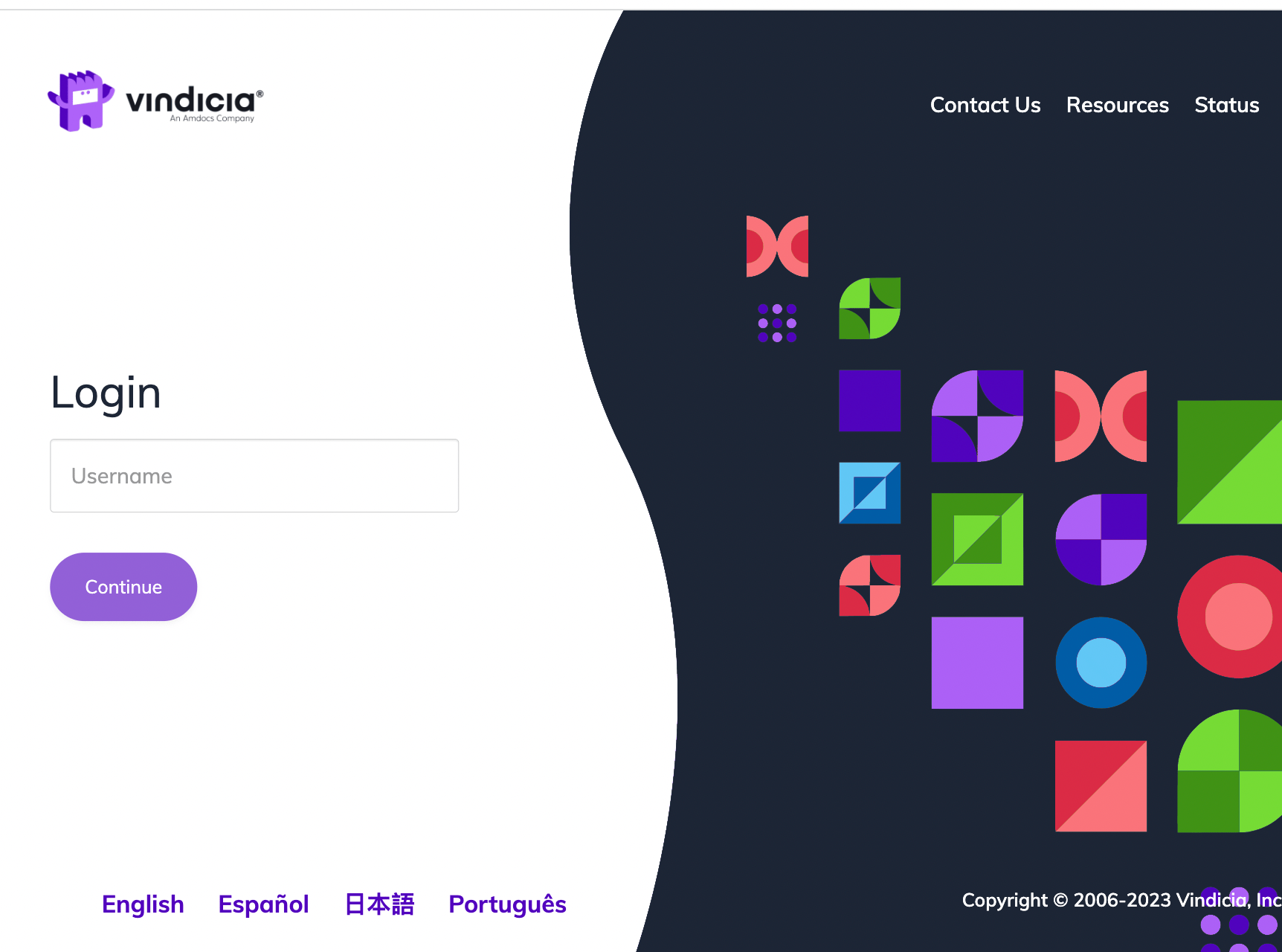 4. In the **Username** field, enter the user name provided in Amdocs' email and click **Continue**.
You are redirected to Amdocs IDP Identity app for authentication.
4. In the **Username** field, enter the user name provided in Amdocs' email and click **Continue**.
You are redirected to Amdocs IDP Identity app for authentication.
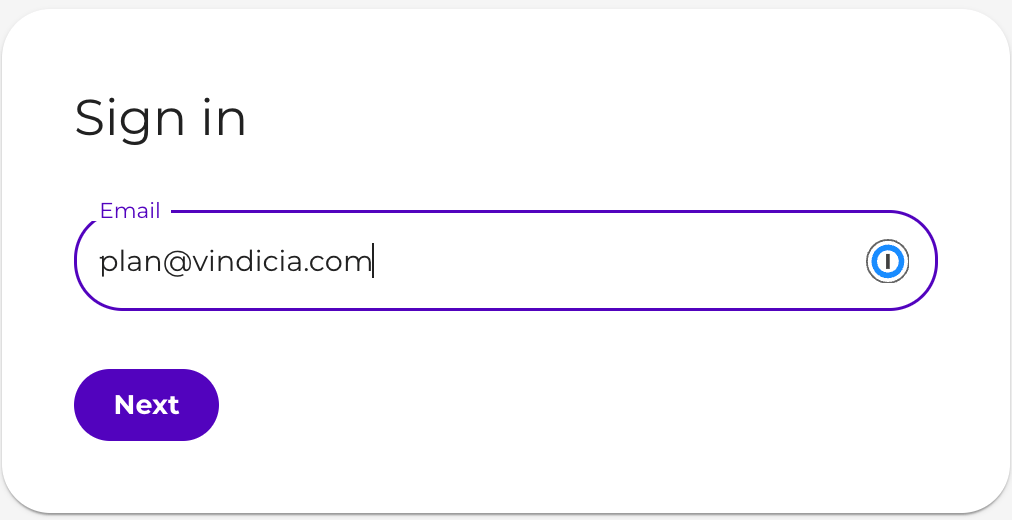 5. Enter your username in the **Email** field and click **Next**.
**Note:** Users whose email domain is linked to more than one instance, are provided an additional field, **Organization Name**.
1. Place your cursor in the **Organization Name** field and start typing the name of the relevant Reseller (Service Provider). A drop down shows the relevant options.
2. Select the relevant option from the list of results.
3. Click **Next**.
For first-time setup, a verification code is sent to your provided email address.
6. Copy the code you received in your email and enter it in the **Enter code** field.
**Tip:** If you did not receive a code in your email or the code timed-out, click **Resend code** to try again.
5. Enter your username in the **Email** field and click **Next**.
**Note:** Users whose email domain is linked to more than one instance, are provided an additional field, **Organization Name**.
1. Place your cursor in the **Organization Name** field and start typing the name of the relevant Reseller (Service Provider). A drop down shows the relevant options.
2. Select the relevant option from the list of results.
3. Click **Next**.
For first-time setup, a verification code is sent to your provided email address.
6. Copy the code you received in your email and enter it in the **Enter code** field.
**Tip:** If you did not receive a code in your email or the code timed-out, click **Resend code** to try again.
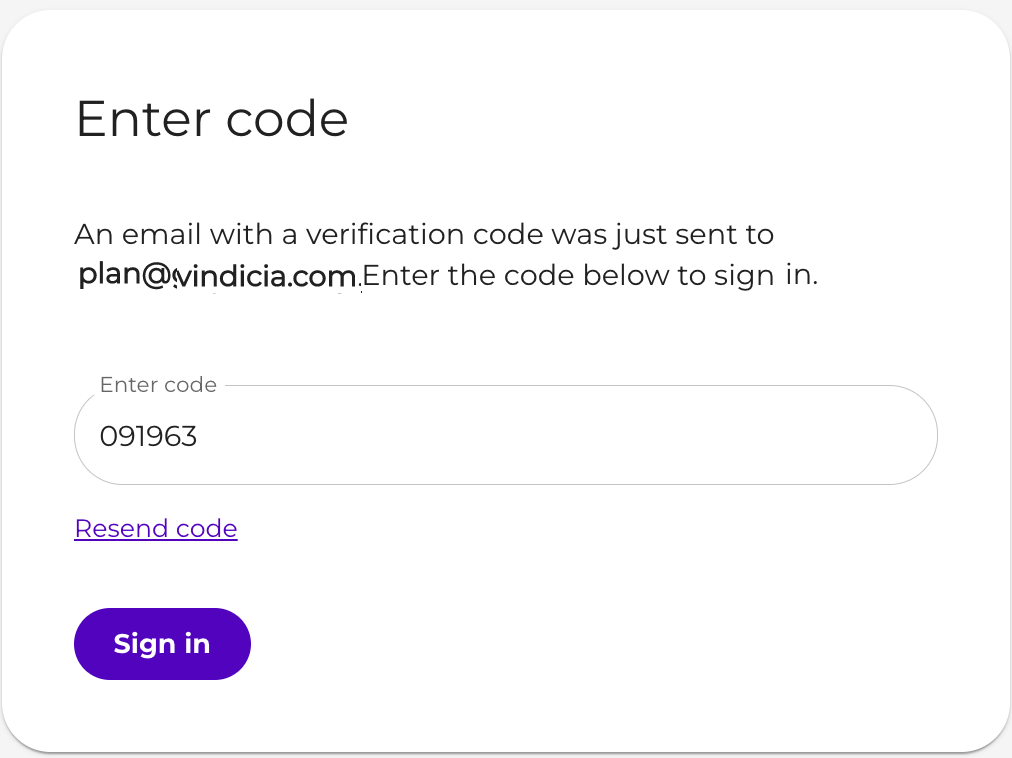 7. Click **Sign in**.
The Set a password screen appears.
8. Define a Password for this account and click **Set Password**. Password must be at least 8 characters long and must include at least one uppercase letter, one lowercase letter, one numerical digit, and one special character.
9. Enable 2 step authentication (multi-factor) by clicking **Enable**
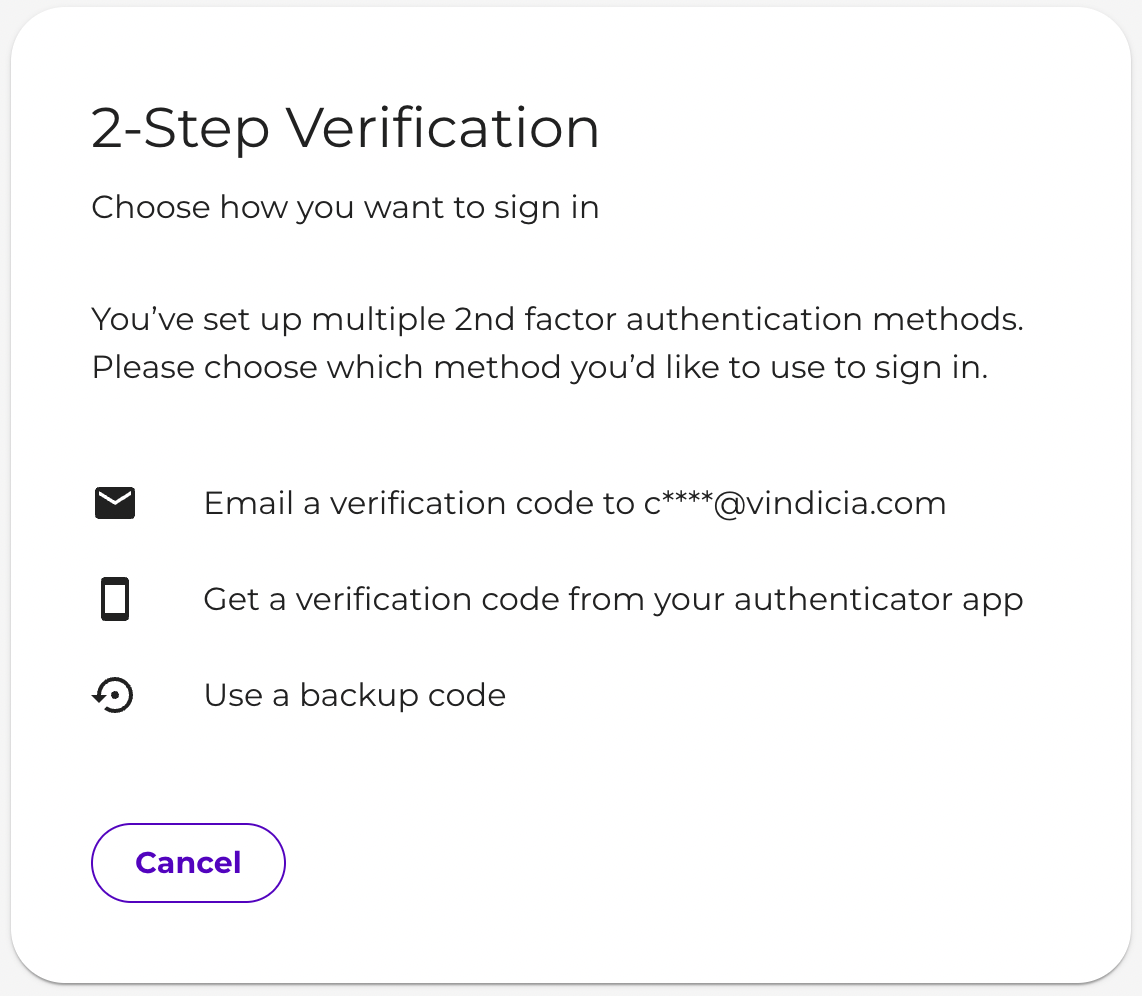
10. Select your additional verification factor.
1. For first-time setup, select from Authentication App code or Email code.
2. Once your initial verification method is established, you can choose from Authentication App code, Email code or use backup codes.
7. Click **Sign in**.
The Set a password screen appears.
8. Define a Password for this account and click **Set Password**. Password must be at least 8 characters long and must include at least one uppercase letter, one lowercase letter, one numerical digit, and one special character.
9. Enable 2 step authentication (multi-factor) by clicking **Enable**
10. Select your additional verification factor.
1. For first-time setup, select from Authentication App code or Email code.
2. Once your initial verification method is established, you can choose from Authentication App code, Email code or use backup codes.
 **Tip:**
* Most authentication Apps are supported. You can use a common one such as MS Authenticator or Google Authenticator. Download the app from your device app store such as Google Play or Apple App store.
11. For first-time setup, verify the additional verification method. For **Authenticator App** do the following:
1. **By Authenticator App**: open the app on your mobile device and add an account
**Tip:** You can either add by scanning the provided QR code or by entering the provided string.
An account is created in the Authenticator App.
**Tip:**
* Most authentication Apps are supported. You can use a common one such as MS Authenticator or Google Authenticator. Download the app from your device app store such as Google Play or Apple App store.
11. For first-time setup, verify the additional verification method. For **Authenticator App** do the following:
1. **By Authenticator App**: open the app on your mobile device and add an account
**Tip:** You can either add by scanning the provided QR code or by entering the provided string.
An account is created in the Authenticator App.
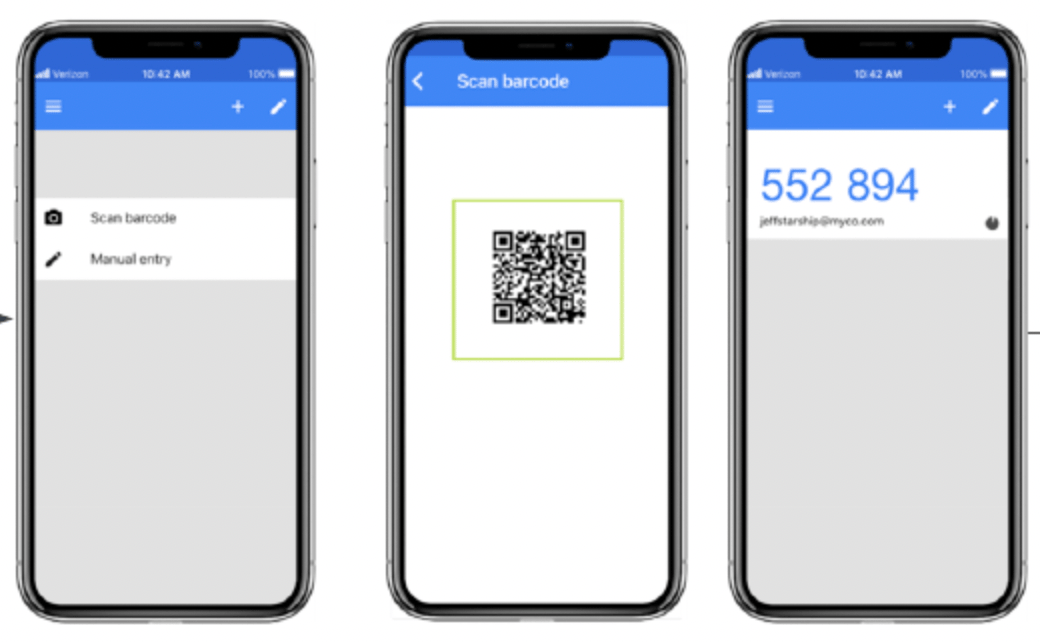 2. Open the account, copy the displayed code and enter it in the **Enter code** field.
3. Click **Verify**.
4. Click **Continue**.
12. For first-time setup, verify the additional verification method. For **Email** do the following:
1. **By Email:** open your email account and find the new email sent to you.
2. Copy the code you received in your email and enter it in the **Enter code** field.
3. Click **Verify**.
4. Click **Continue**.
You have successfully logged in to the Commerce Engine Portal and were redirected to the Portal landing page.
* **[Log in with a Backup Code](careUseBUC)**
**Parent topic:**[Commerce Engine Portal User Guide Introduction](guideIntro)
This documentation is built and hosted on [Mintlify](https://mintlify.com), a developer documentation platform.
2. Open the account, copy the displayed code and enter it in the **Enter code** field.
3. Click **Verify**.
4. Click **Continue**.
12. For first-time setup, verify the additional verification method. For **Email** do the following:
1. **By Email:** open your email account and find the new email sent to you.
2. Copy the code you received in your email and enter it in the **Enter code** field.
3. Click **Verify**.
4. Click **Continue**.
You have successfully logged in to the Commerce Engine Portal and were redirected to the Portal landing page.
* **[Log in with a Backup Code](careUseBUC)**
**Parent topic:**[Commerce Engine Portal User Guide Introduction](guideIntro)
This documentation is built and hosted on [Mintlify](https://mintlify.com), a developer documentation platform.