> ## Documentation Index
> Fetch the complete documentation index at: https://docs.m1amdocs.com/llms.txt
> Use this file to discover all available pages before exploring further.
# Working with Subscriptions
* Subscriptions are created via API or the Commerce Engine Portal. In the Portal, the subscription is created from a specific customer Account page.
* On the start date, the subscription is active.
* You can also cancel an active subscription at any time.
* You can immediately activate a pending subscription (via API only)
* You can pause and resume a subscription
* For an existing subscription, you can modify the payment method, or make a payment.
1. Select your starting point from the following options:
* To create a new Subscription, access the accounts list from **Billing** > **Accounts**. Select the relevant account and in the **Actions** panel, click the **New Subscription** button.
* To edit an existing Subscription, Filter for and select the relevant Subscription from **Billing** > **Subscriptions** and click **Edit**.
**Note:** When filtering for specific subscriptions, use at least one key field (blue background) in the filter. For more details, see [Filtering Subscriptions](filterSubscriptions).
* View the subscription details, from **Billing** > **Subscriptions** search for the relevant subscription. For more details, see [Filtering Subscriptions](filterSubscriptions).
The Subscription page appears.
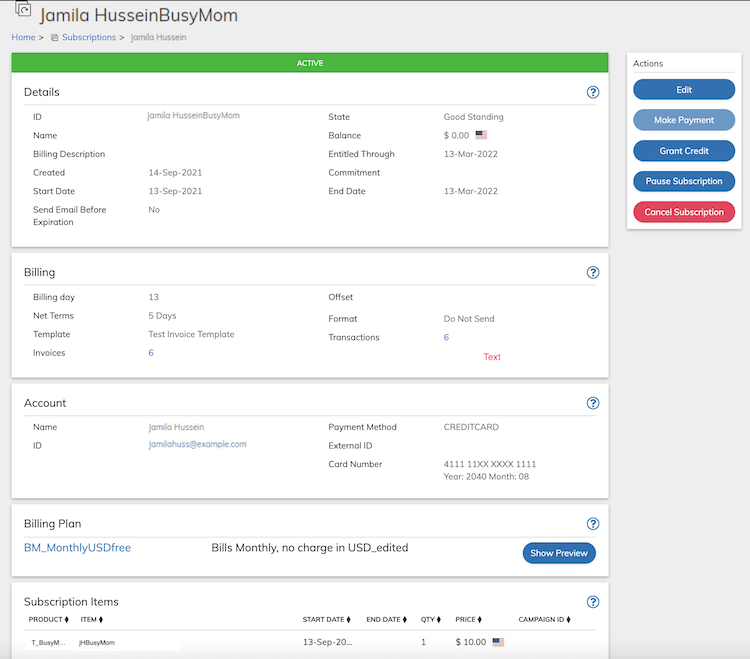
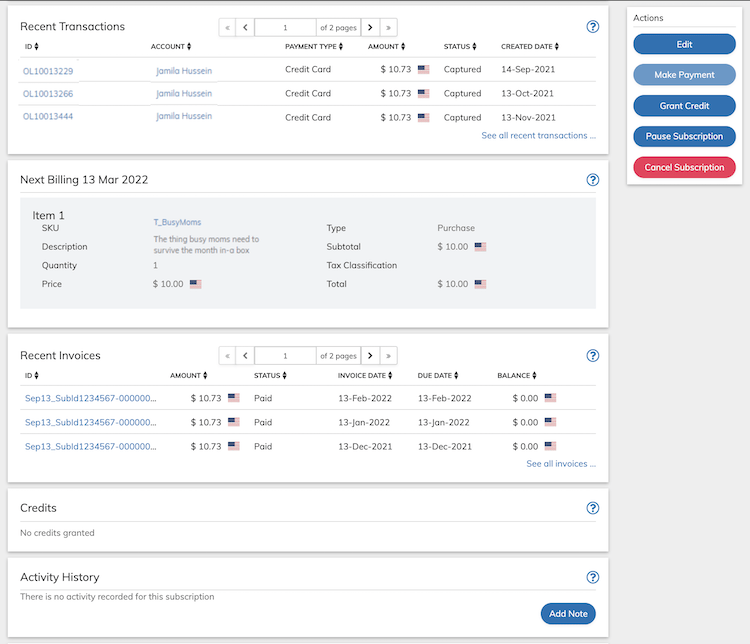 2. Define the subscription fields as needed or view the filled in fields. Refer to the tables below for guidance regarding the fields.
**Note:** For an existing subscription, a banner at the top of the Details pane indicates subscription status.
3. You can edit Subscription details, add Subscription Item, and edit any Subscription Item by clicking **Edit** button that appears on the **Actions** panel. When editing a live Subscription and amending the active item, click the **Modify Active Item** button
2. Define the subscription fields as needed or view the filled in fields. Refer to the tables below for guidance regarding the fields.
**Note:** For an existing subscription, a banner at the top of the Details pane indicates subscription status.
3. You can edit Subscription details, add Subscription Item, and edit any Subscription Item by clicking **Edit** button that appears on the **Actions** panel. When editing a live Subscription and amending the active item, click the **Modify Active Item** button  to change.
4. If you are creating a subscription, click **Save**.
You can return and continue editing the saved Subscription at any time.
If the save is successful, two notifications can appear on the screen:
* **Subscription items were successfully Saved!**
* **Subscription was successfully Saved!**
An error notification appears if an error occurred when saving. Correct the details for new Subscription and save again.
5. If you are editing an existing Subscription, click **Update**.
You can return and continue editing the saved Subscription at any time.
If the save is successful, two notifications can appear on the screen:
* **Subscription items were successfully updated!**
* **Subscription was successfully updated!**
An error notification appears if an error occurred when saving. Correct the details for the existing Subscription and save again.
6. For an existing Subscription, you can apply a payment to the subscription by clicking the **Make Payment** button that appears in the **Actions** panel.
7. For an active Subscription, you can pause the service by clicking [**Pause Subscription**](subscriptionPause) button that appears in the **Actions** panel.
The Paused Subscription no longer actively grants service or is billed. If no other action is taken upon the Subscription (resume is not performed), it will remain paused for 5 years, and then automatically move to canceled status.
**Note:** You can also cancel a paused subscription by clicking the **Cancel Subscription** button that appears in the **Actions** panel.
8. For a paused Subscription, resume the Subscription by clicking the [**Resume Subscription**](subscriptionResume) button that appears in the **Actions** panel.
While resuming a Subscription, you can decide whether to keep the previously used billing date (default) or make the current date the new subscription billing date.
This action resets the subscription state to Active.
9. For an existing Subscription, you can cancel the subscription at any time, by clicking the [**Cancel Subscription**](subscriptionDelete) button that appears in the **Actions** panel. Select the cancel method appropriate to the Subscription.
* **[Subscription Details Pane](subscriptionWorking#subscription-details-pane)**
* **[Subscription Account Pane](subscriptionWorking#subscription-account-pane)**\
The customer account details. The subscription is associated with one account and that account cannot be changed. Other parameters such as payment method can be edited.
* **[Subscription Items Pane](subscriptionWorking#subscription-items-pane)**\
Subscription Items are the Products and services included in the subscription. In order to enable the field, ensure that you selected the relevant currency in the **Currency** field that is part of the details pane. When editing Subscription Items that are active, note that additional fields are added.
* **[Subscription Billing Plan Pane](subscriptionWorking#subscription-billing-plan-pane)**
* **[Custom Data](subscriptionWorking#custom-data)**\
Custom data lets you store Reseller (Service Provider)-specific data to Products, Rate Plans, Billing Plans, Subscriptions, Accounts, and Payment Methods as a pair of matched text strings, called name-value pairs. These name-value pairs can help you categorize and sort aspects of your objects. Use **Name** to define a category, and **Value** to define a specific item in that category. For example, you could use name-value pairs to track your sales teams. Define a name-value pair with Office as the **Name** and the city in which the office is located as the **Value**.
**Parent topic:**[Subscriptions](subscriptionAbout)
## Subscription Details Pane
| Field | Guidance | Relevancy |
| - | - | - |
| **Create/Edit View** | | |
| **ID** | Your unique identifier for this subscription. | Required |
| **Name** | Name of the Subscription. This name is used for your internal use. It is not the same as the billing description that will appear on your customers’ credit card statements. | Optional |
| **Billing Description** | Enter a meaningful description for the subscription. | Optional |
| **Affiliate ID** | Custom text field, used to track the affiliate associated with the subscription. | Optional |
| **Sub-Affiliate ID** | Custom text field, used to track the sub-affiliate associated with the subscription. | Optional |
| **Currency** | The currency associated with the subscription using the ISO-4217 three-letter format. Select one currency from the drop-down menu. | Required |
| **Start Date** | The date the subscription starts its activity. | Required |
| **Billing Day** | The date of the month to bill the subscription.If you select a number greater than the last day of a given month, the subscription will bill on the last day of that month. | Optional |
| **Net Terms** | Defines the number of days before a payment is processed that a billing statement will be sent to the customer. For **Reseller Accepted Payment** payment method, it defines the number of days after the billing date that the Invoice will be due. | Optional |
| **Minimum Commitment** | The minimum number of billing cycles required for this subscription. If customers can leave subscription at any time, leave as default - 0. | Optional |
| **Send Email Before Expiration** | **Yes** or **No** Toggle. The toggle indicates whether to send a billing notification when the subscription is transitioning from a free trial or expiring. If **Yes** is selected, the billing notification is sent based on the billing plan rule for the number of days to send before expiration. Default value is No. | Optional |
| **View Only** | | |
| **Status** | The current Subscription service status is displayed in the title bar of this pane. Possible statuses are: - **Active**: The Subscription is actively granting entitled service and billing in accordance with the assigned Billing Plan and associated Subscription Items. - **Cancelled**: The Subscription is no longer actively granting service. It has been cancelled due to user, Reseller (Service Provider), or system action—for example, the customer has opted out of recurring billing or canceled the service; or API calls to cancel the subscription or stop billing on the Customer have been made. Cancelled is a terminal and permanent status. The Billing condition of this Subscription is clarified by the current Billing State. Note that the customer who owns the Subscription is entitled until the Subscription's end-date. - **Deleted**: The Subscription was administratively removed—the content of this status can only be displayed in custom and specialty reports. - **Expired**: The Subscription is no longer actively granting service—its fixed or non-recurring plan has ended and no further billing is scheduled or possible. - **Legacy Suspended**: This status is used in limited scenarios for legacy Subscriptions that ended with a Hard Fail status but which did not otherwise meet the conditions of the new status values. - **Pending Activation**: The Subscription has been fully created, has a start date that is in the future, and has not yet granted entitled service and is not yet billing. The Subscription start date can still be changed. - **Pending Cancel**: The Subscription is Active but scheduled for cancellation. The Subscription will leave active service at the current end date. - **Processing**: The Subscription is newly created and still being administratively defined. It is not currently providing entitled service and is not yet billing. Typically this status will be followed by Pending Activation where the Subscription has been completely created but has a future start date and is not yet entitled or billing. - **Upgraded**: A terminal status given to an older version of a Subscription that has been explicitly transitioned using the AutoBill.upgrade() API method. - **Pending Pause**: The Subscription is Active but scheduled for pause. The Subscription will be paused on the next pause start date. It will remain paused with no end date. - **Paused**: The Subscription is no longer actively granting service or being billed. If no other action is taken upon the Subscription (resume is not performed), it will remain paused for 5 years, and then automatically move to cancelled status. | Read only |
| **Created** | The date the Subscription was created. | Automatic |
| **Send Email Before Expiration** | This is an indication whether a billing notification will be sent regarding the trial-end or expiration of the subscription. | Read only |
| **State** | The current billing state of the Subscription. Its values are:- **Good Standing**: Billing for the current billing period was successful - **Free/Trial**: The subscriptions current Billing Period definition (as specified by the current Billing Plan) is forcibly free. This can be a temporary state or for the duration of the billing period configured to be free-or permanent if the Billing Plan is permanently free. This state does not apply when the free condition is arrived at due to a Campaign application. - **In Retry**: The Subscription is still active but in retry, and has at least one billing period in which there was a failed attempt to charge; the Subscription is still within the configured retry period and may yet be saved by automated processes or customer action. This state corresponds to the prior Soft Error status. In the new scheme, it will only be paired with the Active status. - **Unusable Payment Method**: The Subscription is still active but is in retry, and has at least one billing period in which there was a failed attempt to charge, and received an error code designated as a Hard Fail, which is expected to be unrecoverable. The Subscription will remain in this state, in the expectation that a new payment method will be provided by the customer, until the specified retry, or grace period, expires. This state corresponds to the previous Hard Error status when the subscription end date has not passed. - **Billing Completed**: The Subscription is not active; it successfully completed all required billing and has no further scheduled billings. - **Failed to Collect**: The Subscription is no longer active, having exhausted the retry period without a successful payment method update. This state corresponds to the previous Hard Error status, in which the Subscription end date has passed. This state will only exist for an Subscription with the status: Canceled. - **Pending Acceptance**: The Subscription uses a payment method that requires Reseller (Service Provider) or customer action before charges can be processed, and is waiting on that external action or approval. - **Free Period**: The Subscription is currently in a free or \$0 billing period for any period excepting a Free=True condition on the initial billing period only, (which uses the Free/Trial state). - **Terminated**: The Subscription has been forced into a terminal state by system or Reseller (Service Provider) action. No further billing is planned. - **Grace Period**: The Subscription has an unpaid balance and is in the retry period but has passed the last scheduled retry attempt-the only path to recovery is a successful payment method update (usually customer intervention). The Subscription is still active and entitled until the end of the Grace Period. | Read only |
| **Balance** | Outstanding balance amount of the subscription along with the national flag icon representing currency. | Calculated |
| **Entitled Through** | The date through which the subscription is currently entitled (providing service). This is typically updated after each successful billing event. | Read only |
| **End Date** | The date the subscription current service period ends. This is typically updated after each successful billing event. | Read only |
| **Parent topic:**[Working with Subscriptions](subscriptionWorking) | | |
## Subscription Account Pane
The customer account details. The subscription is associated with one account and that account cannot be changed. Other parameters such as payment method can be edited.
| Field | Guidance | Relevancy |
| - | - | - |
| **Create/Edit View** | | |
| **Name** | Customer’s full name—typically corresponds to the name associated with the payment method on the account. | Read only |
| **ID** | Your unique identifier for this customer such as the database ID. The ID is a string of up to 1024 bytes with digits, characters and special symbols support such as [anonymoususer1234@yourcompany.edu](mailto:anonymoususer1234@yourcompany.edu) Click the ID to access the associated account page. | N/A |
| **Subscription Bills** | The date of the month on which the subscription is (typically) billed. | Read only |
| **Payment Method** | The Payment Method responsible for payment of the subscription. Select from the drop-down menu. All payment methods for the account are listed. | Optional |
| **External ID** | An optional unique ID you can use in place of the AccountId, or in conjunction with it by mapping the AccountId to your Reseller (Service Provider)-facing Interface, and the externalId to your external billing system.**Tip:** Best Practice is to use this field when you have two external (non-Commerce Engine) systems using two different identification schemes for the same customer. Note that the externalId must be unique or null in the system. Attempting to create an Account with an existing externalId will return a Failed response to an update Account API call with no specific error. | Optional |
| **Entitled Through** | The date through which the subscription is currently entitled (providing service). This is typically updated after each successful billing event. | Read Only |
| **Email Before Billing** | Indicates whether to send pre-billing notifications to the customer prior to automatic subscription-period renewal. This is a read-only field as based on input in the Account.**Note:** This setting only affects Commerce Engine pre-billing notifications. Other notifications such as Success, Expiration, and failure messages, are independent of this setting. | Read Only |
| **View Only** | | |
| **Name** | Customer’s full name—typically corresponds to the name associated with the payment method on the account. | |
| **ID** | Your unique identifier for this customer such as the database ID. The ID is a string of up to 1024 bytes with digits, characters and special symbols support such as [anonymoususer1234@yourcompany.eduClick](mailto:anonymoususer1234@yourcompany.eduClick) the ID to access the associated account page. | |
| **External ID** | An optional unique ID you can use in place of the AccountId, or in conjunction with it by mapping the AccountId to your Reseller (Service Provider)-facing Interface, and the externalId to your external billing system. | |
| **Payment Method** | The Payment Method responsible for payment of the subscription. For a list of supported payment methods, see [Account Payment Methods Pane](accountViewing#account-payment-methods-pane). | Read Only |
| **Parent topic:**[Working with Subscriptions](subscriptionWorking) | | |
## Subscription Items Pane
Subscription Items are the Products and services included in the subscription. In order to enable the field, ensure that you selected the relevant currency in the **Currency** field that is part of the details pane. When editing Subscription Items that are active, note that additional fields are added.
| Field | Guidance | Relevancy |
| - | - | - |
| **Create View** | | |
| **Product** | The Product ID as defined in the Product catalog. Select a product from the dropdown list or use the search bar to search for one. Only products that can use the relevant currency appear in the list. You can add multiple product by clicking the **Add Product** button.**Tip:** The first product listed is considered the primary product for the subscription. It is the product associated with the subscription in the Commerce Engine Dashboards and Reports. | Required |
| **ID** | Enter your unique ID that associates the product being purchased to the Subscription. | Required |
| **Quantity** | Enter the number of units of a product purchased in this subscription. Commerce Engine uses this number to determine the cost of the item to the customer. For license-based items (rated, pre-paid products), the Quantity value will be used with the appropriate Rate Plan tier structure to determine the charge. | Required |
| **Campaign Code** | Enter a campaign code (Promotion or coupon code) to be applied to this product, if applicable. | Optional |
| **Override Pricing Defaults** | **Yes**/**No** toggle. If you wish to override the default pricing for this product on this subscription select **Yes** and enter the relevant currency and amount or select default to use the Product price. Default value is No. | Optional |
| **Start Date** | Click the calendar icon to select a date you want the Subscription Item (Product) to become Active on the subscription. By default, the current date appears. | Required |
| **Cycle Unlimited** | **Yes**/**No** toggle. If you want to specify the number of cycles relevant for the subscription, move to No and enter the number of Times you want the billing cycle to repeat. Default value is Yes. | Optional |
| **Cycles Left** | The number of remaining billing cycles relevant for the product within the subscription. This is calculated and is updated after each billing cycle. | Read Only |
| **Add Product** | To add additional products to the subscription click the **Add Product** button and fill out the appropriate fields | Optional |
| **Editing an active subscription** | | |
| **Modify Active Item** | Reopens the active subscription item and allows you to remove the item or change its settings. Click the **Remove Item** button to remove entirely from the subscription.**Note:** When modifying a Subscription Item, the ID field is optional. For all new Subscription Items, the ID field is required. | Optional |
| **Update Option** | When modifying a subscription you must select an update option this will govern all modifications to the Subscription. - **Update Now, No Proration**(default value)—Add/remove the product now, entitle/disentitle now but don't change any billing. - **Update Now, Prorate**—Add/remove the product now, entitle/disentitle now calculate charges for added items and bill account accordingly. - **Update Next Billing Period**—Add/Remove the product and entitle/disentitle at the next billing cycle. No proration necessary. | Required |
| **When viewing the Subscription Items Pane** | | |
| **Product** | The unique identifier of the associated product. Click the **Product ID** to access the relevant product page | Optional |
| **Item** | The Unique identifier that associates this product to the subscription. | Read only |
| **Start Date** and **End Date** | Specifies when the subscription was activated and when it ends. If the end date is not known this field remains blank. It will be populated when and if the product is removed from the subscription. | Read only |
| **Qty** | Quantity of the product item units purchased by the subscription. For license-based rated products, Quantity indicates the license count and is used to calculate the amount based on the rating tables. | Read only |
| **Price** | The total price of the item (including tax) and currency as represented by the national flag. | Read only |
| **Description** | The billing plan description. | Read only |
| **Campaign ID** | If a campaign code was applied to the Subscription Item during purchasing, the campaign ID of the associated campaign appears for the item. | Read only |
| **Cycles** | This displays the current cycle of the subscription. For example if the third billing cycle of the billing plan is complete this will be 3. Each cycle that completes will increment this count until this billing cycle is complete. | Read only |
| **Cycles Left** | The number of remaining billing cycles relevant for the product within the subscription. | Read only |
| **Parent topic:**[Working with Subscriptions](subscriptionWorking) | | |
## Subscription Billing Plan Pane
| Field | Guidance | Relevancy |
| - | - | - |
| **Create View** | | |
| **Billing Plan** | Select or change the billing plan for this subscription (click **Preview** to see details of the plan), or click **Select Default** to use the default billing plan on the account. | Required |
| **Campaign Code** | Enter a campaign code (Promotion or coupon code) to be applied to this billing plan, if applicable. | Optional |
| **Editing/viewing an active subscription** | | |
| **Billing Plan** | The Billing Plan ID. Click the ID to access the Billing Plan. | Read only |
| **Select Default** | Click this button to use the default billing plan on the account for this subscription. | Optional |
| **Show Preview** | Click Preview to see read-only details of the selected billing plan. From this page you can open the billing plan if changes are required. | Optional |
**Parent topic:**[Working with Subscriptions](subscriptionWorking)
## Custom Data
Custom data lets you store Reseller (Service Provider)-specific data to Products, Rate Plans, Billing Plans, Subscriptions, Accounts, and Payment Methods as a pair of matched text strings, called name-value pairs. These name-value pairs can help you categorize and sort aspects of your objects. Use **Name** to define a category, and **Value** to define a specific item in that category. For example, you could use name-value pairs to track your sales teams. Define a name-value pair with Office as the **Name** and the city in which the office is located as the **Value**.
| Field | Guidance | Relevancy |
| - | - | - |
| **Name** | Name is the field for defining metadata. It is unique and once submitted can't be changed. 1. Place your cursor in the selection box and either select from existing Names or enter a new Name. 2. For a new entry, click **Create New:** 3. Enter a Value for the Name. 4. Click **Add** to save this pair. **Note:** - Name field is limited to 255 characters. - System generated parameters use the prefix **vin** in the name field. | Required if adding custom data |
| **Value** | 1. Once you've selected/created a Name. 2. Enter the category's Value in the corresponding field. 3. Click **Add** to save this pair. **Note:** Value field is limited to 255 characters. | Required if adding custom data |
| **Parent topic:**[Working with Subscriptions](subscriptionWorking) | | |
This documentation is built and hosted on [Mintlify](https://mintlify.com), a developer documentation platform.
to change.
4. If you are creating a subscription, click **Save**.
You can return and continue editing the saved Subscription at any time.
If the save is successful, two notifications can appear on the screen:
* **Subscription items were successfully Saved!**
* **Subscription was successfully Saved!**
An error notification appears if an error occurred when saving. Correct the details for new Subscription and save again.
5. If you are editing an existing Subscription, click **Update**.
You can return and continue editing the saved Subscription at any time.
If the save is successful, two notifications can appear on the screen:
* **Subscription items were successfully updated!**
* **Subscription was successfully updated!**
An error notification appears if an error occurred when saving. Correct the details for the existing Subscription and save again.
6. For an existing Subscription, you can apply a payment to the subscription by clicking the **Make Payment** button that appears in the **Actions** panel.
7. For an active Subscription, you can pause the service by clicking [**Pause Subscription**](subscriptionPause) button that appears in the **Actions** panel.
The Paused Subscription no longer actively grants service or is billed. If no other action is taken upon the Subscription (resume is not performed), it will remain paused for 5 years, and then automatically move to canceled status.
**Note:** You can also cancel a paused subscription by clicking the **Cancel Subscription** button that appears in the **Actions** panel.
8. For a paused Subscription, resume the Subscription by clicking the [**Resume Subscription**](subscriptionResume) button that appears in the **Actions** panel.
While resuming a Subscription, you can decide whether to keep the previously used billing date (default) or make the current date the new subscription billing date.
This action resets the subscription state to Active.
9. For an existing Subscription, you can cancel the subscription at any time, by clicking the [**Cancel Subscription**](subscriptionDelete) button that appears in the **Actions** panel. Select the cancel method appropriate to the Subscription.
* **[Subscription Details Pane](subscriptionWorking#subscription-details-pane)**
* **[Subscription Account Pane](subscriptionWorking#subscription-account-pane)**\
The customer account details. The subscription is associated with one account and that account cannot be changed. Other parameters such as payment method can be edited.
* **[Subscription Items Pane](subscriptionWorking#subscription-items-pane)**\
Subscription Items are the Products and services included in the subscription. In order to enable the field, ensure that you selected the relevant currency in the **Currency** field that is part of the details pane. When editing Subscription Items that are active, note that additional fields are added.
* **[Subscription Billing Plan Pane](subscriptionWorking#subscription-billing-plan-pane)**
* **[Custom Data](subscriptionWorking#custom-data)**\
Custom data lets you store Reseller (Service Provider)-specific data to Products, Rate Plans, Billing Plans, Subscriptions, Accounts, and Payment Methods as a pair of matched text strings, called name-value pairs. These name-value pairs can help you categorize and sort aspects of your objects. Use **Name** to define a category, and **Value** to define a specific item in that category. For example, you could use name-value pairs to track your sales teams. Define a name-value pair with Office as the **Name** and the city in which the office is located as the **Value**.
**Parent topic:**[Subscriptions](subscriptionAbout)
## Subscription Details Pane
| Field | Guidance | Relevancy |
| - | - | - |
| **Create/Edit View** | | |
| **ID** | Your unique identifier for this subscription. | Required |
| **Name** | Name of the Subscription. This name is used for your internal use. It is not the same as the billing description that will appear on your customers’ credit card statements. | Optional |
| **Billing Description** | Enter a meaningful description for the subscription. | Optional |
| **Affiliate ID** | Custom text field, used to track the affiliate associated with the subscription. | Optional |
| **Sub-Affiliate ID** | Custom text field, used to track the sub-affiliate associated with the subscription. | Optional |
| **Currency** | The currency associated with the subscription using the ISO-4217 three-letter format. Select one currency from the drop-down menu. | Required |
| **Start Date** | The date the subscription starts its activity. | Required |
| **Billing Day** | The date of the month to bill the subscription.If you select a number greater than the last day of a given month, the subscription will bill on the last day of that month. | Optional |
| **Net Terms** | Defines the number of days before a payment is processed that a billing statement will be sent to the customer. For **Reseller Accepted Payment** payment method, it defines the number of days after the billing date that the Invoice will be due. | Optional |
| **Minimum Commitment** | The minimum number of billing cycles required for this subscription. If customers can leave subscription at any time, leave as default - 0. | Optional |
| **Send Email Before Expiration** | **Yes** or **No** Toggle. The toggle indicates whether to send a billing notification when the subscription is transitioning from a free trial or expiring. If **Yes** is selected, the billing notification is sent based on the billing plan rule for the number of days to send before expiration. Default value is No. | Optional |
| **View Only** | | |
| **Status** | The current Subscription service status is displayed in the title bar of this pane. Possible statuses are: - **Active**: The Subscription is actively granting entitled service and billing in accordance with the assigned Billing Plan and associated Subscription Items. - **Cancelled**: The Subscription is no longer actively granting service. It has been cancelled due to user, Reseller (Service Provider), or system action—for example, the customer has opted out of recurring billing or canceled the service; or API calls to cancel the subscription or stop billing on the Customer have been made. Cancelled is a terminal and permanent status. The Billing condition of this Subscription is clarified by the current Billing State. Note that the customer who owns the Subscription is entitled until the Subscription's end-date. - **Deleted**: The Subscription was administratively removed—the content of this status can only be displayed in custom and specialty reports. - **Expired**: The Subscription is no longer actively granting service—its fixed or non-recurring plan has ended and no further billing is scheduled or possible. - **Legacy Suspended**: This status is used in limited scenarios for legacy Subscriptions that ended with a Hard Fail status but which did not otherwise meet the conditions of the new status values. - **Pending Activation**: The Subscription has been fully created, has a start date that is in the future, and has not yet granted entitled service and is not yet billing. The Subscription start date can still be changed. - **Pending Cancel**: The Subscription is Active but scheduled for cancellation. The Subscription will leave active service at the current end date. - **Processing**: The Subscription is newly created and still being administratively defined. It is not currently providing entitled service and is not yet billing. Typically this status will be followed by Pending Activation where the Subscription has been completely created but has a future start date and is not yet entitled or billing. - **Upgraded**: A terminal status given to an older version of a Subscription that has been explicitly transitioned using the AutoBill.upgrade() API method. - **Pending Pause**: The Subscription is Active but scheduled for pause. The Subscription will be paused on the next pause start date. It will remain paused with no end date. - **Paused**: The Subscription is no longer actively granting service or being billed. If no other action is taken upon the Subscription (resume is not performed), it will remain paused for 5 years, and then automatically move to cancelled status. | Read only |
| **Created** | The date the Subscription was created. | Automatic |
| **Send Email Before Expiration** | This is an indication whether a billing notification will be sent regarding the trial-end or expiration of the subscription. | Read only |
| **State** | The current billing state of the Subscription. Its values are:- **Good Standing**: Billing for the current billing period was successful - **Free/Trial**: The subscriptions current Billing Period definition (as specified by the current Billing Plan) is forcibly free. This can be a temporary state or for the duration of the billing period configured to be free-or permanent if the Billing Plan is permanently free. This state does not apply when the free condition is arrived at due to a Campaign application. - **In Retry**: The Subscription is still active but in retry, and has at least one billing period in which there was a failed attempt to charge; the Subscription is still within the configured retry period and may yet be saved by automated processes or customer action. This state corresponds to the prior Soft Error status. In the new scheme, it will only be paired with the Active status. - **Unusable Payment Method**: The Subscription is still active but is in retry, and has at least one billing period in which there was a failed attempt to charge, and received an error code designated as a Hard Fail, which is expected to be unrecoverable. The Subscription will remain in this state, in the expectation that a new payment method will be provided by the customer, until the specified retry, or grace period, expires. This state corresponds to the previous Hard Error status when the subscription end date has not passed. - **Billing Completed**: The Subscription is not active; it successfully completed all required billing and has no further scheduled billings. - **Failed to Collect**: The Subscription is no longer active, having exhausted the retry period without a successful payment method update. This state corresponds to the previous Hard Error status, in which the Subscription end date has passed. This state will only exist for an Subscription with the status: Canceled. - **Pending Acceptance**: The Subscription uses a payment method that requires Reseller (Service Provider) or customer action before charges can be processed, and is waiting on that external action or approval. - **Free Period**: The Subscription is currently in a free or \$0 billing period for any period excepting a Free=True condition on the initial billing period only, (which uses the Free/Trial state). - **Terminated**: The Subscription has been forced into a terminal state by system or Reseller (Service Provider) action. No further billing is planned. - **Grace Period**: The Subscription has an unpaid balance and is in the retry period but has passed the last scheduled retry attempt-the only path to recovery is a successful payment method update (usually customer intervention). The Subscription is still active and entitled until the end of the Grace Period. | Read only |
| **Balance** | Outstanding balance amount of the subscription along with the national flag icon representing currency. | Calculated |
| **Entitled Through** | The date through which the subscription is currently entitled (providing service). This is typically updated after each successful billing event. | Read only |
| **End Date** | The date the subscription current service period ends. This is typically updated after each successful billing event. | Read only |
| **Parent topic:**[Working with Subscriptions](subscriptionWorking) | | |
## Subscription Account Pane
The customer account details. The subscription is associated with one account and that account cannot be changed. Other parameters such as payment method can be edited.
| Field | Guidance | Relevancy |
| - | - | - |
| **Create/Edit View** | | |
| **Name** | Customer’s full name—typically corresponds to the name associated with the payment method on the account. | Read only |
| **ID** | Your unique identifier for this customer such as the database ID. The ID is a string of up to 1024 bytes with digits, characters and special symbols support such as [anonymoususer1234@yourcompany.edu](mailto:anonymoususer1234@yourcompany.edu) Click the ID to access the associated account page. | N/A |
| **Subscription Bills** | The date of the month on which the subscription is (typically) billed. | Read only |
| **Payment Method** | The Payment Method responsible for payment of the subscription. Select from the drop-down menu. All payment methods for the account are listed. | Optional |
| **External ID** | An optional unique ID you can use in place of the AccountId, or in conjunction with it by mapping the AccountId to your Reseller (Service Provider)-facing Interface, and the externalId to your external billing system.**Tip:** Best Practice is to use this field when you have two external (non-Commerce Engine) systems using two different identification schemes for the same customer. Note that the externalId must be unique or null in the system. Attempting to create an Account with an existing externalId will return a Failed response to an update Account API call with no specific error. | Optional |
| **Entitled Through** | The date through which the subscription is currently entitled (providing service). This is typically updated after each successful billing event. | Read Only |
| **Email Before Billing** | Indicates whether to send pre-billing notifications to the customer prior to automatic subscription-period renewal. This is a read-only field as based on input in the Account.**Note:** This setting only affects Commerce Engine pre-billing notifications. Other notifications such as Success, Expiration, and failure messages, are independent of this setting. | Read Only |
| **View Only** | | |
| **Name** | Customer’s full name—typically corresponds to the name associated with the payment method on the account. | |
| **ID** | Your unique identifier for this customer such as the database ID. The ID is a string of up to 1024 bytes with digits, characters and special symbols support such as [anonymoususer1234@yourcompany.eduClick](mailto:anonymoususer1234@yourcompany.eduClick) the ID to access the associated account page. | |
| **External ID** | An optional unique ID you can use in place of the AccountId, or in conjunction with it by mapping the AccountId to your Reseller (Service Provider)-facing Interface, and the externalId to your external billing system. | |
| **Payment Method** | The Payment Method responsible for payment of the subscription. For a list of supported payment methods, see [Account Payment Methods Pane](accountViewing#account-payment-methods-pane). | Read Only |
| **Parent topic:**[Working with Subscriptions](subscriptionWorking) | | |
## Subscription Items Pane
Subscription Items are the Products and services included in the subscription. In order to enable the field, ensure that you selected the relevant currency in the **Currency** field that is part of the details pane. When editing Subscription Items that are active, note that additional fields are added.
| Field | Guidance | Relevancy |
| - | - | - |
| **Create View** | | |
| **Product** | The Product ID as defined in the Product catalog. Select a product from the dropdown list or use the search bar to search for one. Only products that can use the relevant currency appear in the list. You can add multiple product by clicking the **Add Product** button.**Tip:** The first product listed is considered the primary product for the subscription. It is the product associated with the subscription in the Commerce Engine Dashboards and Reports. | Required |
| **ID** | Enter your unique ID that associates the product being purchased to the Subscription. | Required |
| **Quantity** | Enter the number of units of a product purchased in this subscription. Commerce Engine uses this number to determine the cost of the item to the customer. For license-based items (rated, pre-paid products), the Quantity value will be used with the appropriate Rate Plan tier structure to determine the charge. | Required |
| **Campaign Code** | Enter a campaign code (Promotion or coupon code) to be applied to this product, if applicable. | Optional |
| **Override Pricing Defaults** | **Yes**/**No** toggle. If you wish to override the default pricing for this product on this subscription select **Yes** and enter the relevant currency and amount or select default to use the Product price. Default value is No. | Optional |
| **Start Date** | Click the calendar icon to select a date you want the Subscription Item (Product) to become Active on the subscription. By default, the current date appears. | Required |
| **Cycle Unlimited** | **Yes**/**No** toggle. If you want to specify the number of cycles relevant for the subscription, move to No and enter the number of Times you want the billing cycle to repeat. Default value is Yes. | Optional |
| **Cycles Left** | The number of remaining billing cycles relevant for the product within the subscription. This is calculated and is updated after each billing cycle. | Read Only |
| **Add Product** | To add additional products to the subscription click the **Add Product** button and fill out the appropriate fields | Optional |
| **Editing an active subscription** | | |
| **Modify Active Item** | Reopens the active subscription item and allows you to remove the item or change its settings. Click the **Remove Item** button to remove entirely from the subscription.**Note:** When modifying a Subscription Item, the ID field is optional. For all new Subscription Items, the ID field is required. | Optional |
| **Update Option** | When modifying a subscription you must select an update option this will govern all modifications to the Subscription. - **Update Now, No Proration**(default value)—Add/remove the product now, entitle/disentitle now but don't change any billing. - **Update Now, Prorate**—Add/remove the product now, entitle/disentitle now calculate charges for added items and bill account accordingly. - **Update Next Billing Period**—Add/Remove the product and entitle/disentitle at the next billing cycle. No proration necessary. | Required |
| **When viewing the Subscription Items Pane** | | |
| **Product** | The unique identifier of the associated product. Click the **Product ID** to access the relevant product page | Optional |
| **Item** | The Unique identifier that associates this product to the subscription. | Read only |
| **Start Date** and **End Date** | Specifies when the subscription was activated and when it ends. If the end date is not known this field remains blank. It will be populated when and if the product is removed from the subscription. | Read only |
| **Qty** | Quantity of the product item units purchased by the subscription. For license-based rated products, Quantity indicates the license count and is used to calculate the amount based on the rating tables. | Read only |
| **Price** | The total price of the item (including tax) and currency as represented by the national flag. | Read only |
| **Description** | The billing plan description. | Read only |
| **Campaign ID** | If a campaign code was applied to the Subscription Item during purchasing, the campaign ID of the associated campaign appears for the item. | Read only |
| **Cycles** | This displays the current cycle of the subscription. For example if the third billing cycle of the billing plan is complete this will be 3. Each cycle that completes will increment this count until this billing cycle is complete. | Read only |
| **Cycles Left** | The number of remaining billing cycles relevant for the product within the subscription. | Read only |
| **Parent topic:**[Working with Subscriptions](subscriptionWorking) | | |
## Subscription Billing Plan Pane
| Field | Guidance | Relevancy |
| - | - | - |
| **Create View** | | |
| **Billing Plan** | Select or change the billing plan for this subscription (click **Preview** to see details of the plan), or click **Select Default** to use the default billing plan on the account. | Required |
| **Campaign Code** | Enter a campaign code (Promotion or coupon code) to be applied to this billing plan, if applicable. | Optional |
| **Editing/viewing an active subscription** | | |
| **Billing Plan** | The Billing Plan ID. Click the ID to access the Billing Plan. | Read only |
| **Select Default** | Click this button to use the default billing plan on the account for this subscription. | Optional |
| **Show Preview** | Click Preview to see read-only details of the selected billing plan. From this page you can open the billing plan if changes are required. | Optional |
**Parent topic:**[Working with Subscriptions](subscriptionWorking)
## Custom Data
Custom data lets you store Reseller (Service Provider)-specific data to Products, Rate Plans, Billing Plans, Subscriptions, Accounts, and Payment Methods as a pair of matched text strings, called name-value pairs. These name-value pairs can help you categorize and sort aspects of your objects. Use **Name** to define a category, and **Value** to define a specific item in that category. For example, you could use name-value pairs to track your sales teams. Define a name-value pair with Office as the **Name** and the city in which the office is located as the **Value**.
| Field | Guidance | Relevancy |
| - | - | - |
| **Name** | Name is the field for defining metadata. It is unique and once submitted can't be changed. 1. Place your cursor in the selection box and either select from existing Names or enter a new Name. 2. For a new entry, click **Create New:** 3. Enter a Value for the Name. 4. Click **Add** to save this pair. **Note:** - Name field is limited to 255 characters. - System generated parameters use the prefix **vin** in the name field. | Required if adding custom data |
| **Value** | 1. Once you've selected/created a Name. 2. Enter the category's Value in the corresponding field. 3. Click **Add** to save this pair. **Note:** Value field is limited to 255 characters. | Required if adding custom data |
| **Parent topic:**[Working with Subscriptions](subscriptionWorking) | | |
This documentation is built and hosted on [Mintlify](https://mintlify.com), a developer documentation platform.