> ## Documentation Index
> Fetch the complete documentation index at: https://docs.m1amdocs.com/llms.txt
> Use this file to discover all available pages before exploring further.
# Manage Page Settings
1. Navigate to **Home** > **Pages**.
The **Page List** page appears.
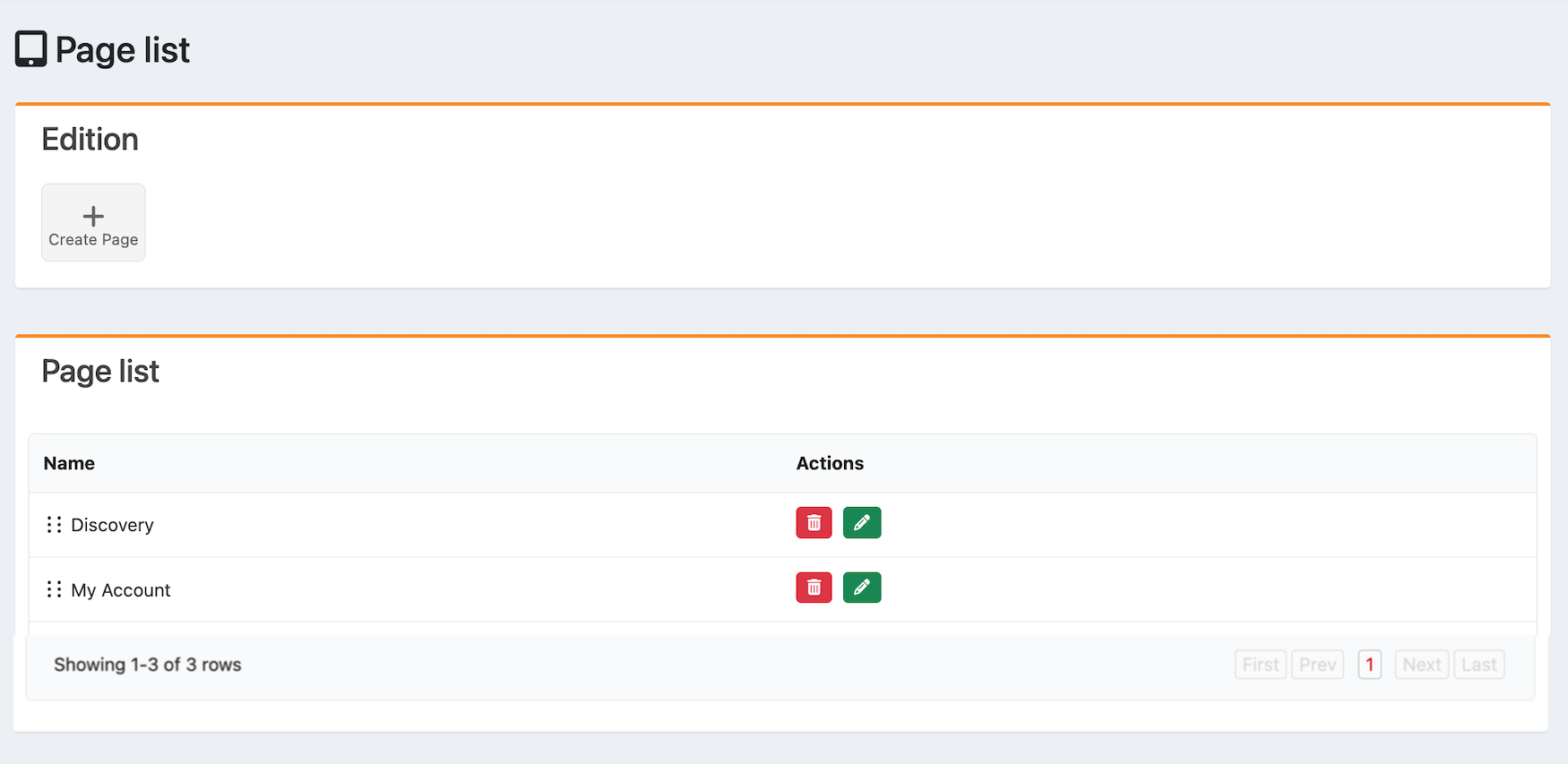 2. Select what you'd like to do:
* To create a page, select **Create Page**.
* To edit page settings, scroll to the page in the list and select the edit icon
2. Select what you'd like to do:
* To create a page, select **Create Page**.
* To edit page settings, scroll to the page in the list and select the edit icon  for the item.
* To delete a page, scroll to the page in the list and select the delete icon
for the item.
* To delete a page, scroll to the page in the list and select the delete icon  for the item.
The confirmation dialog appears. Confirm the deletion.
The page has been successfully deleted.
The **Create or Edit Page** page appears.
3. Complete the required fields. See the table below for more information.
4. Select **Submit**.
The page has been created or edited successfully.
Every page needs programming. Make sure to [add programming](manageProgrammingPage).
* **[Page Fields](managePages#page-fields)**
**Parent topic:**[Page Settings](pagesAbout)
## Page Fields
| Field Name | Description Value |
| - | - |
| **Display Name** | Enter the display name of the page. |
| **Slug** | Enter the slug. This is a part of a URL that identifies a particular page on a website. It's usually derived from the page's title and is used to create a SEO-friendly URL. Make sure all characters are in lowercase and use hyphens instead of spaces to separate words.For example, if you have a page titled "10 Must-Watch Shows," the slug might be "10-must-watch-shows," resulting in a URL like `www.yourwebsite.com/10-must-watch-shows`. Special characters (&, %, \$) and spaces aren't allowed. |
| **Visibility** | From the dropdown menu, select the page visibility. You have the following options:- **All**: Visible to guests and logged-in users. - **Unauthenticated**: Visible to guests only. - **Authenticated**: Visible to logged-in users only. |
| **Position** | Enter the numerical position of the page. |
| **Prompt to login** | From the dropdown menu, select whether to include a login prompt for the user. Two choices are available: - No - Yes |
| **Home Page** | From the dropdown menu, select whether to makes this page the home page.Two choices are available: - No - Yes |
| **Parent topic:**[Manage Page Settings](managePages) | |
This documentation is built and hosted on [Mintlify](https://mintlify.com), a developer documentation platform.
for the item.
The confirmation dialog appears. Confirm the deletion.
The page has been successfully deleted.
The **Create or Edit Page** page appears.
3. Complete the required fields. See the table below for more information.
4. Select **Submit**.
The page has been created or edited successfully.
Every page needs programming. Make sure to [add programming](manageProgrammingPage).
* **[Page Fields](managePages#page-fields)**
**Parent topic:**[Page Settings](pagesAbout)
## Page Fields
| Field Name | Description Value |
| - | - |
| **Display Name** | Enter the display name of the page. |
| **Slug** | Enter the slug. This is a part of a URL that identifies a particular page on a website. It's usually derived from the page's title and is used to create a SEO-friendly URL. Make sure all characters are in lowercase and use hyphens instead of spaces to separate words.For example, if you have a page titled "10 Must-Watch Shows," the slug might be "10-must-watch-shows," resulting in a URL like `www.yourwebsite.com/10-must-watch-shows`. Special characters (&, %, \$) and spaces aren't allowed. |
| **Visibility** | From the dropdown menu, select the page visibility. You have the following options:- **All**: Visible to guests and logged-in users. - **Unauthenticated**: Visible to guests only. - **Authenticated**: Visible to logged-in users only. |
| **Position** | Enter the numerical position of the page. |
| **Prompt to login** | From the dropdown menu, select whether to include a login prompt for the user. Two choices are available: - No - Yes |
| **Home Page** | From the dropdown menu, select whether to makes this page the home page.Two choices are available: - No - Yes |
| **Parent topic:**[Manage Page Settings](managePages) | |
This documentation is built and hosted on [Mintlify](https://mintlify.com), a developer documentation platform.