> ## Documentation Index
> Fetch the complete documentation index at: https://docs.m1amdocs.com/llms.txt
> Use this file to discover all available pages before exploring further.
# Manage Themes
1. Navigate to **Services** > **Themes**.
The **Themes** page appears.
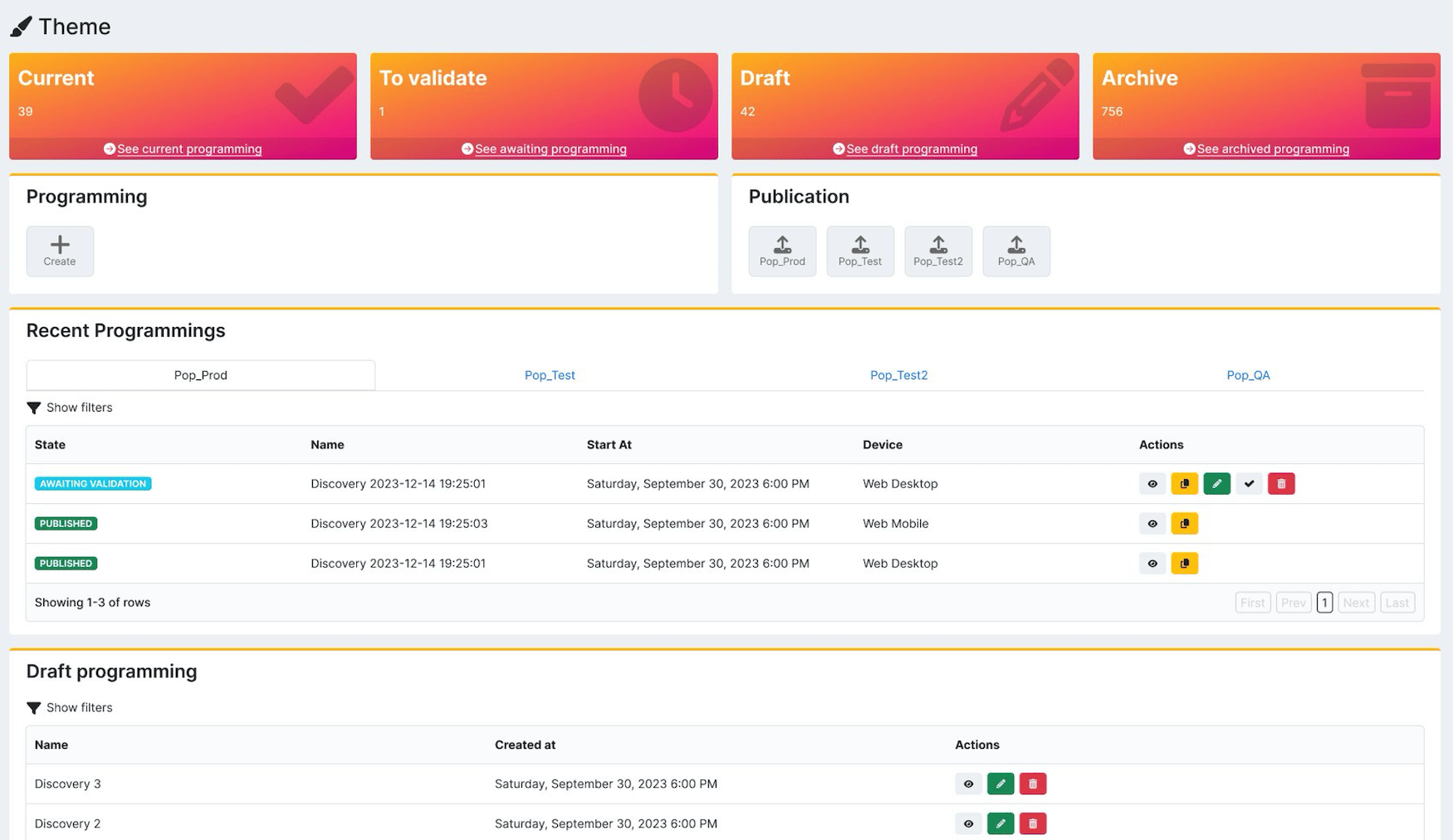 2. Select what you'd like to do:
* To create a theme, select **Create**.
* To edit a theme, scroll to the **Recent Programmings** or **Draft Programmings** list and select the edit icon
2. Select what you'd like to do:
* To create a theme, select **Create**.
* To edit a theme, scroll to the **Recent Programmings** or **Draft Programmings** list and select the edit icon  for the item.
* To clone a theme, scroll to the item in the **Recent Programmings** or **Archived Programmings** list and select the clone icon
for the item.
* To clone a theme, scroll to the item in the **Recent Programmings** or **Archived Programmings** list and select the clone icon  for the item.
* To validate a theme, select **See awaiting programming**.
The pop-up appears.
Review the theme and select **Validate** or **Deny**.
If you chose to validate, the state of the theme is now **Validated**. The theme is ready to be published.
* To publish a validated theme, select the population to publish to within the **Publication** section.
The theme now has a **Transmitted** state and has been published successfully.
* To view current, pending, or archived themes, scroll to the **Recent Programmings**, **Awaiting Programmings**, or **Archived Programmings** list, and select the view icon
for the item.
* To validate a theme, select **See awaiting programming**.
The pop-up appears.
Review the theme and select **Validate** or **Deny**.
If you chose to validate, the state of the theme is now **Validated**. The theme is ready to be published.
* To publish a validated theme, select the population to publish to within the **Publication** section.
The theme now has a **Transmitted** state and has been published successfully.
* To view current, pending, or archived themes, scroll to the **Recent Programmings**, **Awaiting Programmings**, or **Archived Programmings** list, and select the view icon  for the item.
The programming dialog appears.
* To delete a theme, scroll to the item in the **Recent Programmings**, **Draft Programmings** or **Archived Programmings** list and select the delete icon
for the item.
The programming dialog appears.
* To delete a theme, scroll to the item in the **Recent Programmings**, **Draft Programmings** or **Archived Programmings** list and select the delete icon  for the item.
The confirmation dialog appears. Select **Delete**.
The theme has been successfully deleted.
If you choose to create or edit a theme, the **Create or Edit a Theme** page appears.
3. Make configurations as desired. See the table below for more information about each box.
4. Select what you'd like to do.
* To submit the programming for validation, select **Save and Continue**.
* To save and exit the program editor, select **Save and Close**.
If you choose to submit the theme for validation, the **Publication** page appears.
5. Select a publishing type, select a [population](populationsAbout) from the dropdown menu, and enter the start date to publish in the **Start Date** field.
6. Select **Submit**.
The **Programming Summary** page appears.
7. Select what you'd like to do.
* To confirm that you want to submit your theme for validation, select **Confirm**.
The state of the theme is now **Awaiting Validation**. The theme needs to be validated in order to be published. The theme appears in the **Recent Programmings** list.
* To cancel, select **Abort**.
The theme appears in the **Draft Programmings** list if you want to edit it later.
8. To validate the theme, select **See awaiting programming**.
The validation dialog appears.
9. Select what you'd like to do.
* To validate the theme, select **Validate**.
The state of the theme is now **Validated**. The theme is ready to be published. See step #2 for more information about publishing.
* To deny validation, select **Deny**.
The state of the theme is now **Validation Denied**.
* **[Theme Fields](manageThemes#theme-fields)**
**Parent topic:**[Themes](themesAbout)
## Theme Fields
| Box Name | Description Value |
| - | - |
| **Name** | Enter the name of the theme. |
| **Target** | Enter the publication target. For example: web. |
| **Default Language** | Select the default language for the theme from the dropdown menu. |
### Graphic Assets
| Box Name | Description Value |
| - | - |
| **Logo** | Add your company logo. It will appear at the top of every storefront page. Logos are 100x100 pixels. To add a logo: 1. Select the edit icon . 2. Select an image. 3. Crop the image and select **Crop**. To delete a logo:1. Select the delete icon . |
| **Page Background Image** | Provide the background image in landscape format (1920x1080 pixels). If you add background images in both landscape and portrait formats, it will ensure a responsive layout. **Note:** This will override the **UI Colors** background configuration. To add a background image: 1. Select the edit icon . 2. Select an image. 3. Crop the image and select **Crop**. To delete a background image:1. Select the delete icon . |
| **Page Portrait Background Image** | Provide the background image in portrait orientation (1080x1920 pixels).If you add background images in both landscape and portrait formats, it will ensure a responsive layout. To add a portrait background image: 1. Select the edit icon . 2. Select an image. 3. Crop the image and select **Crop**. To delete a portrait background image:1. Select the delete icon . |
### UI Colors
| Box Name | Description Value |
| - | - |
| **Active Colors** | Select the colors for the main UI elements:- Primary Color
for the item.
The confirmation dialog appears. Select **Delete**.
The theme has been successfully deleted.
If you choose to create or edit a theme, the **Create or Edit a Theme** page appears.
3. Make configurations as desired. See the table below for more information about each box.
4. Select what you'd like to do.
* To submit the programming for validation, select **Save and Continue**.
* To save and exit the program editor, select **Save and Close**.
If you choose to submit the theme for validation, the **Publication** page appears.
5. Select a publishing type, select a [population](populationsAbout) from the dropdown menu, and enter the start date to publish in the **Start Date** field.
6. Select **Submit**.
The **Programming Summary** page appears.
7. Select what you'd like to do.
* To confirm that you want to submit your theme for validation, select **Confirm**.
The state of the theme is now **Awaiting Validation**. The theme needs to be validated in order to be published. The theme appears in the **Recent Programmings** list.
* To cancel, select **Abort**.
The theme appears in the **Draft Programmings** list if you want to edit it later.
8. To validate the theme, select **See awaiting programming**.
The validation dialog appears.
9. Select what you'd like to do.
* To validate the theme, select **Validate**.
The state of the theme is now **Validated**. The theme is ready to be published. See step #2 for more information about publishing.
* To deny validation, select **Deny**.
The state of the theme is now **Validation Denied**.
* **[Theme Fields](manageThemes#theme-fields)**
**Parent topic:**[Themes](themesAbout)
## Theme Fields
| Box Name | Description Value |
| - | - |
| **Name** | Enter the name of the theme. |
| **Target** | Enter the publication target. For example: web. |
| **Default Language** | Select the default language for the theme from the dropdown menu. |
### Graphic Assets
| Box Name | Description Value |
| - | - |
| **Logo** | Add your company logo. It will appear at the top of every storefront page. Logos are 100x100 pixels. To add a logo: 1. Select the edit icon . 2. Select an image. 3. Crop the image and select **Crop**. To delete a logo:1. Select the delete icon . |
| **Page Background Image** | Provide the background image in landscape format (1920x1080 pixels). If you add background images in both landscape and portrait formats, it will ensure a responsive layout. **Note:** This will override the **UI Colors** background configuration. To add a background image: 1. Select the edit icon . 2. Select an image. 3. Crop the image and select **Crop**. To delete a background image:1. Select the delete icon . |
| **Page Portrait Background Image** | Provide the background image in portrait orientation (1080x1920 pixels).If you add background images in both landscape and portrait formats, it will ensure a responsive layout. To add a portrait background image: 1. Select the edit icon . 2. Select an image. 3. Crop the image and select **Crop**. To delete a portrait background image:1. Select the delete icon . |
### UI Colors
| Box Name | Description Value |
| - | - |
| **Active Colors** | Select the colors for the main UI elements:- Primary Color 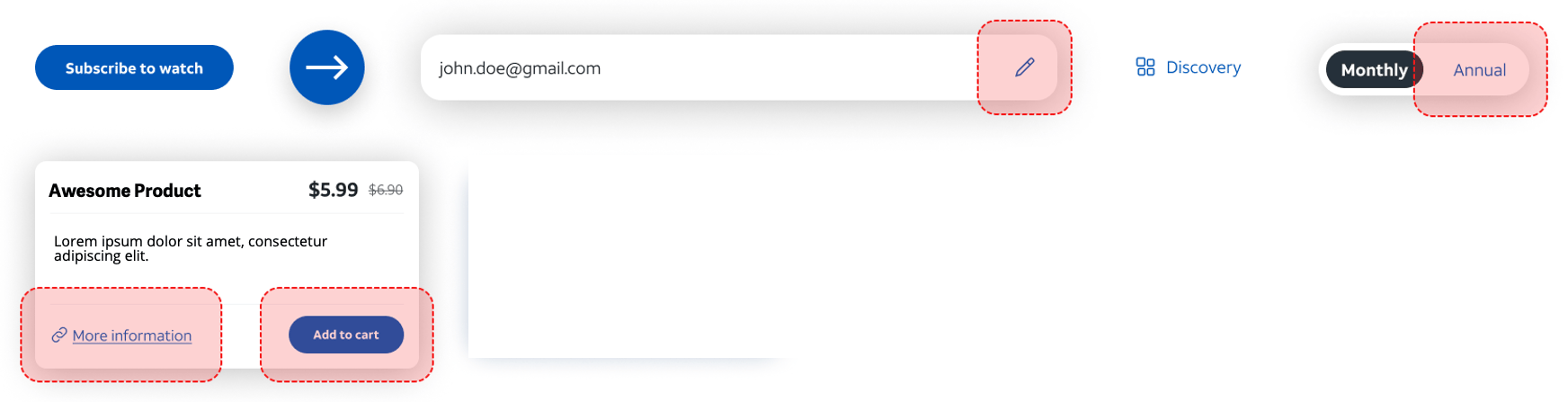 - Primary Text Color - CTA Button Hover Background Color - CTA Button Hover Text Color |
| **Accent Colors** | Select the accent colors for the UI:- Secondary Color
- Primary Text Color - CTA Button Hover Background Color - CTA Button Hover Text Color |
| **Accent Colors** | Select the accent colors for the UI:- Secondary Color 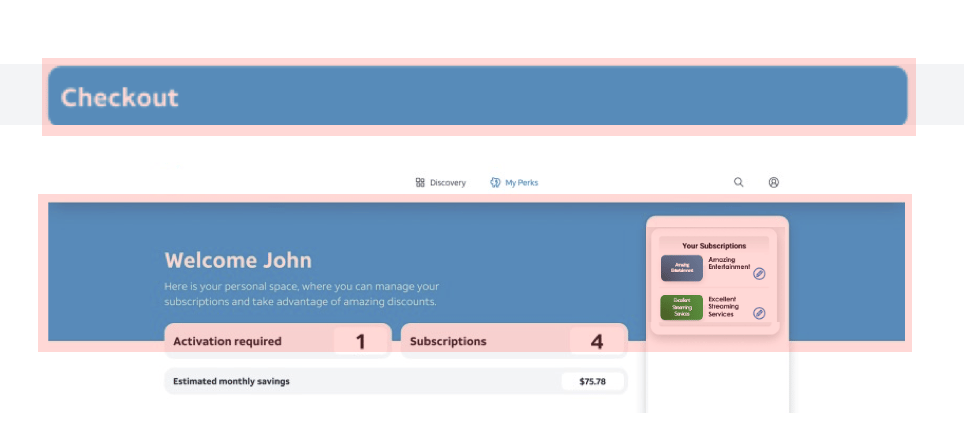 - Monthly Saving Color - Secondary Text Color |
| **Footer Colors** | Select the footer colors for the UI:- Tertiary Color - Tertiary Text Color
- Monthly Saving Color - Secondary Text Color |
| **Footer Colors** | Select the footer colors for the UI:- Tertiary Color - Tertiary Text Color 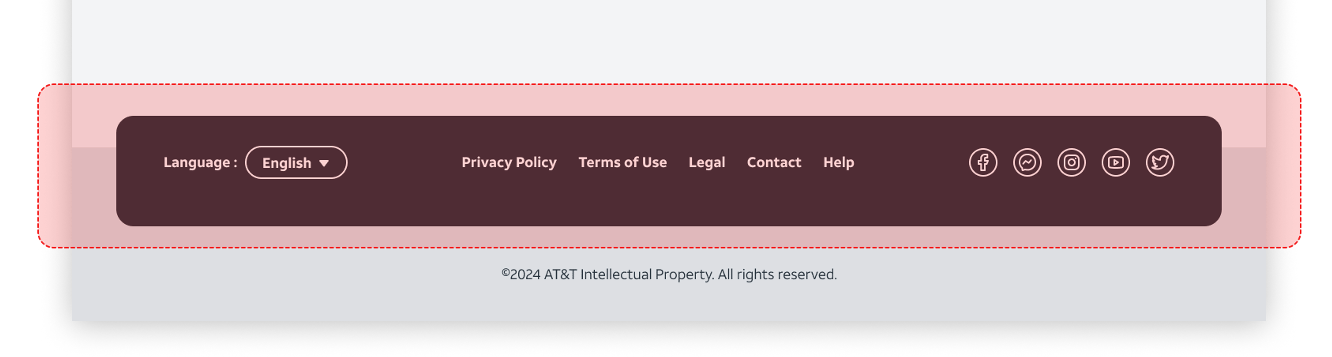 |
| **Global Colors** | Select the colors used for the main text and background colors:- Text Color - Background Color - Secondary Background Color
|
| **Global Colors** | Select the colors used for the main text and background colors:- Text Color - Background Color - Secondary Background Color 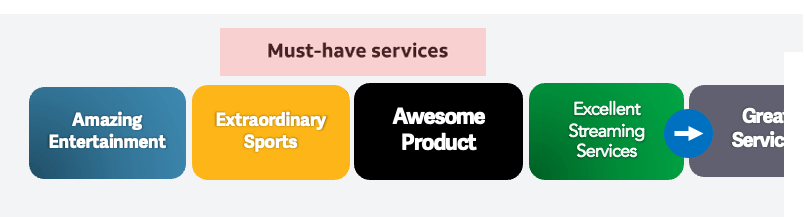
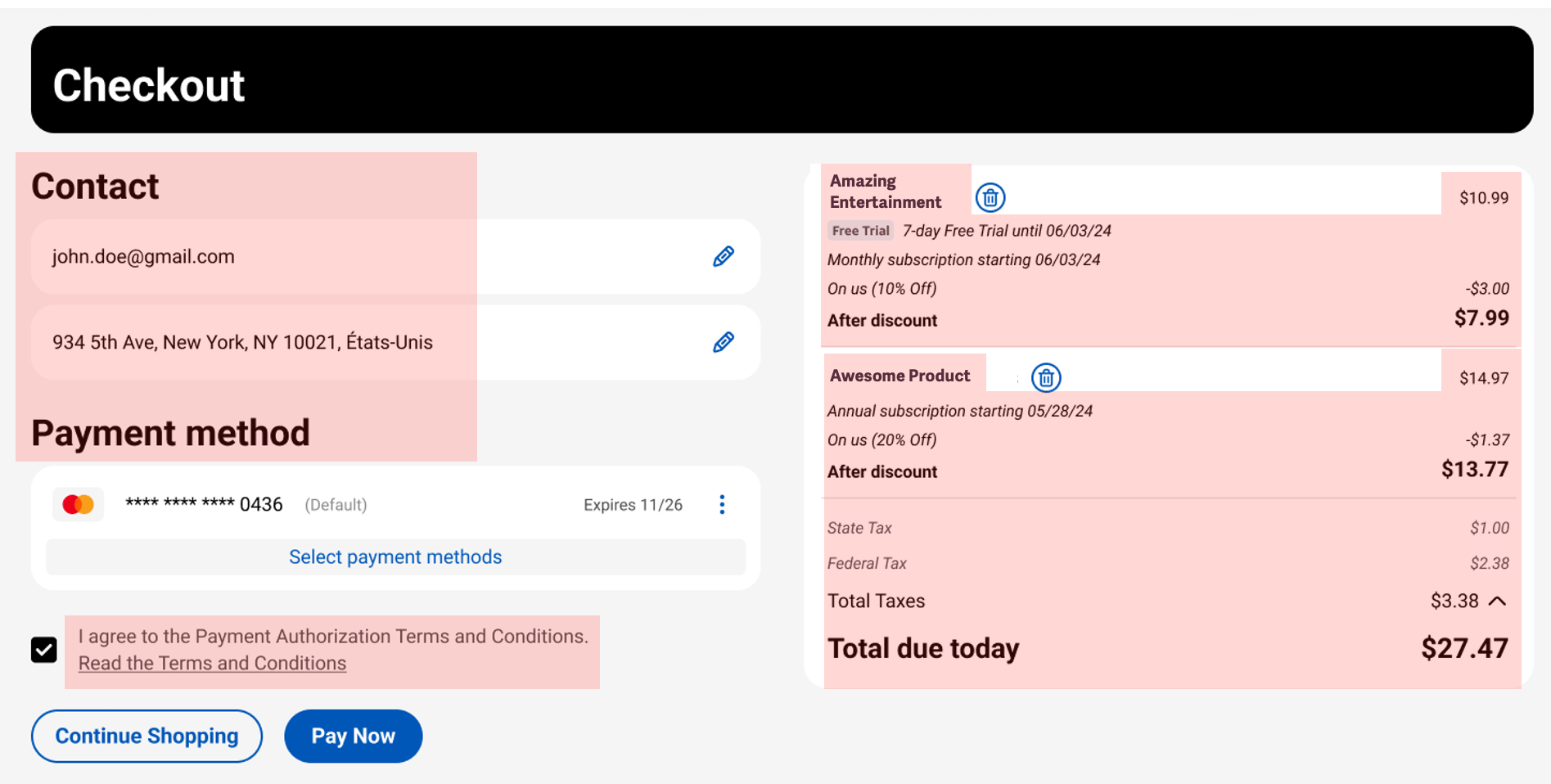
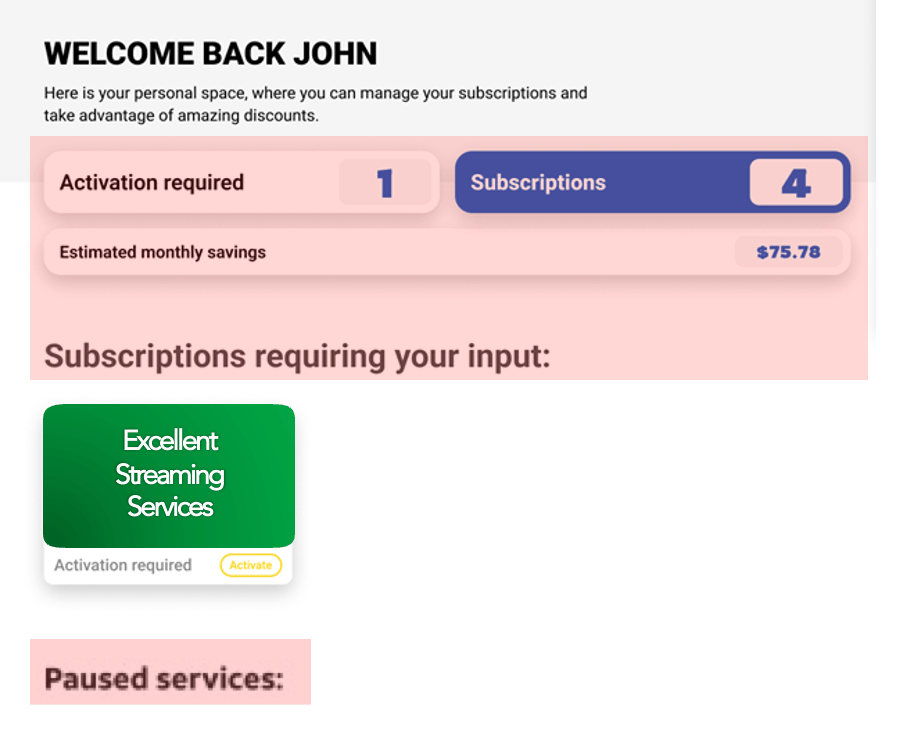 |
| **Content Layout Colors** | Select the colors used for the following:- Interactive Action Button Background Color - Interactive Action Button Text Color |
### Secondary UI Colors
| Box Name | Description Value |
| - | - |
| **Bundle Colors** | Select the colors for soft and hard bundle elements:- Bundle Text - Bundle Background - Bundle Container - Hard Bundle Container
|
| **Content Layout Colors** | Select the colors used for the following:- Interactive Action Button Background Color - Interactive Action Button Text Color |
### Secondary UI Colors
| Box Name | Description Value |
| - | - |
| **Bundle Colors** | Select the colors for soft and hard bundle elements:- Bundle Text - Bundle Background - Bundle Container - Hard Bundle Container 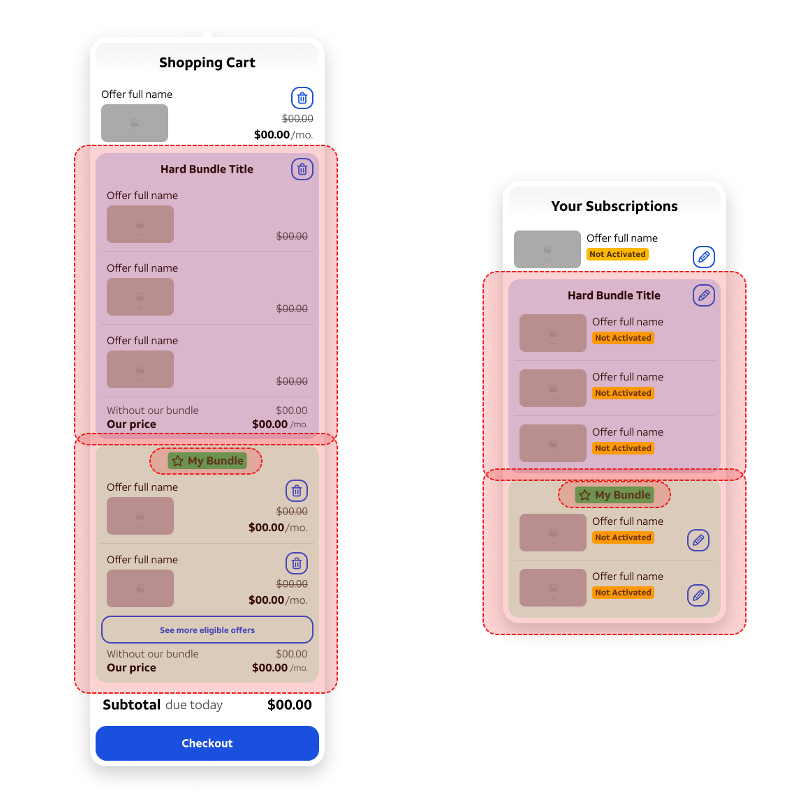 |
| **Subscription Status Colors** | Select the colors for subscription status elements in the UI:- Free Trial Background - Payment Error Background - Pending Pause Background - Pending Cancel Background - Paused Background - Not Activated Background - Free Trial Text - Payment Error Text - Pending Pause Text - Pending Cancel Texts - Paused Texts - Not Activated Text
|
| **Subscription Status Colors** | Select the colors for subscription status elements in the UI:- Free Trial Background - Payment Error Background - Pending Pause Background - Pending Cancel Background - Paused Background - Not Activated Background - Free Trial Text - Payment Error Text - Pending Pause Text - Pending Cancel Texts - Paused Texts - Not Activated Text 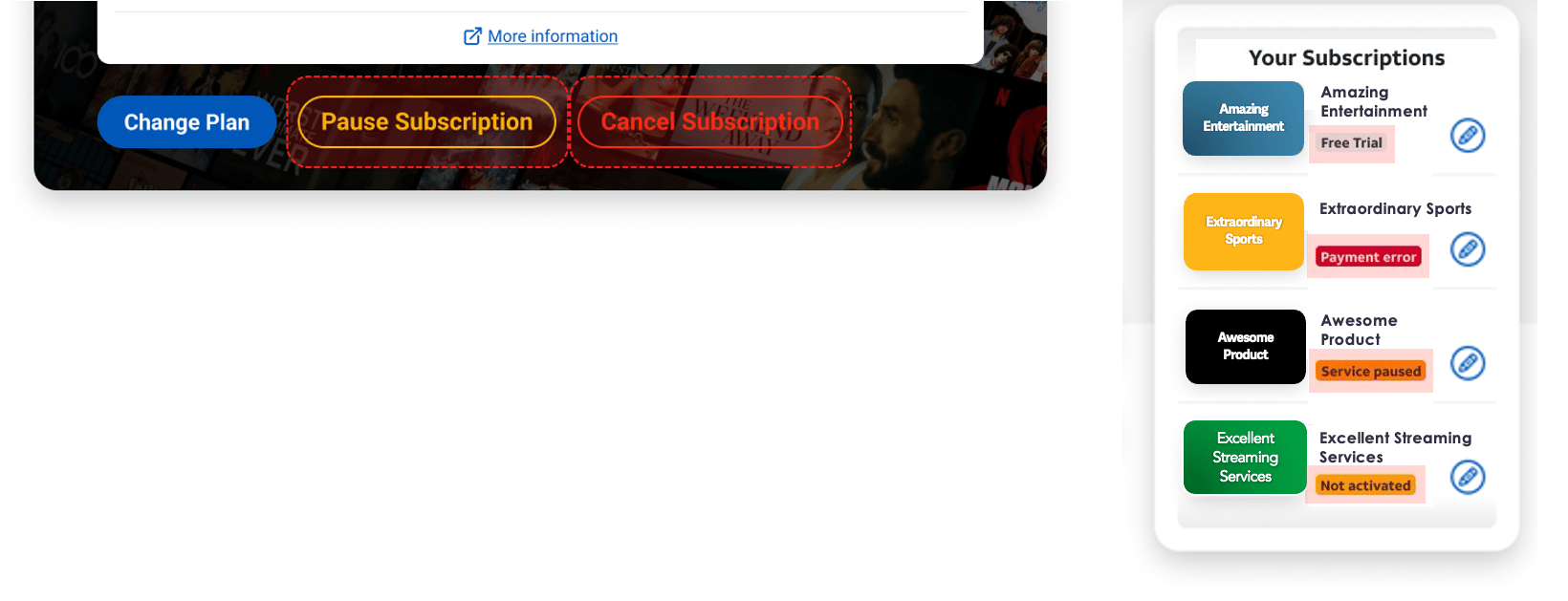 |
| **Subscriptions Action Button Colors** | Select the subscription action button colors for the UI:- Activate Background - Change Plan Background - Pause Background - Cancel Background - Activate Border - Change Plan Border - Pause Border - Cancel Border - Activated Text - Change Plan Text - Pause Text - Cancel Text
|
| **Subscriptions Action Button Colors** | Select the subscription action button colors for the UI:- Activate Background - Change Plan Background - Pause Background - Cancel Background - Activate Border - Change Plan Border - Pause Border - Cancel Border - Activated Text - Change Plan Text - Pause Text - Cancel Text 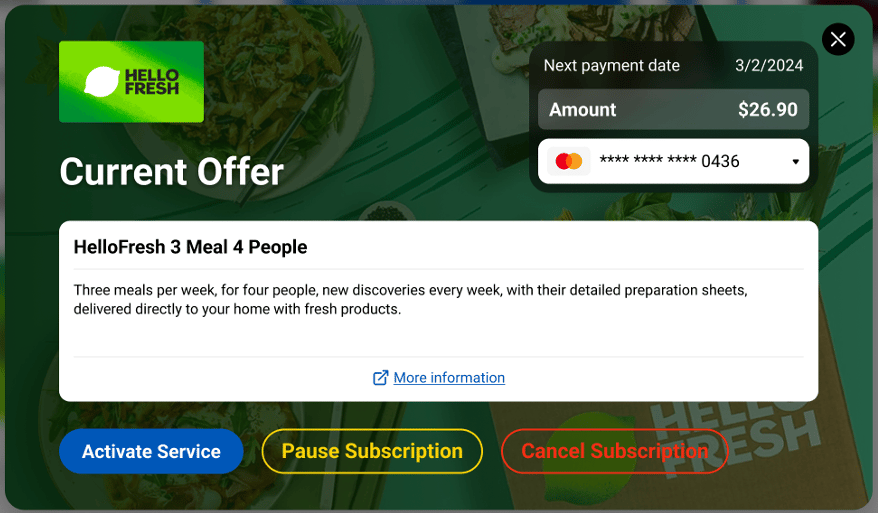 |
| **Text Overrides** | If multiple languages have been enabled, select the language for text overrides.If desired, enter text overrides for the following **Subscriptions** modal action buttons: - Activate - Change Plan - Pause - Continue Paused - Cancel - Reinstate Subscription If desired, enter text overrides for the following subscription statuses: - Pending Pause - Pending Cancel - Paused - Not Activated |
### UI Parameters
| Box Name | Description Value |
| - | - |
| **Predefined Theme** | Select one of the following predefined color themes:- Light - Dark |
### Checkout Parameters
| Box Name | Description Value |
| - | - |
| **UI Type** | Select a template for checkout customization:- Template 1 - Template 2 |
| **Tax Display** | Select how to display the amount during checkout:- Excluding tax - Including tax |
### Footer
| Box Name | Description Value |
| - | - |
| **Footer Type** | Select a type for the footer:- Default - Grouped |
| **Show Language Selector** | Enable this option to show the language selector. |
| **Colophon Text** | Provide a brief statement that provides details, such as your organization name, the design or development team or individual, the platform or technology used, and contact information for inquiries. |
| **Add Text Link** | You can add one or more text links to the footer. To add a text link:1. Select the **Add Text Link** button. The **Link Label**and **URL Target** fields appear. 2. Enter the link label and URL. - To remove the link, select **Remove Link**. |
| **Social Network** | You can add one or more social network links to the footer. To add a social network link:1. Select the **Add Social Network Link** button. The logo editor and **URL Target** field appear. 2. Upload the social network logo and crop it. It will appear in 100x100 pixels. 3. Enter the URL. - To remove the link, select **Remove Link**. |
| **Parent topic:**[Manage Themes](manageThemes) | |
This documentation is built and hosted on [Mintlify](https://mintlify.com), a developer documentation platform.
|
| **Text Overrides** | If multiple languages have been enabled, select the language for text overrides.If desired, enter text overrides for the following **Subscriptions** modal action buttons: - Activate - Change Plan - Pause - Continue Paused - Cancel - Reinstate Subscription If desired, enter text overrides for the following subscription statuses: - Pending Pause - Pending Cancel - Paused - Not Activated |
### UI Parameters
| Box Name | Description Value |
| - | - |
| **Predefined Theme** | Select one of the following predefined color themes:- Light - Dark |
### Checkout Parameters
| Box Name | Description Value |
| - | - |
| **UI Type** | Select a template for checkout customization:- Template 1 - Template 2 |
| **Tax Display** | Select how to display the amount during checkout:- Excluding tax - Including tax |
### Footer
| Box Name | Description Value |
| - | - |
| **Footer Type** | Select a type for the footer:- Default - Grouped |
| **Show Language Selector** | Enable this option to show the language selector. |
| **Colophon Text** | Provide a brief statement that provides details, such as your organization name, the design or development team or individual, the platform or technology used, and contact information for inquiries. |
| **Add Text Link** | You can add one or more text links to the footer. To add a text link:1. Select the **Add Text Link** button. The **Link Label**and **URL Target** fields appear. 2. Enter the link label and URL. - To remove the link, select **Remove Link**. |
| **Social Network** | You can add one or more social network links to the footer. To add a social network link:1. Select the **Add Social Network Link** button. The logo editor and **URL Target** field appear. 2. Upload the social network logo and crop it. It will appear in 100x100 pixels. 3. Enter the URL. - To remove the link, select **Remove Link**. |
| **Parent topic:**[Manage Themes](manageThemes) | |
This documentation is built and hosted on [Mintlify](https://mintlify.com), a developer documentation platform.