> ## Documentation Index
> Fetch the complete documentation index at: https://docs.m1amdocs.com/llms.txt
> Use this file to discover all available pages before exploring further.
# Manage Agreements
Before you can work with agreements, a partnership must exist between you and the Reseller (Service Provider). The Reseller must create the agreement and send it to you for approval.
An agreement is a contract between a Reseller (Service Provider) and a Merchant.
In the [Platform-managed product lifecycle](g_platformManagedFlow), an agreement represents the Merchant's authorization for the Reseller to market and resell their products. The Reseller sets up their products and offers on the storefront based on the approved agreement.
In the [Merchant-managed product lifecycle](g_partnerManagedFlow), an agreement represents the Reseller's authorization for the Merchant to use their billing as a payment method for customers.
**What You Can Do in the Agreements Space**
You can perform the following actions:
* Receive and view agreements
* Approve an agreement
* Reject an agreement
* Cancel an agreement if it doesn't have any active subscriptions
**Agreement Setup Options**
1. Go to the **Agreements** space.
To view an agreement, filter for the relevant agreement by typing keywords and by selecting a **Status** from the dropdown list. As you provide the filter details, a list of the relevant results appears dynamically.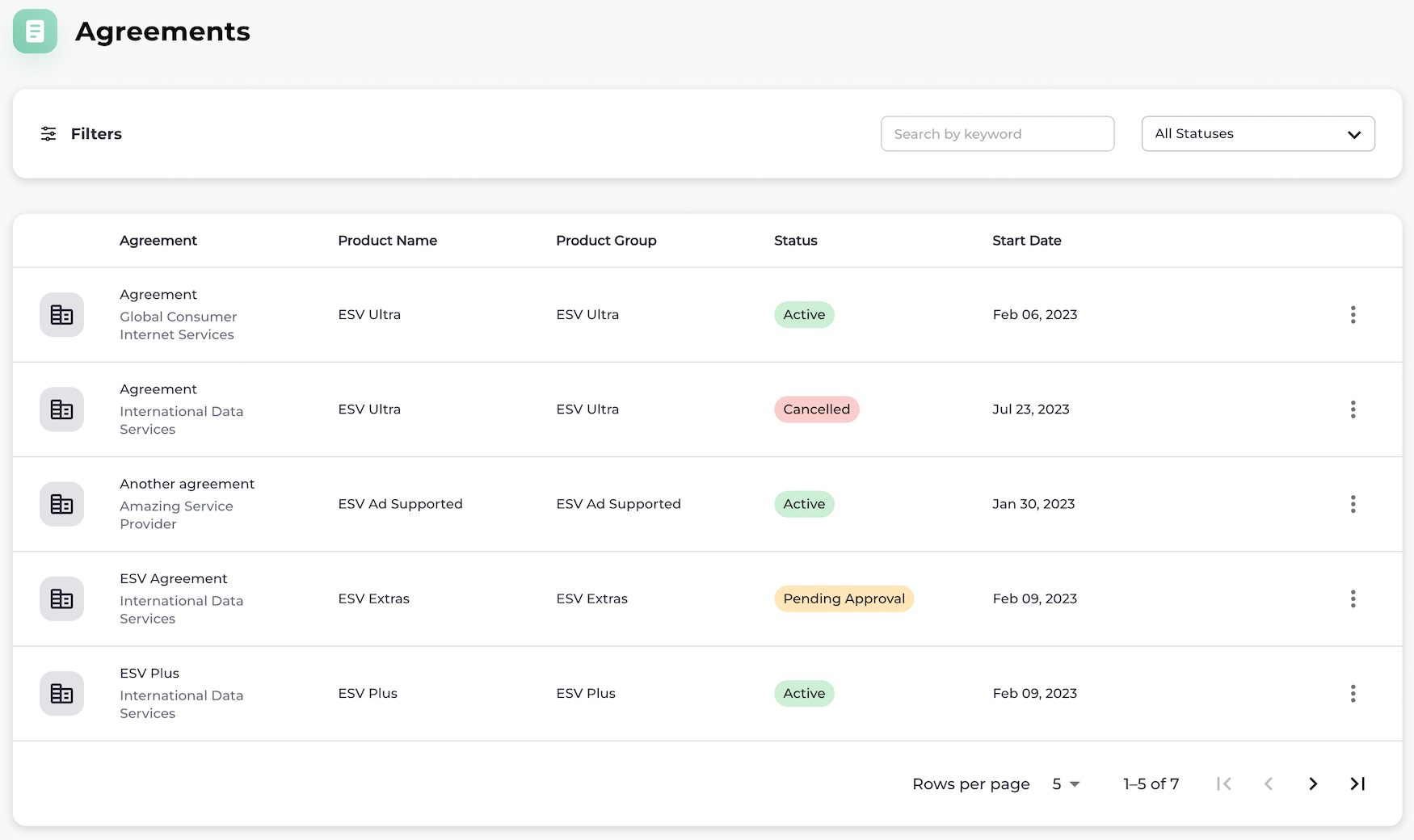 Select the specific agreement from the results list.
The **Agreement** page appears.
Select the specific agreement from the results list.
The **Agreement** page appears.
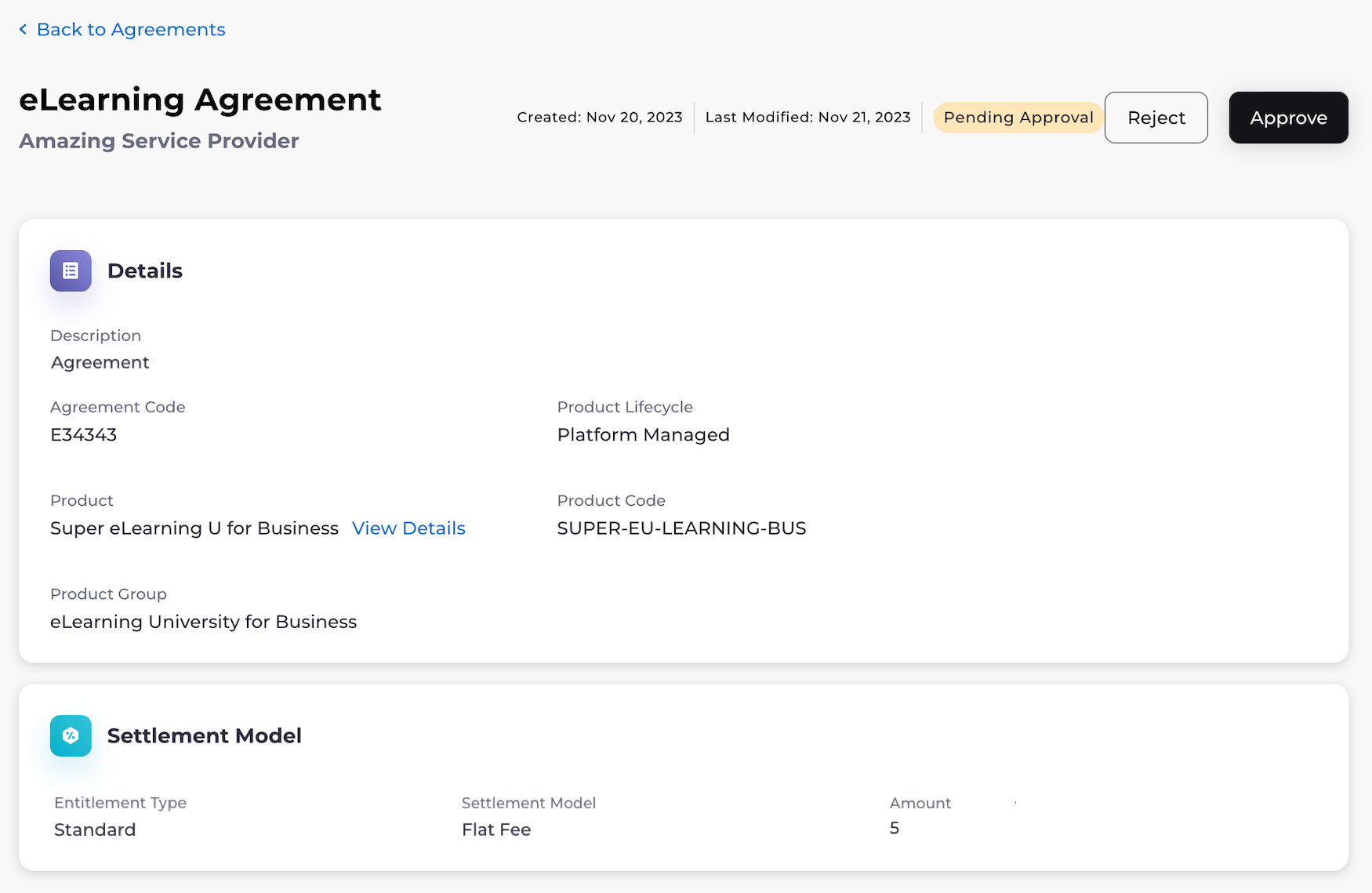 Select what you'd like to do from the following options:
* To approve or reject an agreement, select **Approve** or **Reject**.
The page refreshes. If you approved the agreement, it is now active. If you rejected the agreement, it is now inactive.
* To cancel the agreement, click the three dot menu next to the agreement status. The option menu appears. Select **Cancel Agreement**.
A pop-up appears to confirm the cancellation. Select **Cancel Agreement**.
**Note:** An agreement can only be canceled if the agreement doesn't have any active subscriptions. Any active subscriptions must be canceled first.
The page refreshes. The agreement has been canceled.
**Parent topic:**[Step 2: Technical Access and Setup in the Sandbox Environment (PDT)](technicalAccessAndSetup)
This documentation is built and hosted on [Mintlify](https://mintlify.com), a developer documentation platform.
Select what you'd like to do from the following options:
* To approve or reject an agreement, select **Approve** or **Reject**.
The page refreshes. If you approved the agreement, it is now active. If you rejected the agreement, it is now inactive.
* To cancel the agreement, click the three dot menu next to the agreement status. The option menu appears. Select **Cancel Agreement**.
A pop-up appears to confirm the cancellation. Select **Cancel Agreement**.
**Note:** An agreement can only be canceled if the agreement doesn't have any active subscriptions. Any active subscriptions must be canceled first.
The page refreshes. The agreement has been canceled.
**Parent topic:**[Step 2: Technical Access and Setup in the Sandbox Environment (PDT)](technicalAccessAndSetup)
This documentation is built and hosted on [Mintlify](https://mintlify.com), a developer documentation platform.