> ## Documentation Index
> Fetch the complete documentation index at: https://docs.m1amdocs.com/llms.txt
> Use this file to discover all available pages before exploring further.
# API Keys
API keys are required to make calls to the platform. In Partner Ecosystem Management, you must generate an API key for each Reseller (Service Provider) you have a partnership with. After you authenticate with your API key, you can communicate with that Reseller via the [MarketONE OpenAPIs](https://docs.saas.amdocs.com/bundle/MarketONEAPIs/page/index.html). You can manage the services from your agreement with the Reseller.
Each API key is a JSON Web Token (JWT) that doesn't expire. For every API call a Merchant makes to the MarketONE OpenAPIs, the API key for the specific Reseller must be included in the header (`X-API-KEY`) of the call to ensure a trusted communication. All communication is HTTP(s) based and supports SSL/TLS encryption.
The **API Keys** page shows a list of API keys that have been generated for partnered Resellers and the dates they were generated. Using the list, you can identify when an API key doesn't exist for a Reseller.
* **[API Key Best Practices](merchantApiKeys#api-key-best-practices)**
* **[Manage Your API Keys](merchantApiKeys#manage-your-api-keys)**
* **[Example cURL API Key Usage](merchantApiKeys#example-curl-api-key-usage)**
## API Key Best Practices
MarketONE recommends these best practices to keep your API key secure:
* Once you generate an API key, copy it and store in a safe location. Once the API key window is closed, the API key can no longer be retrieved for security purposes.
* Occasionally generate a new API key, update your applications with the new API key, and delete the old API key to ensure continuity of operations.
**Parent topic:**[API Keys](merchantApiKeys)
## Manage Your API Keys
In **Platform Settings** > **API Keys**, you can:
* Generate API keys
* Regenerate API keys
To generate an API key for a Reseller, you must first have a partnership and an agreement with the Reseller (Service Provider). To just test connectivity, you only need a partnership with a Reseller.
**Note:** When you make calls to MarketONE, you must use the API key that corresponds to the specific Reseller (Service Provider).
1. Navigate to **Platform Settings** > **API Keys**.
The **API Keys** page appears with a list of Resellers.
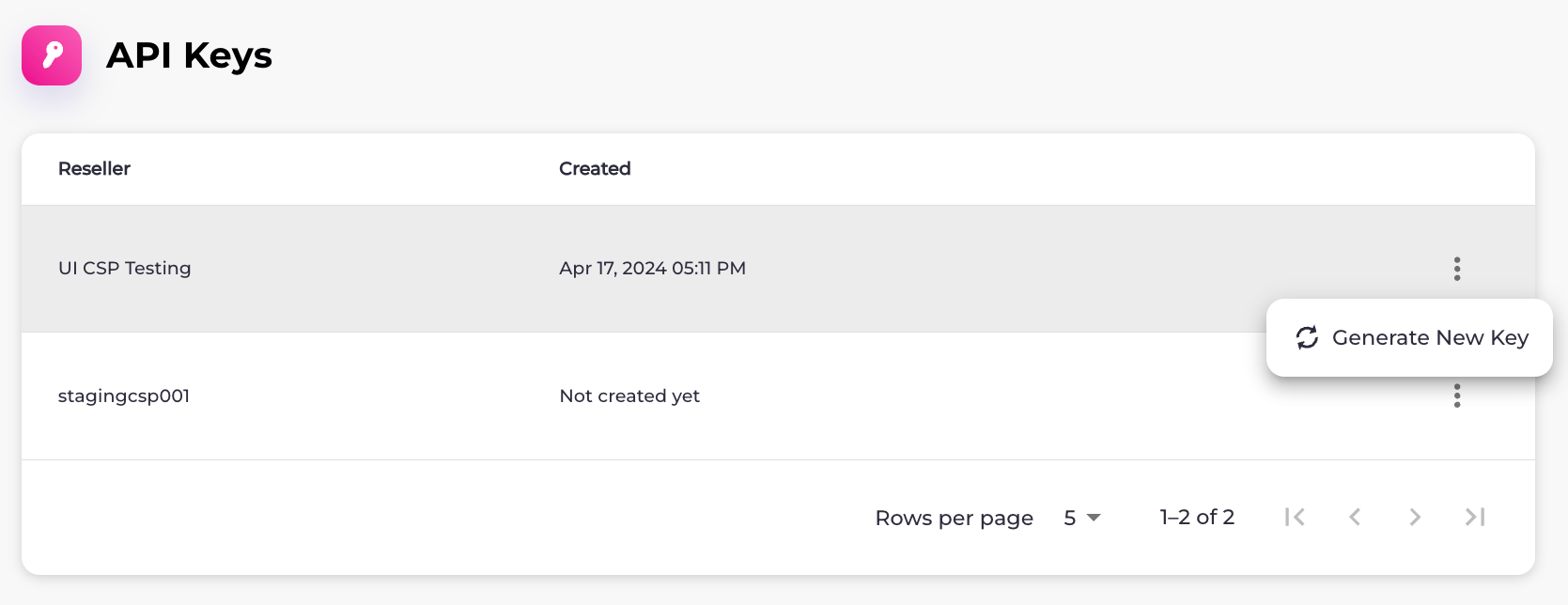 2. Select what you'd like to do:
* To generate an API key for a Reseller, select the three dot menu on the same row as the Reseller and then select the **Generate New Key** option.
The **API Key Successfully Created** box appears.
Select the API key in the field and press CTRL+C or select **Copy** to copy it.
When you're done, click **Close**.
* To regenerate an API key, select the three dot menu on the same row as the Reseller and then select **Regenerate Key**.
The **Regenerate API Key** box appears.
Select **Confirm Regeneration**.
The **API Key Successfully Created** box appears.
Select the API key in the field and press CTRL+C or select **Copy** to copy it.
When you're done, click **Close**.
**Parent topic:**[API Keys](merchantApiKeys)
## Example cURL API Key Usage
```
POST /partnersub/v2/partnerSubscription HTTP/1.1
Host: plm-prodtest.m1amdocs.io
Content-Type: application/json
X-API-KEY: <>
Content-Length: 113
{
"identifierType": "msisdn",
"identifier": "4311211567",
"plmCode": "GEI-PREM",
"partnerCode": "GEI"
}
```
**Parent topic:**[API Keys](merchantApiKeys)
This documentation is built and hosted on [Mintlify](https://mintlify.com), a developer documentation platform.
2. Select what you'd like to do:
* To generate an API key for a Reseller, select the three dot menu on the same row as the Reseller and then select the **Generate New Key** option.
The **API Key Successfully Created** box appears.
Select the API key in the field and press CTRL+C or select **Copy** to copy it.
When you're done, click **Close**.
* To regenerate an API key, select the three dot menu on the same row as the Reseller and then select **Regenerate Key**.
The **Regenerate API Key** box appears.
Select **Confirm Regeneration**.
The **API Key Successfully Created** box appears.
Select the API key in the field and press CTRL+C or select **Copy** to copy it.
When you're done, click **Close**.
**Parent topic:**[API Keys](merchantApiKeys)
## Example cURL API Key Usage
```
POST /partnersub/v2/partnerSubscription HTTP/1.1
Host: plm-prodtest.m1amdocs.io
Content-Type: application/json
X-API-KEY: <>
Content-Length: 113
{
"identifierType": "msisdn",
"identifier": "4311211567",
"plmCode": "GEI-PREM",
"partnerCode": "GEI"
}
```
**Parent topic:**[API Keys](merchantApiKeys)
This documentation is built and hosted on [Mintlify](https://mintlify.com), a developer documentation platform.