> ## Documentation Index
> Fetch the complete documentation index at: https://docs.m1amdocs.com/llms.txt
> Use this file to discover all available pages before exploring further.
# Manage Agreements
Before you can create agreements, a [partnership](.) must exist between you and the Merchant.
An agreement is a contract between a Reseller (Service Provider) and a Merchant.
In the [Platform-managed product lifecycle](g_platformManagedFlow), an agreement represents the Merchant's authorization for the Reseller to market and resell their products. The Reseller sets up their products and offers on the storefront based on the approved agreement.
In the [Merchant-managed product lifecycle](g_partnerManagedFlow), an agreement represents the Reseller's authorization for the Merchant to use their billing as a payment method for customers.
**What You Can Do in the Agreements Space**
You can perform the following actions:
* Create an agreement
* Edit an agreement
**Note:** You can edit an agreement before you send it for approval or if it has been rejected.
* View an agreement
* Submit an agreement for approval
* Cancel an agreement if it doesn't have any active subscriptions
* Republish an active agreement
**Note:** Republishing is only available for Resellers (Service Providers) that are using an external catalog integration and have registered to receive the Publish Product Specification webhook event.
**Agreement Setup Options**
When you create an agreement, you choose the following:
* The product or service the agreement applies to
* Whether to enable a settlement model. A settlement model can be one of the following types:
* **Revenue share**: The revenue share is a percentage the Merchant receives from settlements. The percentage comes from splitting the charge amount between the Merchant and Reseller (Service Provider). The charge amount is how much the customer pays for the product, which is sent to Partner Ecosystem Management. A [charge file](chargeFileUpload) needs to be uploaded to process revenue share settlements for Platform-managed products.
**Note:** You can also set a minimum price for a Merchant's product. This value will be used to calculate revenue share settlements when no charge amount is available for the entitlement or the actual price is lower than the minimum price.
* **Flat fee**: The fixed amount owed to the Merchant. For Platform-managed subscriptions, the amount is for each active subscription entitlement. For Merchant-managed subscriptions, the amount is for each transaction received.
* The product lifecycle, which can be Platform-Managed or Merchant-Managed.
* The entitlement type, which designates the amount customers can purchase under a subscription entitlement. The entitlement type can be **Quantity** (for example: license seats) or **Standard** (a single subscription).
* The target market
* Other details, including a description of the agreement, and a code for the agreement
1. Go to the **Agreements** space.
Select what you'd like to do from the following options:
* To add a new agreement, click **Create New Agreement**.
The **Create New Agreement** page appears.
Complete the agreement fields. See the table below for guidance regarding the fields.
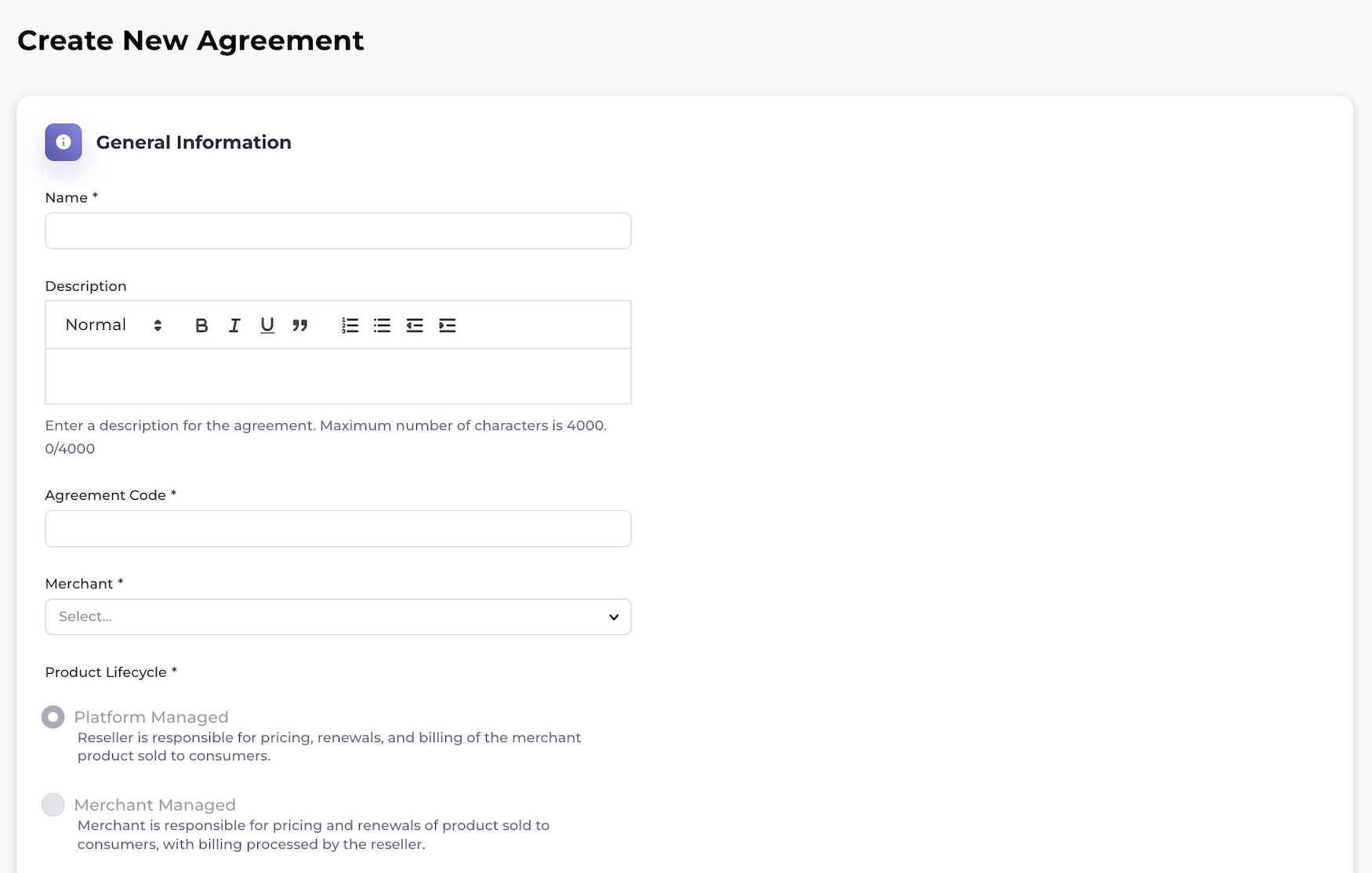 When you're done, select **Save as Draft** or **Create and Submit for Approval**.
* To view, edit, cancel, or republish an existing agreement, filter for the relevant agreement by typing keywords and by selecting a status from the dropdown list. As you provide the filter details, a list of the relevant results appears dynamically.
**Note:** An agreement can only be edited before it has been submitted for approval or if the agreement has been submitted and then rejected. An agreement can only be canceled when the agreement doesn't have any active subscriptions. Any active subscriptions must be canceled first.
When you're done, select **Save as Draft** or **Create and Submit for Approval**.
* To view, edit, cancel, or republish an existing agreement, filter for the relevant agreement by typing keywords and by selecting a status from the dropdown list. As you provide the filter details, a list of the relevant results appears dynamically.
**Note:** An agreement can only be edited before it has been submitted for approval or if the agreement has been submitted and then rejected. An agreement can only be canceled when the agreement doesn't have any active subscriptions. Any active subscriptions must be canceled first.
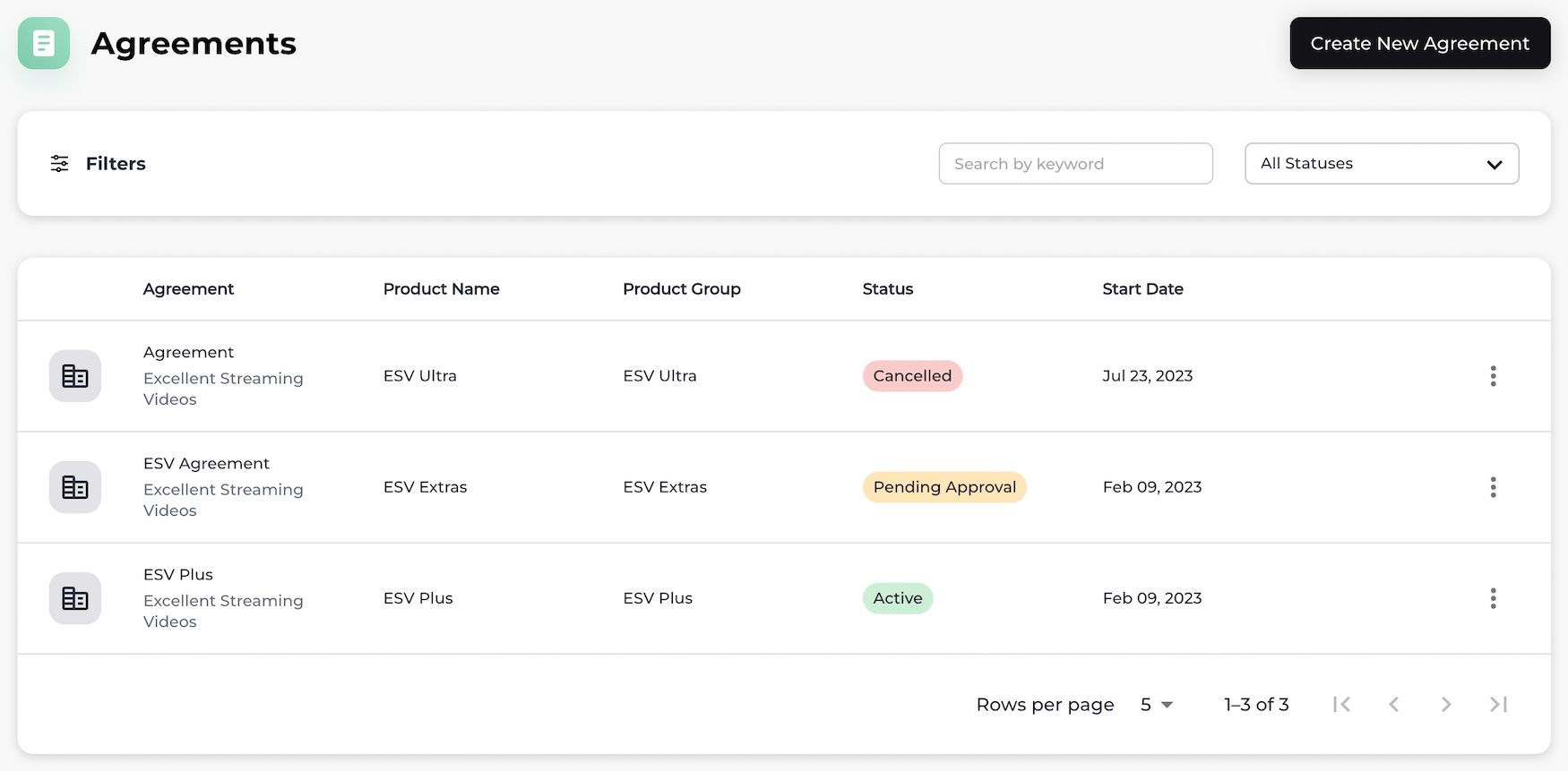 Select the specific agreement from the results list.
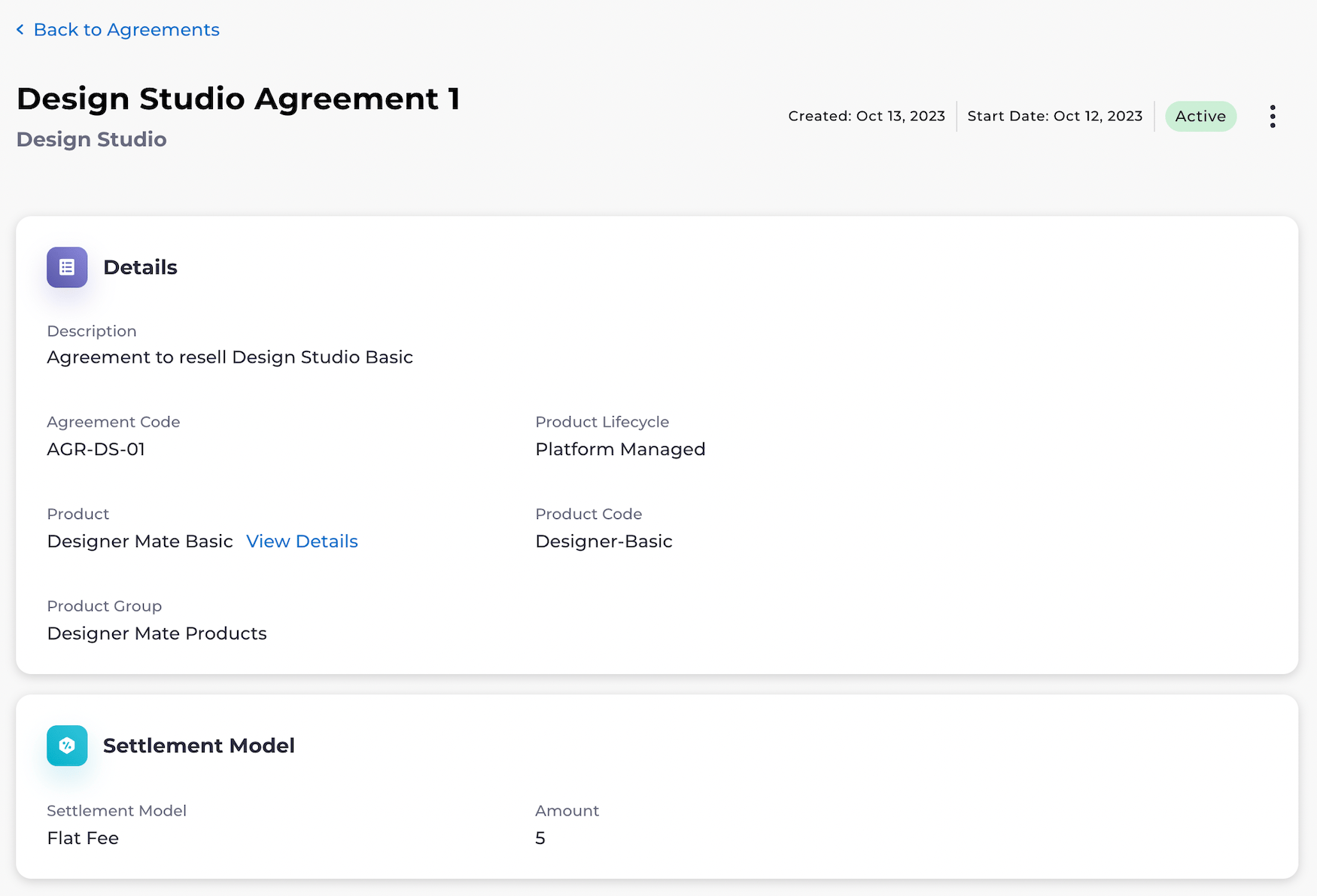
The agreement appears.
* To edit the agreement, select the three dot menu next to the agreement status. The option menu appears. Select **Edit Agreement**.
The **Edit Agreement** page appears.
Refer to the tables below for guidance regarding the fields. When you are done, select **Save** or **Save & Submit for Approval**.
**Note:** When you send an agreement for approval, it can no longer be edited unless it is rejected by the Merchant.
* To submit the agreement for approval, select the three dot menu next to the agreement status. The option menu appears. Select **Send for Approval**.
* To cancel the agreement, select the three dot menu next to the agreement status. The option menu appears. Select **Cancel Agreement**.
A box appears to confirm the cancellation. Select **Cancel Agreement**.
* To republish an active agreement, select the three dot menu next to the agreement status. The option menu appears. Select **Republish Agreement**.
The **Republish Agreement** box appears. Select **Republish Agreement**.
**Note:** If the product has any required or optional customer attributes, the **Customer Attributes Allowlist** box appears. You can store any required or optional customer attributes if desired. Make your selection by sliding the toggle to the right or left and then select **Save**.
A message appears, confirming the agreement has been saved, submitted for approval, canceled, or republished.
**Note:** When an agreement is approved, the **Product Code** appears on the agreement.
Select the specific agreement from the results list.
The agreement appears.
* To edit the agreement, select the three dot menu next to the agreement status. The option menu appears. Select **Edit Agreement**.
The **Edit Agreement** page appears.
Refer to the tables below for guidance regarding the fields. When you are done, select **Save** or **Save & Submit for Approval**.
**Note:** When you send an agreement for approval, it can no longer be edited unless it is rejected by the Merchant.
* To submit the agreement for approval, select the three dot menu next to the agreement status. The option menu appears. Select **Send for Approval**.
* To cancel the agreement, select the three dot menu next to the agreement status. The option menu appears. Select **Cancel Agreement**.
A box appears to confirm the cancellation. Select **Cancel Agreement**.
* To republish an active agreement, select the three dot menu next to the agreement status. The option menu appears. Select **Republish Agreement**.
The **Republish Agreement** box appears. Select **Republish Agreement**.
**Note:** If the product has any required or optional customer attributes, the **Customer Attributes Allowlist** box appears. You can store any required or optional customer attributes if desired. Make your selection by sliding the toggle to the right or left and then select **Save**.
A message appears, confirming the agreement has been saved, submitted for approval, canceled, or republished.
**Note:** When an agreement is approved, the **Product Code** appears on the agreement.
 * **[Agreement Field Details](r_agreementManage#agreement-field-details)**
**Parent topic:**[Front-End Setup](setupInMarketONE)
## Agreement Field Details
### General Information
| Field Name | Guidance | Required or Optional |
| - | - | - |
| **Name** | Enter a name for the agreement. The name can contain any of the following characters:- a-z, A-Z - 0-9 - !@#\$%^&\*-()/ - spaces The name length is limited to 255 characters. | Required |
| **Description** | Enter a description of the agreement. The description can contain any of the following characters:- a-z, A-Z - 0-9 - !@#\$%^&\*-()/ - spaces | Optional |
| **Agreement Code** | Enter a code to associate with the agreement. The code can contain any of the following characters:- a-z, A-Z - 0-9 **Note:** The code can't contain spaces. The code can be up to 15 characters in length. The code cannot be changed after a Merchant approves the agreement. | |
| **Merchant** | Select a Merchant from the dropdown list. The dropdown list shows Merchants with whom your organization has active partnerships. | Required |
| **Product Lifecycle** | Select a product lifecycle from the list. The product lifecycle can be one of the following:- [Platform Managed](.) - [Merchant Managed](.) Selecting a product lifecycle filters the products that you can see in the **Product** list. | Required |
| **Entitlement Type** | An entitlement type designates the subscription(s) the customer can purchase. The Merchant selects an entitlement type for each product group. The entitlement type can be one of the following:- **Standard**: customers are buying a single entitlement to the Merchant's product. - **Quantity** ([Platform-managed](g_platformManagedFlow) only): this type enables purchasing a number (quantity) for the product subscription entitlement. During product provisioning for the customer, you must provide a quantity (for example, license seats). | Required |
| **Target Market** | A target market is the industry in which you'd like to sell your products and services. Select a target market from the list to filter the Merchant's products:- **Business**: this is a business selling to other businesses, such as a small-to-medium business (SMB) or an enterprise (large business). This is also known as B2B. - **Consumer**: this is a business selling to individual end customers. This is also known as B2C. | Required |
| **Select Product** | Select the product or service to which the agreement applies. The dropdown lists shows a list of available products. | Required |
| **Customer Attributes Allowlist** | The **Customer Attributes Allowlist** link appears if the Merchant has defined any required or optional customer attributes for you to provide the values during activation. Select the attributes you'd like to store during the provisioning process and then select **Save**. | Optional |
### Settlement Model (Optional)
| Model | Guidance | Required or Optional |
| - | - | - |
| **Enable Settlement Model** | Turn the toggle on to enable a settlement model. A settlement model calculates settlements for the agreement based on the **Settlement Type**. | Optional |
| **Entitlement Type** | An entitlement type designates the subscription(s) the customer can purchase. The entitlement type can be one of the following:- **Standard**: customers are buying a single entitlement to the Merchant's product. - **Quantity** ([Platform-managed](g_platformManagedFlow) only): this type enables purchasing a number (quantity) for the product subscription entitlement. For this type, you can specify the amount per active subscription in the **Amount** field. | Required |
| **Settlement Type** | Select the type of settlement to apply to the agreement, which can be one of the following:- **Revenue share**: The revenue share is a percentage the Merchant receives from settlements. The percentage comes from splitting the charge amount between the Merchant and Reseller (Service Provider). The charge amount is how much the customer pays for the product, which is sent to Partner Ecosystem Management. A [charge file](chargeFileUpload) needs to be uploaded to process revenue share settlements for Platform-managed products. **Note:** You can also set a minimum price for a Merchant's product. This value will be used to calculate revenue share settlements when no charge amount is available for the entitlement or the actual price is lower than the minimum price. - **Flat fee**: The fixed amount owed to the Merchant. For Platform-managed subscriptions, the amount is for each active subscription entitlement. For Merchant-managed subscriptions, the amount is for each transaction received. | Required |
| **Merchant Share** (only applies to revenue share settlements) | The revenue share is based on the charge amount provided to Partner Ecosystem Management. Enter the percentage of the revenue share the Merchant should receive from settlements. Resellers (Service Providers) will receive the remainder. The value you enter can contain any of the following characters: - 0-9 | Required |
| **Minimum Price** (only applies to revenue share settlements) | Set a minimum price for a Merchant's product. This value will be used to calculate revenue share settlements when no product price is available or the actual price is lower than the minimum price. Enter a value with up to two decimal places. For example: **9.20**. The currency symbol isn't supported. Currency is determined between the Merchant and Reseller (Service Provider) outside the platform and depends on how the product is intended to be sold. | Optional |
| **Amount** (only applies to flat fee settlements) | Enter the amount of the flat fee. The flat fee is a fixed amount charged for each active subscription. The flat fee you enter can contain any of the following characters:- 0-9 - . (a decimal - for example, 10.90) | Required |
| **Parent topic:**[Manage Agreements](r_agreementManage) | | |
This documentation is built and hosted on [Mintlify](https://mintlify.com), a developer documentation platform.
* **[Agreement Field Details](r_agreementManage#agreement-field-details)**
**Parent topic:**[Front-End Setup](setupInMarketONE)
## Agreement Field Details
### General Information
| Field Name | Guidance | Required or Optional |
| - | - | - |
| **Name** | Enter a name for the agreement. The name can contain any of the following characters:- a-z, A-Z - 0-9 - !@#\$%^&\*-()/ - spaces The name length is limited to 255 characters. | Required |
| **Description** | Enter a description of the agreement. The description can contain any of the following characters:- a-z, A-Z - 0-9 - !@#\$%^&\*-()/ - spaces | Optional |
| **Agreement Code** | Enter a code to associate with the agreement. The code can contain any of the following characters:- a-z, A-Z - 0-9 **Note:** The code can't contain spaces. The code can be up to 15 characters in length. The code cannot be changed after a Merchant approves the agreement. | |
| **Merchant** | Select a Merchant from the dropdown list. The dropdown list shows Merchants with whom your organization has active partnerships. | Required |
| **Product Lifecycle** | Select a product lifecycle from the list. The product lifecycle can be one of the following:- [Platform Managed](.) - [Merchant Managed](.) Selecting a product lifecycle filters the products that you can see in the **Product** list. | Required |
| **Entitlement Type** | An entitlement type designates the subscription(s) the customer can purchase. The Merchant selects an entitlement type for each product group. The entitlement type can be one of the following:- **Standard**: customers are buying a single entitlement to the Merchant's product. - **Quantity** ([Platform-managed](g_platformManagedFlow) only): this type enables purchasing a number (quantity) for the product subscription entitlement. During product provisioning for the customer, you must provide a quantity (for example, license seats). | Required |
| **Target Market** | A target market is the industry in which you'd like to sell your products and services. Select a target market from the list to filter the Merchant's products:- **Business**: this is a business selling to other businesses, such as a small-to-medium business (SMB) or an enterprise (large business). This is also known as B2B. - **Consumer**: this is a business selling to individual end customers. This is also known as B2C. | Required |
| **Select Product** | Select the product or service to which the agreement applies. The dropdown lists shows a list of available products. | Required |
| **Customer Attributes Allowlist** | The **Customer Attributes Allowlist** link appears if the Merchant has defined any required or optional customer attributes for you to provide the values during activation. Select the attributes you'd like to store during the provisioning process and then select **Save**. | Optional |
### Settlement Model (Optional)
| Model | Guidance | Required or Optional |
| - | - | - |
| **Enable Settlement Model** | Turn the toggle on to enable a settlement model. A settlement model calculates settlements for the agreement based on the **Settlement Type**. | Optional |
| **Entitlement Type** | An entitlement type designates the subscription(s) the customer can purchase. The entitlement type can be one of the following:- **Standard**: customers are buying a single entitlement to the Merchant's product. - **Quantity** ([Platform-managed](g_platformManagedFlow) only): this type enables purchasing a number (quantity) for the product subscription entitlement. For this type, you can specify the amount per active subscription in the **Amount** field. | Required |
| **Settlement Type** | Select the type of settlement to apply to the agreement, which can be one of the following:- **Revenue share**: The revenue share is a percentage the Merchant receives from settlements. The percentage comes from splitting the charge amount between the Merchant and Reseller (Service Provider). The charge amount is how much the customer pays for the product, which is sent to Partner Ecosystem Management. A [charge file](chargeFileUpload) needs to be uploaded to process revenue share settlements for Platform-managed products. **Note:** You can also set a minimum price for a Merchant's product. This value will be used to calculate revenue share settlements when no charge amount is available for the entitlement or the actual price is lower than the minimum price. - **Flat fee**: The fixed amount owed to the Merchant. For Platform-managed subscriptions, the amount is for each active subscription entitlement. For Merchant-managed subscriptions, the amount is for each transaction received. | Required |
| **Merchant Share** (only applies to revenue share settlements) | The revenue share is based on the charge amount provided to Partner Ecosystem Management. Enter the percentage of the revenue share the Merchant should receive from settlements. Resellers (Service Providers) will receive the remainder. The value you enter can contain any of the following characters: - 0-9 | Required |
| **Minimum Price** (only applies to revenue share settlements) | Set a minimum price for a Merchant's product. This value will be used to calculate revenue share settlements when no product price is available or the actual price is lower than the minimum price. Enter a value with up to two decimal places. For example: **9.20**. The currency symbol isn't supported. Currency is determined between the Merchant and Reseller (Service Provider) outside the platform and depends on how the product is intended to be sold. | Optional |
| **Amount** (only applies to flat fee settlements) | Enter the amount of the flat fee. The flat fee is a fixed amount charged for each active subscription. The flat fee you enter can contain any of the following characters:- 0-9 - . (a decimal - for example, 10.90) | Required |
| **Parent topic:**[Manage Agreements](r_agreementManage) | | |
This documentation is built and hosted on [Mintlify](https://mintlify.com), a developer documentation platform.