> ## Documentation Index
> Fetch the complete documentation index at: https://docs.m1amdocs.com/llms.txt
> Use this file to discover all available pages before exploring further.
# Manage SMS Templates
Customize email notifications sent within your organization from Storefront Gateway's OOTB templates. Send a test notification message to verify your changes. From the **Admin console** you can perform the following tasks:
* Download the header template files
* Upload the (**Replace**) header template files
* Edit the SMS template file
* Test the SMS templates
1. Navigate to the **Admin console** > **Branding** > **SMS Templates** and select a notification **Template** from the dropdown list.
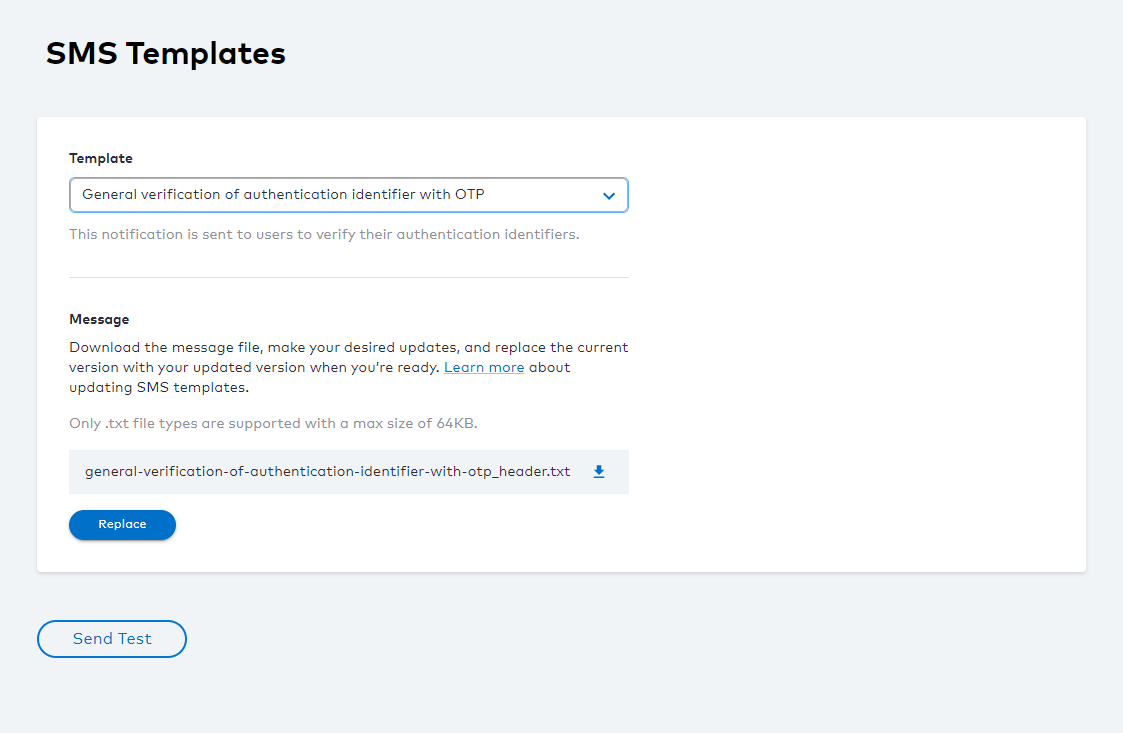 2. To configure a **Header** template (.txt file), click the
  download arrow icon to save the file locally.
3. Open the local template file for editing, make your changes, and save your updated file. See [About Notification Service Templates](templatesAbout) and [Notification Service SMS Templates](notificationSmsTemplateDetails_r) for more guidance.
4. Click **Replace** and select your **Header** txt file and click **Open** to complete the operation.
5. To verify your template updates, select **Send Test** to send a SMS notification to the destination specified.
The **SMS Provider** sends a notification to the phone number/account specified.
**Note:** Any future template file downloads retrieves the latest version of the template file that was last uploaded. When you choose to **Replace** the template file, the current template file is overwritten. It's recommended to save a local copy of your template file(s) if you need to roll back to a previous version.
A new SMS template is created and saved in Storefront Gateway's data store. The **SMS Provider** sends a notification to the email specified in the **To** field of the SMS template.
* **[Notification Service SMS Templates](notificationSmsTemplateDetails_r)**
**Parent topic:**[About Notification Service Templates](templatesAbout)
This documentation is built and hosted on [Mintlify](https://mintlify.com), a developer documentation platform.
download arrow icon to save the file locally.
3. Open the local template file for editing, make your changes, and save your updated file. See [About Notification Service Templates](templatesAbout) and [Notification Service SMS Templates](notificationSmsTemplateDetails_r) for more guidance.
4. Click **Replace** and select your **Header** txt file and click **Open** to complete the operation.
5. To verify your template updates, select **Send Test** to send a SMS notification to the destination specified.
The **SMS Provider** sends a notification to the phone number/account specified.
**Note:** Any future template file downloads retrieves the latest version of the template file that was last uploaded. When you choose to **Replace** the template file, the current template file is overwritten. It's recommended to save a local copy of your template file(s) if you need to roll back to a previous version.
A new SMS template is created and saved in Storefront Gateway's data store. The **SMS Provider** sends a notification to the email specified in the **To** field of the SMS template.
* **[Notification Service SMS Templates](notificationSmsTemplateDetails_r)**
**Parent topic:**[About Notification Service Templates](templatesAbout)
This documentation is built and hosted on [Mintlify](https://mintlify.com), a developer documentation platform.