> ## Documentation Index
> Fetch the complete documentation index at: https://docs.m1amdocs.com/llms.txt
> Use this file to discover all available pages before exploring further.
# Backup Codes
When a user loses access to their second factor authentication method, Care representatives can generate a single backup code (BUC) for the user to be used for account validation. This will allow the user to regain access to their account. The BUC is a temporary one-time code generated from the Care console and replaces any previously generated BUCs.
A backup code (BUC) is needed when the user's 2 Factor Authentication (2FA) method isn't accessible. The BUC helps when the user can't complete their authentication during the MFA process.
For example in the following scenarios:
* When the user exceeds the maximum allowed number of 2FA attempts.
* When all previously generated BUCs have been utilized.
* In cases where the user cannot access their authenticator app due to technical issues.
* If the user has lost their device, such as their phone or tablet.
From the user's **Identity** page, the Care representative generates the BUC to give to the user. This code is read out to the user on the phone and is never sent over a notification channel. Once the user enters the supplied BUC in the UI, that BUC is no longer valid.
* **[Generate a Backup Code](sgCareBackupCodes#generate-a-backup-code)**
* **[How To Proceed After Successfully Using A Backup Code (BUC)](sgCareBackupCodes#how-to-proceed-after-successfully-using-a-backup-code-buc)**
**Parent topic:**[Authentication Identifiers](sgEmailsAndMobileNumbers)
## Generate a Backup Code
As a Care agent, you can generate a one-time backup code (BUC) on behalf of a user. The user must have at least one factor registered for two-factor authentication (2FA) in order to generate a BUC for them.
1. Sign in to the Care console. By default, the **Find a User** screen appears.
2. [Find and select](sgFindUser) a specific user. The selected user's profile or **Identity** page displays.
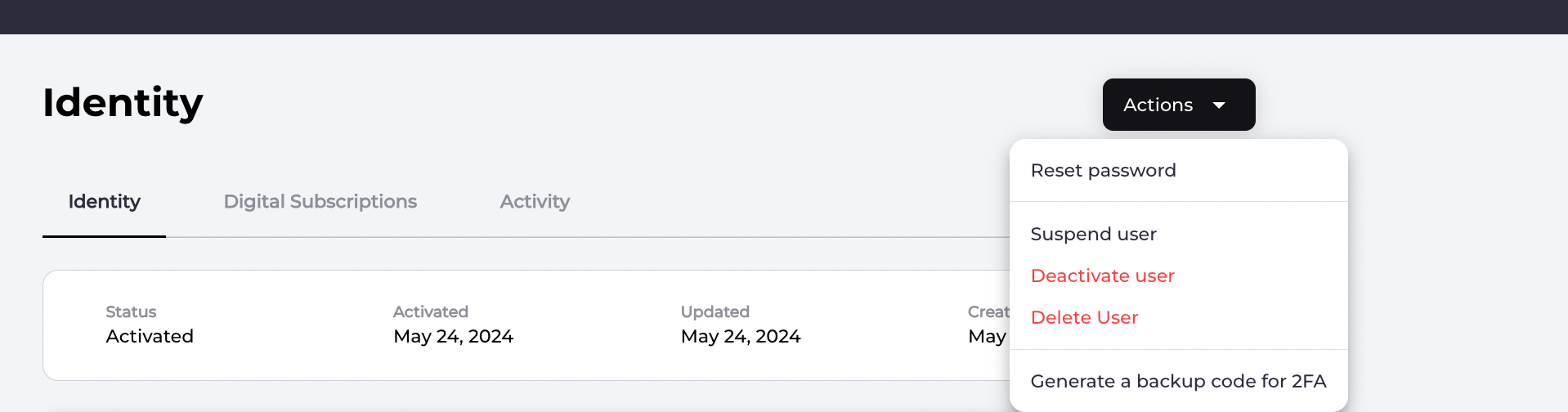
3. Generate a backup code by selecting the **Actions** > **Generate a backup code for 2FA** link located in the top-right corner.
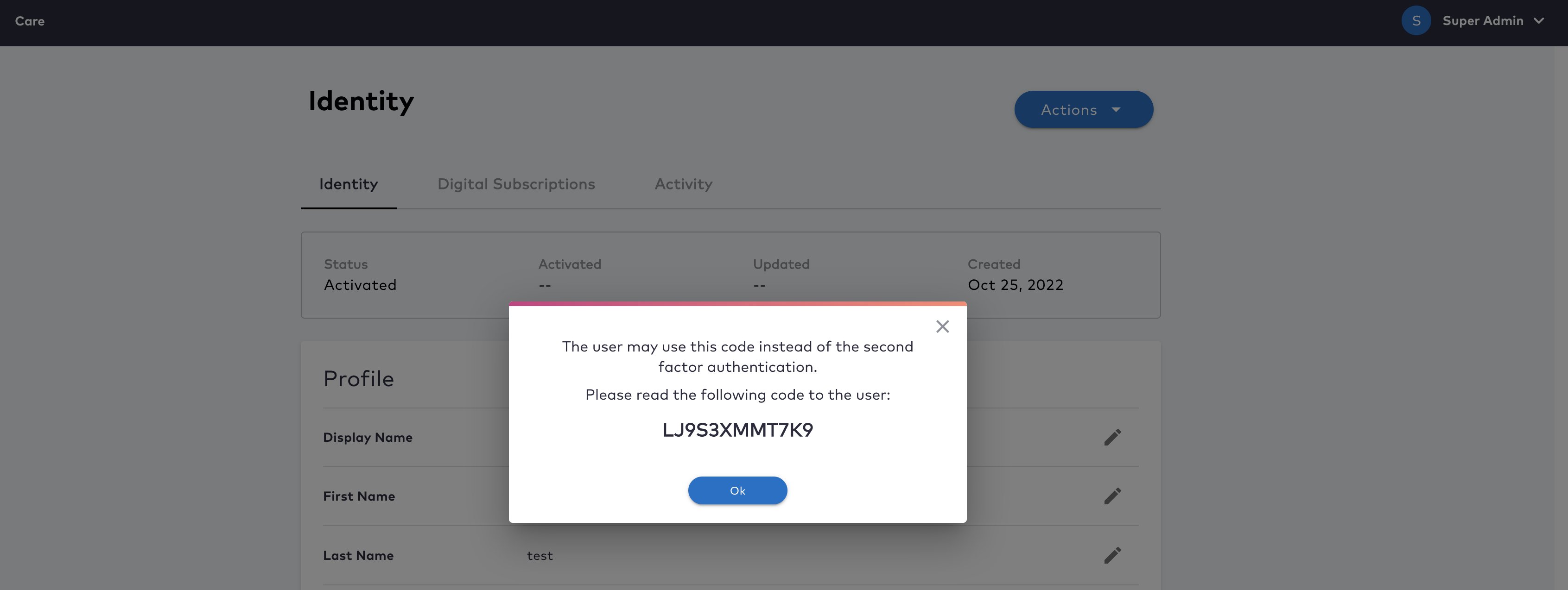
 4. Provide the backup code to the user so they may enter it as part of their log in process.
 **Note:** Once the user successfully authenticates and logs in to their account, they should update their factors for MFA.
5. Click **OK**.
The system generates a one-time backup code (BUC) that is supplied to the user in a secure way. The user enters the BUC, authenticates, and regains access to their account. The user receives a notification about their BUC usage and User History is generated.
**Parent topic:**[Backup Codes](sgCareBackupCodes)
## How To Proceed After Successfully Using A Backup Code (BUC)
After the user completes a successful authentication and regains access to their account again, they should perform the following tasks:
* Register a new 2FA method to ensure secure account validation in the future.
* Remove any outdated 2FA factors that are no longer functional.
* Generate a fresh set of backup codes for future use.
**Parent topic:**[Backup Codes](sgCareBackupCodes)
This documentation is built and hosted on [Mintlify](https://mintlify.com), a developer documentation platform.
**Note:** Once the user successfully authenticates and logs in to their account, they should update their factors for MFA.
5. Click **OK**.
The system generates a one-time backup code (BUC) that is supplied to the user in a secure way. The user enters the BUC, authenticates, and regains access to their account. The user receives a notification about their BUC usage and User History is generated.
**Parent topic:**[Backup Codes](sgCareBackupCodes)
## How To Proceed After Successfully Using A Backup Code (BUC)
After the user completes a successful authentication and regains access to their account again, they should perform the following tasks:
* Register a new 2FA method to ensure secure account validation in the future.
* Remove any outdated 2FA factors that are no longer functional.
* Generate a fresh set of backup codes for future use.
**Parent topic:**[Backup Codes](sgCareBackupCodes)
This documentation is built and hosted on [Mintlify](https://mintlify.com), a developer documentation platform.