> ## Documentation Index
> Fetch the complete documentation index at: https://docs.m1amdocs.com/llms.txt
> Use this file to discover all available pages before exploring further.
# Onboard and Authenticate User with Social Account Process
This API Process defines how an anonymous (or unauthenticated) user onboards and authenticates in Storefront Gateway using an integrated third-party social account. The Onboard and Authenticate User Process orchestrates two primary flows:
* **Onboarding with Social Media** – a new, anonymous user signs up using their preferred social account. Storefront Gateway uses details returned from the social provider to create the User ID.
* **Authentication with Social Media** – an anonymous user signs in using that account. The User ID already exists, and it the social account is already associated to the User ID.
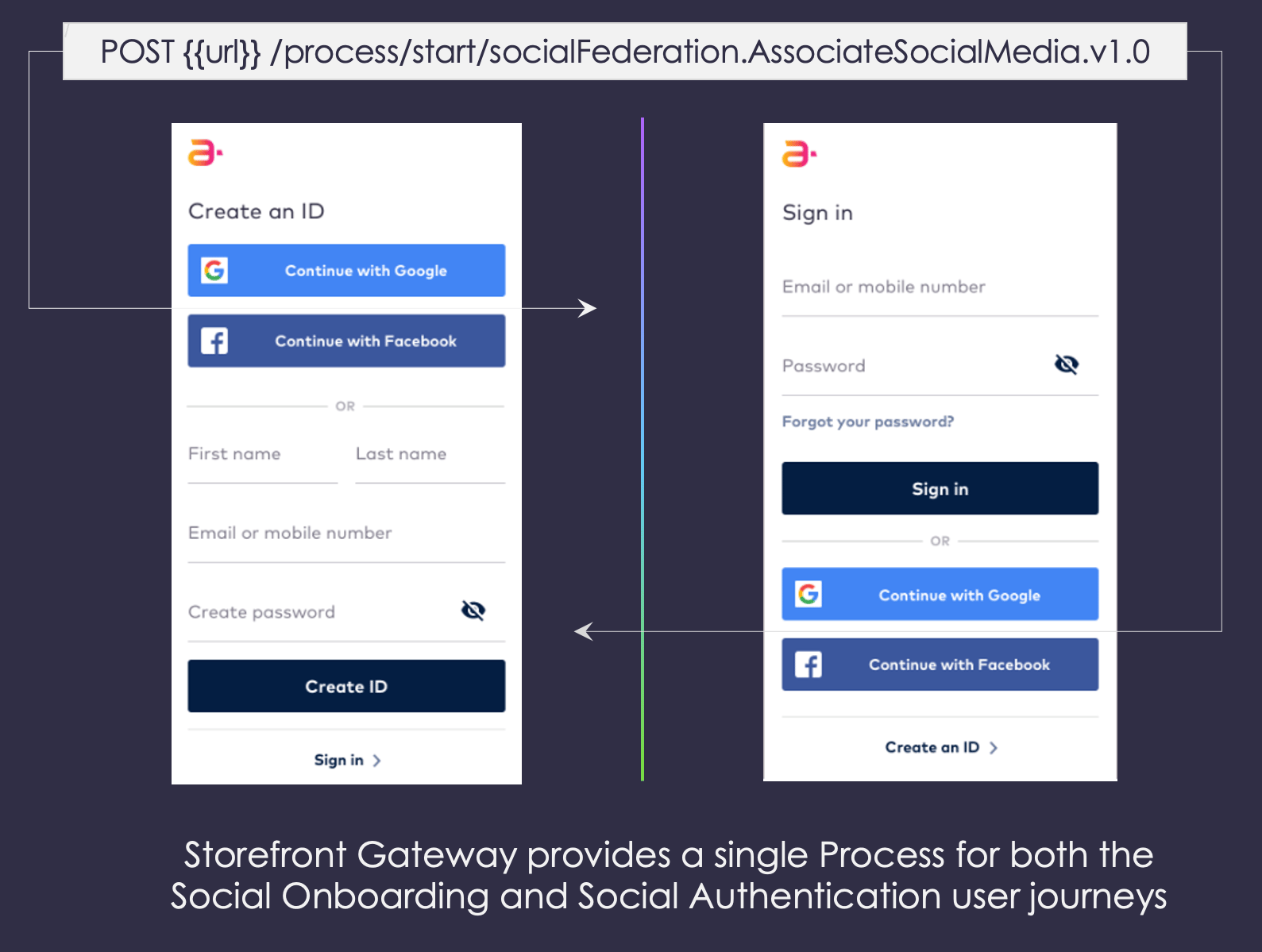 This Process is distinct from the Associate Social Account to User ID Process. That Process can only be invoked by an existing, **authenticated** Storefront Gateway user who decides to associate their social account to their User ID.
## How it works
When a user opts to onboard or authenticate with a specified social account provider, the Process redirects to the provider's website wherein the user signs into their account.
If this is the user's first time (i.e., onboarding), then Storefront Gateway requests specific pieces of user data from the provider (i.e., name, email or mobile), and the provider asks the user for explicit permission to share those details. The provider then redirects back to Storefront Gateway and sends along an authorization code. Storefront Gateway immediately performs a second, back end call to redeem that code in exchange for the actual user data, along with additional internal data from the provider that will be used to create the association.
Finally, Storefront Gateway redirects back to the front end application and passes along the user data, and application presents it to the user for them to confirm. Once the user confirms, Storefront Gateway uses that data to register the new User entity, and creates an internal association between the User and the social account. This internal association allows the user to easily authenticate into the service that uses Storefront Gateway as their Identity Provider (IdP).
This Process is distinct from the Associate Social Account to User ID Process. That Process can only be invoked by an existing, **authenticated** Storefront Gateway user who decides to associate their social account to their User ID.
## How it works
When a user opts to onboard or authenticate with a specified social account provider, the Process redirects to the provider's website wherein the user signs into their account.
If this is the user's first time (i.e., onboarding), then Storefront Gateway requests specific pieces of user data from the provider (i.e., name, email or mobile), and the provider asks the user for explicit permission to share those details. The provider then redirects back to Storefront Gateway and sends along an authorization code. Storefront Gateway immediately performs a second, back end call to redeem that code in exchange for the actual user data, along with additional internal data from the provider that will be used to create the association.
Finally, Storefront Gateway redirects back to the front end application and passes along the user data, and application presents it to the user for them to confirm. Once the user confirms, Storefront Gateway uses that data to register the new User entity, and creates an internal association between the User and the social account. This internal association allows the user to easily authenticate into the service that uses Storefront Gateway as their Identity Provider (IdP).
 At a later date, the same user subsequently returns to the application and opts to authenticate with their associated social account. The process goes through the same initial exchange with the social provider, but the user doesn't need to explicitly share that information again (unless they separately go to the provider and select to "forget" those permissions). Once the provider sends the authorization code back to Storefront Gateway, Storefront Gateway simply opens the user session on the server, and redirects back to the client service. From the user's perspective, they simply click a single button or link (i.e., "Sign in with Google") and, after a brief moment, they are authenticated into a given application.
**Note:** This Process is designed according to the [OAuth2.0](https://www.rfc-editor.org/rfc/rfc6749) authorization framework. OAuth is an [IETF](https://www.ietf.org/about) standard protocol to authorize the transfer of resources across separate systems. Third-party integrations allow end users to share segments of their information from one website to another, without the need to expose their credentials. In this Process, the social provider essentially federates user authentication to Storefront Gateway.
Similarly, Storefront Gateway can also broker authentication to other third-party applications in order to enable single-sign on (SSO) with Storefront Gateway as the IdP entry point. In other words, a user can authenticate into Storefront Gateway using their preferred method (including this one), and then remain signed in once they navigate to OIDC clients that are registered with Storefront Gateway. See the [https://docs.saas.amdocs.com/bundle/b\_sgProductDescription/page/topics/accountIntegrationAndServiceManagement\_c.html](https://docs.saas.amdocs.com/bundle/b_sgProductDescription/page/topics/accountIntegrationAndServiceManagement_c.html) for more information on Storefront Gateway's [Single Sign-On](ssoIntro) solution, and how Storefront Gateway delivers that solution through OAuth 2.0 and it's identity-specific extension, OpenID Connect (OIDC).
## Prerequisite: how to enable social integrations
Out of the box, Storefront Gateway comes with support for integrations with the following social account providers:
* Apple
* Facebook
* Google
* LinkedIn
* Microsoft
However, your organization will need to take a few steps to configure your service's specific integrations so that this and other related Processes will know what to do when they are invoked.
First, your organization needs to navigate to the respective social provider's developer portal to register an app ID. As a part of that process, the social provider issues specific secret keys. Then, you provide those keys to Storefront Gateway in the MarketONE Admin console, under the Social Connections settings menu. Once these two steps are complete, your instance of the Storefront Gateway service will support live calls between Storefront Gateway's and the social provider(s).
For example, to enable a Facebook integration, follow these steps:
1. Navigate to the [Facebook Developer Portal](https://developers.facebook.com/), create an account, and sign in.
2. Create an App ID (select the **For Everything Else** option).
3. Enter the **App Name.**
4. Add the **Facebook Login** product and select the **Web** platform.
5. Facebook will then issue specific information required for the app integration. Make a note of the **AppId** and **AppSecret**.
6. Add the end url (Amdocs managed or custom domain) to the **Valid OAuth Redirect URIs**. This is where Storefront Gateway will redirect to once it finishes it's communication with the social provider.
7. Navigate to the MarketONE Admin console, and sign in.
8. Navigate to Settings > Social Connections, and toggle the **Enable Facebook** option.
9. Add the AppId and AppSecret to the equivalent **ClientId** and ClientSecret fields.
10. Click **Save** at the bottom of the page.
At a later date, the same user subsequently returns to the application and opts to authenticate with their associated social account. The process goes through the same initial exchange with the social provider, but the user doesn't need to explicitly share that information again (unless they separately go to the provider and select to "forget" those permissions). Once the provider sends the authorization code back to Storefront Gateway, Storefront Gateway simply opens the user session on the server, and redirects back to the client service. From the user's perspective, they simply click a single button or link (i.e., "Sign in with Google") and, after a brief moment, they are authenticated into a given application.
**Note:** This Process is designed according to the [OAuth2.0](https://www.rfc-editor.org/rfc/rfc6749) authorization framework. OAuth is an [IETF](https://www.ietf.org/about) standard protocol to authorize the transfer of resources across separate systems. Third-party integrations allow end users to share segments of their information from one website to another, without the need to expose their credentials. In this Process, the social provider essentially federates user authentication to Storefront Gateway.
Similarly, Storefront Gateway can also broker authentication to other third-party applications in order to enable single-sign on (SSO) with Storefront Gateway as the IdP entry point. In other words, a user can authenticate into Storefront Gateway using their preferred method (including this one), and then remain signed in once they navigate to OIDC clients that are registered with Storefront Gateway. See the [https://docs.saas.amdocs.com/bundle/b\_sgProductDescription/page/topics/accountIntegrationAndServiceManagement\_c.html](https://docs.saas.amdocs.com/bundle/b_sgProductDescription/page/topics/accountIntegrationAndServiceManagement_c.html) for more information on Storefront Gateway's [Single Sign-On](ssoIntro) solution, and how Storefront Gateway delivers that solution through OAuth 2.0 and it's identity-specific extension, OpenID Connect (OIDC).
## Prerequisite: how to enable social integrations
Out of the box, Storefront Gateway comes with support for integrations with the following social account providers:
* Apple
* Facebook
* Google
* LinkedIn
* Microsoft
However, your organization will need to take a few steps to configure your service's specific integrations so that this and other related Processes will know what to do when they are invoked.
First, your organization needs to navigate to the respective social provider's developer portal to register an app ID. As a part of that process, the social provider issues specific secret keys. Then, you provide those keys to Storefront Gateway in the MarketONE Admin console, under the Social Connections settings menu. Once these two steps are complete, your instance of the Storefront Gateway service will support live calls between Storefront Gateway's and the social provider(s).
For example, to enable a Facebook integration, follow these steps:
1. Navigate to the [Facebook Developer Portal](https://developers.facebook.com/), create an account, and sign in.
2. Create an App ID (select the **For Everything Else** option).
3. Enter the **App Name.**
4. Add the **Facebook Login** product and select the **Web** platform.
5. Facebook will then issue specific information required for the app integration. Make a note of the **AppId** and **AppSecret**.
6. Add the end url (Amdocs managed or custom domain) to the **Valid OAuth Redirect URIs**. This is where Storefront Gateway will redirect to once it finishes it's communication with the social provider.
7. Navigate to the MarketONE Admin console, and sign in.
8. Navigate to Settings > Social Connections, and toggle the **Enable Facebook** option.
9. Add the AppId and AppSecret to the equivalent **ClientId** and ClientSecret fields.
10. Click **Save** at the bottom of the page.
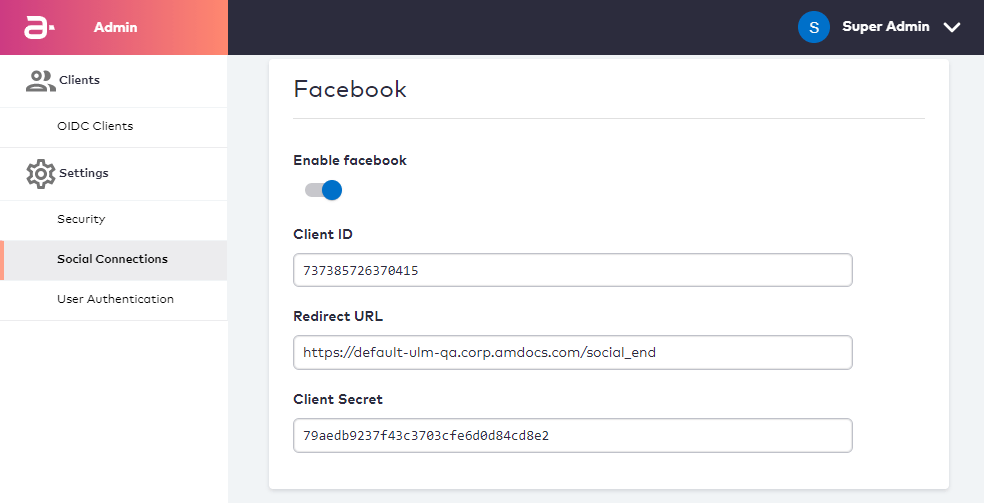 Once these steps are complete, Facebook is then a valid provider that can be specified by this and other social-based Processes (e.g., the Associate Social Account to User ID Process).
All supported social integrations follow the same pattern, and are configured from the same page within the MarketONE Admin console.
## Adding Provider IDs to the Request URL
Like most Processes, this Process is initialized by the Process Start API. The Process Start API optionally consumes no payload but you can actually add the required parameters upfront in the initial API request URL.
For example, in a normal invocation, the Process Start API consumes no payload:
```
**POST /process/start/socialFederation.SocialMediaAssistedOnboarding.v1.0**
```
The Process then responds with a request for request for a supported `providerID`. The response includes an array of provider options:
```
**RESPONSE**
{
"processId": "8f41d5cc-a4ab-45e9-9e3b-7f58a2ed183f",
"processName": "socialFederation.SocialMediaAssistedOnboarding.v1.0",
"displayMessage": "Please input required information",
"stepName": "ProviderPrompt",
"lastStep": false,
"parameters": {
"providerId": "String"
},
"output": {
"providers": [
"linkedin",
"google",
"facebook",
"apple"
]
}
}
```
**Note:** the array will only include options that your organization has enabled and configured in MarketONE Admin web app. In other words, if your organization only has Facebook and Google enabled, then only those options will appear in this response.
The client then needs to specify the `providerId` in a subsequent [Process Step](c_processStep) API request:
```
**REQUEST - PUT /process/step**
{
"processId": "8f41d5cc-a4ab-45e9-9e3b-7f58a2ed183f",
"parameters": {
"providerId": "facebook"
}
}
```
In response, the Process returns a redirect URL to the specified social provider, and the flow continues as normal.
However, the client can also simply invoke the Process with the `providerId` in the initial Process Start request URL:
```
**REQUEST - POST /process/start/socialFederation.SocialMediaAssistedOnboarding.v1.0?providerId=facebook **
```
This effectively skips that initial step that requires an explicit selection. As a best practice, adding the `providerID` to the request URL enables you to build your application to display social media badges on the sign-in and/or sign-up screens. The client can then invoke the provider-specific variation of the Process when a user clicks on a provider-specific badge.
## Responsive Process Design
This Process accounts for edge cases and user error scenarios wherein a user mistakenly begins at one flow's starting point, but logistically should arrive at another flow's end result.
For example, a user with an existing User ID may mistakenly start from a client's sign-up page. Alternatively, a user who has not yet onboarded starts on the sign-in page. Since the client UI invokes the exact same Process from either flow's entry point, the communication between Storefront Gateway and the social provider ensures that the user arrives at the correct end point. The following conditions apply:
* If the user details returned from the provider (i.e., email/mobile) are not found in Storefront Gateway, then the Process creates the new User entity. The user needs to confirm the details are correct. See the next section below for scenarios where the user changes the email/mobile before confirming.
* If the user details are found in Storefront Gateway on an existing User entity, but there is no existing association, then the Process prompts the user to sign in. Once the user signs in, the Process creates the association between the User entity and the social account.
* If the user details are found in Storefront Gateway on an existing User, and the social connection already exists, then the Process simply authenticates the end user.
Once these steps are complete, Facebook is then a valid provider that can be specified by this and other social-based Processes (e.g., the Associate Social Account to User ID Process).
All supported social integrations follow the same pattern, and are configured from the same page within the MarketONE Admin console.
## Adding Provider IDs to the Request URL
Like most Processes, this Process is initialized by the Process Start API. The Process Start API optionally consumes no payload but you can actually add the required parameters upfront in the initial API request URL.
For example, in a normal invocation, the Process Start API consumes no payload:
```
**POST /process/start/socialFederation.SocialMediaAssistedOnboarding.v1.0**
```
The Process then responds with a request for request for a supported `providerID`. The response includes an array of provider options:
```
**RESPONSE**
{
"processId": "8f41d5cc-a4ab-45e9-9e3b-7f58a2ed183f",
"processName": "socialFederation.SocialMediaAssistedOnboarding.v1.0",
"displayMessage": "Please input required information",
"stepName": "ProviderPrompt",
"lastStep": false,
"parameters": {
"providerId": "String"
},
"output": {
"providers": [
"linkedin",
"google",
"facebook",
"apple"
]
}
}
```
**Note:** the array will only include options that your organization has enabled and configured in MarketONE Admin web app. In other words, if your organization only has Facebook and Google enabled, then only those options will appear in this response.
The client then needs to specify the `providerId` in a subsequent [Process Step](c_processStep) API request:
```
**REQUEST - PUT /process/step**
{
"processId": "8f41d5cc-a4ab-45e9-9e3b-7f58a2ed183f",
"parameters": {
"providerId": "facebook"
}
}
```
In response, the Process returns a redirect URL to the specified social provider, and the flow continues as normal.
However, the client can also simply invoke the Process with the `providerId` in the initial Process Start request URL:
```
**REQUEST - POST /process/start/socialFederation.SocialMediaAssistedOnboarding.v1.0?providerId=facebook **
```
This effectively skips that initial step that requires an explicit selection. As a best practice, adding the `providerID` to the request URL enables you to build your application to display social media badges on the sign-in and/or sign-up screens. The client can then invoke the provider-specific variation of the Process when a user clicks on a provider-specific badge.
## Responsive Process Design
This Process accounts for edge cases and user error scenarios wherein a user mistakenly begins at one flow's starting point, but logistically should arrive at another flow's end result.
For example, a user with an existing User ID may mistakenly start from a client's sign-up page. Alternatively, a user who has not yet onboarded starts on the sign-in page. Since the client UI invokes the exact same Process from either flow's entry point, the communication between Storefront Gateway and the social provider ensures that the user arrives at the correct end point. The following conditions apply:
* If the user details returned from the provider (i.e., email/mobile) are not found in Storefront Gateway, then the Process creates the new User entity. The user needs to confirm the details are correct. See the next section below for scenarios where the user changes the email/mobile before confirming.
* If the user details are found in Storefront Gateway on an existing User entity, but there is no existing association, then the Process prompts the user to sign in. Once the user signs in, the Process creates the association between the User entity and the social account.
* If the user details are found in Storefront Gateway on an existing User, and the social connection already exists, then the Process simply authenticates the end user.
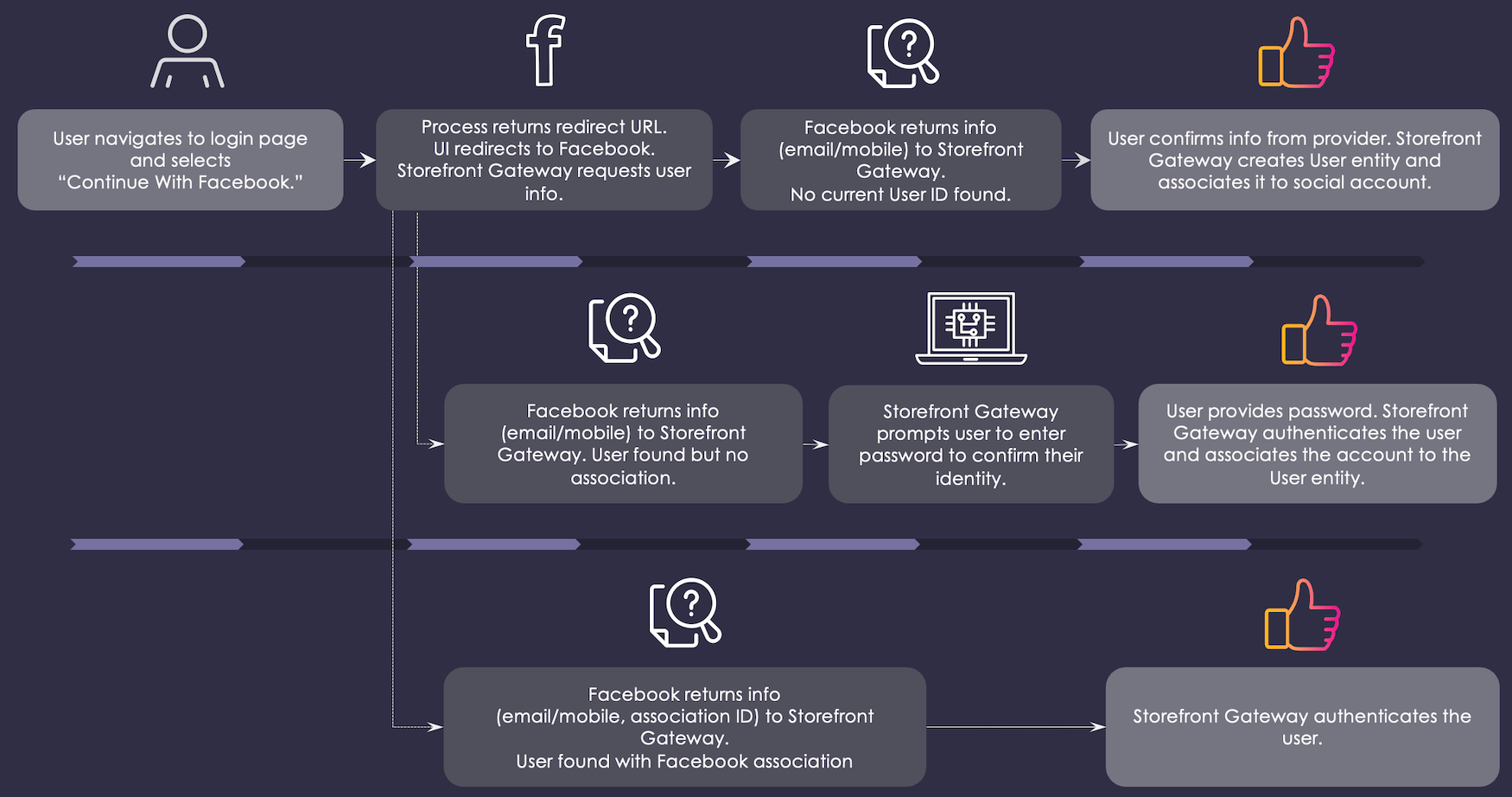 The result is a seamless flow that minimizes some of the friction that would otherwise occur as a result of user mistakes.
## Modifying the contact channel
When a user onboards with their social account, the social provider returns data to Storefront Gateway (and Storefront Gateway passes that data to the client) that the user must confirm. This includes an email address and/or mobile number. If the user confirms the email/mobile without changing it, then Storefront Gateway creates and activates the User entity. The user **does not** need verify the channel, as Storefront Gateway implicitly trusts the social provider.
However, the Process does allow for the user to change the email/mobile that was returned by the provider. If the user changes the email/mobile, the Process performs an additional check to see if that new email/mobile is already registered to an existing Storefront Gateway User. If the modified email/mobile is not found on an existing User entity, then the Process issues and sends an [action token](c_actionTokens) in a verification message to that contact channel. The Process then ends, and the user must redeem that token with the [GET session/token](c_sessionToken) API to invoke **Activate User** Process to complete their onboarding journey.
The result is a seamless flow that minimizes some of the friction that would otherwise occur as a result of user mistakes.
## Modifying the contact channel
When a user onboards with their social account, the social provider returns data to Storefront Gateway (and Storefront Gateway passes that data to the client) that the user must confirm. This includes an email address and/or mobile number. If the user confirms the email/mobile without changing it, then Storefront Gateway creates and activates the User entity. The user **does not** need verify the channel, as Storefront Gateway implicitly trusts the social provider.
However, the Process does allow for the user to change the email/mobile that was returned by the provider. If the user changes the email/mobile, the Process performs an additional check to see if that new email/mobile is already registered to an existing Storefront Gateway User. If the modified email/mobile is not found on an existing User entity, then the Process issues and sends an [action token](c_actionTokens) in a verification message to that contact channel. The Process then ends, and the user must redeem that token with the [GET session/token](c_sessionToken) API to invoke **Activate User** Process to complete their onboarding journey.
 Once invoked, the **Activate User** Process completes the user onboarding, associates the social account, and automatically authenticates the user.
**Note:** If the social provider does not return any email or mobile, then user **must** provide one and verify it.
Alternatively, if the modified email/mobile is found on an existing Storefront Gateway User entity, then the Process prompts the user to supply a password to prove that they own that User ID. Once the user provides a valid password, the Process authenticates the user, and automatically associates the social account to the existing User ID.
Once invoked, the **Activate User** Process completes the user onboarding, associates the social account, and automatically authenticates the user.
**Note:** If the social provider does not return any email or mobile, then user **must** provide one and verify it.
Alternatively, if the modified email/mobile is found on an existing Storefront Gateway User entity, then the Process prompts the user to supply a password to prove that they own that User ID. Once the user provides a valid password, the Process authenticates the user, and automatically associates the social account to the existing User ID.
 ## Process Flow - Onboarding
This section describes the Process at a high level, from an onboarding-oriented flow.
**Preconditions**
* The user is currently anonymous (i.e., they are not authenticated).
* The User ID does not yet exist (i.e., the Storefront Gateway User entity does not yet exist in the cloud data store).
**Basic Flow**
1. The user navigates to the application's "Create an ID" or "Sign Up" portal, and enters their email and/or mobile number.
2. The client UI redirects to the social provider, and the user authenticates into that provider's service.
3. The provider prompts the user with terms and conditions, and the details that the user needs to consent to sharing.
* If the user does not consent to sharing their information, the Process ends.
4. The user consents to sharing their information, and the provider redirects back to Storefront Gateway.
5. On the back end, the provider sends along an authorization code to Storefront Gateway. Storefront Gateway makes a separate back channel call to the provider and redeems that token for the user data. Storefront Gateway then checks the data store for any current User with a matching email/mobile.
* This flow assumes **no matching User is found**. Storefront Gateway redirects back to the client, and passes along the user data for the user to confirm.
* If a matching User is found, but there is no association to the social account, then the Storefront Gateway prompts the user to authenticate (i.e., provide a password) in order to prove that they own the matching email/mobile.
* If a matching User is found, and it is already associated to this social account, then Storefront Gateway simply authenticates the user and informs the front end.
6. Storefront Gateway sends the provider data (name and email/mobile) to the client front end, and the UI prompts the user to confirm the details.
* When you enable and configure a social integration in MarketONE Admin, you'll need to set a **Redirect URL** as a part of that configuration. This allows Storefront Gateway to know where it needs to redirect after acquiring user details from the social account provider.
7. The user confirms the details from the provider. The Process creates the new User entity with an activated status, associates the user to the social account, and authenticates the user.
* This flow assumes that **the user confirms** the details from the provider. Storefront Gateway trusts the provider and automatically "activates" the User entity (and its authentication identifier).
* If the user changes the email or mobile number, and then submits that to the Process, then Storefront Gateway creates the User entity with an `activating` status. The Process then issues and sends an [action token](c_actionTokens) to that new email/mobile for verification. The user cannot authenticate until they verify (i.e., activate) the email/mobile.
**Post-conditions**
* A new User exists in Storefront Gateway with a verified email and/or mobile.
* The user reaches the maximum number of failed input attempts. This is in the scenario where an existing User was found, and Storefront Gateway prompts the end user for a password.
**Possible or Common Errors**
* The user did not consent to share information.
* Invalid or unknown authN ID. User not found in the Storefront Gateway data store.
* The Storefront Gateway User (and/or the authN ID) is not yet verified.
## Process Flow - Authentication
This section describes the Process at a high level, from an authentication-oriented flow.
**Preconditions**
* The user has a fully activated Storefront Gateway User ID, with an associated social account.
* The user is currently anonymous (i.e., they are not authenticated in Storefront Gateway).
**Basic Flow**
1. The user navigates to their sign in portal and selects to sign with their preferred social provider.
2. The client UI redirects to the social provider, and the user authenticates into that provider's service.
* The Process ends if the user fails to sign into their social account.
* During the initial association between the Storefront Gateway User and the social account, the user previously consented to sharing their provider scopes with Storefront Gateway. Therefore, the provider will typically (and silently) remember this consent before automatically redirecting the browser back to Storefront Gateway.
3. The social provider redirects the user's browser back to Storefront Gateway. Storefront Gateway authenticates and Storefront Gateway then redirects back to the client application.
4. The user consents to sharing their information, and the provider redirects back to Storefront Gateway.
* On the back end, Storefront Gateway that the association between the User and the social account exist, and that the user data from the provider is still valid.
5. Storefront Gateway authenticates the User (i.e., opens a user session in the cloud) and redirects back to the front end client application.
* When you enable and configure a social integration in MarketONE Admin, you'll need to set a **Redirect URL** as a part of that configuration. This allows Storefront Gateway to know where it needs to redirect after authenticating the user.
**Post-conditions**
* The User is authenticated.
* The client may want to run the `GET /user` and any other entity management APIs to load the relevant user profile or otherwise "authenticated view" of the application.
**Possible or Common Errors**
* The selected social media is not supported at this time. This might occur if your organization disables an integration with a social provider, but the client still specifies that provider in the Process request.
* The user did not consent to share information. This occurs if the end user previously deleted their permissions that they gave to the social provider to share their data with Storefront Gateway (i.e., the consent they granted to the provider during the initial account association). If the user does this, the provider will re-prompt them for this consent during the Process execution. If the user rejects the prompt, then the Process ends, and Storefront Gateway will not authenticate them.
## Settings
Certain aspects of the Process' behavior are controlled by configurable settings. Your organization can manage these and other settings in the Admin Portal.
| Application Settings | Default Setting | |
| - | - | - |
| **Max failed sign-in attempts** | Maximum number of times the Process rejects bad input before ending.Applies to use cases wherein an user needs to provide their password and prove that they own an existing Storefront Gateway User ID. | 10 failed attempts |
| **Failed attempts time window** | The length of time in which the user's total failed attempts are counted towards lockout, measured in seconds. After this time expires, the count resets. | 3600 seconds |
| **User lockout duration** | The length of time that a user ID lockout lasts, measured in sections. | 3600 seconds |
| **Enable reCAPTCHA** | Enables Invisible reCAPTCHA, [version2](https://developers.google.com/recaptcha/docs/invisible). Enabling reCAPTCHA also includes setting additional fields for client and test secret keys. | Enabled |
| **tokenURL** | Base for the action token URL to include in the notification message sent to the user's external channel. The actual token value will be appended to this String to form the complete URL. For this Process, this setting applies to use cases wherein the user changes the email/mobile that was returned by the social provider. The Process sends an [action token](c_actionTokens) out to that email/mobile for verification. | [https://idp/user\\\_confirm?token\\\_value=](https://idp/user\\_confirm?token\\_value=) |
| **Token (long-form) Expiration** | Determines the number of minutes before a verification link expires. | 10080 minutes (7 days) |
| **Token (short-form) Expiration** | Determines the number of minutes before an OTP expires. **This setting is not configurable; it is noted here for context**. | 5 minutes |
| **Valid Email Pattern** | Defines the logic for an acceptable email format. JSON format. | `.+@.+\..+` |
| **Valid Mobile Pattern** | Defines the logic for an acceptable mobile number format. JSON format. | `^\(?([0-9]{3})\)?[-.\s]?([0-9]{3})[-.\s]?([0-9]{4})$` |
| Your organization can manage settings in the MarketONE Admin console. | | |
## User Journey Flow Diagram
This diagram illustrates the standard user journey using the **Onboarding and Authenticate User with Social Account** Process, and some of the paths the Process can take based on settings and/or user input.
## Process Flow - Onboarding
This section describes the Process at a high level, from an onboarding-oriented flow.
**Preconditions**
* The user is currently anonymous (i.e., they are not authenticated).
* The User ID does not yet exist (i.e., the Storefront Gateway User entity does not yet exist in the cloud data store).
**Basic Flow**
1. The user navigates to the application's "Create an ID" or "Sign Up" portal, and enters their email and/or mobile number.
2. The client UI redirects to the social provider, and the user authenticates into that provider's service.
3. The provider prompts the user with terms and conditions, and the details that the user needs to consent to sharing.
* If the user does not consent to sharing their information, the Process ends.
4. The user consents to sharing their information, and the provider redirects back to Storefront Gateway.
5. On the back end, the provider sends along an authorization code to Storefront Gateway. Storefront Gateway makes a separate back channel call to the provider and redeems that token for the user data. Storefront Gateway then checks the data store for any current User with a matching email/mobile.
* This flow assumes **no matching User is found**. Storefront Gateway redirects back to the client, and passes along the user data for the user to confirm.
* If a matching User is found, but there is no association to the social account, then the Storefront Gateway prompts the user to authenticate (i.e., provide a password) in order to prove that they own the matching email/mobile.
* If a matching User is found, and it is already associated to this social account, then Storefront Gateway simply authenticates the user and informs the front end.
6. Storefront Gateway sends the provider data (name and email/mobile) to the client front end, and the UI prompts the user to confirm the details.
* When you enable and configure a social integration in MarketONE Admin, you'll need to set a **Redirect URL** as a part of that configuration. This allows Storefront Gateway to know where it needs to redirect after acquiring user details from the social account provider.
7. The user confirms the details from the provider. The Process creates the new User entity with an activated status, associates the user to the social account, and authenticates the user.
* This flow assumes that **the user confirms** the details from the provider. Storefront Gateway trusts the provider and automatically "activates" the User entity (and its authentication identifier).
* If the user changes the email or mobile number, and then submits that to the Process, then Storefront Gateway creates the User entity with an `activating` status. The Process then issues and sends an [action token](c_actionTokens) to that new email/mobile for verification. The user cannot authenticate until they verify (i.e., activate) the email/mobile.
**Post-conditions**
* A new User exists in Storefront Gateway with a verified email and/or mobile.
* The user reaches the maximum number of failed input attempts. This is in the scenario where an existing User was found, and Storefront Gateway prompts the end user for a password.
**Possible or Common Errors**
* The user did not consent to share information.
* Invalid or unknown authN ID. User not found in the Storefront Gateway data store.
* The Storefront Gateway User (and/or the authN ID) is not yet verified.
## Process Flow - Authentication
This section describes the Process at a high level, from an authentication-oriented flow.
**Preconditions**
* The user has a fully activated Storefront Gateway User ID, with an associated social account.
* The user is currently anonymous (i.e., they are not authenticated in Storefront Gateway).
**Basic Flow**
1. The user navigates to their sign in portal and selects to sign with their preferred social provider.
2. The client UI redirects to the social provider, and the user authenticates into that provider's service.
* The Process ends if the user fails to sign into their social account.
* During the initial association between the Storefront Gateway User and the social account, the user previously consented to sharing their provider scopes with Storefront Gateway. Therefore, the provider will typically (and silently) remember this consent before automatically redirecting the browser back to Storefront Gateway.
3. The social provider redirects the user's browser back to Storefront Gateway. Storefront Gateway authenticates and Storefront Gateway then redirects back to the client application.
4. The user consents to sharing their information, and the provider redirects back to Storefront Gateway.
* On the back end, Storefront Gateway that the association between the User and the social account exist, and that the user data from the provider is still valid.
5. Storefront Gateway authenticates the User (i.e., opens a user session in the cloud) and redirects back to the front end client application.
* When you enable and configure a social integration in MarketONE Admin, you'll need to set a **Redirect URL** as a part of that configuration. This allows Storefront Gateway to know where it needs to redirect after authenticating the user.
**Post-conditions**
* The User is authenticated.
* The client may want to run the `GET /user` and any other entity management APIs to load the relevant user profile or otherwise "authenticated view" of the application.
**Possible or Common Errors**
* The selected social media is not supported at this time. This might occur if your organization disables an integration with a social provider, but the client still specifies that provider in the Process request.
* The user did not consent to share information. This occurs if the end user previously deleted their permissions that they gave to the social provider to share their data with Storefront Gateway (i.e., the consent they granted to the provider during the initial account association). If the user does this, the provider will re-prompt them for this consent during the Process execution. If the user rejects the prompt, then the Process ends, and Storefront Gateway will not authenticate them.
## Settings
Certain aspects of the Process' behavior are controlled by configurable settings. Your organization can manage these and other settings in the Admin Portal.
| Application Settings | Default Setting | |
| - | - | - |
| **Max failed sign-in attempts** | Maximum number of times the Process rejects bad input before ending.Applies to use cases wherein an user needs to provide their password and prove that they own an existing Storefront Gateway User ID. | 10 failed attempts |
| **Failed attempts time window** | The length of time in which the user's total failed attempts are counted towards lockout, measured in seconds. After this time expires, the count resets. | 3600 seconds |
| **User lockout duration** | The length of time that a user ID lockout lasts, measured in sections. | 3600 seconds |
| **Enable reCAPTCHA** | Enables Invisible reCAPTCHA, [version2](https://developers.google.com/recaptcha/docs/invisible). Enabling reCAPTCHA also includes setting additional fields for client and test secret keys. | Enabled |
| **tokenURL** | Base for the action token URL to include in the notification message sent to the user's external channel. The actual token value will be appended to this String to form the complete URL. For this Process, this setting applies to use cases wherein the user changes the email/mobile that was returned by the social provider. The Process sends an [action token](c_actionTokens) out to that email/mobile for verification. | [https://idp/user\\\_confirm?token\\\_value=](https://idp/user\\_confirm?token\\_value=) |
| **Token (long-form) Expiration** | Determines the number of minutes before a verification link expires. | 10080 minutes (7 days) |
| **Token (short-form) Expiration** | Determines the number of minutes before an OTP expires. **This setting is not configurable; it is noted here for context**. | 5 minutes |
| **Valid Email Pattern** | Defines the logic for an acceptable email format. JSON format. | `.+@.+\..+` |
| **Valid Mobile Pattern** | Defines the logic for an acceptable mobile number format. JSON format. | `^\(?([0-9]{3})\)?[-.\s]?([0-9]{3})[-.\s]?([0-9]{4})$` |
| Your organization can manage settings in the MarketONE Admin console. | | |
## User Journey Flow Diagram
This diagram illustrates the standard user journey using the **Onboarding and Authenticate User with Social Account** Process, and some of the paths the Process can take based on settings and/or user input.
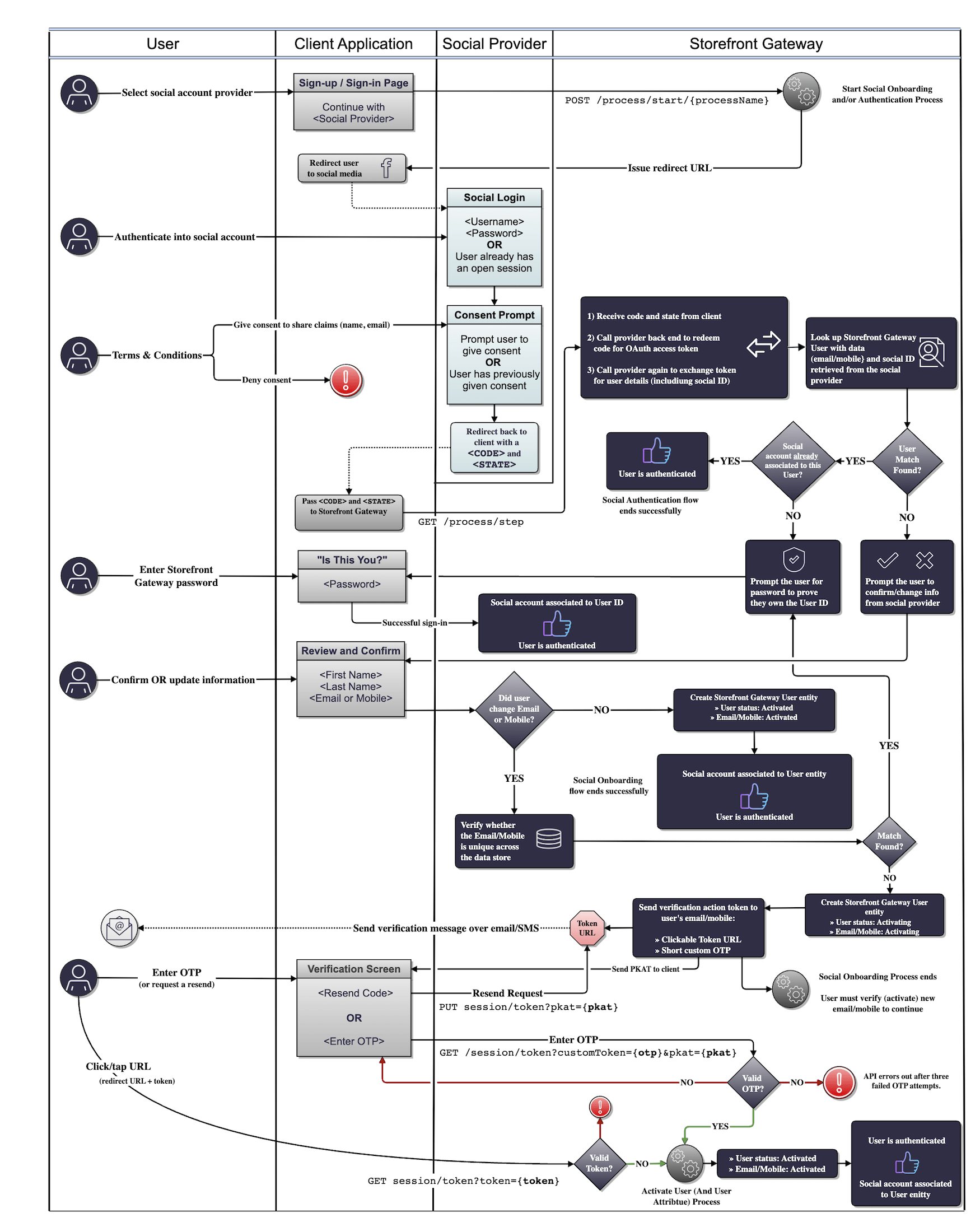 This diagram also incorporates a token resend option (with the `[PUT /session/token](c_putSessionToken)` API) and the **Activate User** Processes.
## Use Cases
The following sub-topics provide guided walkthroughs of the Onboard and Authenticate User with Social Account Process:
* [Onboard a new user with their social account](c_useCaseSocialOnboarding)
* [Authenticate an existing user with social account](c_useCaseSocialAuthentication)
* [Social account errors](c_socialErrors)
## Additional Notes
* Storefront Gateway allows a user to have more than one social accounts associated to their User ID.
* Storefront Gateway sends a notification message to the user's email/mobile that confirms when they have successfully associated a social account.
* If the social provider returns an email address and mobile number, and the user changes the value for each, then they will need to verify each channel separately. The Process will issue and send two separate action tokens, and send them to each channel. Additionally, the Process returns two separate [PKATs](c_actionTokens#proof-key-for-action-tokens-pkats) to the client application.
* Storefront Gateway currently supports social associations with the following providers: Facebook, Google, Apple ID, and LinkedIn.
* **[Social onboarding](c_useCaseSocialOnboarding)**
* **[Social authentication](c_useCaseSocialAuthentication)**
* **[Social account errors](c_socialErrors)**
**Parent topic:**[Identity Management Processes](../images/c_identityProcesses)
This documentation is built and hosted on [Mintlify](https://mintlify.com), a developer documentation platform.
This diagram also incorporates a token resend option (with the `[PUT /session/token](c_putSessionToken)` API) and the **Activate User** Processes.
## Use Cases
The following sub-topics provide guided walkthroughs of the Onboard and Authenticate User with Social Account Process:
* [Onboard a new user with their social account](c_useCaseSocialOnboarding)
* [Authenticate an existing user with social account](c_useCaseSocialAuthentication)
* [Social account errors](c_socialErrors)
## Additional Notes
* Storefront Gateway allows a user to have more than one social accounts associated to their User ID.
* Storefront Gateway sends a notification message to the user's email/mobile that confirms when they have successfully associated a social account.
* If the social provider returns an email address and mobile number, and the user changes the value for each, then they will need to verify each channel separately. The Process will issue and send two separate action tokens, and send them to each channel. Additionally, the Process returns two separate [PKATs](c_actionTokens#proof-key-for-action-tokens-pkats) to the client application.
* Storefront Gateway currently supports social associations with the following providers: Facebook, Google, Apple ID, and LinkedIn.
* **[Social onboarding](c_useCaseSocialOnboarding)**
* **[Social authentication](c_useCaseSocialAuthentication)**
* **[Social account errors](c_socialErrors)**
**Parent topic:**[Identity Management Processes](../images/c_identityProcesses)
This documentation is built and hosted on [Mintlify](https://mintlify.com), a developer documentation platform.