> ## Documentation Index
> Fetch the complete documentation index at: https://docs.m1amdocs.com/llms.txt
> Use this file to discover all available pages before exploring further.
# Manage Your API Key
To integrate with the platform and make API calls, you must use an API key. This key is a JSON Web Token (JWT) that does not expire and is essential for secure communication.
Every API request made by a Reseller (Service Provider) must include the API key in the request header:
```
`X-API-KEY: your_api_key_here`
```
In **Platform Settings** > **API Keys**, you can:
* Generate an API key
* Regenerate an API key
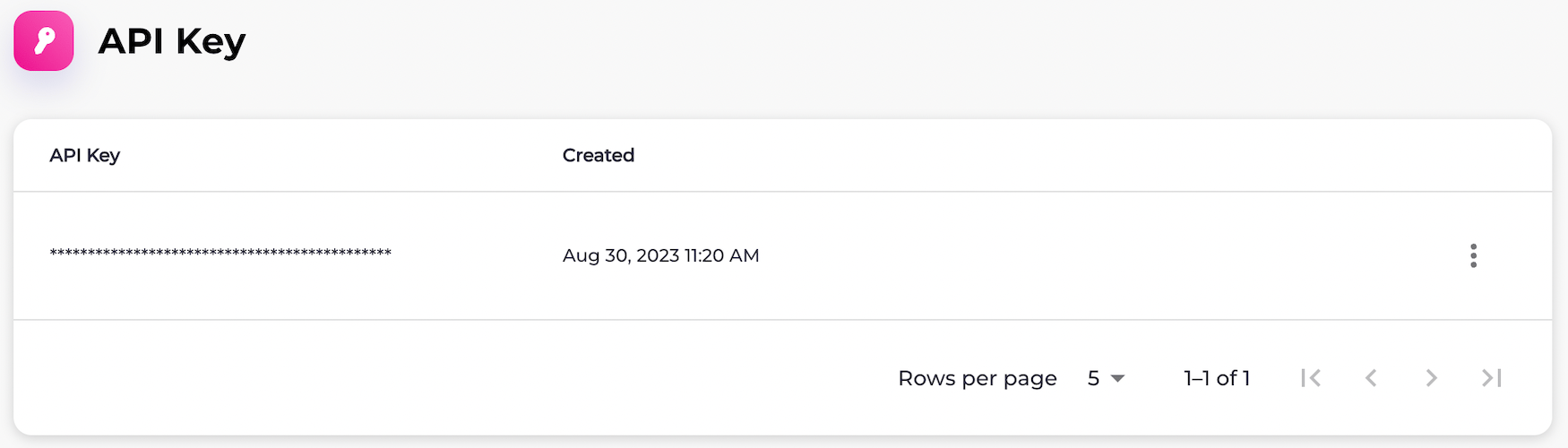
1. Navigate to **Platform Settings** > **API Key**.
The **API Key** page appears.
 2. Select what you'd like to do:
* To generate an API key, select the three dot menu and select **Generate New Key**.
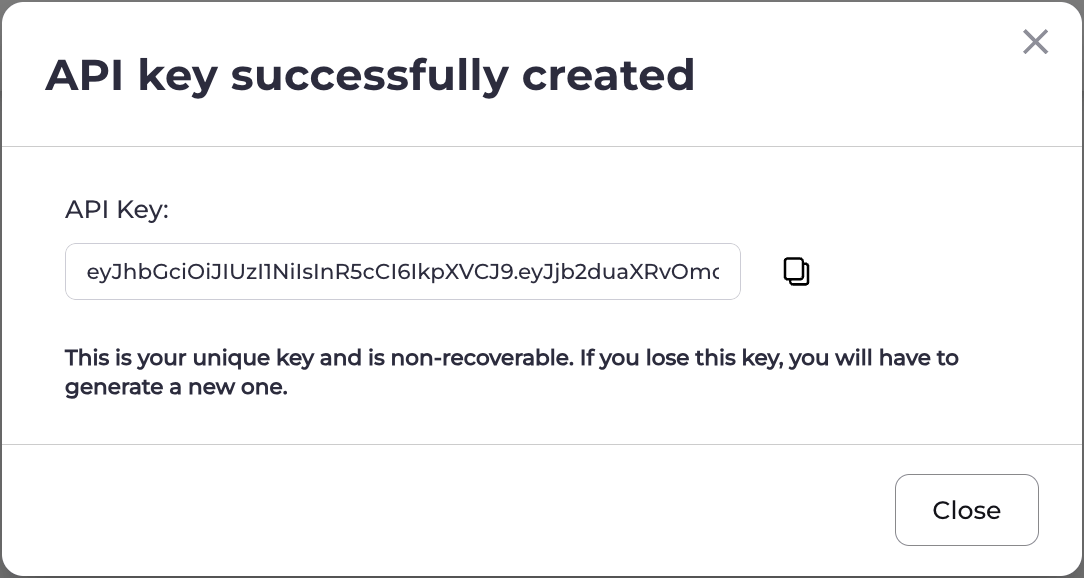
The **API Key Successfully Created** box appears.
Select the API key in the field and press CTRL+C or select the **Copy** icon (
2. Select what you'd like to do:
* To generate an API key, select the three dot menu and select **Generate New Key**.
The **API Key Successfully Created** box appears.
Select the API key in the field and press CTRL+C or select the **Copy** icon ( ) to copy it.
When you're done, click **Close**.
**Note:** Once you close the box, the API key can't be accessed again. This is to protect the key and ensure its security.
) to copy it.
When you're done, click **Close**.
**Note:** Once you close the box, the API key can't be accessed again. This is to protect the key and ensure its security.
 * To regenerate an API key, select **Regenerate Key**.
The **Regenerate API Key** box appears.
Select **Confirm Regeneration**.
The **API Key Successfully Created** box appears.
Select the API key in the field and press CTRL+C or select the **Copy** icon () to copy it.
When you're done, click **Close**.
**Note:** Once you close the box, the API key can't be accessed again. This is to protect the key and ensure its security.
**Parent topic:**
This documentation is built and hosted on [Mintlify](https://mintlify.com), a developer documentation platform.
* To regenerate an API key, select **Regenerate Key**.
The **Regenerate API Key** box appears.
Select **Confirm Regeneration**.
The **API Key Successfully Created** box appears.
Select the API key in the field and press CTRL+C or select the **Copy** icon () to copy it.
When you're done, click **Close**.
**Note:** Once you close the box, the API key can't be accessed again. This is to protect the key and ensure its security.
**Parent topic:**
This documentation is built and hosted on [Mintlify](https://mintlify.com), a developer documentation platform.