> ## Documentation Index
> Fetch the complete documentation index at: https://docs.m1amdocs.com/llms.txt
> Use this file to discover all available pages before exploring further.
# Manage Data Compliance
In **Platform Settings** > **Reseller Policies** > **Data Compliance**, you can obfuscate customer PII (Personally Identifiable Information) that is returned during subscription creation, subscription cancellation, and account validation requests. This can aid in protecting customer data and help your organization comply with privacy regulations such as GDPR.
When you turn on this setting, previously stored data is not deleted.
**Note:** This setting does not override other configurations where you may have chosen to store PII data, such as allowlist attributes.
1. Navigate to **Platform Settings** > **Reseller Policies** > **Data Compliance**.
The **Data Compliance** page appears.
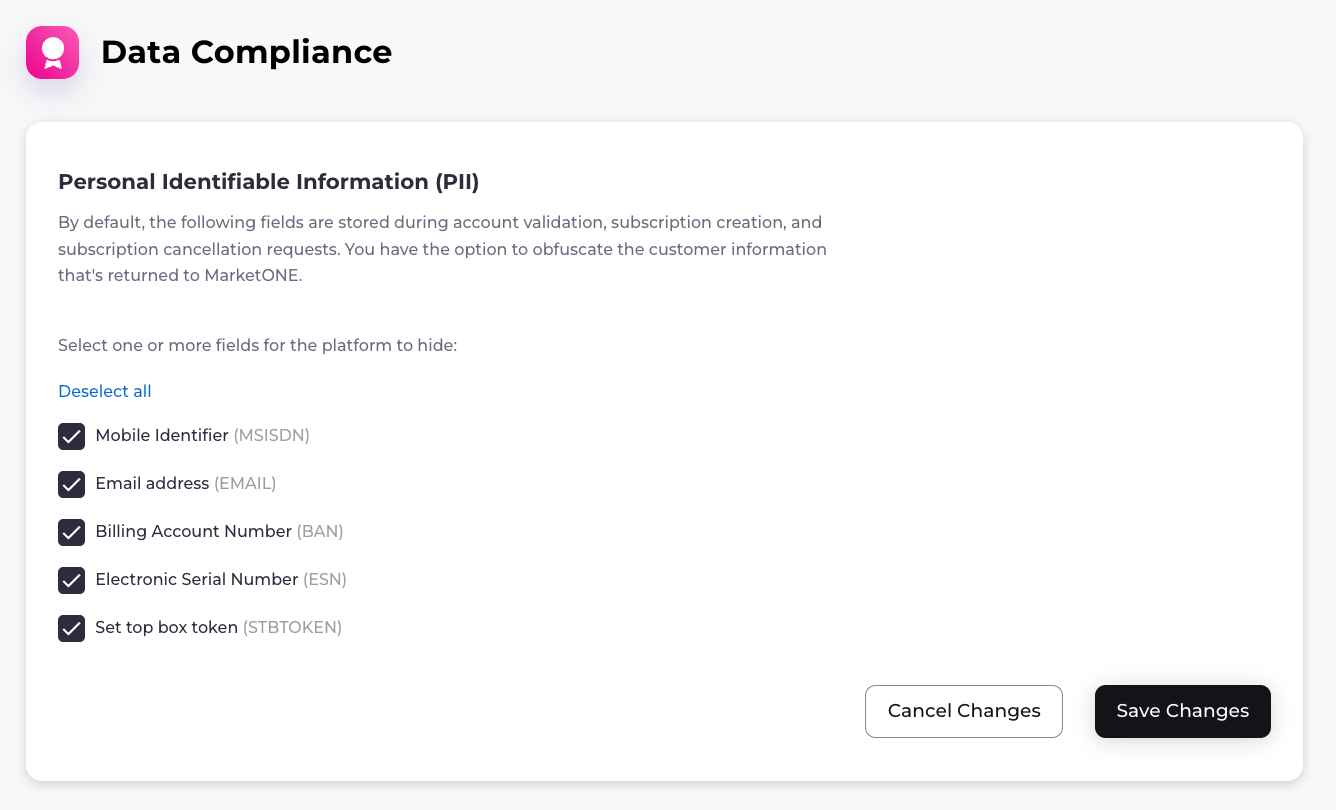 2. Select one or more fields for the platform to hide:
* Mobile Identifier (**MSISDN**)
* Email Address (**EMAIL**)
* Billing Account Number (**BAN**)
* Electronic Serial Number (**ESN**)
* Set-Top Box Token (**STBTOKEN**)
3. Select **Save Changes**.
Depending on your selection, one of the following confirmation dialogs appears:
2. Select one or more fields for the platform to hide:
* Mobile Identifier (**MSISDN**)
* Email Address (**EMAIL**)
* Billing Account Number (**BAN**)
* Electronic Serial Number (**ESN**)
* Set-Top Box Token (**STBTOKEN**)
3. Select **Save Changes**.
Depending on your selection, one of the following confirmation dialogs appears:
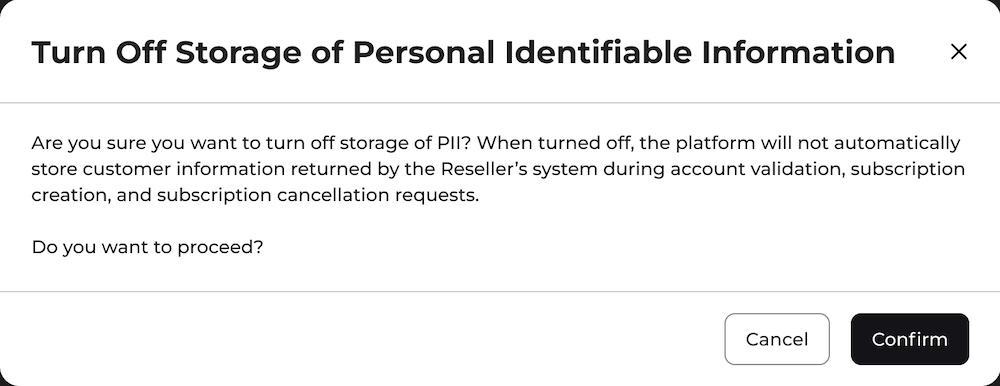
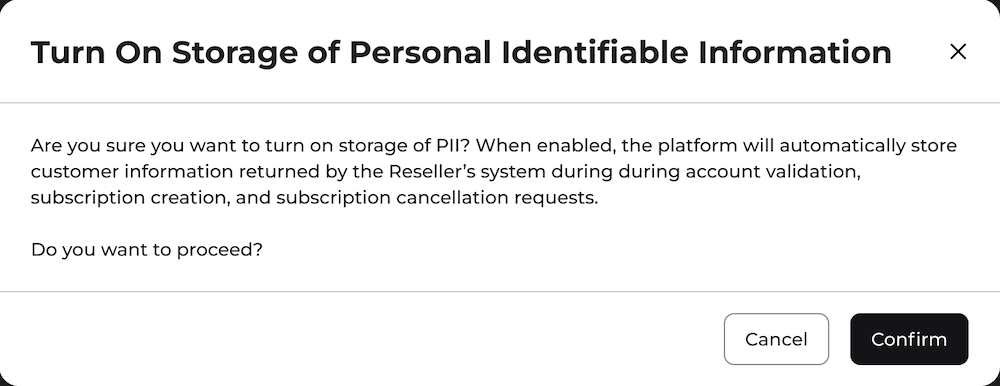 4. To confirm, select **Confirm**.
Your data compliance settings have been successfully saved.
**Parent topic:**
This documentation is built and hosted on [Mintlify](https://mintlify.com), a developer documentation platform.
4. To confirm, select **Confirm**.
Your data compliance settings have been successfully saved.
**Parent topic:**
This documentation is built and hosted on [Mintlify](https://mintlify.com), a developer documentation platform.