> ## Documentation Index
> Fetch the complete documentation index at: https://docs.m1amdocs.com/llms.txt
> Use this file to discover all available pages before exploring further.
# Manage Product Groups
Within the **Product Groups** space, you can:
* Create product groups
* View product groups
* Edit product groups
**Note:** You can edit any product group field if the products aren't attached to an active or pending agreement. When products are associated with an active or pending agreement, you can only edit certain fields in the product group, such as the description and countries.
When you're creating a product group, you can also create new product(s) for the group or add draft product(s) to the group. To publish a product, it must first belong to a group.
The group level provides general information that applies to all products in the group. Adding more than one product to the group allows for options and variants for the customer to buy (for example: a Streaming Basic product and a Streaming Premium product in a group).
Product groups support the ability to upgrade and downgrade products. They also support the ability to publish products in a Reseller's (Service Provider's) external catalog.
1. Navigate to **Manage Products** > **Product Groups**.
The **Product Groups** page appears.
2. Choose what you want to do:
* To add a product group, select **New Product Group**.
The **New Product Group** page appears.
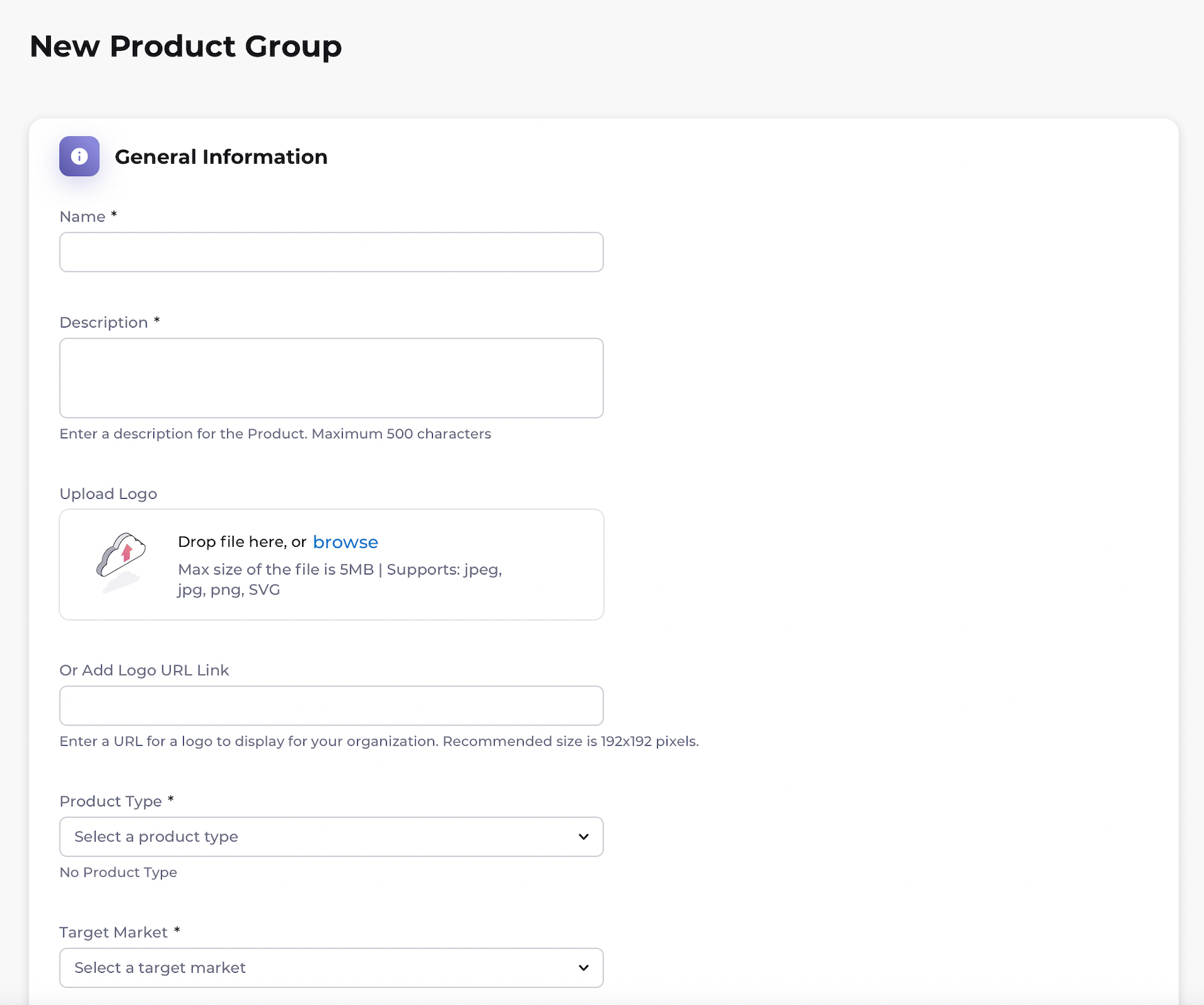 Edit the product group fields and add one or more products to the group as needed. See the tables below for more details.
When you're done, do one of the following:
* Click **Create** to save the group and to keep it unpublished.
* Click **Create and Publish** to save the group and make it visible to the Resellers you've selected.
* To search for a product group, enter keywords. A list of the relevant results appears.
* To view a product group, select the menu at the end of the row of the product group. Select **View**.
Edit the product group fields and add one or more products to the group as needed. See the tables below for more details.
When you're done, do one of the following:
* Click **Create** to save the group and to keep it unpublished.
* Click **Create and Publish** to save the group and make it visible to the Resellers you've selected.
* To search for a product group, enter keywords. A list of the relevant results appears.
* To view a product group, select the menu at the end of the row of the product group. Select **View**.
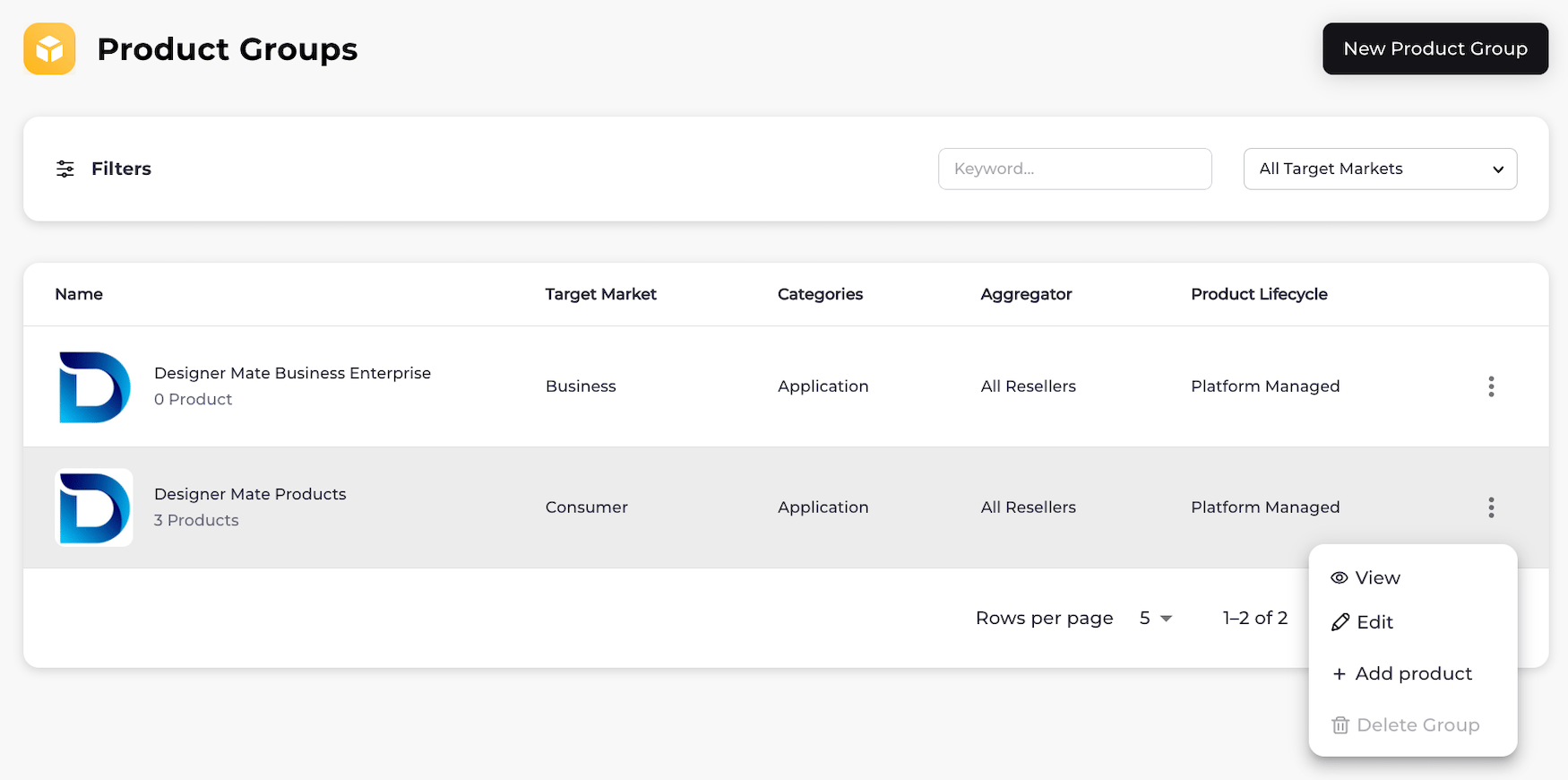 The relevant product group page appears.
* To edit a product group, select the menu at the end of the row of the product group. Select **Edit**.
The edit page for the product group appears.
Edit the product group and/or product fields in each section as needed. See the tables below for more details.
When you're done, click **Save**. The changes you've made to your product group are saved and visible to the Resellers you've granted permission.
* **[Product Group Field Details](m_productGroupsManage#product-group-field-details)**
**Parent topic:**[Products and Product Groups](productsAbout)
## Product Group Field Details
### General Information
| Field Name | Guidance | Required or Optional |
| - | - | - |
| **Name** | Enter a name for the product group. The value can contain any of the following characters:- a-z, A-Z - 0-9 - !@#\$%^&\*-() - spaces **Note:** Using a space as the first character isn't allowed. | Required |
| **Description** | Enter a description for the product group. The value can contain any of the following characters:- a-z, A-Z - 0-9 - !@#\$%^&\*-() - spaces The maximum amount of characters is 500. **Note:** Using a space as the first character isn't allowed. | Required |
| **Upload Logo** | Upload a logo to display with your product group. You can also drag and drop an image from your computer into the area that says "drop file here." The recommended size is 192x192 pixels. The following image formats are supported: .jpeg, .jpg, .png, and .svg. The maximum file size is 10 MB. Use the crop tool if needed to adjust the image. | Optional |
| **Or Add Logo URL Link** | Alternatively, you can specify a logo link (a valid URL). An example of a valid URL is [https://www.yourdomainhere.com/image.png](https://www.yourdomainhere.com/image.png). | Optional |
| **Product Type** | Select the type of product, which can be one of the following:- Application (software and applications) - Cloud Resource (e.g. compute power, network service, monitoring, etc.) - Device (a physical device, including the software used to operate the device) - Over the Top Service (e.g. streaming entertainment or online service) - Storage (e.g. a storage related product) | Required |
| **Target Market** | A target market is the industry in which you'd like to sell your products and services. Select one of the following target markets from the list: - **Business**: this is a business selling to other businesses, such as a small-to-medium business (SMB) or an enterprise (large business). This is also known as B2B. - **Consumer**: this is a business selling to individual end customers. This is also known as B2C. If your organization profile has one target market, the product group has the same target market by default. If your organization profile has both target markets, you must select one for the product group. | Required |
| **Countries of Sale** | From the list, select one or more countries where the product group can be sold. | Required |
| **Reseller** | Select a specific Reseller (Service Provider) to make the product group available only to them. Select **All Resellers** to make the product group available to all Resellers. | Required |
| **Product Lifecycle** | Select the type(s) of agreement(s) that the Reseller(s) (Service Provider(s)) can request for this product group, which can be the following:- [Platform-Managed](managedFlows) - [Merchant-Managed](managedFlows) | Required |
| **Entitlement Type** | Select the entitlement type for the product group, which can be one of the following:- **Standard**: when this option is selected, the Reseller doesn't need to provide a value for this field during provisioning. - **Quantity** (Platform-managed only): this option supports pre-paid offerings. When this option is selected, the Reseller must provide a quantity (number) during provisioning. | Required |
### Assigned Products
You can create additional products using the **Add a Product** button.
**General**
| Field Name | Guidance | Required or Optional |
| - | - | - |
| **Assigned Product Group** | The product must be assigned to a group in order to be published and available for use in agreements. The current product group is pre-selected. | Required |
| **Name** | Enter a name for the product. The value can contain any of the following characters:- a-z, A-Z - 0-9 - !@#\$%^&\*-() - spaces **Note:** Using a space as the first character is not allowed. | Required |
| **Product Code** | Enter a code to associate with the product. The code can contain any of the following characters:- a-z, A-Z - 0-9 - .+-\_ **Note:** The code cannot contain spaces. The code can be up to 15 characters in length. The product code cannot be changed once you publish the product. | Required |
| **Description** | Enter a description for the product. The value can contain any of the following characters:- a-z, A-Z - 0-9 - !@#\$%^&\*-()+ - spaces The maximum amount of characters is 512. **Note:** Using a space as the first character is not allowed. To reuse the description of the product group, select **Copy description from the group level**. | Optional |
| **Logo** | Upload a logo or provide a link to a logo to display with your product. You can also drag and drop an image from your computer into the area that says "drop file here." The recommended size is 192x192 pixels. The following image formats are supported: .jpeg, .jpg, .png, and .svg. The maximum file size is 10 MB. Use the crop tool if needed to adjust the image. | Optional |
| **Provisioning** | | |
| Field Name | Guidance | Required or Optional |
| - | - | - |
| **Commercial Attributes** | If the assigned product group for the product is available to only one Reseller (Service Provider), you can enable commercial attributes. Commercial attributes allow you to track how your product is resold on the Reseller's storefront. For each commercial attribute: - Enter a name - Add a value To add another commercial attribute, select **Add an attribute** to add another row. | Optional |
| **Customer Attributes** | Enter customer attributes to inform the Reseller (Service Provider) what fields are required or optional to pass from the Reseller's ordering system to Partner Ecosystem Management when provisioning the product for a customer. For each customer attribute: - Enter a name - Add one or more values - Select the **Required provisioning attribute** checkbox if the attribute is required during provisioning To add another customer attribute value, select **Add a value**. To add another customer attribute, select **Add an attribute** to add another row. **Note:** If you want to give the Reseller (Service Provider) the ability to provide one value out of a few options, you can create a required customer attribute name with various values. During provisioning, the Reseller has to send one of the values you entered. | Optional |
| **Informational** | | |
| Field Name | Guidance | Required or Optional |
| - | - | - |
| **Informational Features** | Add one or more informational features to better describe the product to Resellers (Service Providers) and the product's end customers. To add an informational feature, you need to enter an informational feature name and value. Names can be up to 100 characters and values can be up to 200 characters each.To add another value, select **Add a value**. To add another feature, select **Add a feature**. | Optional |
| **Tags** | Enter one or more tags to help describe the product. By doing this, you can provide the Reseller (Service Provider) with search terms that can help their end customers find your product on their storefront. You can assign tags that correspond to all the terms end customers would search to find the product. After typing the word(s) for a single tag, press ENTER to make the words into a tag. | Optional |
| **Documents** | | |
| Field Name | Guidance | Required or Optional |
| - | - | - |
| **Upload documentation** | Upload or link to product documentation Resellers (Service Providers) can share with their customers on their storefronts. To upload or link to a document, do the following: 1. Select **Add Document**. 2. Enter the document display name. 3. Select **Upload** or **URL link** to provide the file or file location. - To upload a document: Select browse to provide the document location. You can also drag and drop a file from your computer into the area that says "drop file here." - To link to a document: enter the URL in the **URL link** box. 4. Select **Save** to save your changes. The following image formats are supported: .pdf, .doc, .ppt, .xls, .png, and .jpg. The maximum file size for each document is 10 MB. You can upload or link to one or more documents. Examples of document types you could upload or link to include: End-User Instructions, License Agreement and Terms, Privacy and Data Policy, and Frequently Asked Questions (FAQs). You can delete or rename the document at any time by selecting the three dot menu on the same row as the document. | Optional |
| **Parent topic:**[Manage Product Groups](m_productGroupsManage) | | |
This documentation is built and hosted on [Mintlify](https://mintlify.com), a developer documentation platform.
The relevant product group page appears.
* To edit a product group, select the menu at the end of the row of the product group. Select **Edit**.
The edit page for the product group appears.
Edit the product group and/or product fields in each section as needed. See the tables below for more details.
When you're done, click **Save**. The changes you've made to your product group are saved and visible to the Resellers you've granted permission.
* **[Product Group Field Details](m_productGroupsManage#product-group-field-details)**
**Parent topic:**[Products and Product Groups](productsAbout)
## Product Group Field Details
### General Information
| Field Name | Guidance | Required or Optional |
| - | - | - |
| **Name** | Enter a name for the product group. The value can contain any of the following characters:- a-z, A-Z - 0-9 - !@#\$%^&\*-() - spaces **Note:** Using a space as the first character isn't allowed. | Required |
| **Description** | Enter a description for the product group. The value can contain any of the following characters:- a-z, A-Z - 0-9 - !@#\$%^&\*-() - spaces The maximum amount of characters is 500. **Note:** Using a space as the first character isn't allowed. | Required |
| **Upload Logo** | Upload a logo to display with your product group. You can also drag and drop an image from your computer into the area that says "drop file here." The recommended size is 192x192 pixels. The following image formats are supported: .jpeg, .jpg, .png, and .svg. The maximum file size is 10 MB. Use the crop tool if needed to adjust the image. | Optional |
| **Or Add Logo URL Link** | Alternatively, you can specify a logo link (a valid URL). An example of a valid URL is [https://www.yourdomainhere.com/image.png](https://www.yourdomainhere.com/image.png). | Optional |
| **Product Type** | Select the type of product, which can be one of the following:- Application (software and applications) - Cloud Resource (e.g. compute power, network service, monitoring, etc.) - Device (a physical device, including the software used to operate the device) - Over the Top Service (e.g. streaming entertainment or online service) - Storage (e.g. a storage related product) | Required |
| **Target Market** | A target market is the industry in which you'd like to sell your products and services. Select one of the following target markets from the list: - **Business**: this is a business selling to other businesses, such as a small-to-medium business (SMB) or an enterprise (large business). This is also known as B2B. - **Consumer**: this is a business selling to individual end customers. This is also known as B2C. If your organization profile has one target market, the product group has the same target market by default. If your organization profile has both target markets, you must select one for the product group. | Required |
| **Countries of Sale** | From the list, select one or more countries where the product group can be sold. | Required |
| **Reseller** | Select a specific Reseller (Service Provider) to make the product group available only to them. Select **All Resellers** to make the product group available to all Resellers. | Required |
| **Product Lifecycle** | Select the type(s) of agreement(s) that the Reseller(s) (Service Provider(s)) can request for this product group, which can be the following:- [Platform-Managed](managedFlows) - [Merchant-Managed](managedFlows) | Required |
| **Entitlement Type** | Select the entitlement type for the product group, which can be one of the following:- **Standard**: when this option is selected, the Reseller doesn't need to provide a value for this field during provisioning. - **Quantity** (Platform-managed only): this option supports pre-paid offerings. When this option is selected, the Reseller must provide a quantity (number) during provisioning. | Required |
### Assigned Products
You can create additional products using the **Add a Product** button.
**General**
| Field Name | Guidance | Required or Optional |
| - | - | - |
| **Assigned Product Group** | The product must be assigned to a group in order to be published and available for use in agreements. The current product group is pre-selected. | Required |
| **Name** | Enter a name for the product. The value can contain any of the following characters:- a-z, A-Z - 0-9 - !@#\$%^&\*-() - spaces **Note:** Using a space as the first character is not allowed. | Required |
| **Product Code** | Enter a code to associate with the product. The code can contain any of the following characters:- a-z, A-Z - 0-9 - .+-\_ **Note:** The code cannot contain spaces. The code can be up to 15 characters in length. The product code cannot be changed once you publish the product. | Required |
| **Description** | Enter a description for the product. The value can contain any of the following characters:- a-z, A-Z - 0-9 - !@#\$%^&\*-()+ - spaces The maximum amount of characters is 512. **Note:** Using a space as the first character is not allowed. To reuse the description of the product group, select **Copy description from the group level**. | Optional |
| **Logo** | Upload a logo or provide a link to a logo to display with your product. You can also drag and drop an image from your computer into the area that says "drop file here." The recommended size is 192x192 pixels. The following image formats are supported: .jpeg, .jpg, .png, and .svg. The maximum file size is 10 MB. Use the crop tool if needed to adjust the image. | Optional |
| **Provisioning** | | |
| Field Name | Guidance | Required or Optional |
| - | - | - |
| **Commercial Attributes** | If the assigned product group for the product is available to only one Reseller (Service Provider), you can enable commercial attributes. Commercial attributes allow you to track how your product is resold on the Reseller's storefront. For each commercial attribute: - Enter a name - Add a value To add another commercial attribute, select **Add an attribute** to add another row. | Optional |
| **Customer Attributes** | Enter customer attributes to inform the Reseller (Service Provider) what fields are required or optional to pass from the Reseller's ordering system to Partner Ecosystem Management when provisioning the product for a customer. For each customer attribute: - Enter a name - Add one or more values - Select the **Required provisioning attribute** checkbox if the attribute is required during provisioning To add another customer attribute value, select **Add a value**. To add another customer attribute, select **Add an attribute** to add another row. **Note:** If you want to give the Reseller (Service Provider) the ability to provide one value out of a few options, you can create a required customer attribute name with various values. During provisioning, the Reseller has to send one of the values you entered. | Optional |
| **Informational** | | |
| Field Name | Guidance | Required or Optional |
| - | - | - |
| **Informational Features** | Add one or more informational features to better describe the product to Resellers (Service Providers) and the product's end customers. To add an informational feature, you need to enter an informational feature name and value. Names can be up to 100 characters and values can be up to 200 characters each.To add another value, select **Add a value**. To add another feature, select **Add a feature**. | Optional |
| **Tags** | Enter one or more tags to help describe the product. By doing this, you can provide the Reseller (Service Provider) with search terms that can help their end customers find your product on their storefront. You can assign tags that correspond to all the terms end customers would search to find the product. After typing the word(s) for a single tag, press ENTER to make the words into a tag. | Optional |
| **Documents** | | |
| Field Name | Guidance | Required or Optional |
| - | - | - |
| **Upload documentation** | Upload or link to product documentation Resellers (Service Providers) can share with their customers on their storefronts. To upload or link to a document, do the following: 1. Select **Add Document**. 2. Enter the document display name. 3. Select **Upload** or **URL link** to provide the file or file location. - To upload a document: Select browse to provide the document location. You can also drag and drop a file from your computer into the area that says "drop file here." - To link to a document: enter the URL in the **URL link** box. 4. Select **Save** to save your changes. The following image formats are supported: .pdf, .doc, .ppt, .xls, .png, and .jpg. The maximum file size for each document is 10 MB. You can upload or link to one or more documents. Examples of document types you could upload or link to include: End-User Instructions, License Agreement and Terms, Privacy and Data Policy, and Frequently Asked Questions (FAQs). You can delete or rename the document at any time by selecting the three dot menu on the same row as the document. | Optional |
| **Parent topic:**[Manage Product Groups](m_productGroupsManage) | | |
This documentation is built and hosted on [Mintlify](https://mintlify.com), a developer documentation platform.