> ## Documentation Index
> Fetch the complete documentation index at: https://docs.m1amdocs.com/llms.txt
> Use this file to discover all available pages before exploring further.
# Manage Team Members
On the **Team Members** page, you can:
* Add team members
* Deactivate team members
* Reactivate team members
* See if your organization is using an external identity provider (IDP) for login authentication
**Note:** Admin users can invite team members from their organization to Partner Ecosystem Management.
When you invite a team member, you can give your team member [Admin role permissions or Read Only role permissions](r_userRolesAndAbilities_r).
When you invite a team member, the team member receives an email that their account has been created. When the team member tries to log in, they are prompted to enter a code. A second email is sent to them with the code to log in.
Admin users can deactivate and reactivate Admin and Read Only users for your organization. Deactivating a user lets you block access without deleting the user. If the user needs to access Partner Ecosystem Management again, you can easily reactivate them. When you reactivate a team member, they receive an email with a code to create a new password and log in again.
You can also check if your organization is using an external IDP (identity provider) on the **Team Members** page. Checking this may be helpful if login issues occur and troubleshooting is necessary.
1. Click your name in the navigation bar at the top of the page.
The dropdown list appears.
2. From the list, select **Manage Team Members**.
The **Team Members** page appears.
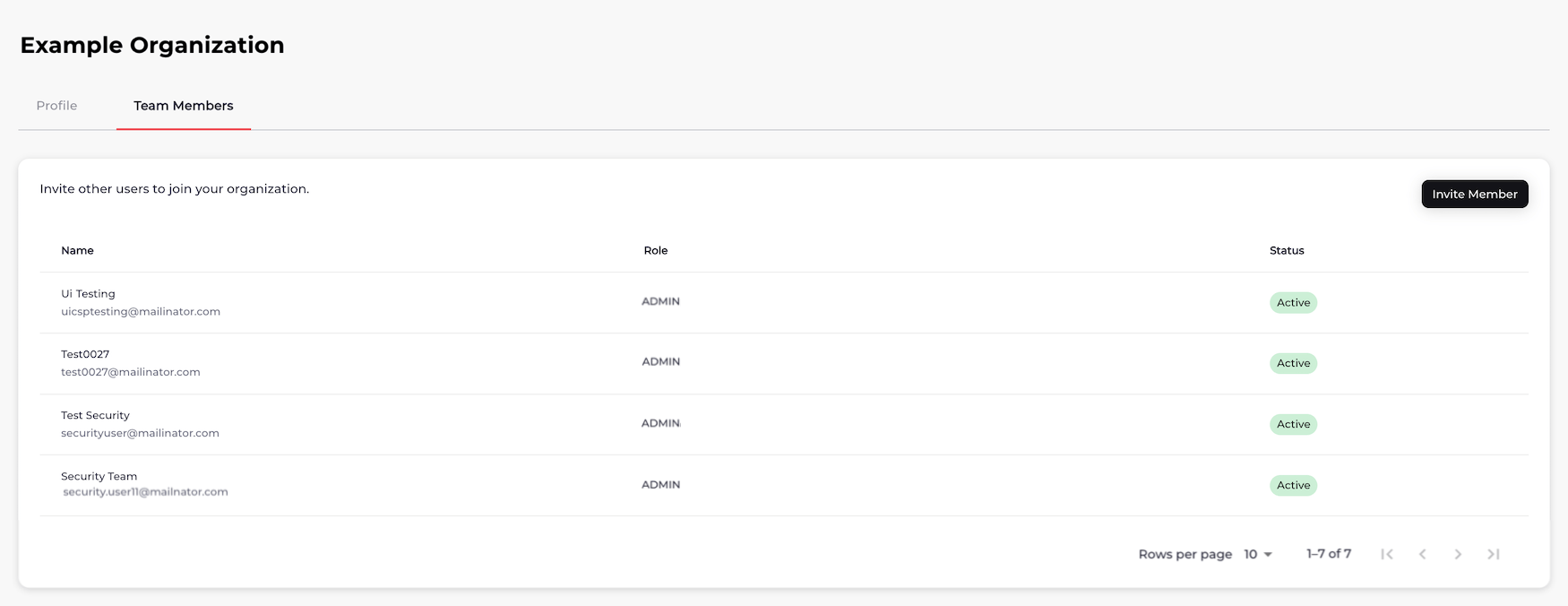 3. Select what you'd like to do.
* To add a team member, click **Invite Member**.
The **Add Team Member** box appears.
3. Select what you'd like to do.
* To add a team member, click **Invite Member**.
The **Add Team Member** box appears.
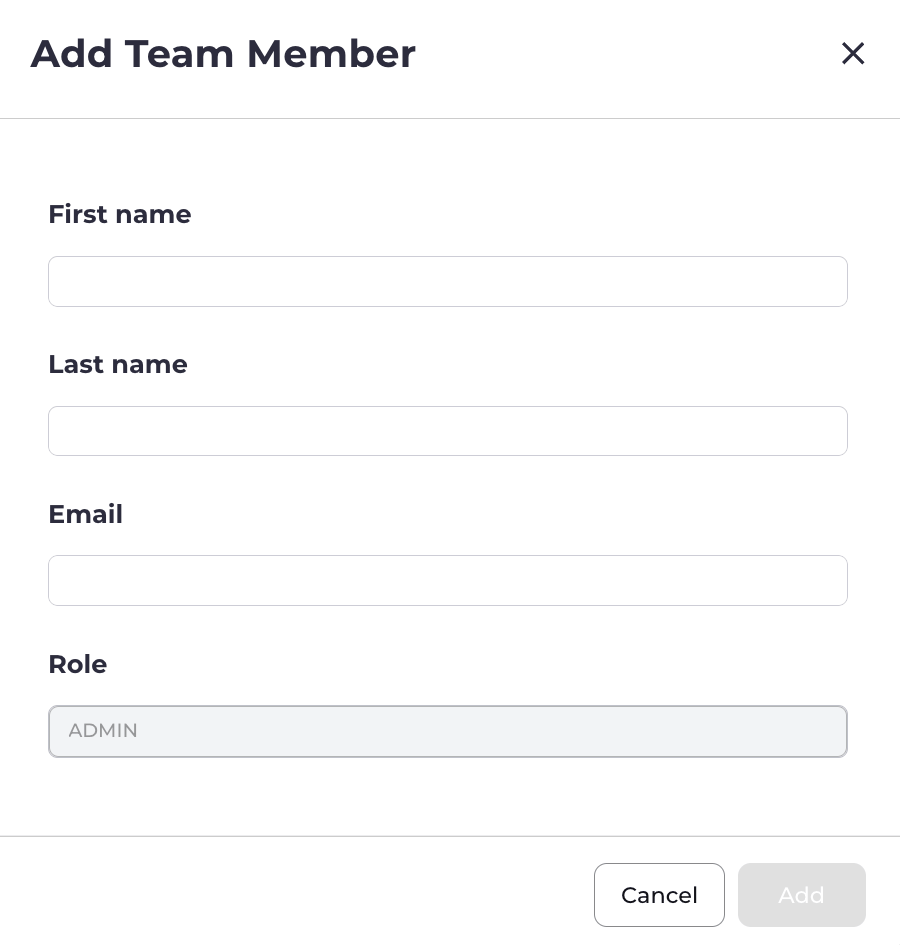 Provide the information for each field as required. See the table below for more details.
When you're done, click **Add**.
Your team member has been invited to Partner Ecosystem Management. Once they receive the invite, they can set a password and log in to Partner Ecosystem Management.
* To deactivate or reactivate a team member, select a team member in the list.
The team member's profile appears.
Provide the information for each field as required. See the table below for more details.
When you're done, click **Add**.
Your team member has been invited to Partner Ecosystem Management. Once they receive the invite, they can set a password and log in to Partner Ecosystem Management.
* To deactivate or reactivate a team member, select a team member in the list.
The team member's profile appears.
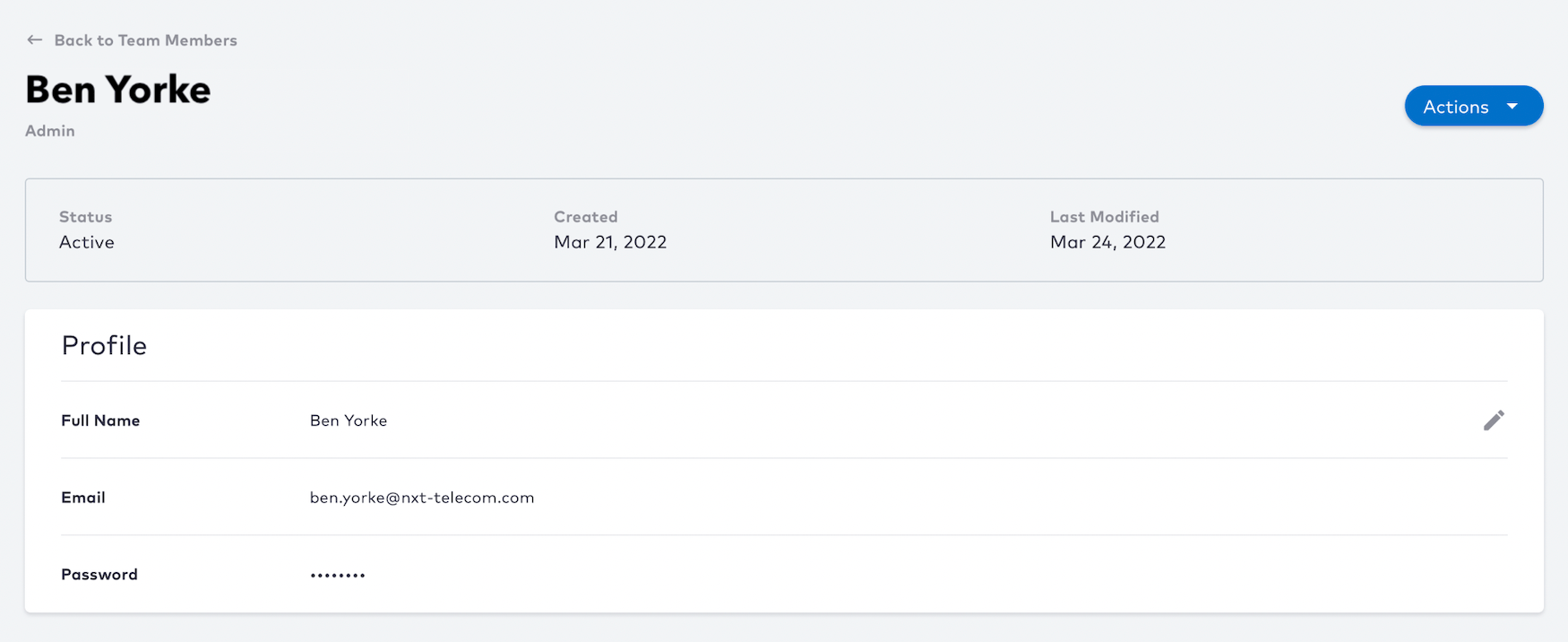 Click the **Actions** button and then select **Deactivate member** or **Reactivate member** from the dropdown list.
The confirmation dialog appears. Confirm the team member's deactivation or reactivation.
If you've reactivated the team member, the team member receives an email with a code to create a new password and log in again.
* To check if your organization is using an external IDP (identity provider), see if the external IDP indicator shows it is enabled.
Click the **Actions** button and then select **Deactivate member** or **Reactivate member** from the dropdown list.
The confirmation dialog appears. Confirm the team member's deactivation or reactivation.
If you've reactivated the team member, the team member receives an email with a code to create a new password and log in again.
* To check if your organization is using an external IDP (identity provider), see if the external IDP indicator shows it is enabled.
 * **[Team Members Field Details](userManagement#team-members-field-details)**
**Parent topic:**[Organization Management](organizationManagement)
## Team Members Field Details
| Field Name | Guidance | Required or Optional |
| - | - | - |
| **First Name** | Enter the first name of your team member. The value can contain any of the following characters:- a-z, A-Z - 0-9 - !@#\$%^&\*-() - spaces | Required |
| **Last Name** | Enter the last name of your team member. The value can contain any of the following characters:- a-z, A-Z - 0-9 - !@#\$%^&\*-() - spaces | Required |
| **Email** | Enter your team member's email. Enter an email address with an email prefix, an @ symbol, and an email domain. For example: [email@example.com](mailto:email@example.com). | Required |
| **Role** | Select one of the following roles to give your team member:- **Admin**: this type of user has the ability to create, edit, and delete items in Partner Ecosystem Management - **Read Only**: a user with this role can't create, update, or delete any data except for their **Account Settings** data For more information about user roles, see [User Roles and Abilities](r_userRolesAndAbilities_r). | Required |
| **Parent topic:**[Manage Team Members](userManagement) | | |
This documentation is built and hosted on [Mintlify](https://mintlify.com), a developer documentation platform.
* **[Team Members Field Details](userManagement#team-members-field-details)**
**Parent topic:**[Organization Management](organizationManagement)
## Team Members Field Details
| Field Name | Guidance | Required or Optional |
| - | - | - |
| **First Name** | Enter the first name of your team member. The value can contain any of the following characters:- a-z, A-Z - 0-9 - !@#\$%^&\*-() - spaces | Required |
| **Last Name** | Enter the last name of your team member. The value can contain any of the following characters:- a-z, A-Z - 0-9 - !@#\$%^&\*-() - spaces | Required |
| **Email** | Enter your team member's email. Enter an email address with an email prefix, an @ symbol, and an email domain. For example: [email@example.com](mailto:email@example.com). | Required |
| **Role** | Select one of the following roles to give your team member:- **Admin**: this type of user has the ability to create, edit, and delete items in Partner Ecosystem Management - **Read Only**: a user with this role can't create, update, or delete any data except for their **Account Settings** data For more information about user roles, see [User Roles and Abilities](r_userRolesAndAbilities_r). | Required |
| **Parent topic:**[Manage Team Members](userManagement) | | |
This documentation is built and hosted on [Mintlify](https://mintlify.com), a developer documentation platform.