

- Send test email using the Storefront Gateway email service in a non-production
- Configure a SMTP provider and send test email in a non-production
- Configure a external SMTP (external) provider and send test email in a production environment
- Working in Non-Production Environments
-
Navigate to Admin console > Branding > Email Provider .
-
Select Send Test to generate/deliver an email (notification message) to a destination/receiver email address.
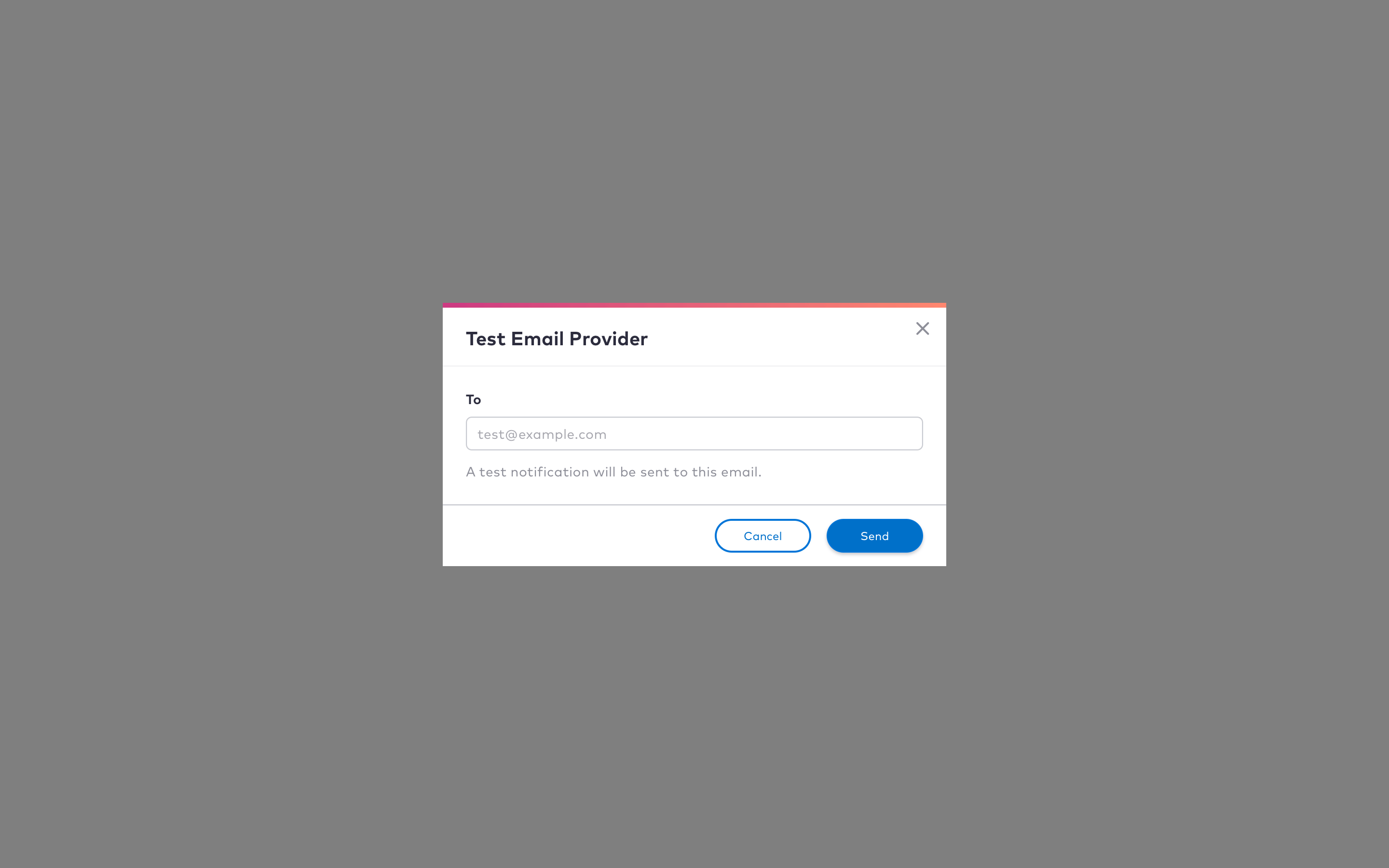
- Enter the destination email address in the To field.
- Click Send to send the email.
- Click Cancel to end the test.
-
Select Send Test to generate/deliver an email (notification message) to a destination/receiver email address.
-
Toggle the Use your own email provider switch to configure a SMTP email provider with your SMTP settings.
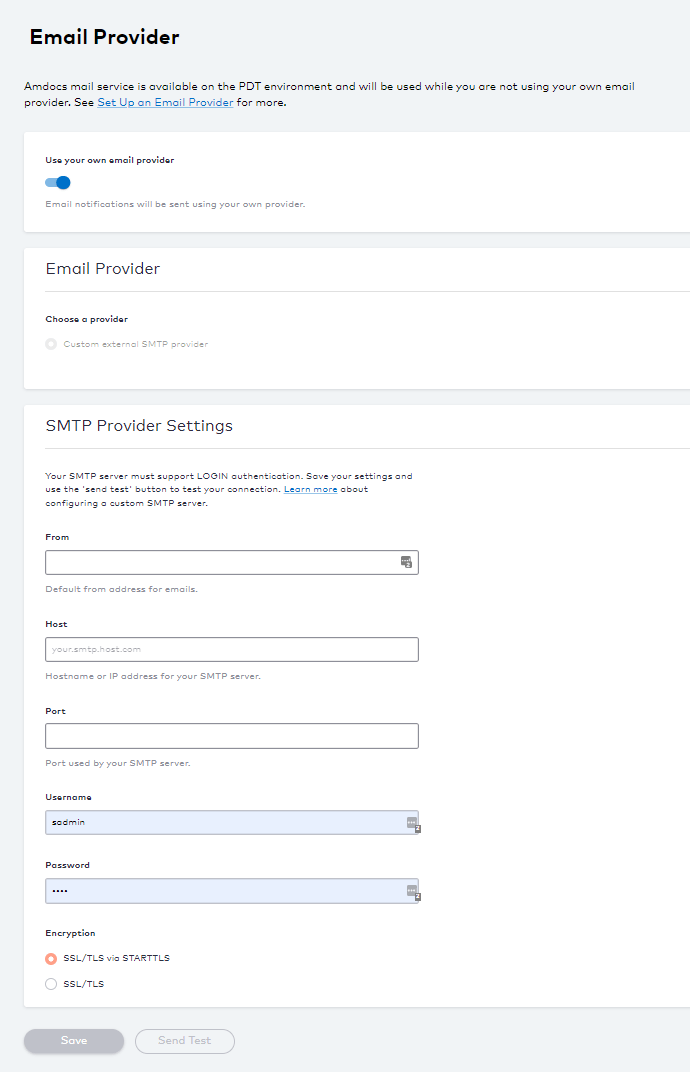
- From the Choose a provider options, select Custom external SMTP Provider.
- Enter your SMTP Provider Settings. See Provider Email Fields table for more guidance regarding the fields.
- Click Save.
-
Select Send Test to verify your connection.
- Enter a destination email address (test@example.com).
- Click Send.
- Select Cancel to stop the test.
- Working in Production Environments
- Navigate to Admin console > Branding > Email Provider.
-
Select Custom external SMTP Provider.
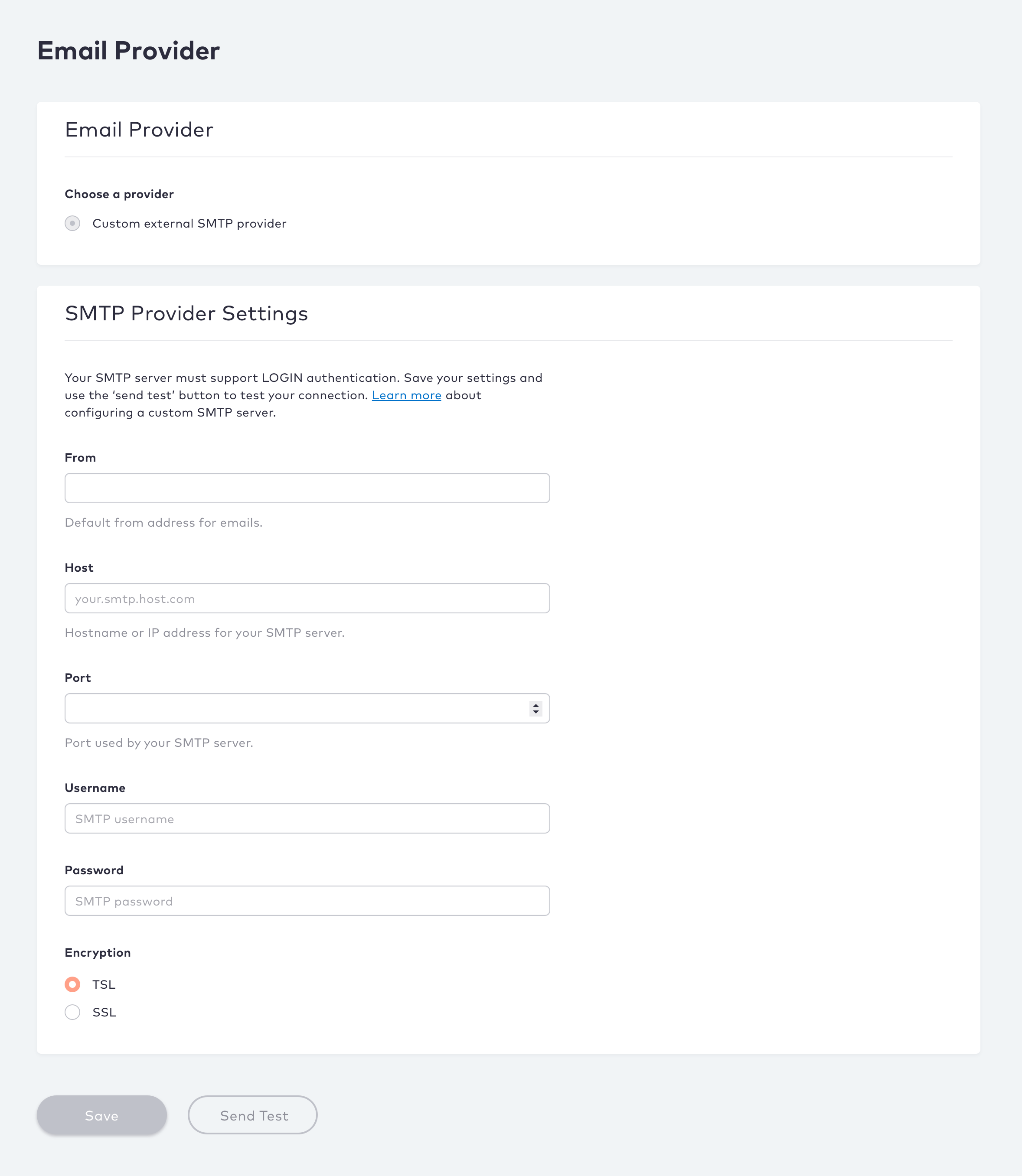
- Enter your SMTP settings. See the table below for more guidance regarding the fields.
- Click Save.
-
Select Send Test to verify your connection.
- Enter a destination email address (test@example.com).
- Click Send.
- Select Cancel to stop the test.