

Billing FAQs
Q: How do I search for AutoBills?
A: AutoBills have been renamed Subscriptions in Commerce Engine Portal and Commerce Engine REST API. To search for Subscriptions, go to Billing > Subscriptions and search for the relevant subscription. For more details:- To learn about Subscriptions, see Subscriptions for general info and Subscription Lifecycle for subscription usage over time.
- To learn more about searching for Subscriptions, see Filtering Subscriptions.
- To work with subscriptions in the Portal, see Working with Subscriptions.
Q: Can I see all paid Transactions on an Account?
A: Yes. For this scenario, search for the customer Account that you seek from Billing > Accounts. To learn more about searching for Accounts, see Filtering Accounts. Once you locate the relevant Account, scroll down to the Subscriptions pane. Expand the subscriptions in the list to see their associated Transactions. It displays a list of the most recent transactions on this subscription. The transactions are clickable and will open the full Transaction details page. For more details about the data displayed in this pane, see Account Transactions List.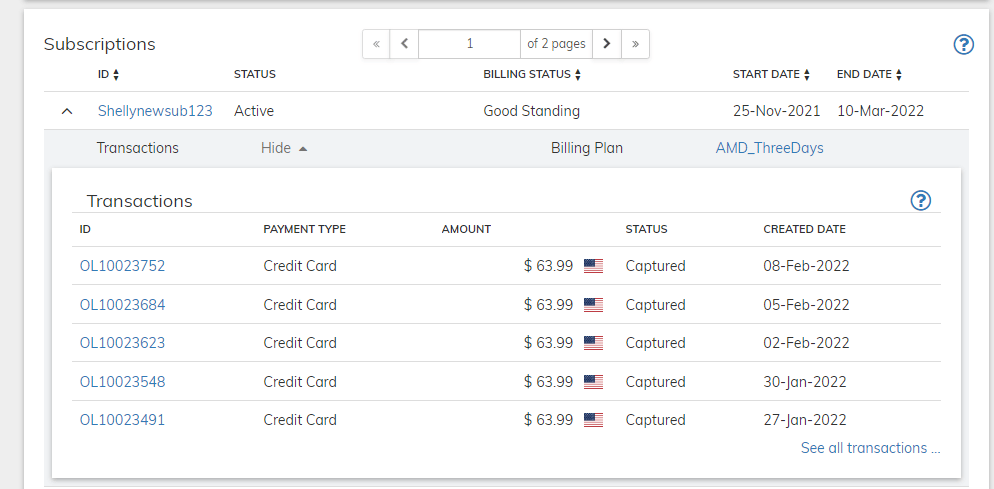
Q: How do I cancel a Subscription (AutoBill)?
A: In order to cancel a subscription, you must first locate the subscription in Billing > Subscriptions. To learn more about searching for Subscriptions, see Filtering Subscriptions. Once you locate the subscription, click the Cancel Subscription button in the Actions panel. For more details, see Cancel a Subscription.Q: How do I create a new customer?
A: In the Commerce Engine Portal, most entities are created as part of the New button, located at the top left of the screen. Use it to create a new Account for your customer. For more details about creating new Accounts, see Working with Accounts.Q: Why can’t I edit customer accounts?
A: Commerce Engine is a role based web application. You are given permissions to perform certain actions according to the role assigned to you. Your account administrator is responsible for assigning users Commerce Engine roles. For more details, see Commerce Engine Portal User Roles.Q: Where is the Customer ID field for searching accounts?
A: Commerce Engine Portal provides advanced filtering capabilities. To search for a customer account, go to Billing > Accounts. The filter screen allows you to search for the account you need. In this screen, ID refers to the Account ID, which is the name used for the Reseller (Service Provider) Customer ID in the portal. For details about the other filtering options, see Filtering Accounts.Report FAQs
Q: Where do I find my Scheduled Report?
A: Commerce Engine provides a reporting interface that allows you to create either one time on demand reports or recurring scheduled reports. All reports are available as CSV files, and can be viewed in a spreadsheet application. Access your completed reports from Insights > My Reports. Toggle between One Time and Recurring to find the relevant report. Note: All the scheduled reports appear under the Recurring tab. For more details, see My Reports.Q: Where do I generate the Active AutoBills Report?
A: In general, running one time or recurring reports is performed from Insights > Run Reports. For more details on how to run a reports, see Working with Reports. Active AutoBills Report is now called Active Subscriptions Report. It appears as part of the Subscription pane in the Run Reports page. For more details about the report, see Active Subscriptions Report. Once generated and completed, you’ll find the report under Insights > My Reports.Q: How do I generate a daily Transaction Report?
A: Schedule this report on a daily basis and it will generate for you and notify you when available.- In Commerce Engine Portal, go to Insights > Run Reports.
- Find the Transactions Detail Report in the Transaction pane.
- Select the Reports 1.0 check box.
- Click the Run button. The report’s create dialog box appears.
- Move Recurring toggle to Yes.
- Select a date for the first reporting period.
- Select Daily for the report’s Frequency value.
- Enter an Email address where you’d like to receive notifications when the report is available.
- Enter any additional filters you need such as Affiliate ID or Currency.
- Expand the Display columns and select which columns you’d like to include in the report.
- Click Submit. View the report (when it’s available) in the My Reports page. You’ll receive an email notification daily when it is generated.