

-
Select your starting point from the following options:
- To create a new Billing Plan, click the + New button and select Billing Plan.
- To duplicate an existing Billing Plan, select the relevant existing Billing Plan from Catalog > Billing Plans and click Duplicate.
- To edit an existing Billing Plan, select the relevant existing Billing Plan from Catalog > Billing Plans and click Edit. The Billing Plan page appears.

- Define the Billing Plan fields as needed. Refer to the tables below for guidance regarding the fields.
- (Optional.) To apply eligibility rules, configure the relevant fields in the Custom Billing Plan Data section. Refer to the Custom Billing Plan Data table below for guidance regarding the fields.
-
When you’re done, click Save or Update.
You can return and continue editing the saved Billing Plan at any time before it is activated.
Note: You can edit the Billing Plan at any time prior to its use by subscriptions. It is important to understand that any changes will impact all subscriptions (existing and new) using the Billing plan. Please consider this before making a change. The user interface will show an orange caution at the top of the page stating that the Billing Plan is in use on Subscriptions.
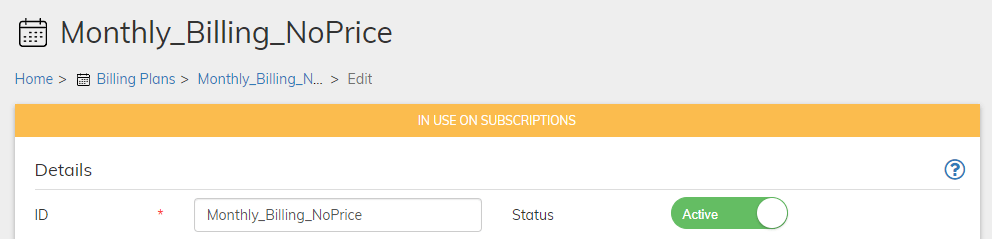
- When the Billing Plan has been saved and completed, activate it by clicking Activate in the Actions panel on the right.
- Disable the Billing Plan at any time, by clicking Disable in the Actions panel on the right. Note that the Billing Plan will no longer be offered to new customers (or appear in the catalog). However, existing subscriptions of the Billing Plan will continue uninterrupted.
- Billing Plan Details Pane
-
Billing Plan Periods Pane
In the Billing Periods pane you can define multiple Billing Periods. For each, set a cycle length, which defines the length of the billing period; and the number of times to repeat the cycle, which defines the length of the subscription. Cycle length can be days, weeks, months, or years. Customers are billed on the first day of the billing cycle. Billing Periods are active sequentially, according to their order in the Billing Plan. The first Billing Period in the list will be in effect when the subscription is first purchased, and it will remain in effect until it completes its defined number of cycles. -
Billing Plan Advanced Behavior Pane
The Advanced Behavior pane enables you to configure more complex billing scenarios. You can configure Commerce Engine to repeat billing periods in specific ways. -
Custom Billing Plan Data
Enter the field name and the appropriate value based on your desired billing plan configuration. To apply eligibility rules, refer to the table below for field names, descriptions, value sources, and example values.
Billing Plan Details Pane
Billing Plan Periods Pane
In the Billing Periods pane you can define multiple Billing Periods. For each, set a cycle length, which defines the length of the billing period; and the number of times to repeat the cycle, which defines the length of the subscription. Cycle length can be days, weeks, months, or years. Customers are billed on the first day of the billing cycle. Billing Periods are active sequentially, according to their order in the Billing Plan. The first Billing Period in the list will be in effect when the subscription is first purchased, and it will remain in effect until it completes its defined number of cycles.Billing Plan Advanced Behavior Pane
The Advanced Behavior pane enables you to configure more complex billing scenarios. You can configure Commerce Engine to repeat billing periods in specific ways.
Parent topic:Working with Billing Plans