

-
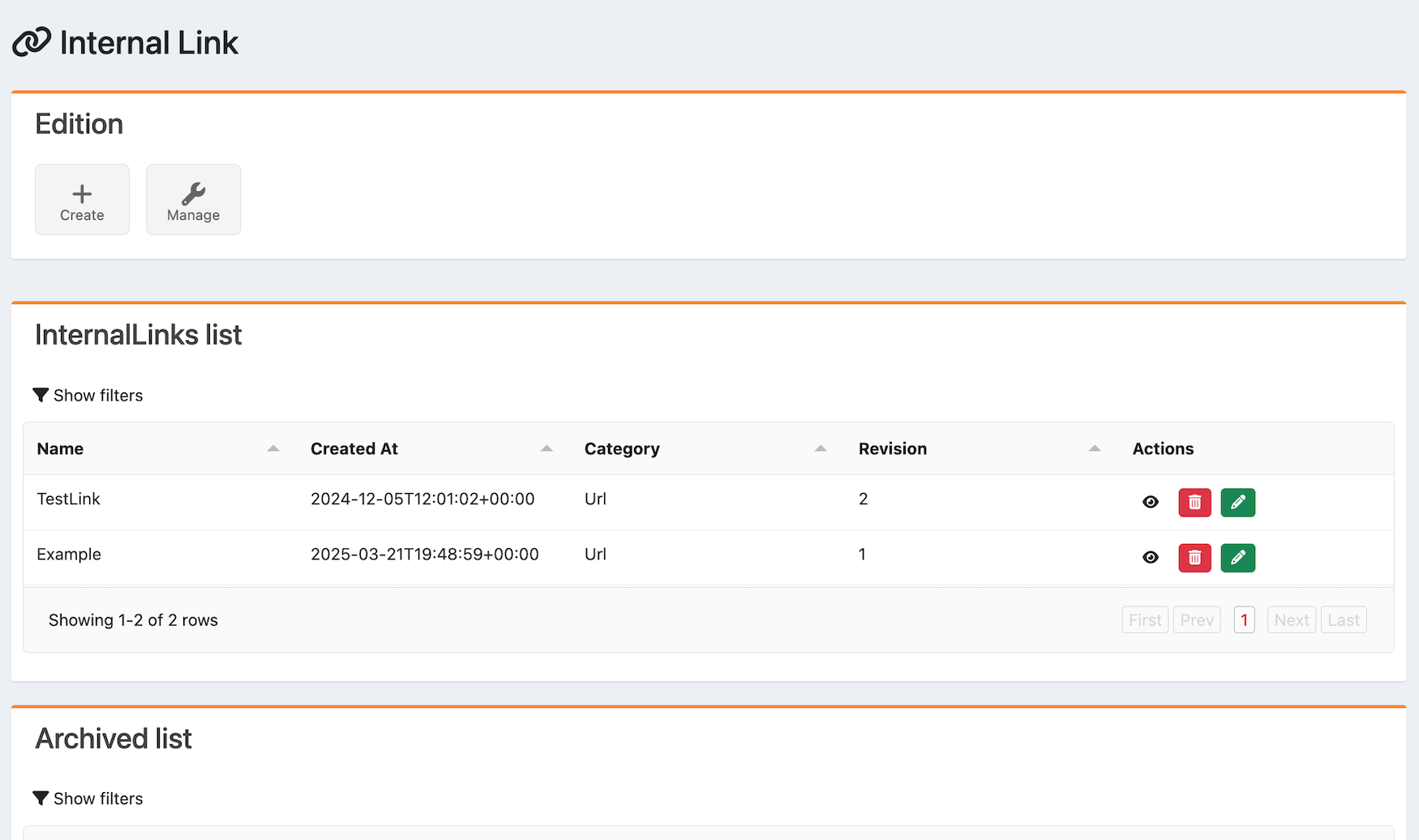
Navigate to Contents > Internal Link.
The Internal Link page appears.
-
Select what you’d like to do:
- To create an internal link, select Create.
- To edit an internal link, scroll to the Internal Links list and select the edit icon

- To delete an internal link, scroll to the Internal Links list and select the delete icon

- To view an internal link, scroll to the Internal Links list or Archived List and select the view icon

- Complete the fields. See the table below for more information.
- Select Submit. The internal link has been successfully created or edited.
Manage Internal Links
Was this page helpful?