- Access subscription status, start and end dates, and items (products)
- View details of the account associated with the subscription
- View subscription ID, created date, and Merchant details
- View billing plan, next billing date, and amount
- View transactions history
- Cancel subscriptions
Active and Expired Subscriptions
When you select a user, the Digital Subscriptions page displays subscriptions in two groups:- Active
- Expired
- Status: Possible values include Active, Paused, and Canceled. Note: If a transaction is paused or in the process of being paused, the pause start date is displayed.
- Subscription Start: The date the subscription began.
- Subscription End: The end date is only shown when the subscription is canceled.
- Subscription Items: List of products within a subscription.

View Details
Selecting View Details expands the section, allowing you to view the following subscription-specific data:- Account Details
- Subscription Details
- Billing Details
- Payment History
-
Linked Account ID: A unique identifier for the account associated with the subscription in MarketONE. The account ID is usually provided by your external Billing Support Service (BSS), which is integrated with Storefront Gateway.

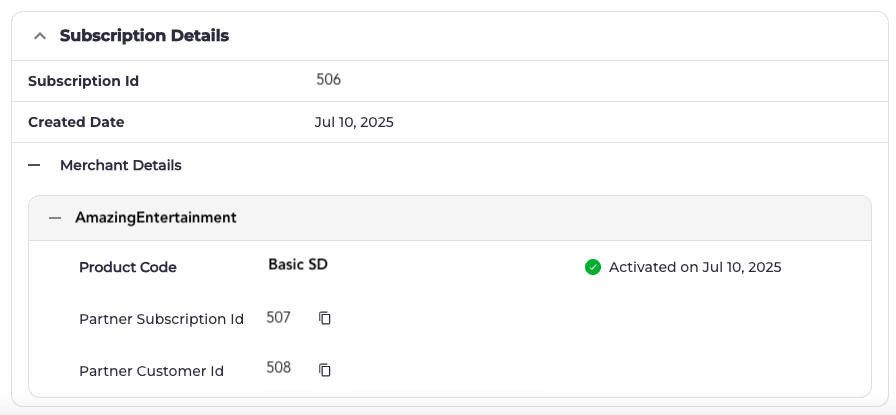
- Subscription ID: The MarketONE-specific ID assigned to the subscription.
- Created Date: The date the subscription was created in MarketONE.
- Merchant Details
- Partner Code: The ID assigned to a Merchant. You can use this code to identify the Merchant associated with a partner subscription (for example: AmazingEntertainment).
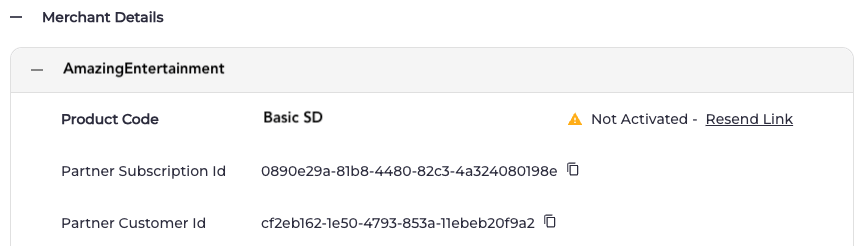
- Product Code: The ID assigned to a product. You can use this code to identify the product associated with a partner subscription (for example: Basic SD).
- Partner Subscription ID: The MarketONE-specific ID assigned to the partner subscription. This ID can help you find the subscription in Merchant systems.
- Partner Customer ID: The MarketONE-specific customer ID assigned to the user. This ID can help you find the customer in Merchant systems.
-
Activation Status and Date: If the product is activated by the user, you can view the activation date.
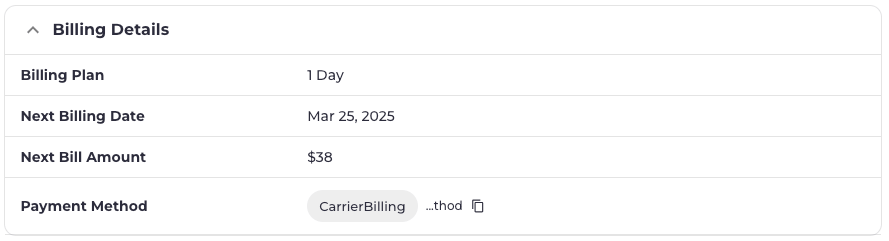
- Billing Plan: The type of billing plan (for example: 3-day cycle).
- Next Billing Date: The next date the customer will be billed.
- Next Bill Amount: The amount of the next bill.
-
Payment Method: A unique identifier for the payment method associated with the subscription in MarketONE.
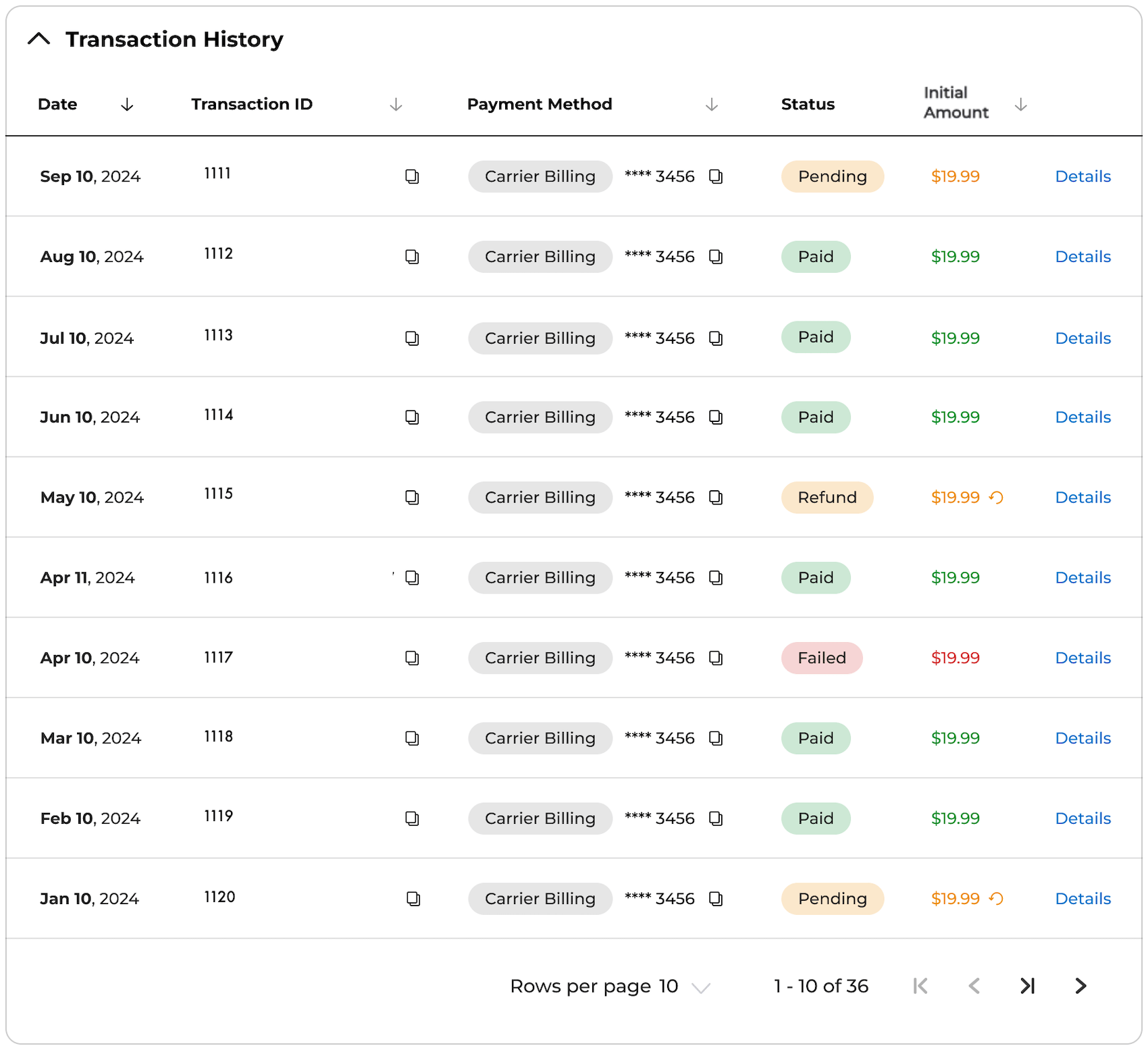
- Date: The date of the transaction.
- Transaction ID: A unique identifier for a transaction record in MarketONE. You can use the Transaction ID to look up the transaction in Commerce Engine.
- Payment Method: A unique identifier for the payment method associated with the transaction record. You can use this to look up the payment method in Commerce Engine.
-
Status: Indicates the most recent status of a transaction. Possible values include:
- Pending: Commerce Engine returned a status of New, Authorized, or Pending.
- Failed: Commerce Engine returned a status of Void, Cancelled, or Expired authorization.
- Refund: The transaction was successfully refunded, either fully or partially.
- Paid: The payment processor successfully captured the transaction.
-
Initial Amount: The original payment amount associated with the transaction. If the status is Refunded, the refunded amount appears after selecting Details.
-
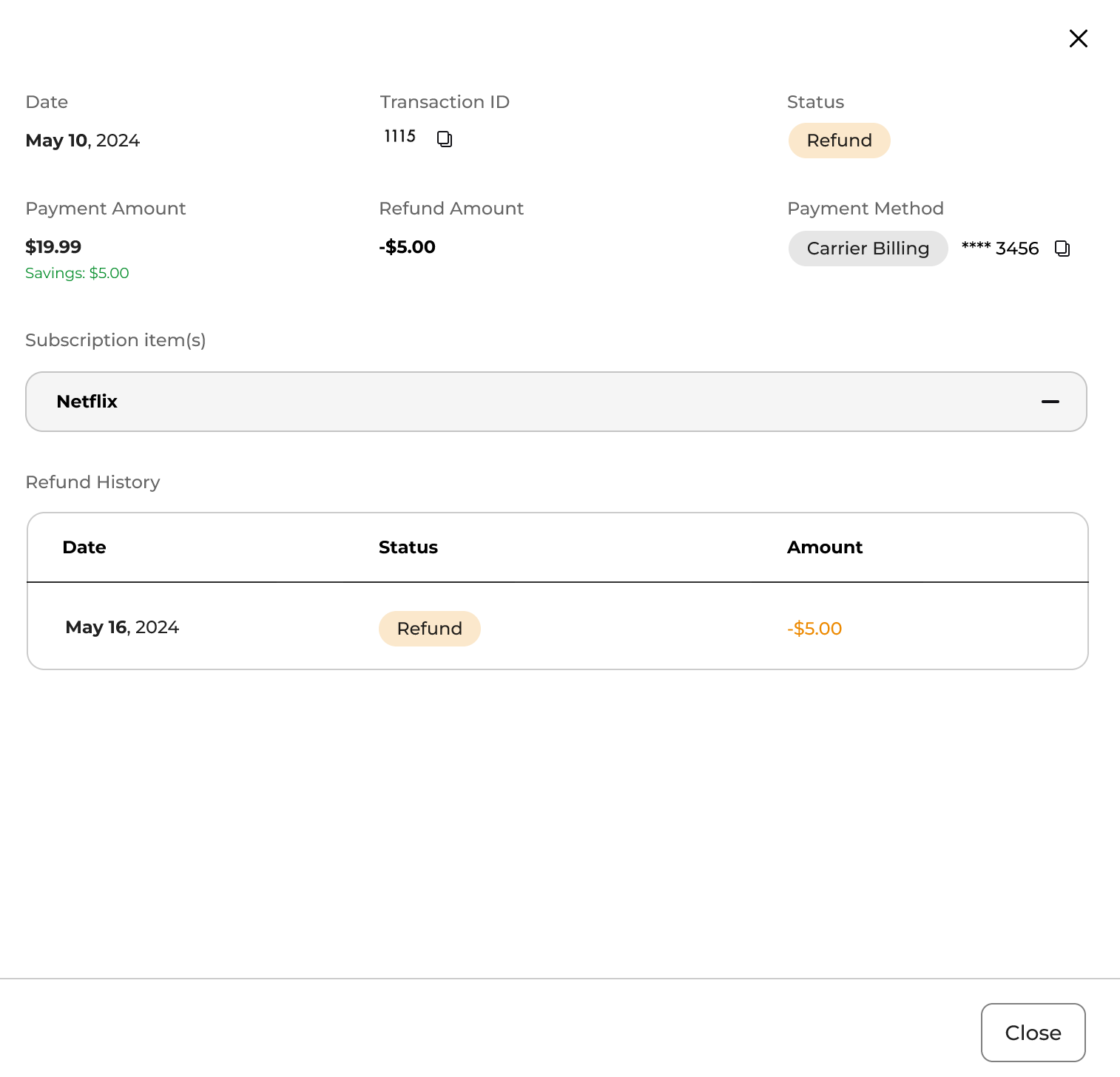
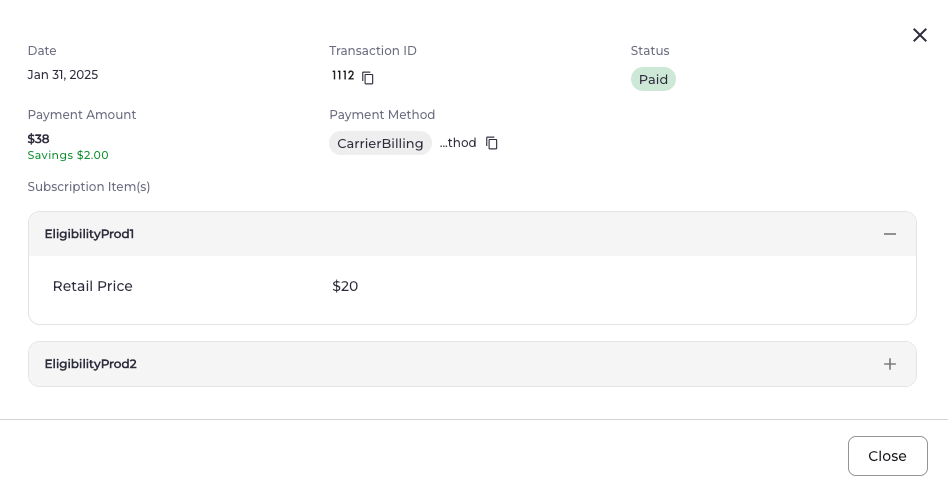
Details: When you select Details, you can view additional information about the transaction, including:
- Date: The date of the transaction.
- Transaction ID: A unique identifier for a transaction record in MarketONE. You can use the Transaction ID to look up the transaction in Commerce Engine.
-
Status: Indicates the most recent status of a transaction. Possible values include:
- Pending: Commerce Engine returned a status of New, Authorized, or Pending.
- Failed: Commerce Engine returned a status of Void, Cancelled, or Expired authorization.
- Refund: The transaction was successfully refunded, either fully or partially.
- Paid: The payment processor successfully captured the transaction.
-
Payment Amount: The payment amount associated with the transaction.
- Savings: The total amount saved, if any discounts were applied.
- Refund Amount: If the transaction includes a partial or full refund, the total refunded amount is shown.
- Payment Method: The method used to complete the payment.
- Subscription Items: The products included in the subscription.
-
Retail Price: The original price of each subscription item.
-
Refund History: If the transaction includes refunds, the following details are shown:
- Date: The date of the refund.
- Status: Indicates the status of the refund. Possible values include:
- Failed: The refund was not successfully processed.
- Refund: The refund has been successfully processed.
- Pending: The refund has been reported and is being processed.
- Amount: The refund amount.