

- Follow the Log In Process up to step 9.
-
On the 2-Step Verification page, click Use a backup code.
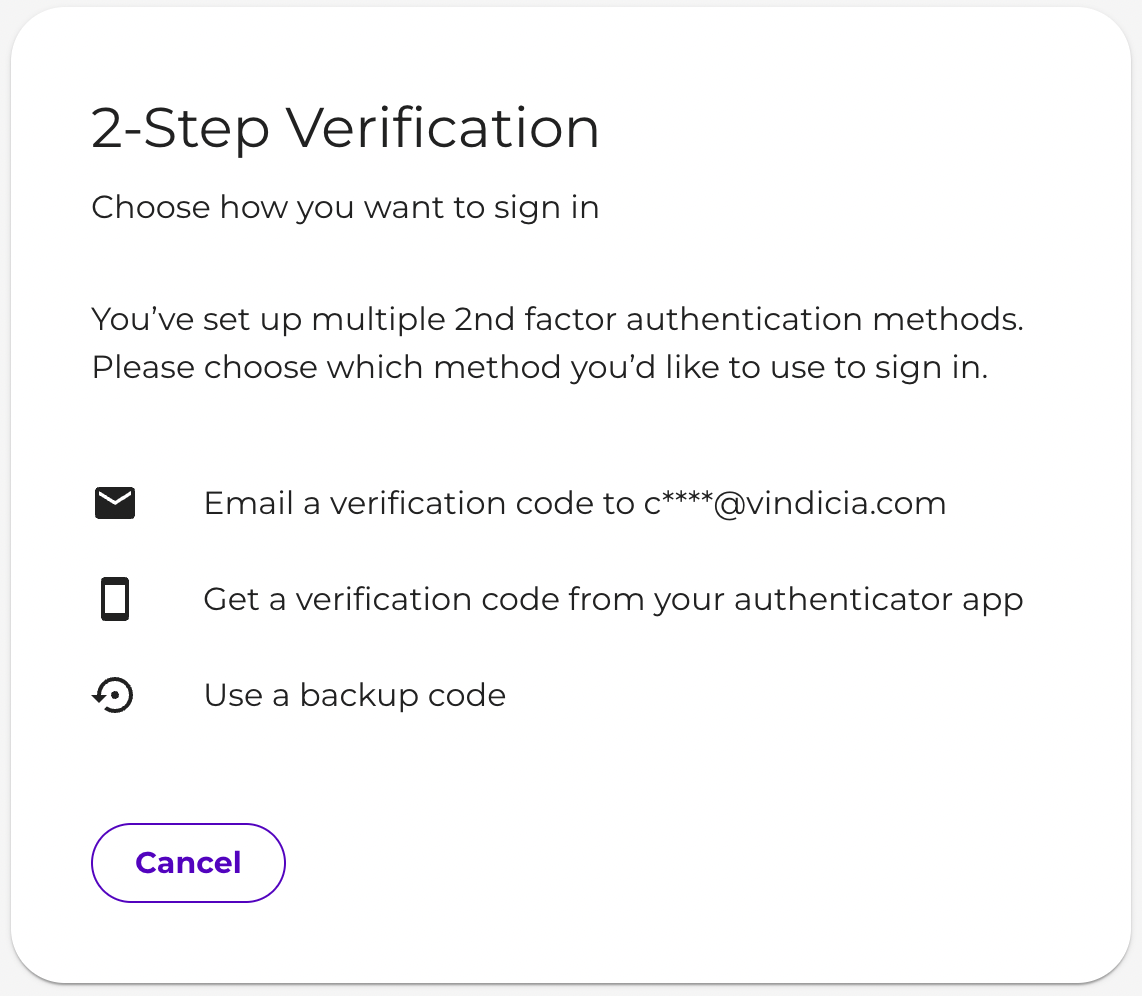
- Enter your Backup Code.
- Click Next.
Log in with a Backup Code
If you are unable to log into the Portal, whether because you have exceeded the maximum allowed two-factor authentication attempts, are unable to access your authenticator app, or have lost your device, your merchant user manager can generate a backup code to allow you to regain access to your account. A backup code is a temporary one-time code used for account validation when a user’s two-factor authentication is not available.
Note: Users can also generate up to 10 backup codes at a time in the IDP app to keep and use for themselves as a two-factor authentication method. For more information on generating backup codes in the IDP app, see User Sign In - IDP.
To log in to the Portal using a backup code, do the following:
Was this page helpful?