

- Find your relevant listing using search and filter
- Change display controls
- Navigate the Portal with breadcrumbs
- Access Help files
- Create New objects
- Duplicate existing objects
-
To find a relevant listing go to the relevant page. For this example, go to Catalog > Products.
The Products list page appears.
Note: For pages under the Billing menu, you will first need to search by certain criteria to get a list of results.

- In the search bar, enter the value of a specific listing in any of the display column. All search results matching the entered value appear.
- Sort the order of the results by clicking the Up/Down arrows next to a field.
- Select the number of results to show per page in the dropdown list ranging from 1 to 100. By default ,10 results are shown.
- Toggle between pages of results using the page arrows, left pointing down and right pointing up.
-
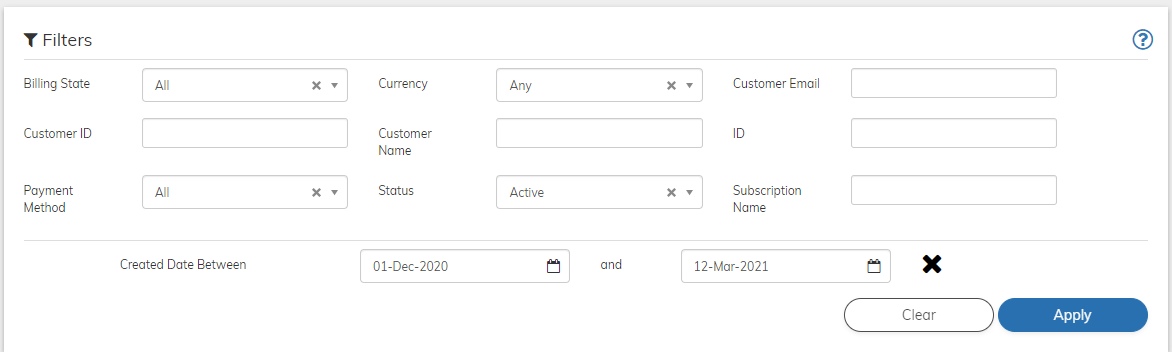
For additional fields by which to search or filter, click the Show Filters button.
The Filters pane appears and displays the relevant fields by which to search.
-
Enter/Select the relevant value by which you’d like to search.
Note:
- When filtering by multiple fields such as ID and Status, the displayed results match both the ID AND the Status values you entered.
- Once you change filter values, these new values are remembered and displayed when next accessing the page.
- For more details, see Filtering in Commerce Engine.
- Click the relevant result. The specific details page of the result appears. Note: If the search produced only one result, it immediately opens.
-
To return to the main result page, use the breadcrumb trail that shows your drill down location. For example, to return to the Products list page, click Products in the breadcrumb trail.

-
If you require help for a specific window, click the help question mark

- To create a new Commerce Engine object, browse to the +New menu tab and select the relevant object. For more details, refer to Getting Started with the Commerce Engine Portal.
- Commerce Engine offers a time-cutting capability of duplicating existing objects and changing unique IDs. Locate the relevant entry and click Duplicate in the Actions panel. Change the relevant parameters as needed and enter new unique IDs for a quick turnaround of the object.
- Filtering in Commerce Engine
The filters allow you to refine the displayed list of items by filtering out unwanted results. - Filtering Accounts in Commerce Engine
The filters allow you to search for a list of customer accounts you seek by filtering out unwanted results. - Filtering Subscriptions in Commerce Engine
The filters allow you to search for a list of subscriptions you seek by filtering out unwanted results. - Filtering Transactions in Commerce Engine
The filters allow you to search for a list of transactions you seek by filtering out unwanted results. - Filtering Reason Codes in Commerce Engine
The filters allow you to refine the displayed list of items by either Pause, Cancel or both reason types.