

-
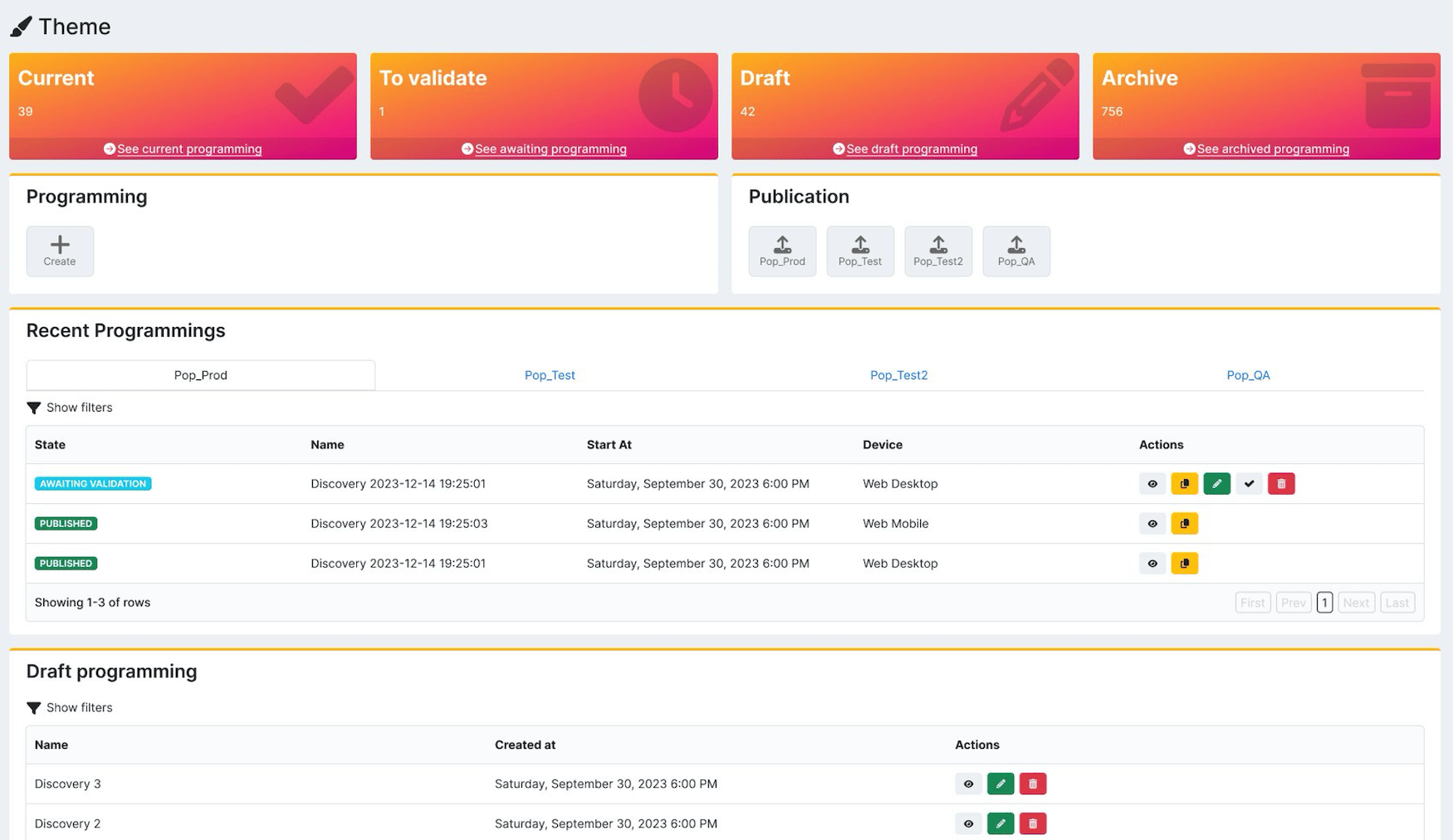
Navigate to Services > Themes.
The Themes page appears.
-
Select what you’d like to do:
- To create a theme, select Create.
-
To edit a theme, scroll to the Recent Programmings or Draft Programmings list and select the edit icon

-
To clone a theme, scroll to the item in the Recent Programmings or Archived Programmings list and select the clone icon

- To validate a theme, select See awaiting programming. The pop-up appears. Review the theme and select Validate or Deny. If you chose to validate, the state of the theme is now Validated. The theme is ready to be published.
- To publish a validated theme, select the population to publish to within the Publication section. The theme now has a Transmitted state and has been published successfully.
-
To view current, pending, or archived themes, scroll to the Recent Programmings, Awaiting Programmings, or Archived Programmings list, and select the view icon

-
To delete a theme, scroll to the item in the Recent Programmings, Draft Programmings or Archived Programmings list and select the delete icon

- Make configurations as desired. See the table below for more information about each box.
-
Select what you’d like to do.
- To submit the programming for validation, select Save and Continue.
- To save and exit the program editor, select Save and Close. If you choose to submit the theme for validation, the Publication page appears.
- Select a publishing type, select a population from the dropdown menu, and enter the start date to publish in the Start Date field.
- Select Submit. The Programming Summary page appears.
-
Select what you’d like to do.
- To confirm that you want to submit your theme for validation, select Confirm. The state of the theme is now Awaiting Validation. The theme needs to be validated in order to be published. The theme appears in the Recent Programmings list.
- To cancel, select Abort. The theme appears in the Draft Programmings list if you want to edit it later.
- To validate the theme, select See awaiting programming. The validation dialog appears.
-
Select what you’d like to do.
- To validate the theme, select Validate. The state of the theme is now Validated. The theme is ready to be published. See step #2 for more information about publishing.
- To deny validation, select Deny. The state of the theme is now Validation Denied.
Theme Fields
Graphic Assets
| Box Name | Description Value |
|---|---|
| Logo | Add your company logo. It will appear at the top of every storefront page. Logos are 100x100 pixels. To add a logo: 1. Select the edit icon |
| Page Background Image | Provide the background image in landscape format (1920x1080 pixels). If you add background images in both landscape and portrait formats, it will ensure a responsive layout. Note: This will override the UI Colors background configuration. To add a background image: 1. Select the edit icon |
| Page Portrait Background Image | Provide the background image in portrait orientation (1080x1920 pixels).If you add background images in both landscape and portrait formats, it will ensure a responsive layout. To add a portrait background image: 1. Select the edit icon |
UI Colors
| Box Name | Description Value |
|---|---|
| Active Colors | Select the colors for the main UI elements:- Primary Color 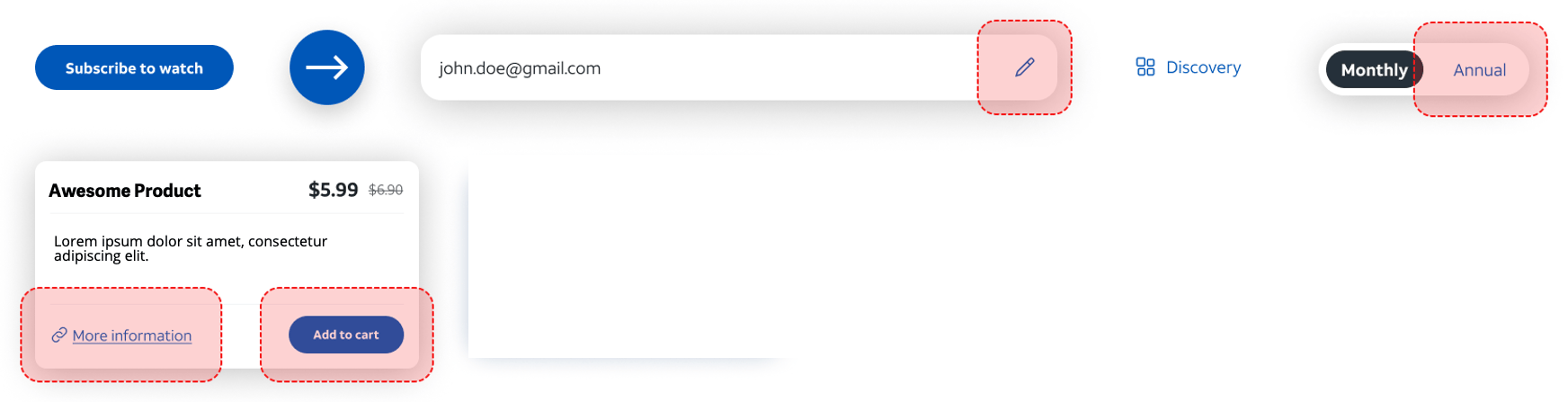 |
| Accent Colors | Select the accent colors for the UI:- Secondary Color 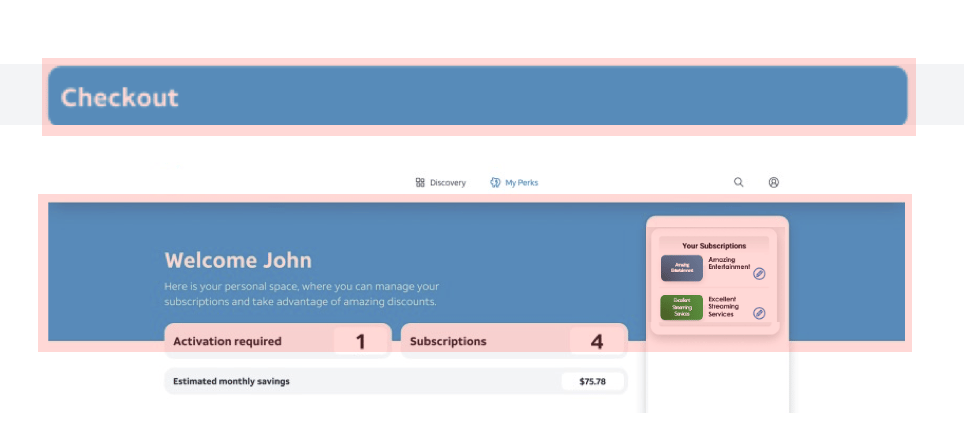 |
| Footer Colors | Select the footer colors for the UI:- Tertiary Color - Tertiary Text Color 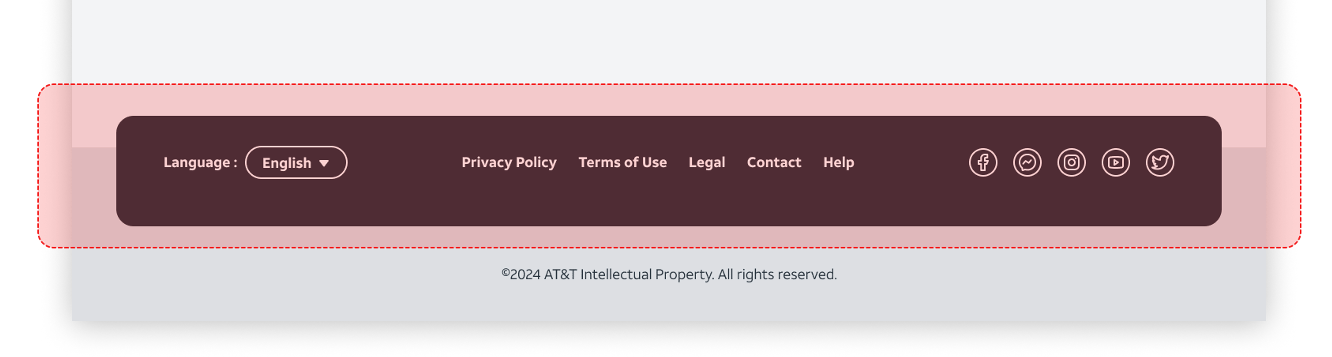 |
| Global Colors | Select the colors used for the main text and background colors:- Text Color - Background Color - Secondary Background Color 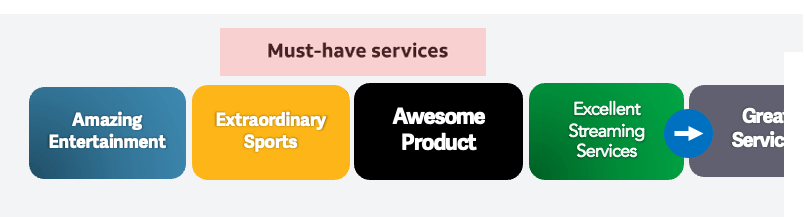 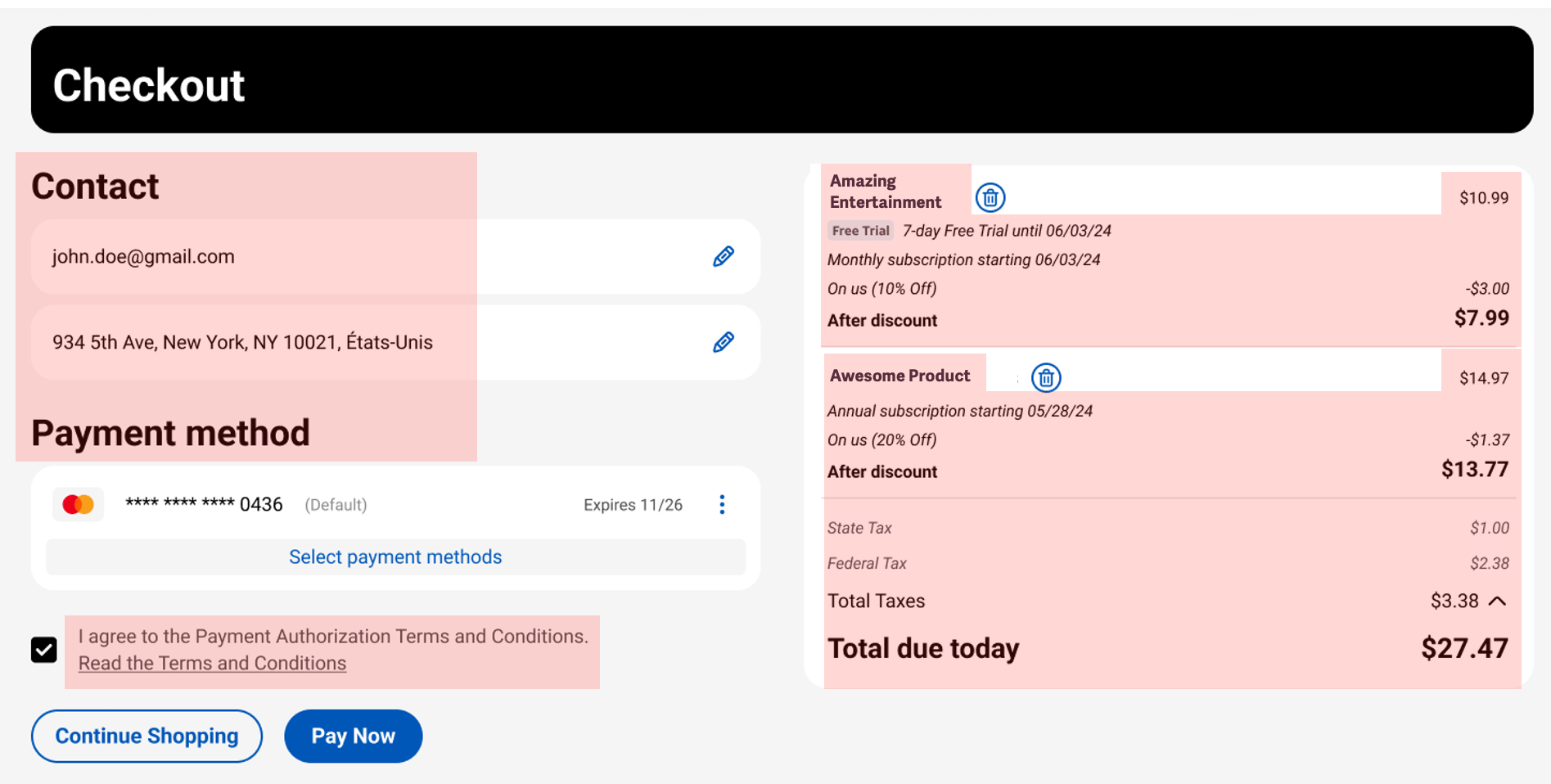 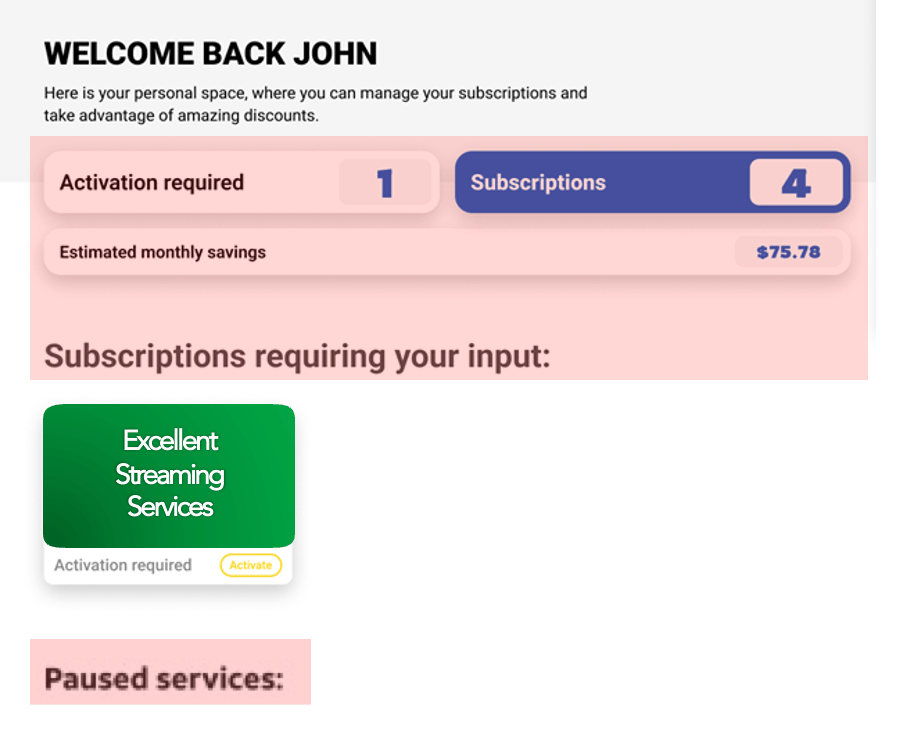 |
| Content Layout Colors | Select the colors used for the following:- Interactive Action Button Background Color - Interactive Action Button Text Color |
Secondary UI Colors
| Box Name | Description Value |
|---|---|
| Bundle Colors | Select the colors for soft and hard bundle elements:- Bundle Text - Bundle Background - Bundle Container - Hard Bundle Container 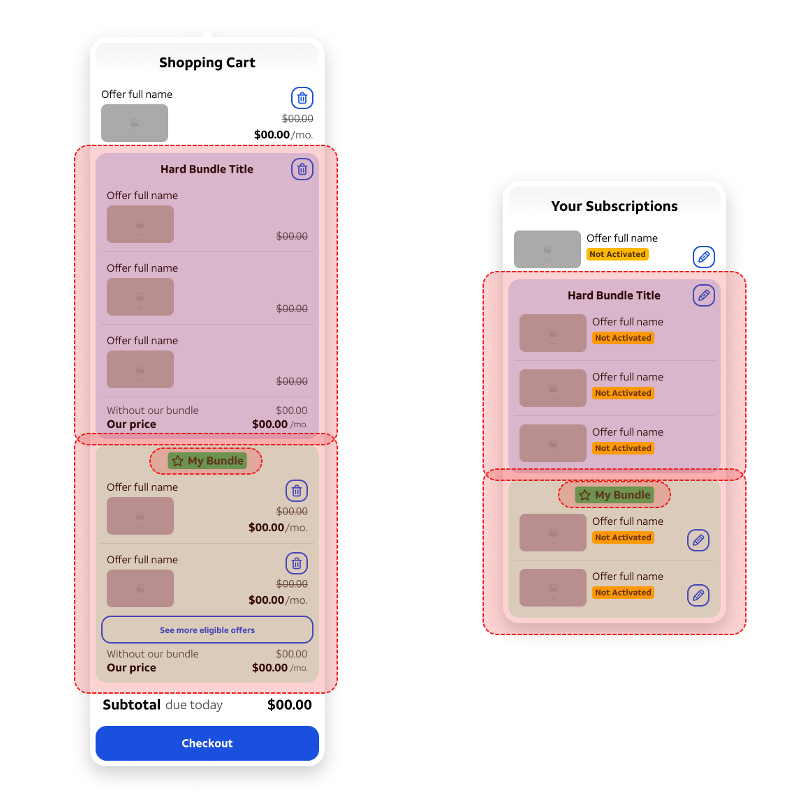 |
| Subscription Status Colors | Select the colors for subscription status elements in the UI:- Free Trial Background - Payment Error Background - Pending Pause Background - Pending Cancel Background - Paused Background - Not Activated Background - Free Trial Text - Payment Error Text - Pending Pause Text - Pending Cancel Texts - Paused Texts - Not Activated Text 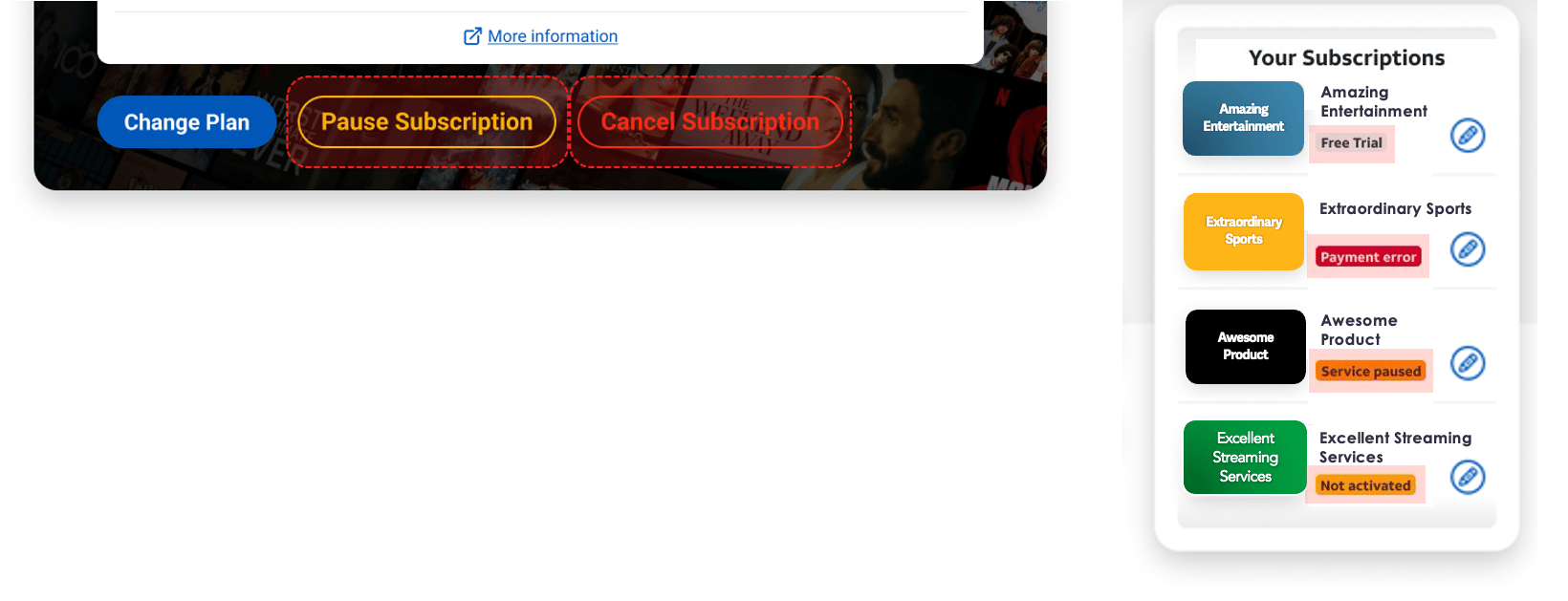 |
| Subscriptions Action Button Colors | Select the subscription action button colors for the UI:- Activate Background - Change Plan Background - Pause Background - Cancel Background - Activate Border - Change Plan Border - Pause Border - Cancel Border - Activated Text - Change Plan Text - Pause Text - Cancel Text 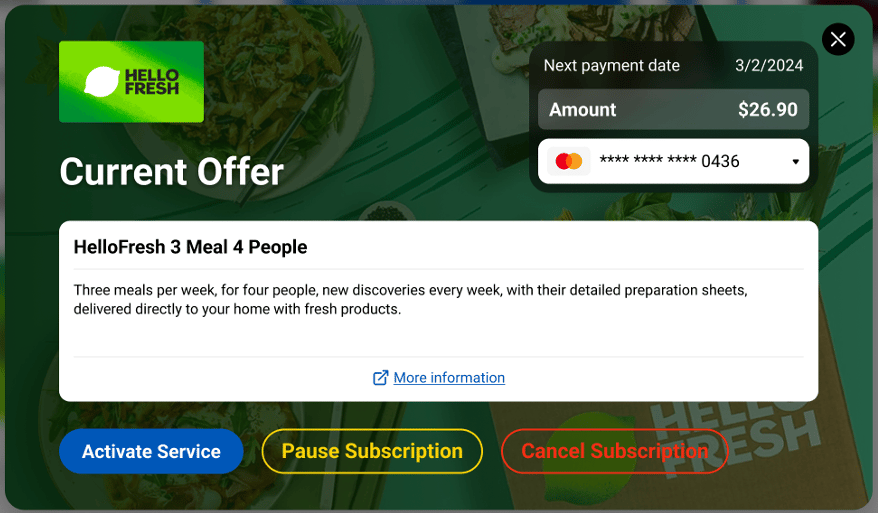 |
| Text Overrides | If multiple languages have been enabled, select the language for text overrides.If desired, enter text overrides for the following Subscriptions modal action buttons: - Activate - Change Plan - Pause - Continue Paused - Cancel - Reinstate Subscription If desired, enter text overrides for the following subscription statuses: - Pending Pause - Pending Cancel - Paused - Not Activated |
UI Parameters
Checkout Parameters
Footer