

- View requests to partner
- Accept a request to partner
- Reject a request to partner
- View existing partnerships
- Upload commercial artifact documents related to an existing partnership
- Cancel a partnership Note: To cancel a partnership, the partnership can’t have any active agreements or subscriptions.
- Navigate to the Partnerships space. The Partnerships page appears.
-
Select what you’d like to do:
-
To view, approve, or reject a partnership request, select the request from the list.
The Reseller’s (Service Provider’s) page appears.
- To approve or reject a partnership request, select Approve or Reject. The page is refreshed. The status of the partnership is updated accordingly.
- To view an existing partnership, select the partnership from the list. You can also filter for the relevant partnership by entering a keyword, and by selecting a country, status, and/or target market from the dropdown lists. Select the relevant partnership from the list. The organization’s page appears.
-
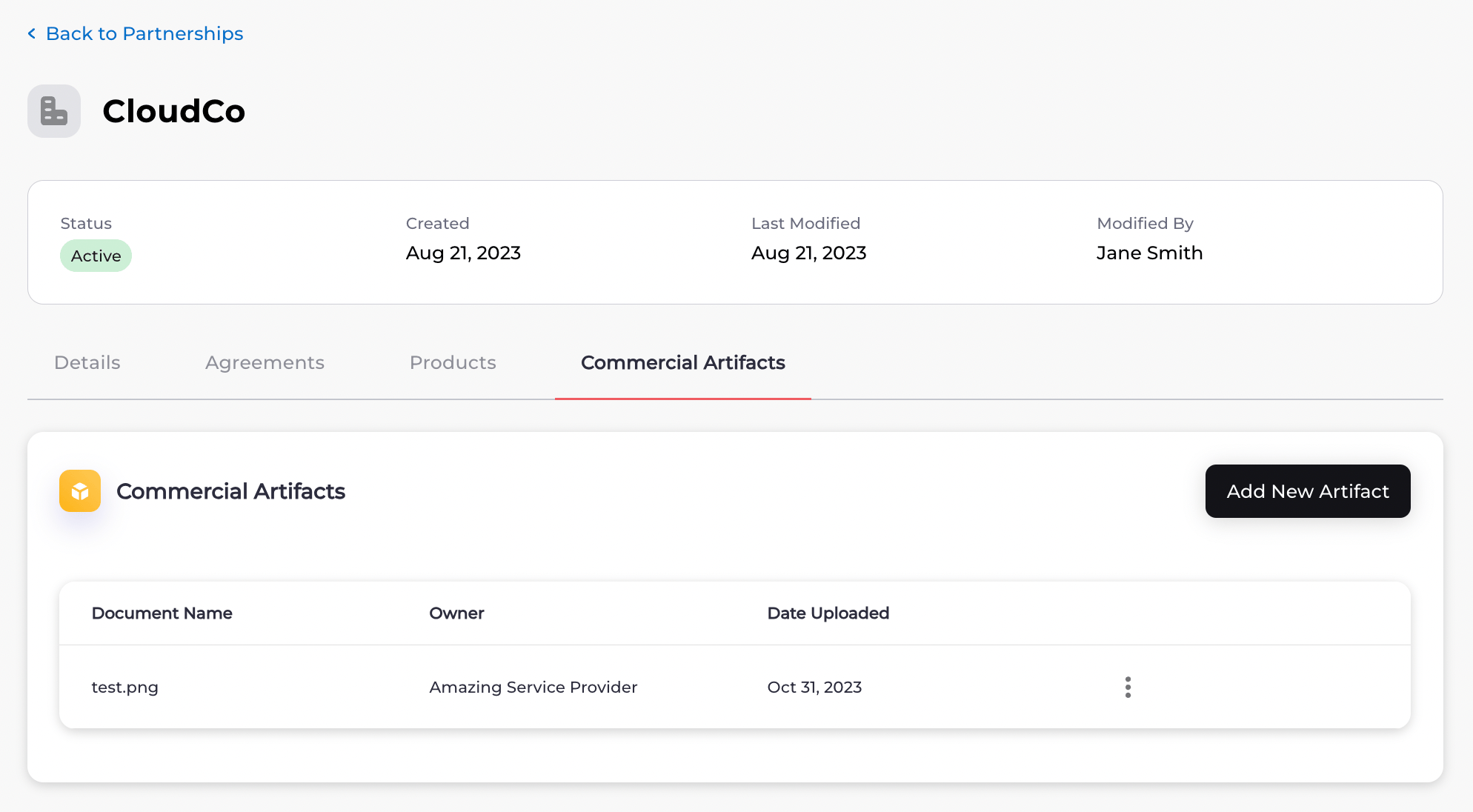
To upload a document to a partnership, select the partnership from the list.
The organization’s page appears.
Select the Commercial Artifacts tab.
The Commercial Artifacts page appears.
- To view any agreements associated with an existing partnership, select the partnership from the list. The organization’s page appears. Select the Agreements tab. A list of agreements associated with the partnership appears.
- To cancel an existing partnership, find the partnership, and select the three dot menu at the end of the row of the partnership. Select Cancel Partnership. Note: To cancel a partnership, the partnership must not have any active agreements or subscriptions. Any active agreements must be canceled first. Also, when a partnership is canceled, any partnership-related settings that were configured are also canceled. For example, if reports or Reconciliation were configured, they’ll be canceled. The Cancel Partnership box appears. Note: When a partnership is canceled, any partnership-related settings that were configured are also canceled. For example, if reports or Reconciliation were configured, they’ll be canceled. Select Cancel Partnership. Your partnership has been canceled.
-
To view, approve, or reject a partnership request, select the request from the list.
The Reseller’s (Service Provider’s) page appears.