

- Create products
- View products
- Edit products Note: You can edit any product field if the product isn’t attached to an active or pending-approval agreement. When a product is associated with an active or pending-approval agreement, you can only edit certain fields, such as the name and description.
- Publish products
- The product name
- The product code
- The product description
- The product logo
- Other details, such as tags, informational features, and customer attributes
-
Go to the Manage Products > Products space.
-
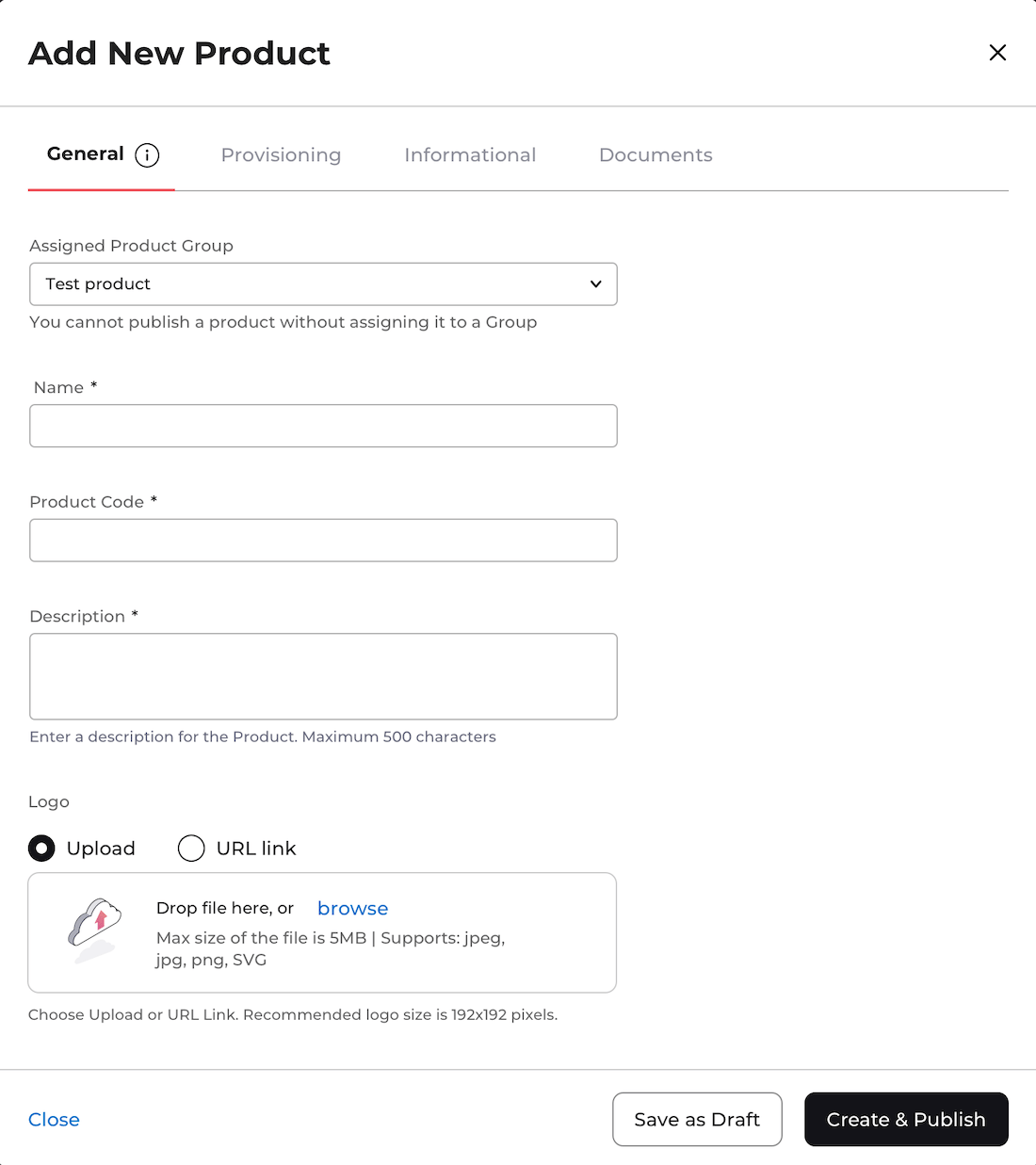
To create a new product, click the Add New Product button.
The Add New Product box appears.
- To view a product, filter by entering keywords. You can also select a status from the All Statuses field and a target market from All Target Markets. As you provide the filter details, a list of the relevant results appears dynamically. Select the relevant product from the results list. The product page appears.
-
To edit or publish a product, filter by entering keywords. You can also select a status from the All Statuses field and a target market from All Target Markets. As you provide the filter details, a list of the relevant results appears dynamically.
Select the relevant product from the results list.
The product page appears.
Select the three dot menu and then select the Edit Product or the Publish button.
Note: To publish a product, the product must be a part of a group.
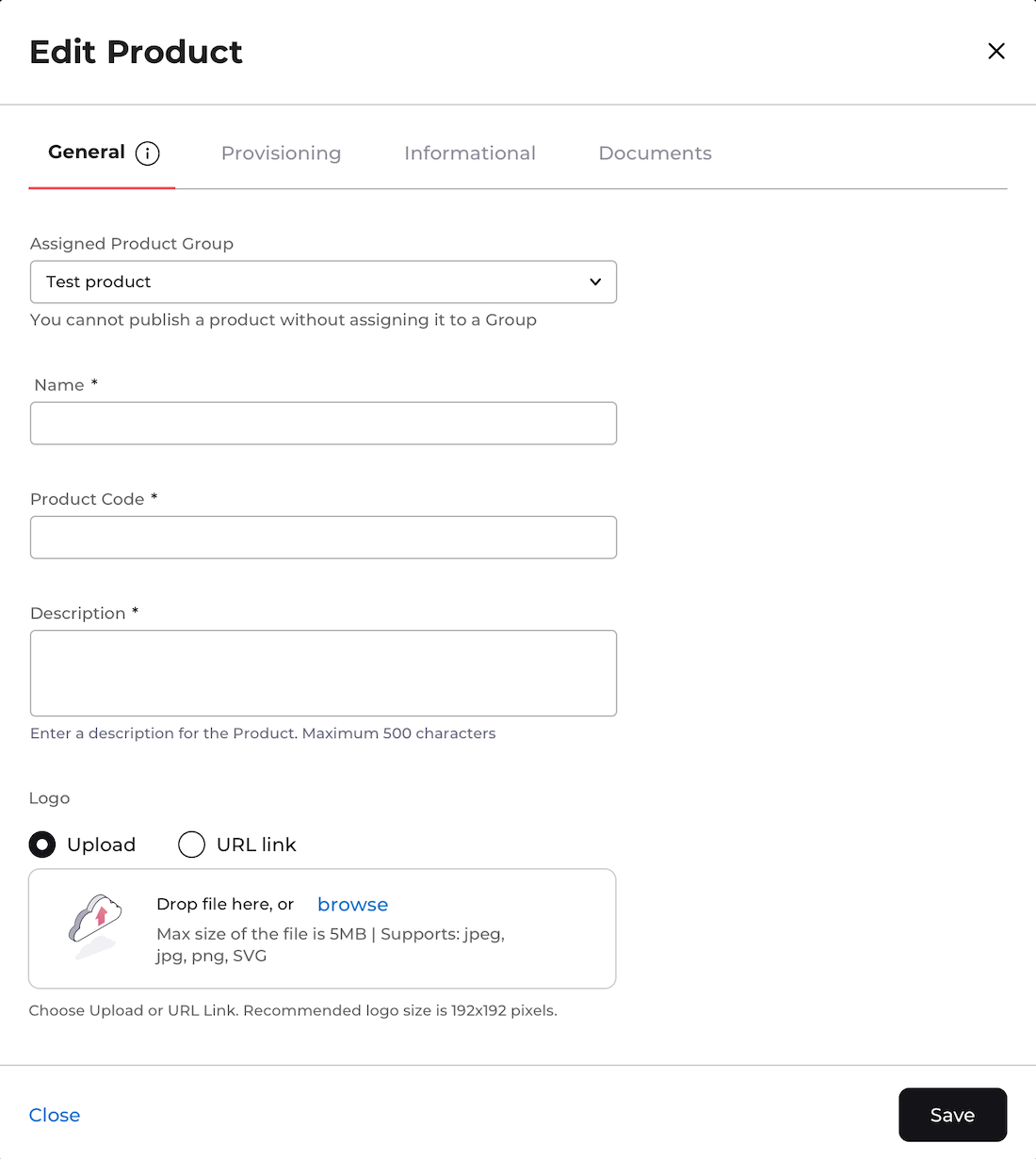
If you selected Edit Product, the Edit Product box appears. Edit the product fields in each section as needed. See the tables below for more details.
When you’re done, select Save or Save & Publish.
-
To create a new product, click the Add New Product button.
The Add New Product box appears.