

- Create an agreement
- Edit an agreement Note: You can edit an agreement before you send it for approval or if it has been rejected.
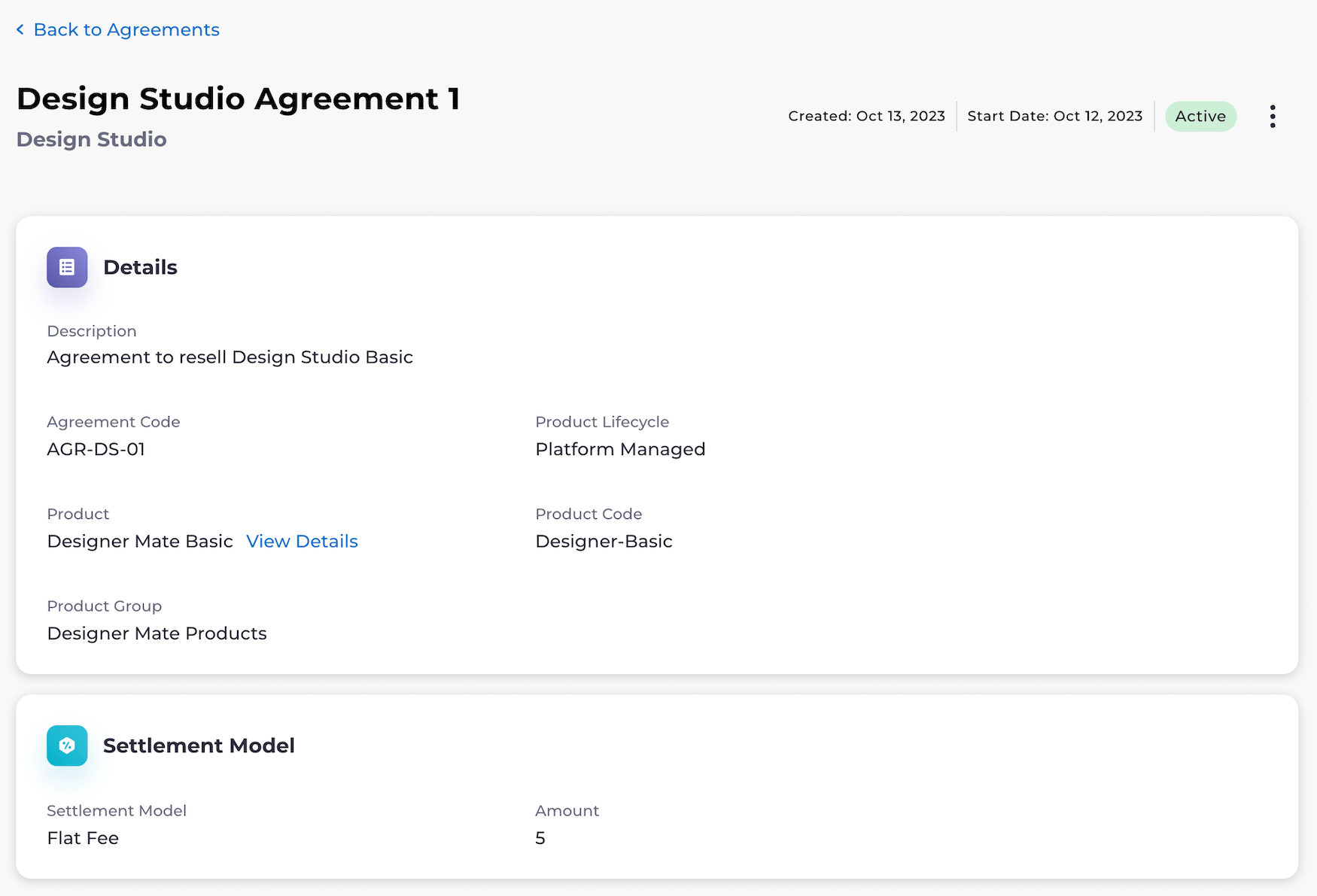
- View an agreement
- Submit an agreement for approval
- Cancel an agreement if it doesn’t have any active subscriptions
- Republish an active agreement Note: Republishing is only available for Resellers (Service Providers) that are using an external catalog integration and have registered to receive the Publish Product Specification webhook event.
- The product or service the agreement applies to
- Whether to enable a settlement model. A settlement model can be one of the following types:
- Revenue share: The revenue share is a percentage the Merchant receives from settlements. The percentage comes from splitting the charge amount between the Merchant and Reseller (Service Provider). The charge amount is how much the customer pays for the product, which is sent to Partner Ecosystem Management. A charge file needs to be uploaded to process revenue share settlements for Platform-managed products. Note: You can also set a minimum price for a Merchant’s product. This value will be used to calculate revenue share settlements when no charge amount is available for the entitlement or the actual price is lower than the minimum price.
- Flat fee: The fixed amount owed to the Merchant. For Platform-managed subscriptions, the amount is for each active subscription entitlement. For Merchant-managed subscriptions, the amount is for each transaction received.
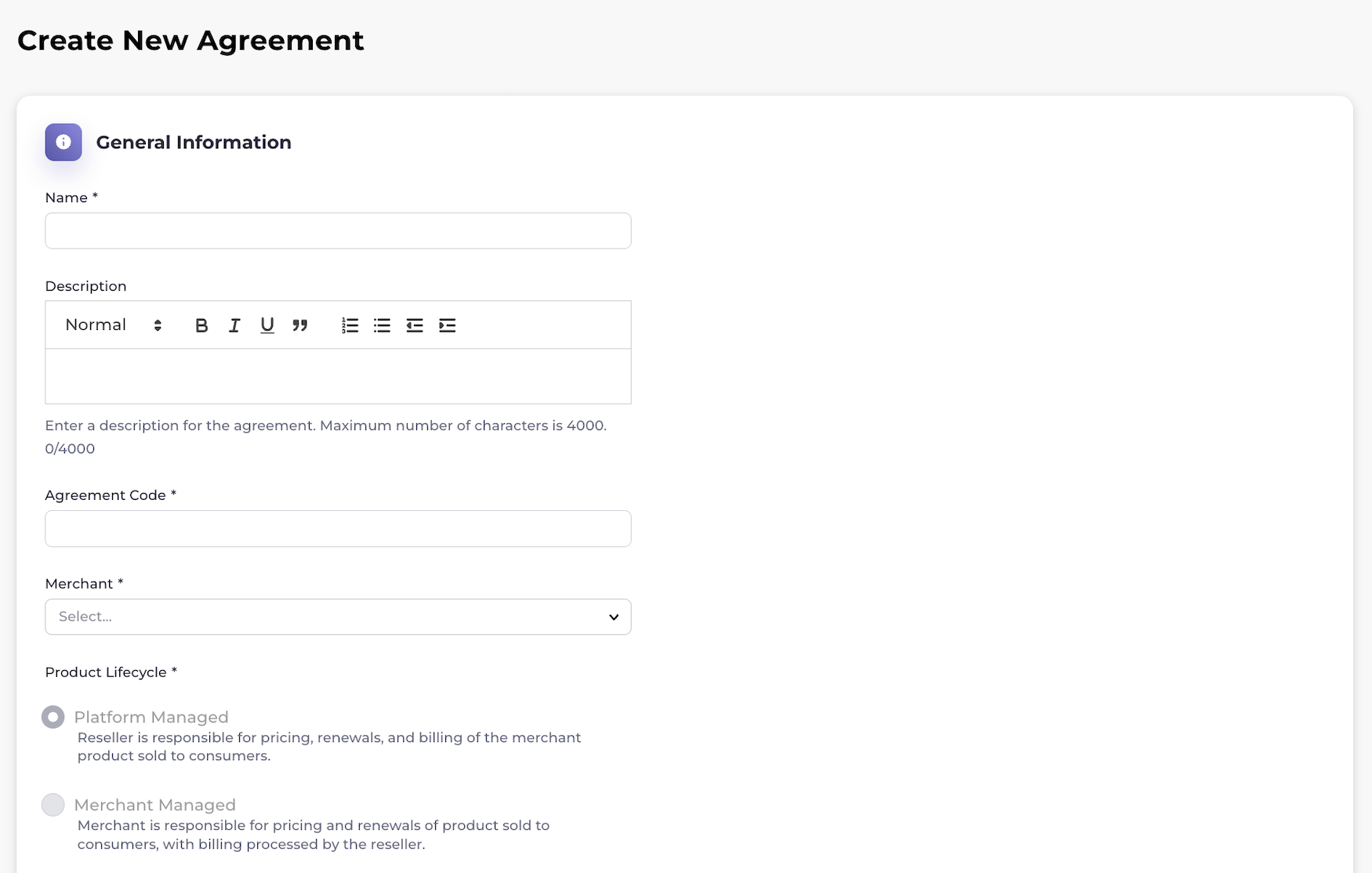
- The product lifecycle, which can be Platform-Managed or Merchant-Managed.
- The entitlement type, which designates the amount customers can purchase under a subscription entitlement. The entitlement type can be Quantity (for example: license seats) or Standard (a single subscription).
- The target market
- Other details, including a description of the agreement, and a code for the agreement
-
Go to the Agreements space.
Select what you’d like to do from the following options:
-
To add a new agreement, click Create New Agreement.
The Create New Agreement page appears.
Complete the agreement fields. See the table below for guidance regarding the fields.
-
To view, edit, cancel, or republish an existing agreement, filter for the relevant agreement by typing keywords and by selecting a status from the dropdown list. As you provide the filter details, a list of the relevant results appears dynamically.
Note: An agreement can only be edited before it has been submitted for approval or if the agreement has been submitted and then rejected. An agreement can only be canceled when the agreement doesn’t have any active subscriptions. Any active subscriptions must be canceled first.
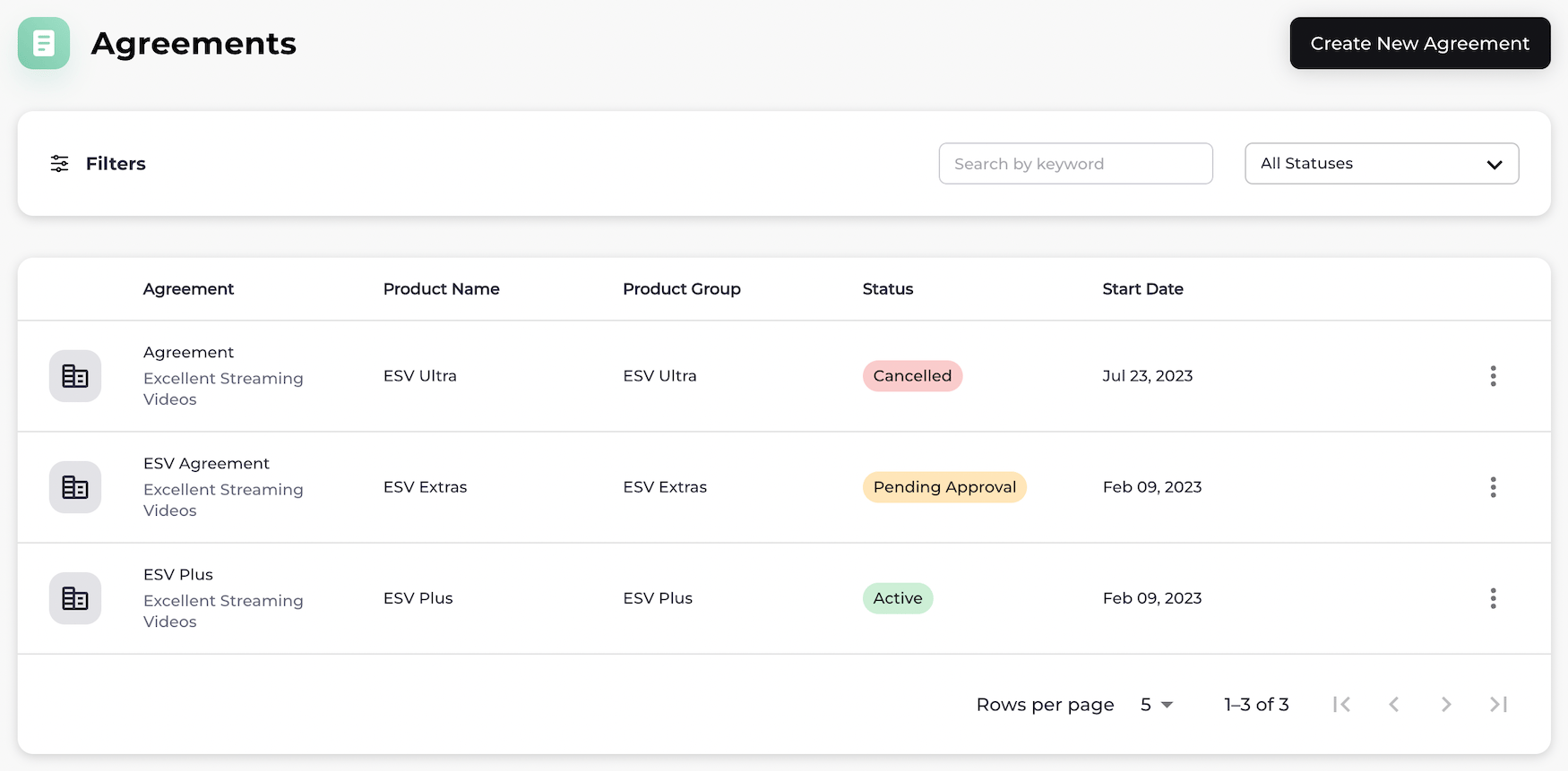
- To edit the agreement, select the three dot menu next to the agreement status. The option menu appears. Select Edit Agreement. The Edit Agreement page appears. Refer to the tables below for guidance regarding the fields. When you are done, select Save or Save & Submit for Approval. Note: When you send an agreement for approval, it can no longer be edited unless it is rejected by the Merchant.
- To submit the agreement for approval, select the three dot menu next to the agreement status. The option menu appears. Select Send for Approval.
- To cancel the agreement, select the three dot menu next to the agreement status. The option menu appears. Select Cancel Agreement. A box appears to confirm the cancellation. Select Cancel Agreement.
- To republish an active agreement, select the three dot menu next to the agreement status. The option menu appears. Select Republish Agreement. The Republish Agreement box appears. Select Republish Agreement.
-
To add a new agreement, click Create New Agreement.
The Create New Agreement page appears.
Complete the agreement fields. See the table below for guidance regarding the fields.