

- View Merchants’ profiles
- View Merchants’ products and product groups
- See the status of your requests
- View existing partnerships
- Upload commercial artifact documents related to an existing partnership
- Add details to an existing partnership
- Edit partnership details in an existing partnership
- Cancel a partnership Note: To cancel a partnership, the partnership can’t have any active agreements or subscriptions.
- Navigate to the Partnerships space. The Partnerships page appears. Any partnership requests you’ve made appear on this page with their status.
-
Select what you’d like to do:
- To view an existing partnership, select the partnership from the list. You can also filter for the relevant partnership by entering a keyword, and by selecting a country, status, and/or target market from the dropdown lists. Select the relevant partnership from the list. The organization’s page appears.
-
To view products and product groups associated with the Merchant, select the partnership from the list.
The Merchant’s page appears.
Select the Products tab.
A list of products associated with the partnership appears.
Select a product to view more details about it.
The Details page for the product appears.
Note: If the product is attached to an agreement, the agreement name shows up next to product in the Products section.
- To add a product to an agreement, select the three dot menu next to the product and then select Add to new agreement. The Create New Agreement page appears. For information about creating agreements, see Manage Agreements.
- To add details to a partnership or edit partnership details, find the partnership in the list and select the three dot menu on the same row. Select Add/Edit Partnership Details. The Add/Edit Partnership Details box appears. Complete the fields as needed. See the tables below for more details. When you’re done, select Save. The data is saved to your partnership. The Merchant can view any data you’ve added.
-
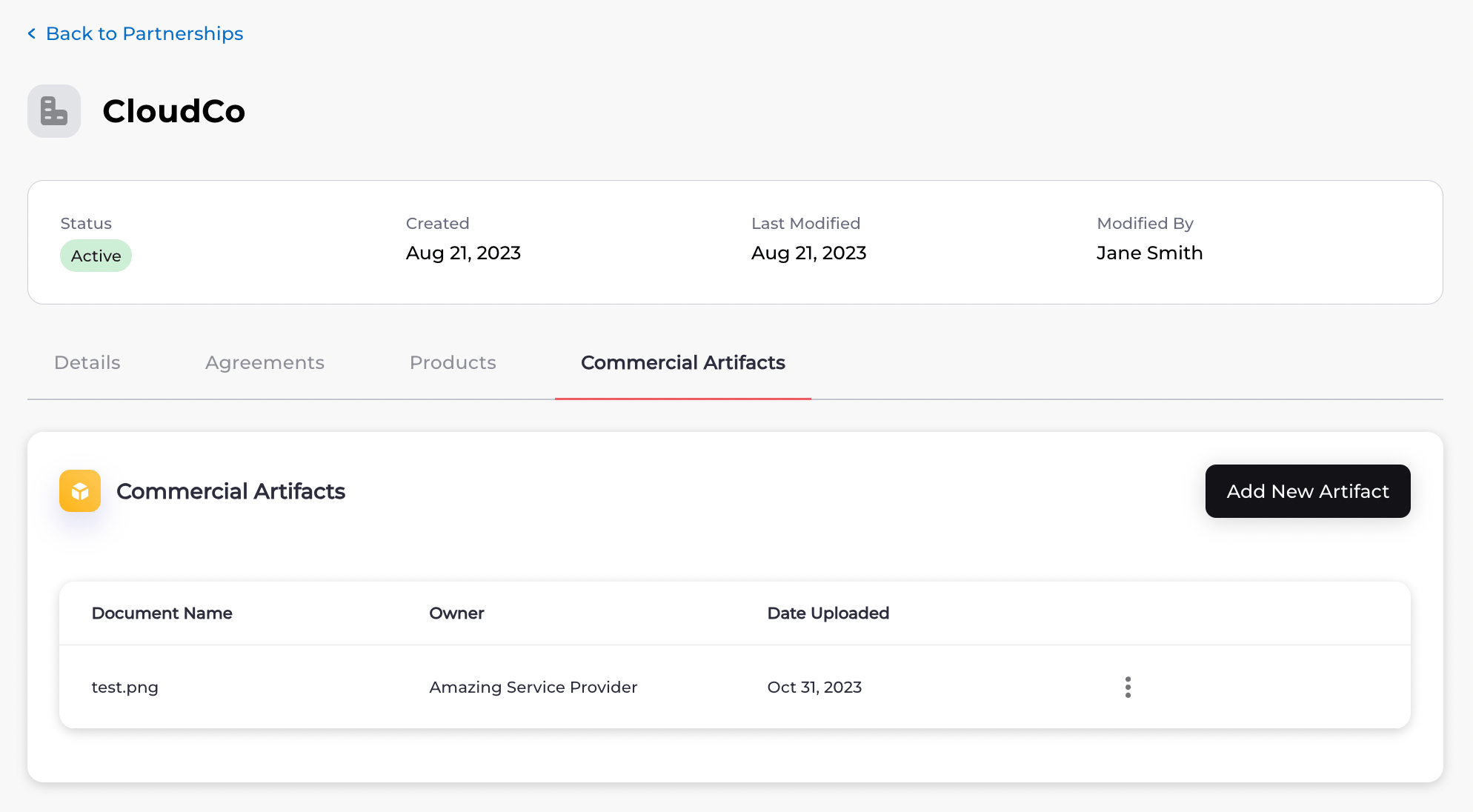
To upload a document to a partnership, select the partnership from the list.
The organization’s page appears.
Select the Commercial Artifacts tab.
The Commercial Artifacts page appears.
- To view any agreements associated with an existing partnership, select the partnership from the list. The organization’s page appears. Select the Agreements tab. A list of agreements associated with the partnership appears.
- To cancel an existing partnership, find the partnership, and select the three dot menu at the end of the row of the partnership. Select Cancel Partnership. Note: To cancel a partnership, the partnership must not have any active agreements or subscriptions. Any active agreements must be canceled first. Also, when a partnership is canceled, any partnership-related settings that were configured are also canceled. For example, if reports or Reconciliation were configured, they’ll be canceled. The Cancel Partnership box appears. Note: When a partnership is canceled, any partnership-related settings that were configured are also canceled. For example, if reports or Reconciliation were configured, they’ll be canceled. Select Cancel Partnership. Your partnership has been canceled.