

X-API-KEY) of the call to ensure a trusted communication. All communication is HTTP(s) based and supports SSL/TLS encryption.
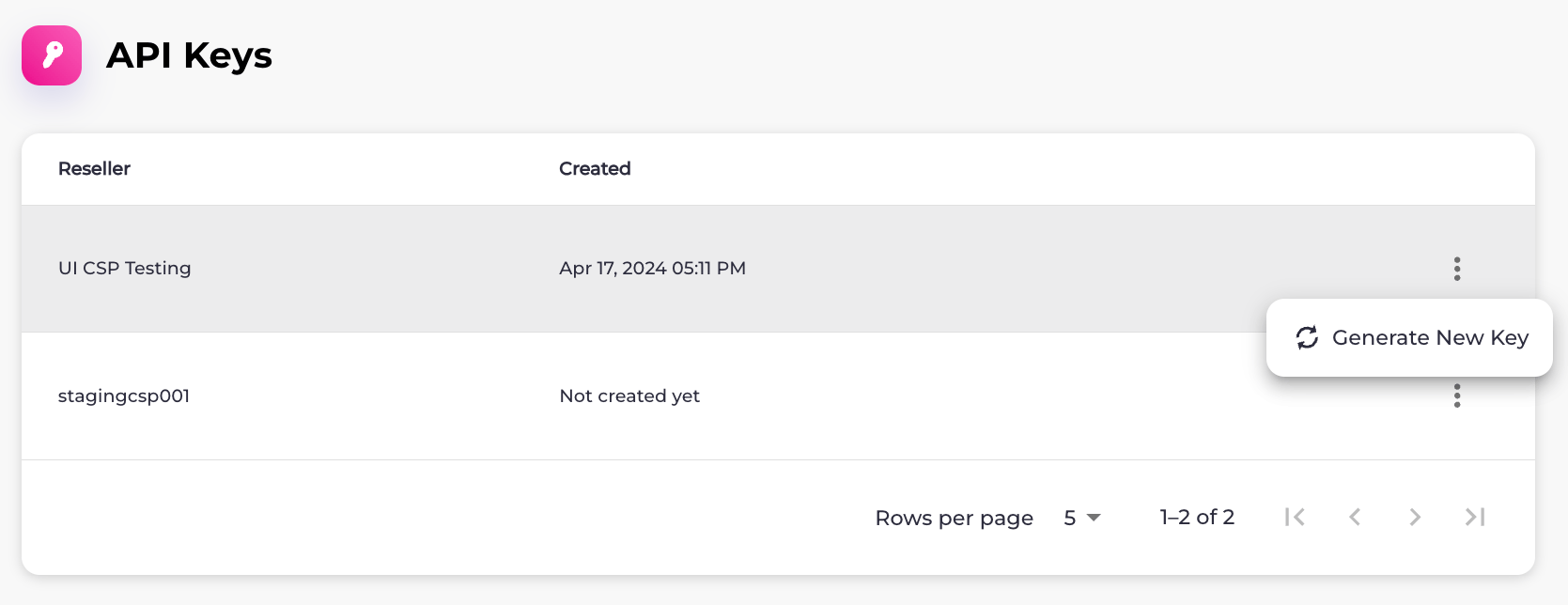
The API Keys page shows a list of API keys that have been generated for partnered Resellers and the dates they were generated. Using the list, you can identify when an API doesn’t exist for a Reseller.
Parent topic:Step 2: Technical Access and Setup in the Sandbox Environment (PDT)
Manage Your API Keys
In Platform Settings > API Keys, you can:- Generate API keys
- Regenerate API keys
-
Navigate to Platform Settings > API Keys.
The API Keys page appears with a list of Resellers.
-
Select what you’d like to do:
- To generate an API key for a Reseller, select the three dot menu on the same row as the Reseller and then select the Generate New Key option. The API Key Successfully Created box appears. Select the API key in the field and press CTRL+C or select Copy to copy it. When you’re done, click Close.
- To regenerate an API key, select the three dot menu on the same row as the Reseller and then select Regenerate Key. The Regenerate API Key box appears. Select Confirm Regeneration. The API Key Successfully Created box appears. Select the API key in the field and press CTRL+C or select Copy to copy it. When you’re done, click Close.