

-
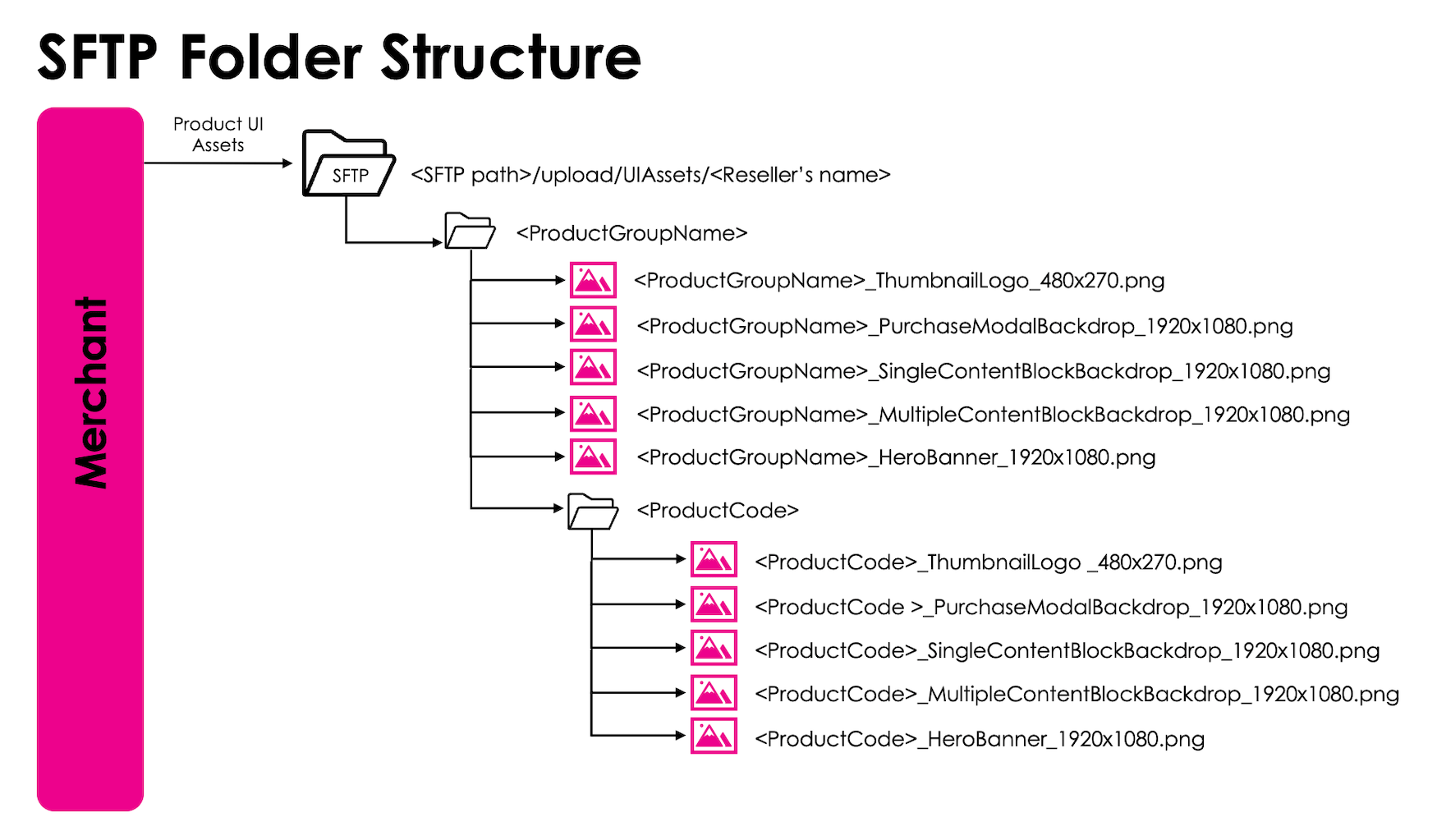
Organize the SFTP folders and asset images.
- On your computer, create a subfolder with the Reseller’s name. The folder name shouldn’t have any spaces.
- Within the subfolder named after the Reseller (Service Provider), create a subfolder and name it after your product group in Partner Ecosystem Management. The folder name shouldn’t have any spaces. Note: If you have multiple product groups to upload, repeat sub-steps B through E as many times as needed.
- Add the required product group assets to the product group subfolder. Use the following naming convention for your files: <ProductGroupName>_<AssetType>_<Dimensions>. For example: AmazingEntertainment_PartnerThumbnailLogo_480x270.jpg. For more information about required assets and how to name your files, see the tables below.
- Within the product group subfolder, create a subfolder for a specific product and give it the same name as the product code in Partner Ecosystem Management. The folder name shouldn’t have any spaces.
- Add the required product assets to the product code subfolder. Use the following naming convention for your files: <ProductCode>_<AssetType>_<Dimensions>. For example: AE34521_PurchaseModalBackdrop_1920x1080.jpg. For more information about required assets and how to name your files, see the tables below.
-
Prepare the Marketing Info Excel file.
-
Download the Marketing Info Excel file and place it within the folder named after the Reseller.

- Open the file. On the Product Purchase Modal and Product Group Purchase Modal tabs, enter the title, description, and product code (for product purchase modals only) for each purchase modal asset.
- If you have a hero banner video, provide the URL in the Hero Banner Video URL table on the Hero Banner Video URL tab.
- Save your changes.
- Update the Excel file name (MarketONE_Metadata_mm_dd_yy_v1.xlsx), entering the month (mm), day (dd) and last two digits of the year (yy). Enter the file version number (replacing v1) if this is not the first time you are providing this file.
-
Download the Marketing Info Excel file and place it within the folder named after the Reseller.