

- Create product groups
- View product groups
- Edit product groups Note: You can edit any product group field if the products aren’t attached to an active or pending agreement. When products are associated with an active or pending agreement, you can only edit certain fields in the product group, such as the description and countries.
- Navigate to Manage Products > Product Groups. The Product Groups page appears.
-
Choose what you want to do:
-
To add a product group, select New Product Group.
The New Product Group page appears.
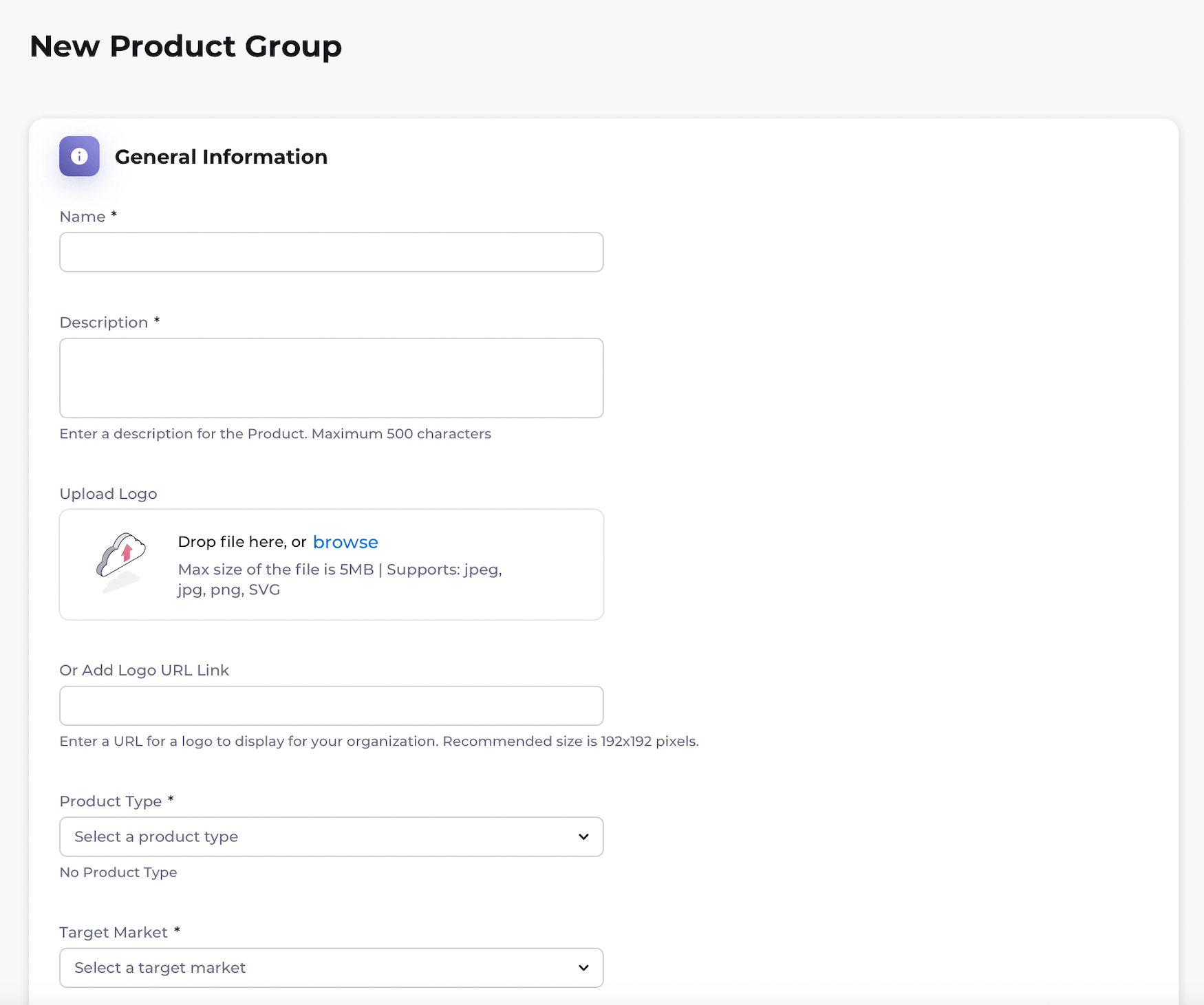
- Click Create to save the group and to keep it unpublished.
- Click Create and Publish to save the group and make it visible to the Resellers you’ve selected.
- To search for a product group, enter keywords. A list of the relevant results appears.
-
To view a product group, select the menu at the end of the row of the product group. Select View.
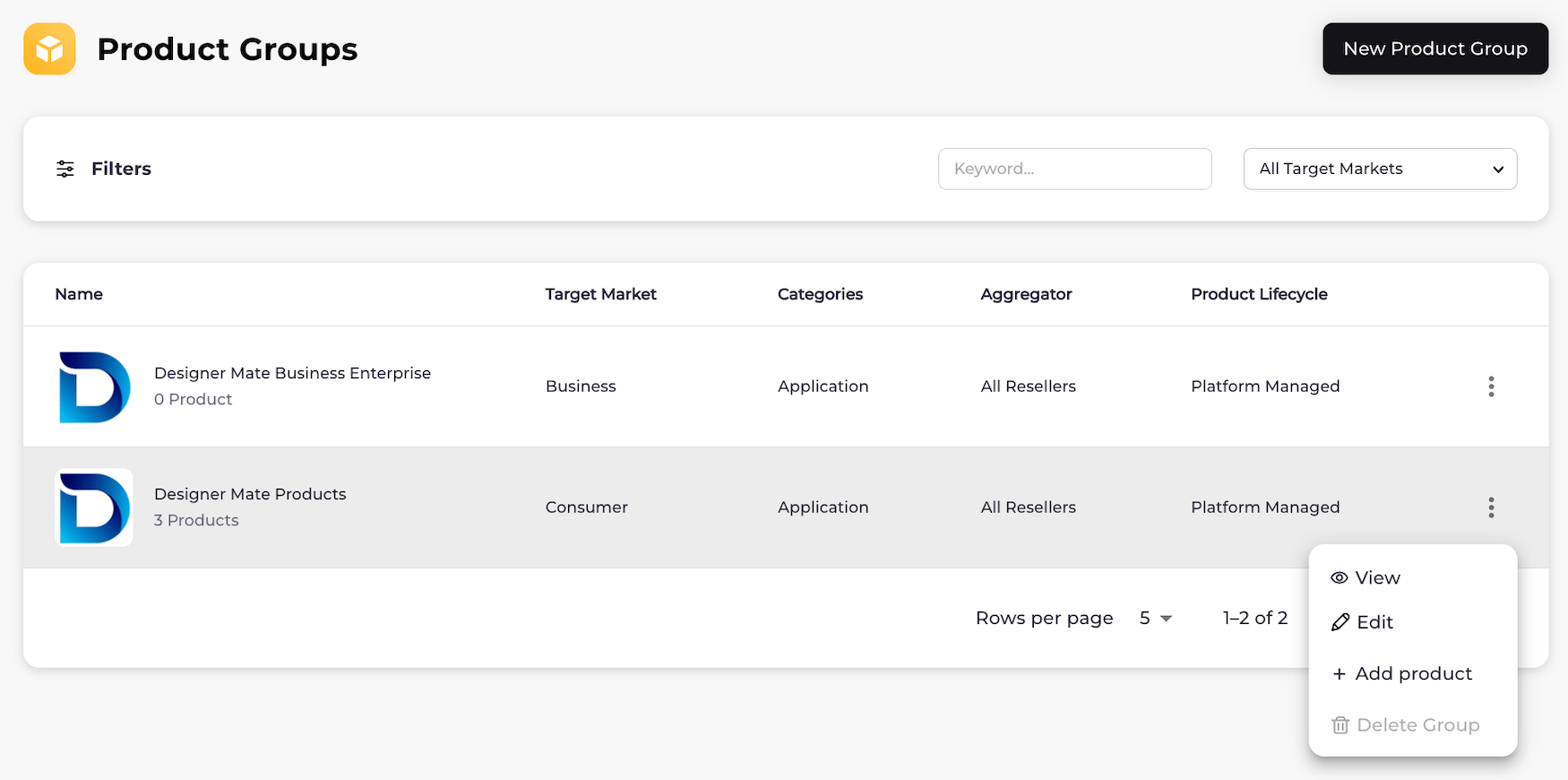
- To edit a product group, select the menu at the end of the row of the product group. Select Edit. The edit page for the product group appears. Edit the product group and/or product fields in each section as needed. See the tables below for more details. When you’re done, click Save. The changes you’ve made to your product group are saved and visible to the Resellers you’ve granted permission.
-
To add a product group, select New Product Group.
The New Product Group page appears.