

- Add team members
- Deactivate team members
- Reactivate team members
- See if your organization is using an external identity provider (IDP) for login authentication
- Click your name in the navigation bar at the top of the page. The dropdown list appears.
-
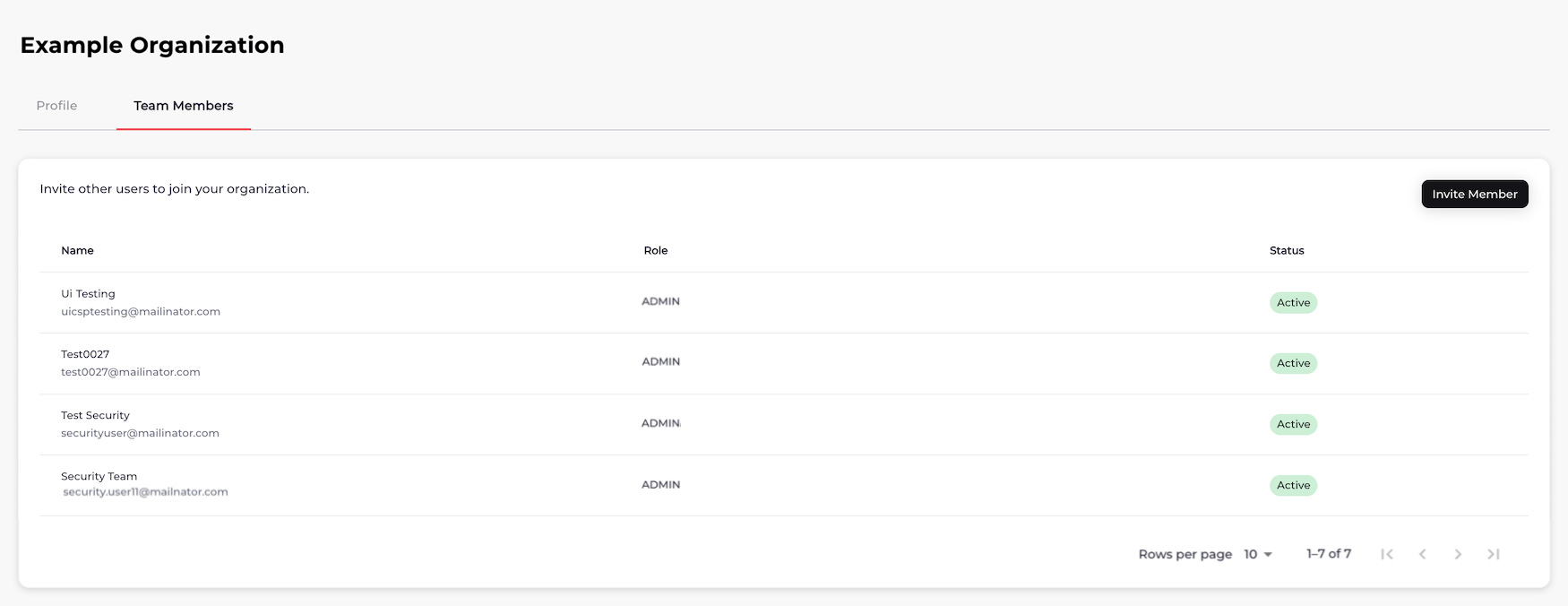
From the list, select Manage Team Members.
The Team Members page appears.
-
Select what you’d like to do.
-
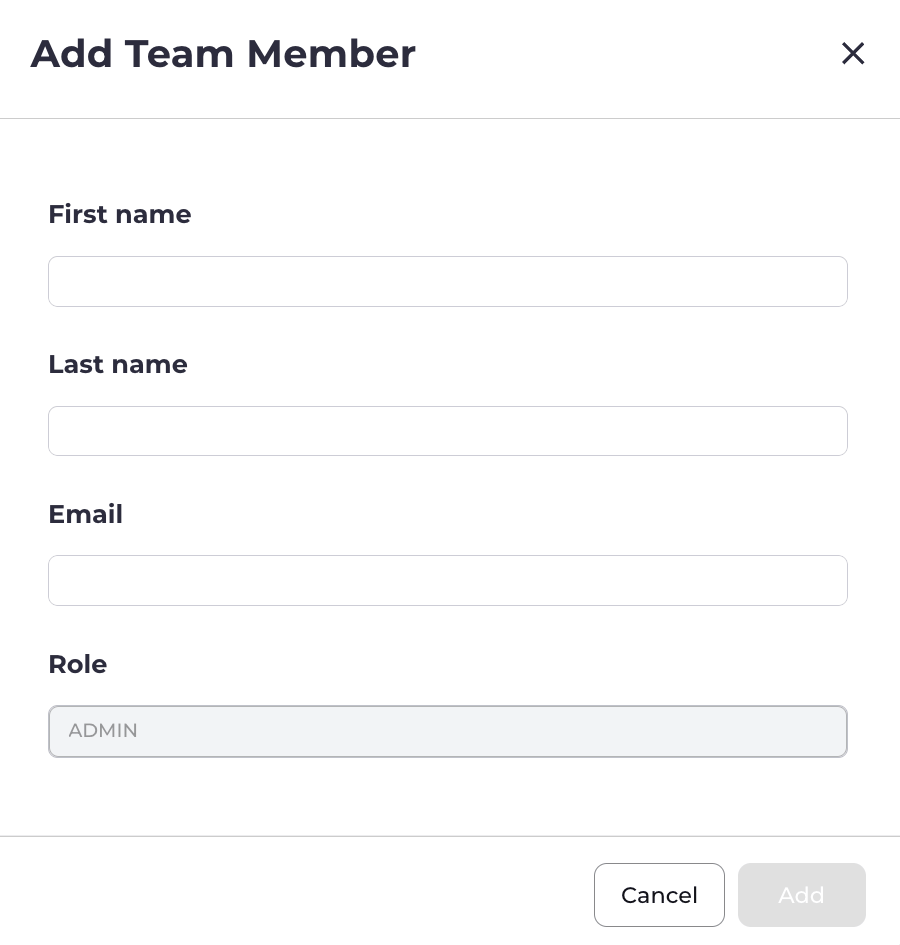
To add a team member, click Invite Member.
The Add Team Member box appears.
-
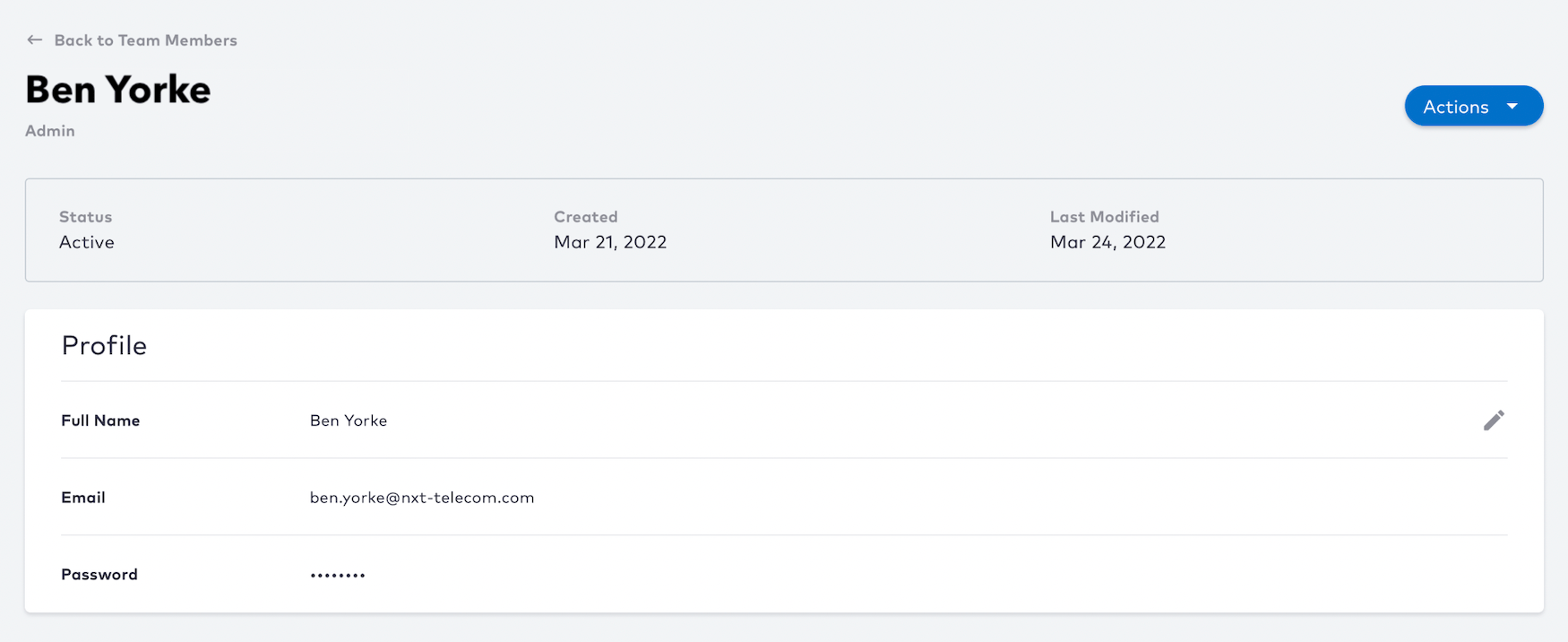
To deactivate or reactivate a team member, select a team member in the list.
The team member’s profile appears.
-
To check if your organization is using an external IDP (identity provider), see if the external IDP indicator shows it is enabled.

-
To add a team member, click Invite Member.
The Add Team Member box appears.