

-
From the sidebar, select the page under Pages.
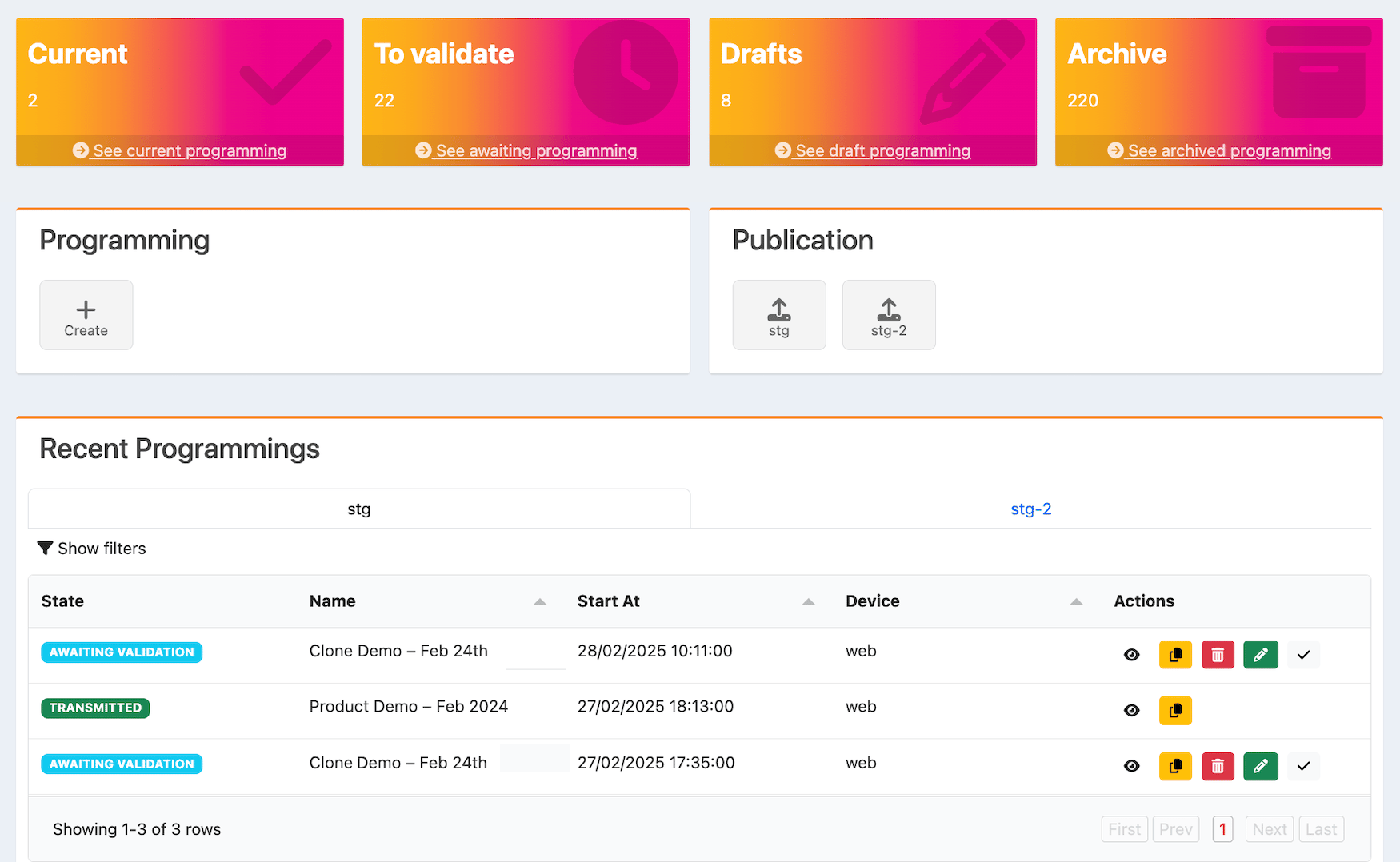
The programming page appears.
-
Select what you’d like to do:
- To create programming, select Create.
-
To edit programming, scroll to the Recent Programmings or Draft Programmings list and select the edit icon

-
To clone programming, scroll to the item in the Recent Programmings or Archived Programmings list and select the clone icon

- To validate programming, select See awaiting programming. The validation dialog appears. Review the programming and select Validate or Deny. If you chose to validate, the state of the programming is now Validated. The programming is ready to be published.
- To publish validated programming, select the population to publish to within the Publication section. The programming now has a Transmitted state and has been published successfully.
-
To view current, pending, or archived programming, scroll to the Recent Programmings, Awaiting Programmings, or Archived Programmings list, and select the view icon

-
To delete programming, scroll to the item in the Recent Programmings, Draft Programmings or Archived Programmings list and select the delete icon

- Complete the required fields. See the table below for more information.
-
To add a zone to the page, select Add Zone.
The Zone Parameters section appears.
Complete the required fields. See the Zone Parameters table below for more information.
- To configure zone content, select the zone. The zone dialog appears. Configure the zone as desired. See the Zone Content Parameters table below for more information.
- To delete a zone, select Delete.
- To preview your work, select Preview. The Preview dialog appears.
-
Select what you’d like to do.
- To submit the programming for validation, select Save and Continue.
- To save and exit the program editor, select Save and Close. If you choose to submit the programming for validation, the Publication page appears.
- Select a publishing type, select a population from the dropdown menu, and enter the start date to publish in the Start Date field.
- Select Submit. The Programming Summary page appears.
-
Select what you’d like to do.
- To confirm that you want to submit your programming for validation, select Confirm. The state of the programming is now Awaiting Validation. The programming needs to be validated in order to be published. The programming appears in the Recent Programmings list.
- To cancel, select Abort. The programming appears in the Draft Programmings list if you want to edit it later.
- To validate the programming, select See awaiting programming. The validation dialog appears.
-
Select what you’d like to do.
- To validate the programming, select Validate. The state of the programming is now Validated. The programming is ready to be published. See step #2 for more information about publishing.
- To deny validation, select Deny. The state of the programming is now Validation Denied.
Programming Fields
Universe Parameters
Page Parameters
| Field Name | Description Value |
|---|---|
| Page layout | Select the page layout from the dropdown menu. You have the following options:- Multiple horizontal zones - Fixed with active subscriptions zone - Grid with active subscriptions |
| Language | Select the language for the page. For example: en_US. |
| Name | Enter the name of the page. |
| Logo & Text | Select whether to incorporate logos and/or text in the page layout.From the dropdown menu, select one of the following: - Logo & Text - Text only - Logo only - None (neither logo nor text) |
| Logo (appears if enabled) | Logos are 100x100 pixels.To add a logo: 1. Select the edit icon |
| Slug | Enter the slug. This is a part of a URL that identifies a particular page on a website. It’s usually derived from the page’s title and is used to create a SEO-friendly URL. Make sure all characters are in lowercase and use hyphens instead of spaces to separate words.For example, if you have a page titled “10 Must-Watch Shows,” the slug might be “10-must-watch-shows,” resulting in a URL like www.yourwebsite.com/10-must-watch-shows. Special characters (&, %, $) and spaces aren’t allowed. |
| SEO page title | Enter a SEO (Search Engine Optimization) page title that is under 60 characters. |
| SEO page description | Enter a SEO (Search Engine Optimization) page description that is under 150 characters. Ensure your description reflects the page content and encourages users to click through to your page. If relevant, include a call to action (for example: “Learn more” or “Read now”). |
| SEO page keywords | Select SEO (Search Engine Optimization) keywords that closely match the content of your page. Consider the terms users might use to search for your content. Place the most important keywords at the beginning of the list. Avoid too many similar terms.For example: “streaming service, watch movies online, watch TV shows online.” |
Zone Parameters
| Field Name | Description Value |
|---|---|
| Layout | Select the zone layout from the dropdown menu. You have the following options:- Hero - Content Wall - Content Rail - Content Gallery - Single Content Block - Multiple Content Blocks 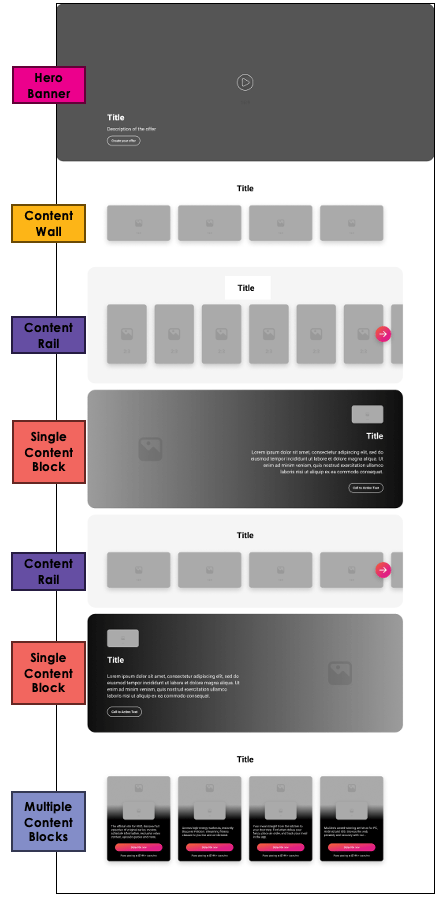 |
| Language | Select the language for the zone. For example: en_US. |
| Name | Enter a name for the zone. |
| Logo & Text | Select whether to incorporate logos and/or text in the zone layout.From the dropdown menu, select one of the following: - Logo & Text - Text only - Logo only - None (neither logo nor text) |
| Zone Content | You can add any of the following to a zone: - Product Groups - Products - Offers - Links - Catalogs - Requests To add content to your zone: 1. Select one of the following tabs: Product Groups, Products, Offers, Links, Catalogs, or Requests. 2. Enter the keywords into the search field and press ENTER. 3. Add the item by hovering over the top right of the item. A plus icon appears. Select the plus icon. The item appears in the Zone Content pane.  |
Business Rules  | To manage business rules, select the business rules icon |
| Advanced Customization | You can customize the following aspects of your zone by toggling Advanced Customization on. See the list below for the settings you can configure based on the type of zone you selected. - Hero and single content block - Size of the zone - Content wall and content rail - Landscape and portrait backgrounds (960x540 and 540x960) - Zone tile orientation, including portrait and landscape - Display elements. Select any of the following to have them appear in the content wall or content rail: eyebrow, description, legal URL, and legal text - Colors (content text and background) - Language - Content gallery - Gallery details (left or right alignment) - Display elements. Select any of the following to have them appear in the content gallery: eyebrow, description, zone button, starting price, legal URL, and legal text - Colors (content text and background) - Language - Enter text for the Zone Button labels: Subscribed active, Subscribed inactive, Unsubscribed - Multiple content blocks - Landscape and portrait backgrounds (960x540 and 540x960) - Colors (content text and background) |
Zone Content Parameters
The Zone Content pop-up appears when you add a zone and select it. Assets| Field Name | Description Value |
|---|---|
| Thumbnail and Backdrop | To replace an asset:1. Select the edit icon |
| Use video instead of image | To use video instead of images: 1. Enable Use video instead of image. 2. Enter the video URL in the Video URLfield. Accepted formats are MP4, MOV, and WEBM. The video can be up to 100MB in size in 16:9. |
| Content Layout |
| Field Name | Description Value |
|---|---|
| Horizontal Alignment | This setting applies to single content blocks and hero banners. Select one of the following options to align text and content within single content blocks and hero banners:- Left - Center - Right 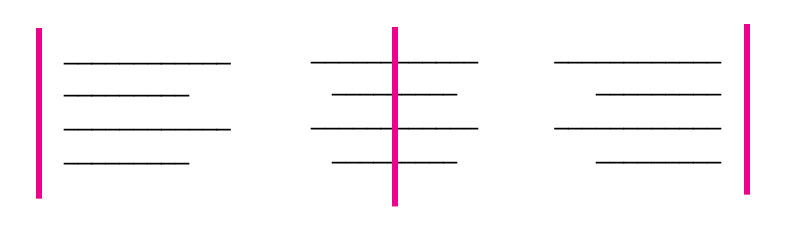 |
| Vertical Alignment | This setting applies to single content blocks and hero banners. Select one of the following options to align text and content within single content blocks and hero banners:- Top - Center - Bottom 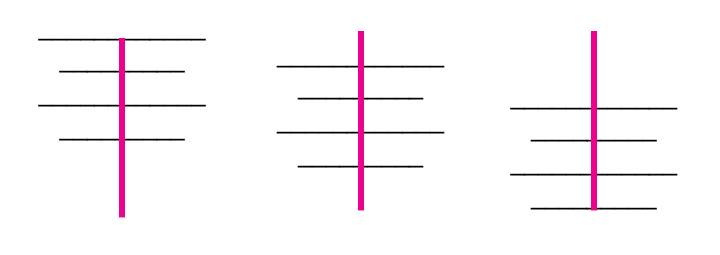 |
| Display Elements | Select any of the following display elements to have them appear in the hero banner, multiple content blocks, and single content blocks: - Thumbnail - Eyebrow - Title - Description - Action button - Starting price - Legal URL - Legal text 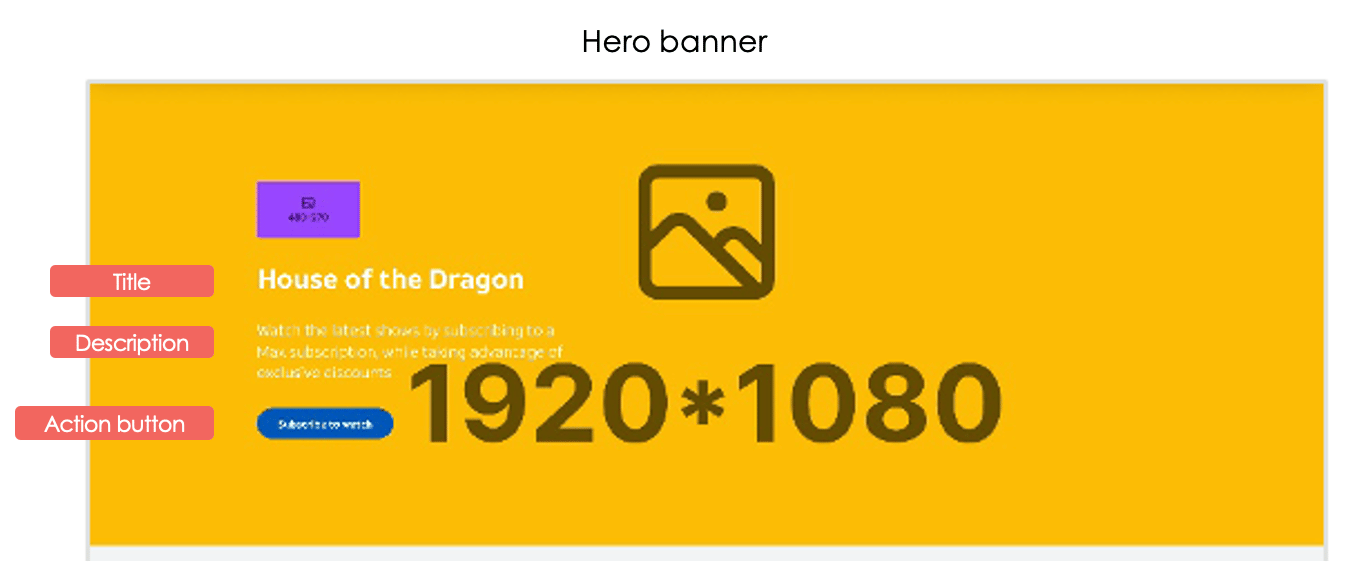 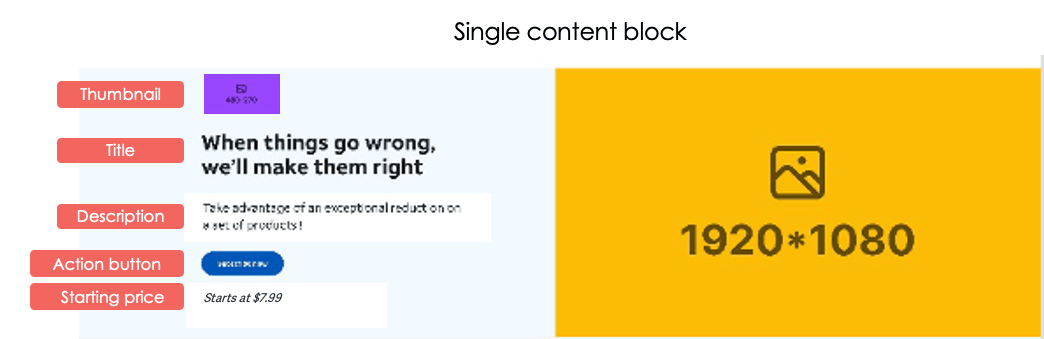 |
| Colors | The Content Text and Background color settings apply to hero banners and single content blocks. The interactive color settings are displayed when a user hovers over a navigation element in an action button. To apply a color to the context text, background, interactive text, or interactive background in a hero banner or a single content block: 1. Select Context Text, Background, or one of the interactive fields. 2. Select a color or enter it in the HEX code field. 3. Select OK or press ENTER. The color you selected has now been applied to the context text or background. To delete your selection, selectX. |
| Text Override |
Offers/products displayed
Parent topic:Manage Programming