

- It is recommended that the setup of your Okta account and application be performed twice:
- Okta staging > Our staging environment
- Okta production > Our production environment
- The URLs for our staging and production environments are required. Your Partner Ecosystem Management representative can provide you with this information.
-
In your Okta org account, navigate to Applications > Applications.
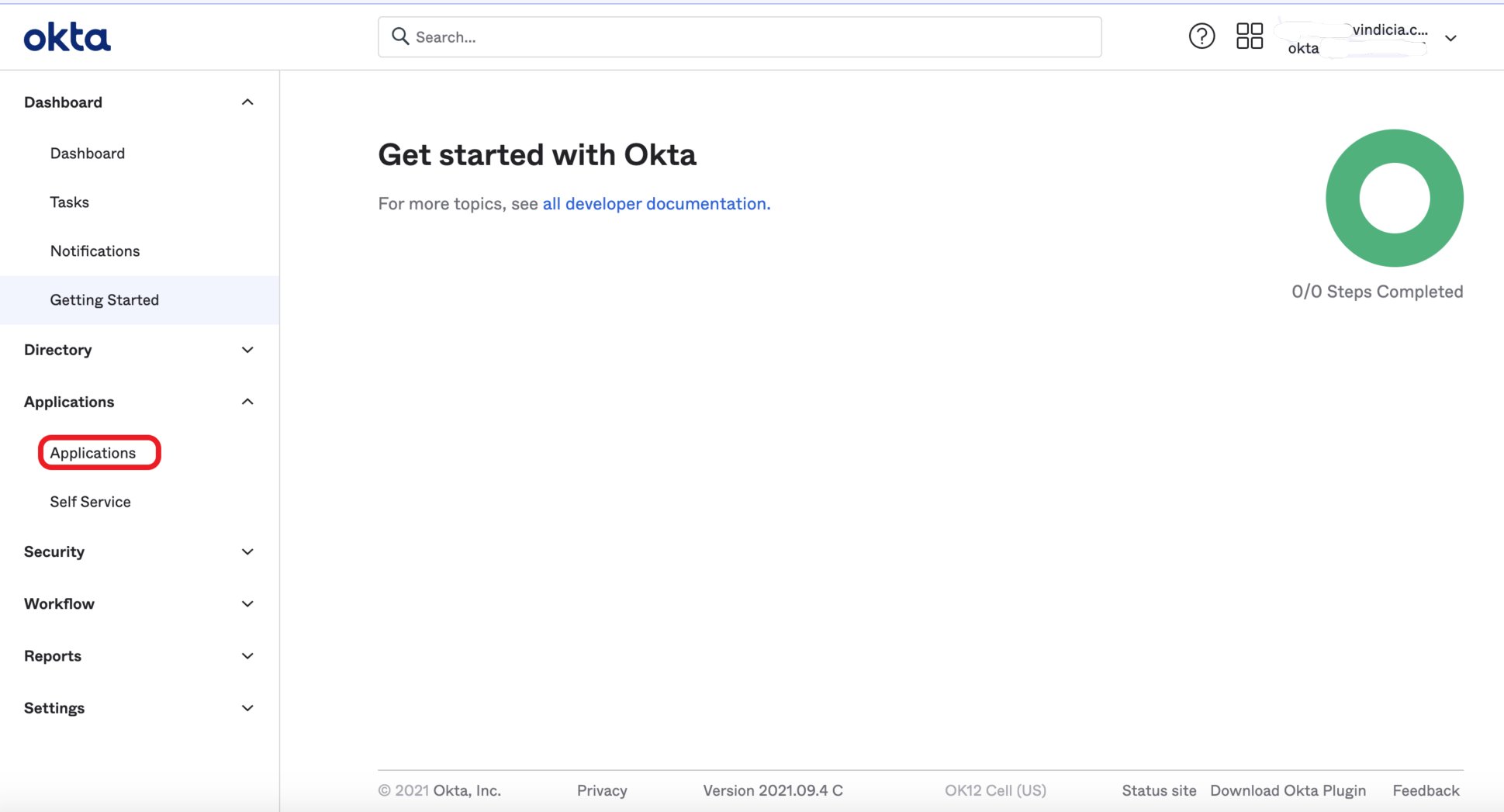
- Select the Create App Integration button. The Create a new app integration screen appears.
-
Define as follows:
- For Sign-in method, select OIDC - OpenID Connect.
- For Application type, select Web Application.
- Select Next. The New Web App Integration screen appears.
-
Define the New Web App Integration as follows:
- For App integration name, enter the name you’d like to give this app. For example, you can enter the name of our platform.
- For Grant type, select Authorization Code and ensure that all other checkboxes are clear.
- For Sign-in redirect URIs, enter either our production or staging implementation URL as relevant. To obtain this information, speak to your Partner Ecosystem Management representative.
- For Sign-out redirect URI, leave blank.
- For Trusted Origins, leave blank.
- For Assignments, limit access to the relevant groups in your organization that require access to our platform.
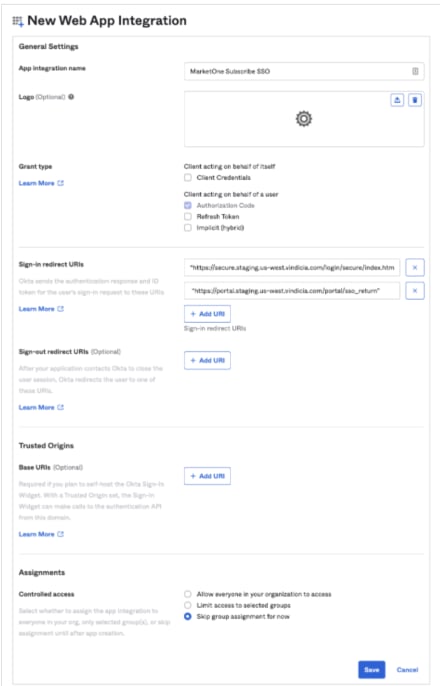
- Select Save. The new Web integration App is saved.
-
In the newly created web integration app, access the General tab and note the required details to pass to your Partner Ecosystem Management representative.
- Copy the following details from the Client Credentials and General Settings panes and save them to a .txt file.
- Client ID
- Client secret
- Okta domain
- Encrypt the file and pass it to your Partner Ecosystem Management representative for integration.
- Copy the following details from the Client Credentials and General Settings panes and save them to a .txt file.
- After your Partner Ecosystem Management representative completes the integration, you can test the setup. To test the successful setup, navigate to the log in page and enter your username. You are redirected to your Okta sign in page for authentication.