

- Add activation reminder schedules
- Edit activation reminder schedules
- View activation reminder schedules
- Delete activation reminder schedules
- Choose how many days between each reminder (up to 30 days)
- Set how many reminders to send (up to 10)
- Select the time of day to send them
- Decide whether the schedule should restart if the subscription is updated
- Navigate to the Platform Settings > Activation > Reminders. The Activation Reminder Notification Settings page appears.
-
Choose what you’d like to do:
-
To add an activation reminder schedule, select Set Up Activation Reminder Notification or Add New Reminder, depending on what’s available to you.
The Add a New Activation Reminder page appears.
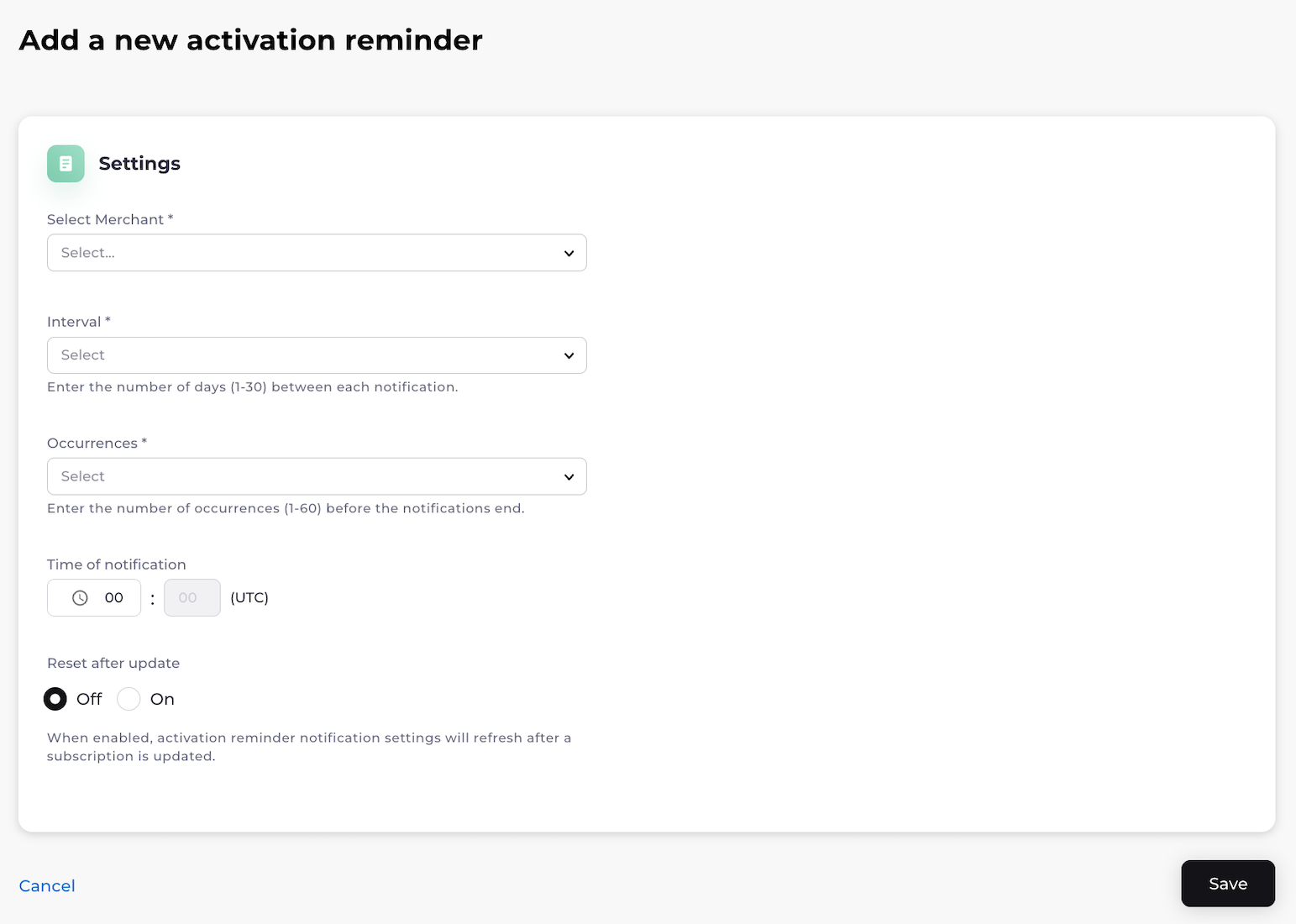
- To edit an activation reminder schedule, find the activation reminder schedule on the Activation Reminder Notification Settings page and select the three dot menu on the same row. Select Edit. The box to edit the activation reminder schedule appears. Edit the fields as desired. See the table below for guidance. Select Save. Your changes to the activation reminder schedule have been saved.
- To view an activation reminder schedule, find the activation reminder schedule on the Activation Reminder Notification Settings page and select the three dot menu on the same row. Select View.
- To delete an activation reminder schedule, find the activation reminder schedule on the Activation Reminder Notification Settings page and select the three dot menu on the same row. Select Delete. A Delete Activation Reminder confirmation box appears. Confirm your choice. The activation reminder schedule has been successfully deleted.
-
To add an activation reminder schedule, select Set Up Activation Reminder Notification or Add New Reminder, depending on what’s available to you.
The Add a New Activation Reminder page appears.