


Step 1: Create a Reseller (Service Provider) Organization (Partner Ecosystem Management Team’s Task)
Your Partner Ecosystem Management representative creates your organization. Organizations are business groups or tenants in the Partner Ecosystem Management system.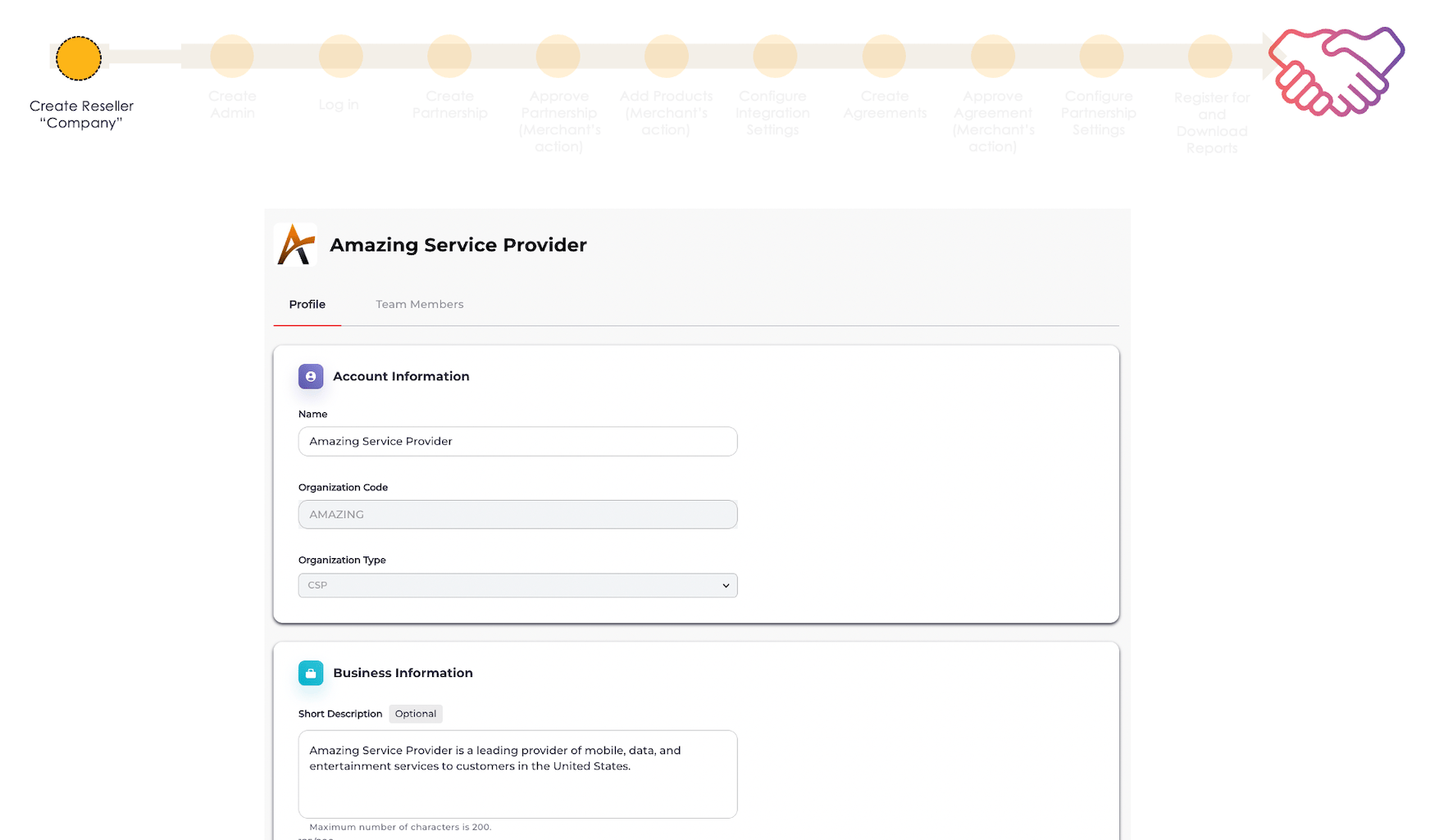
Step 2: Create a Reseller Admin (Partner Ecosystem Management Team’s Task)
Your Partner Ecosystem Management representative creates the first Admin user for your organization. This is the account you will use to request partnerships and create agreements in Partner Ecosystem Management.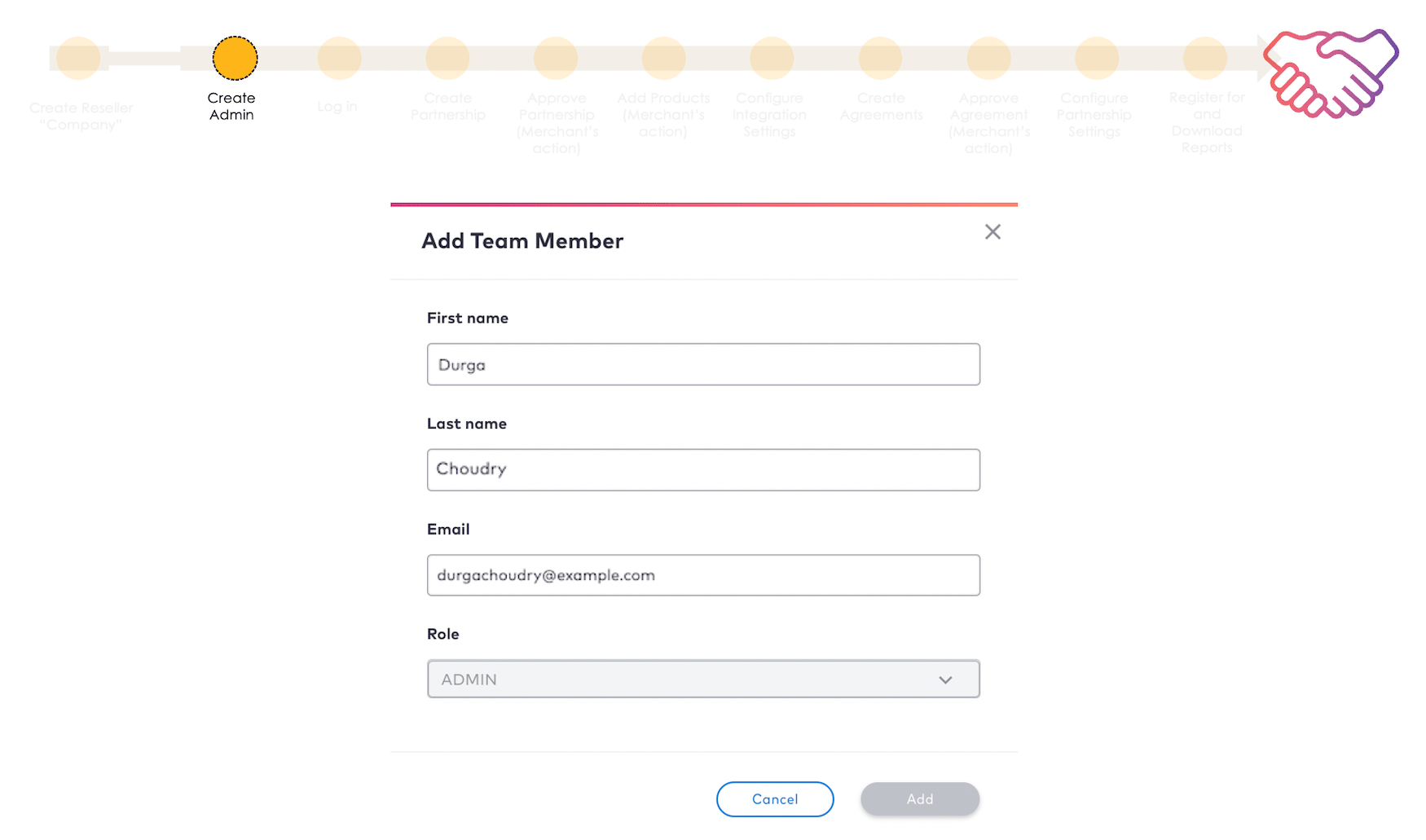
Step 3: Log in to Partner Ecosystem Management
The third step is to log in to Partner Ecosystem Management after you receive your credentials.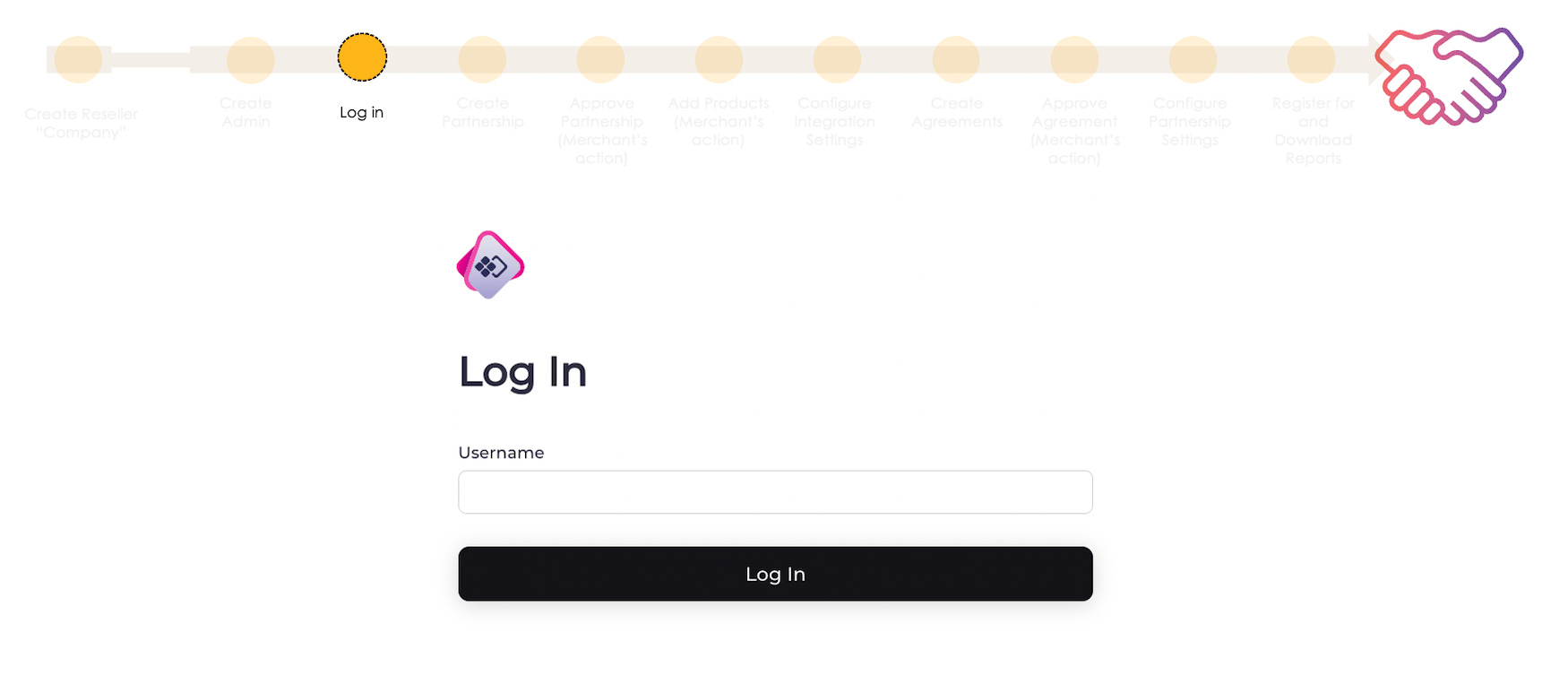
Step 4: Create a Partnership
The fourth step is to request a partnership. By first partnering with Merchant organizations, Resellers (Service Providers) can then establish agreements with those organizations. Only the Reseller has the ability to both create and manage partnerships. Merchants can accept or reject partnership requests. The Merchant must accept your partnership before you can move to the next step.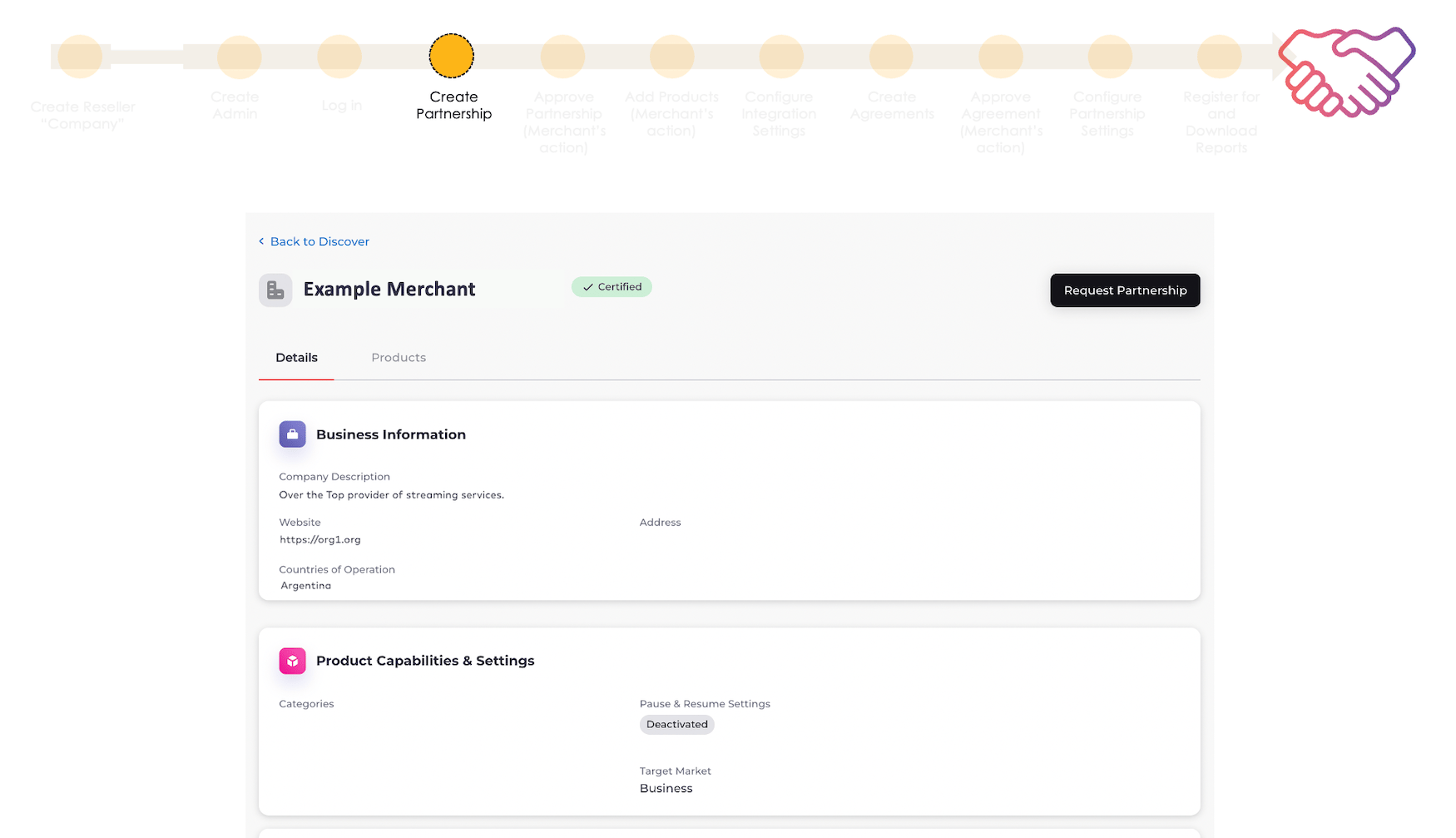
Step 5: Configure Integration Settings
The fifth step is to configure settings for your integration. This involves adding or configuring the following in Platform Settings: These settings allow the Reseller (Service Provider) to connect to the MarketONE APIs, get API event data from Partner Ecosystem Management, receive information for subscription management, have the health of the integration monitored, and set up a SFTP location for reports.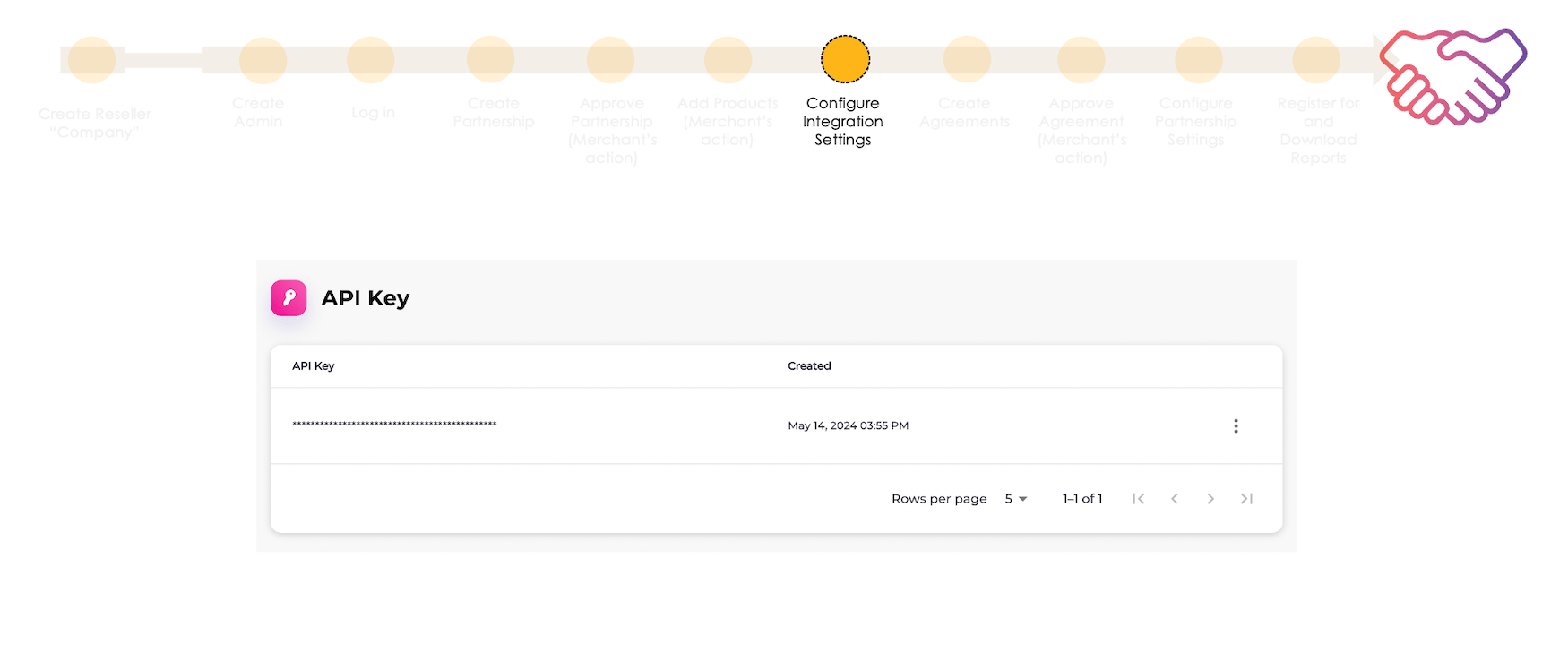
Step 6: Create an Agreement
The fifth step is to create an agreement and submit it to the Merchant for approval. The Reseller (Service Provider) can only complete this step after the Merchant has created and published a product that is either open specifically to the Reseller or to all Resellers on the platform. Agreements have the option to define monetary settlement terms between the Reseller and the Merchant when the product is sold or renewed. You can define the settlement type as either revenue share or flat fee and apply those terms within an agreement for a product. The Merchant must approve the agreement for the terms to go into effect and for the agreement to become active.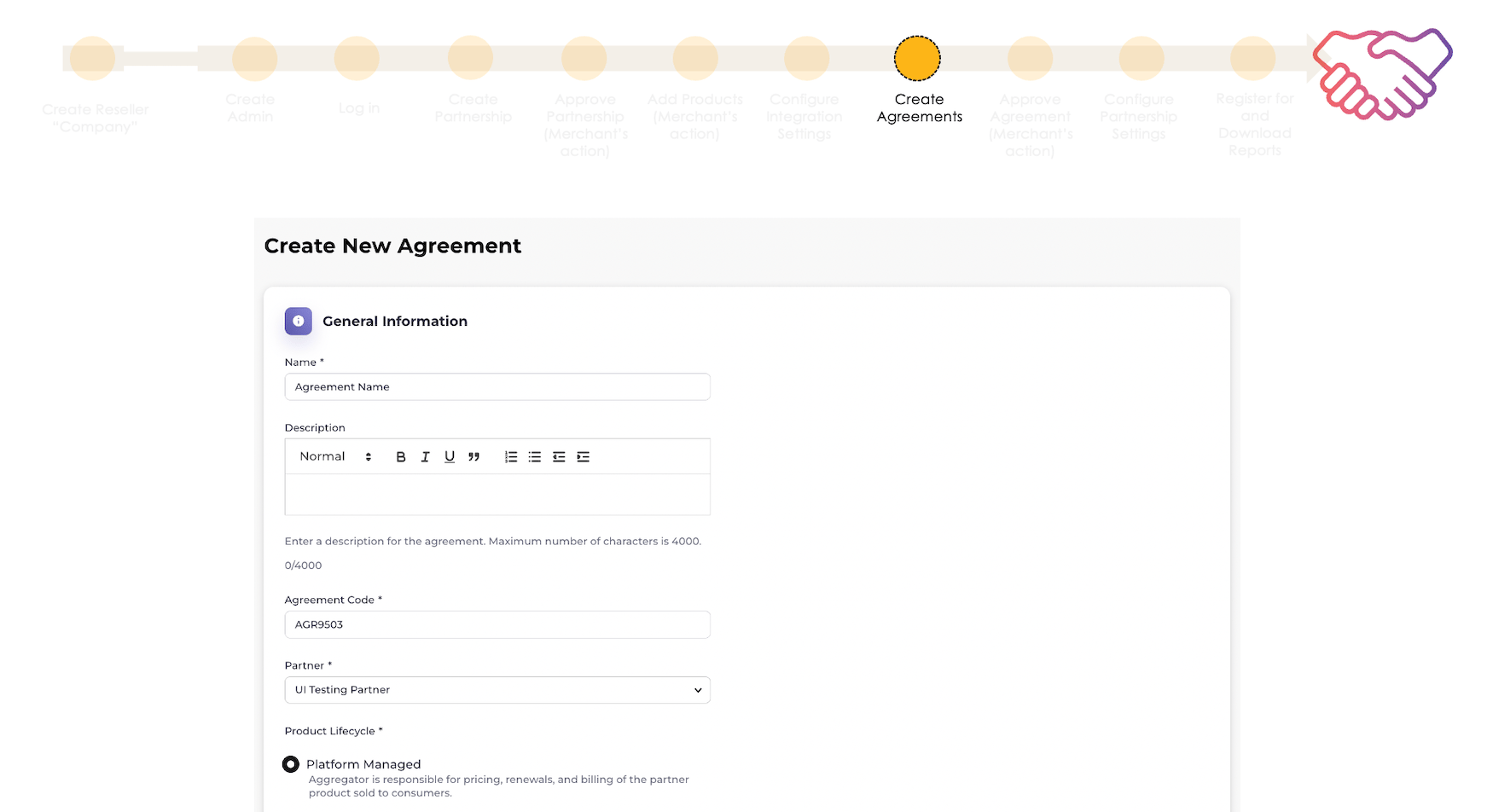
Step 7: Configure Partnership Settings
The seventh step is to configure partnership-related settings. This involves adding the following in Platform Settings: These settings allow the Reseller (Service Provider) to schedule activation reminders for customers, shorten product redemption URLs and tokens, and define allowlisted attribute names to apply during provisioning.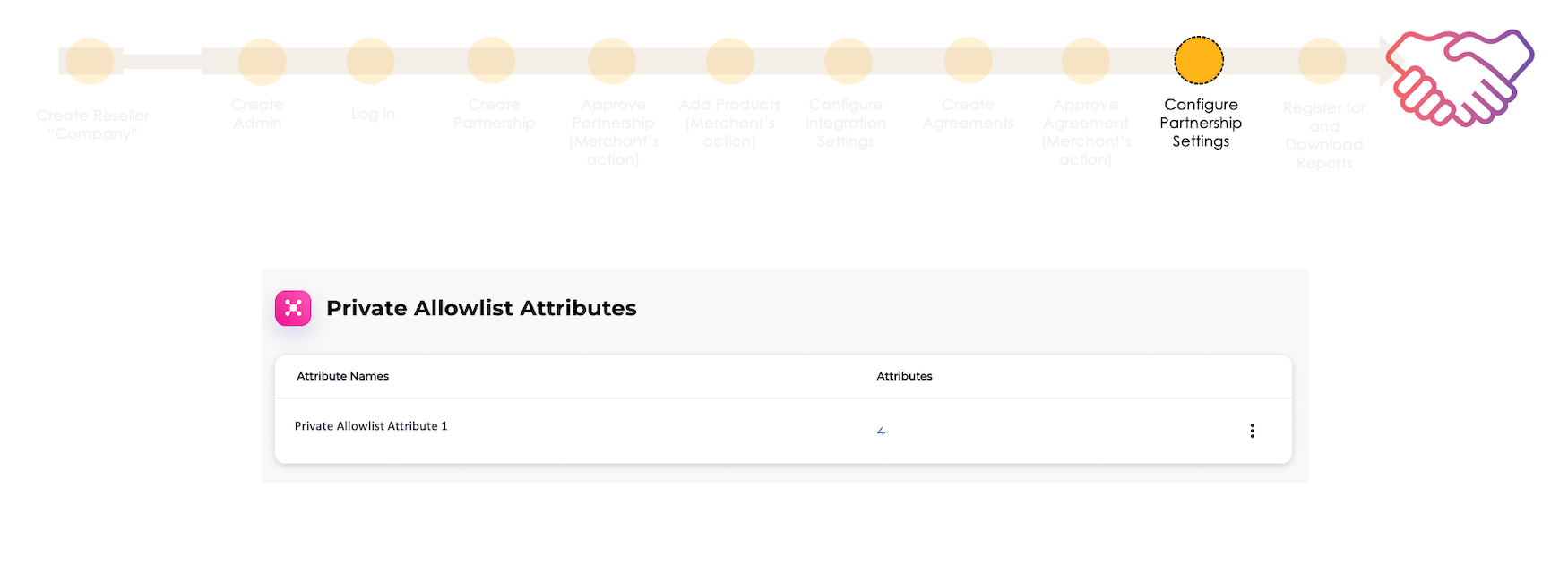
Step 8: Register for and Download Reports
The last step is to register for and download reports. You’ll need to have configured your SFTP settings first as outlined in step #5. A variety of Partner Ecosystem Management reports are available to Resellers to register for and download. We highly recommend registering for and downloading the Daily Partner Subscription Extract to make sure your system’s record of Merchant product activations is accurate. The report shows the Merchant subscription changes that Partner Ecosystem Management processed during the previous day.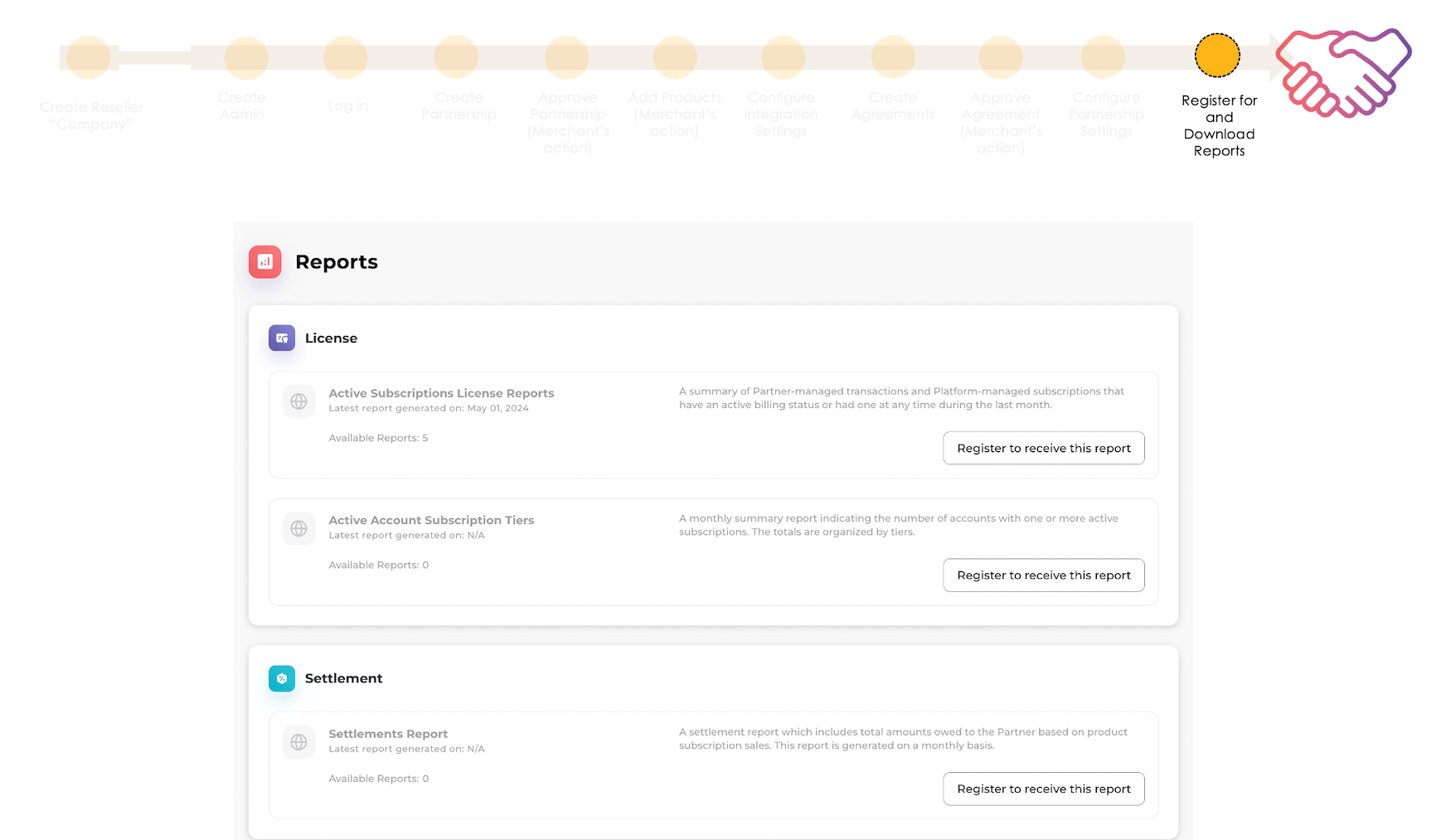
- Log in to Partner Ecosystem Management
- Discover Merchants
- API Keys
- Webhooks
- Gateway
- Health Check
- SFTP Settings
- Manage Agreements
- Allowlist Settings
- Activation
- Manage Your Registration for Reports
- Download Reports
- Daily Partner Subscription Extract
- User Authentication via an External Identity Provider (IdP)