

- Create redemption URLs
- Edit redemption URLs
- Delete redemption URLs
- Inform Partner Ecosystem Management that you will generate redemption codes for customers
- Allow Partner Ecosystem Management to generate redemption codes for customers
- Set the expiration time for Partner Ecosystem Management-generated redemption codes
- Show Resellers (Service Providers) if you support pausing and resuming product entitlements
- Navigate to Platform Settings > Activation.
-
Select what you would like to do from the following options:
- To inform Partner Ecosystem Management that you will generate redemption codes for customers, select Advanced Activation Settings. The Advanced Activation Settings box appears. Refer to the table below for guidance regarding the settings. Select Save. You can now generate redemption codes for customers.
- To allow Partner Ecosystem Management to generate redemption codes for customers, select Advanced Activation Settings. The Advanced Activation Settings box appears. Refer to the table below for guidance regarding the settings. Select Save. Partner Ecosystem Management will now generate redemption codes for customers.
- To set the expiration time for Partner Ecosystem Management-generated redemption codes, select Advanced Activation Settings. The Advanced Activation Settings box appears. Refer to the table below for guidance regarding the settings. Select Save. You have successfully set the expiration time for Partner Ecosystem Management-generated redemption codes.
-
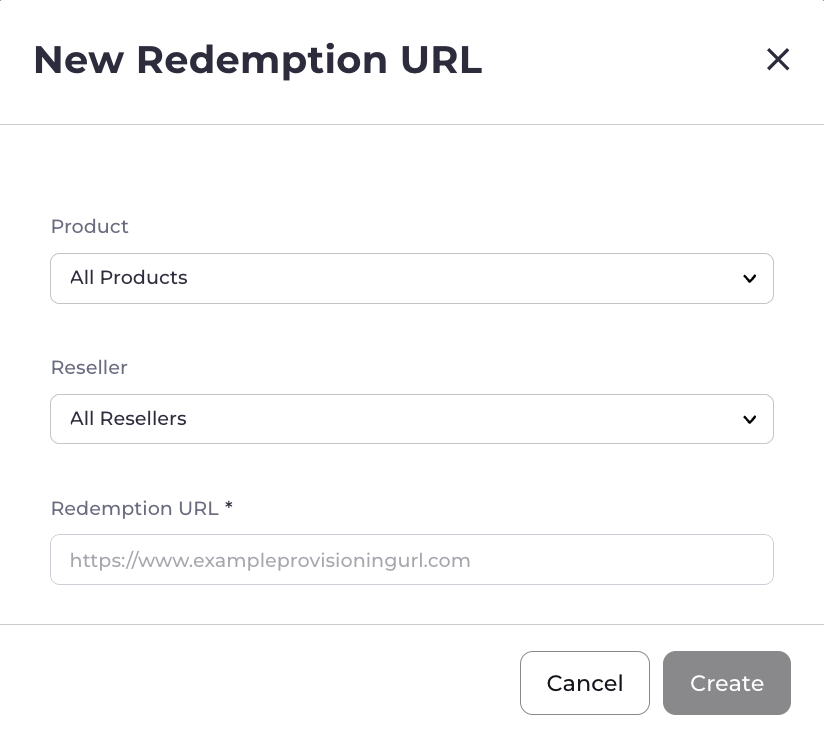
To create a redemption URL, select New Redemption URL.
The New Redemption URL box appears.
- To edit a redemption URL, select the three dot menu at the end of the row of the redemption URL. Select Edit. The Edit a Redemption URL box appears. Edit the fields as desired. See the table below for guidance. Select Save. Your changes to the redemption URL have been saved.
- To delete a redemption URL, select the three dot menu at the end of the row of the redemption URL. Select Delete. A box appears confirming your choice. Confirm the deletion. Select Delete. The redemption URL has been successfully deleted.
- To show Resellers (Service Providers) you support pausing and resuming product entitlements, select Advanced Activation Settings. The Advanced Activation Settings box appears. Refer to the table below for guidance regarding the settings. Select Save. Your support for pausing and resuming product entitlements appears on your profile for Resellers to see.
Activation Details
Advanced Activation Settings
Redemption URL Fields
Parent topic:Manage Activation Settings