

- When the user exceeds the maximum allowed number of 2FA attempts.
- When all previously generated BUCs have been utilized.
- In cases where the user cannot access their authenticator app due to technical issues.
- If the user has lost their device, such as their phone or tablet.
Generate a Backup Code
As a Care agent, you can generate a one-time backup code (BUC) on behalf of a user. The user must have at least one factor registered for two-factor authentication (2FA) in order to generate a BUC for them.- Sign in to the Care console. By default, the Find a User screen appears.
- Find and select a specific user. The selected user’s profile or Identity page displays.
-
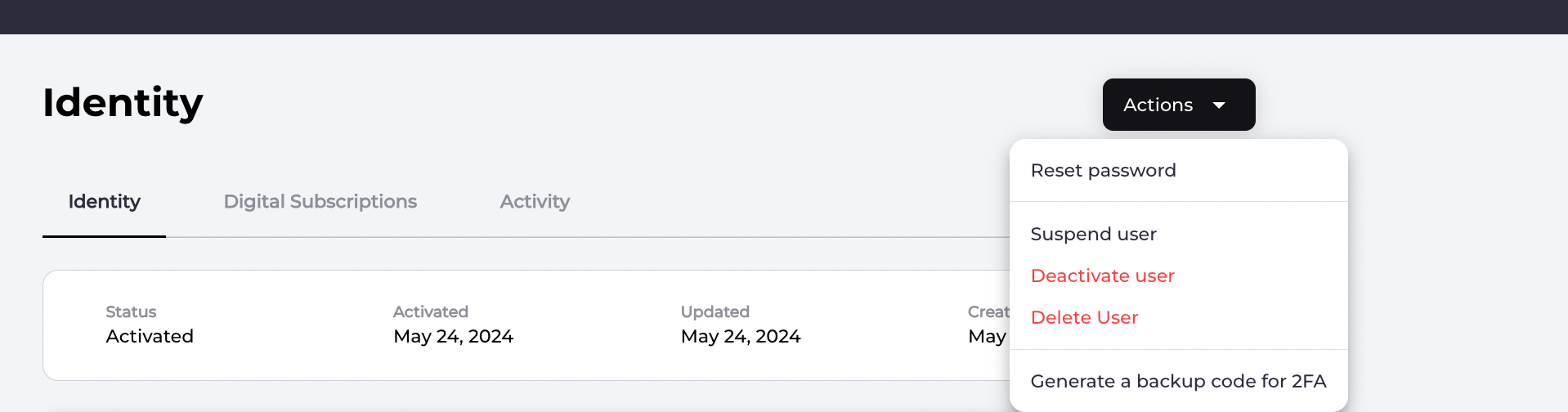
Generate a backup code by selecting the Actions > Generate a backup code for 2FA link located in the top-right corner.
-
Provide the backup code to the user so they may enter it as part of their log in process.
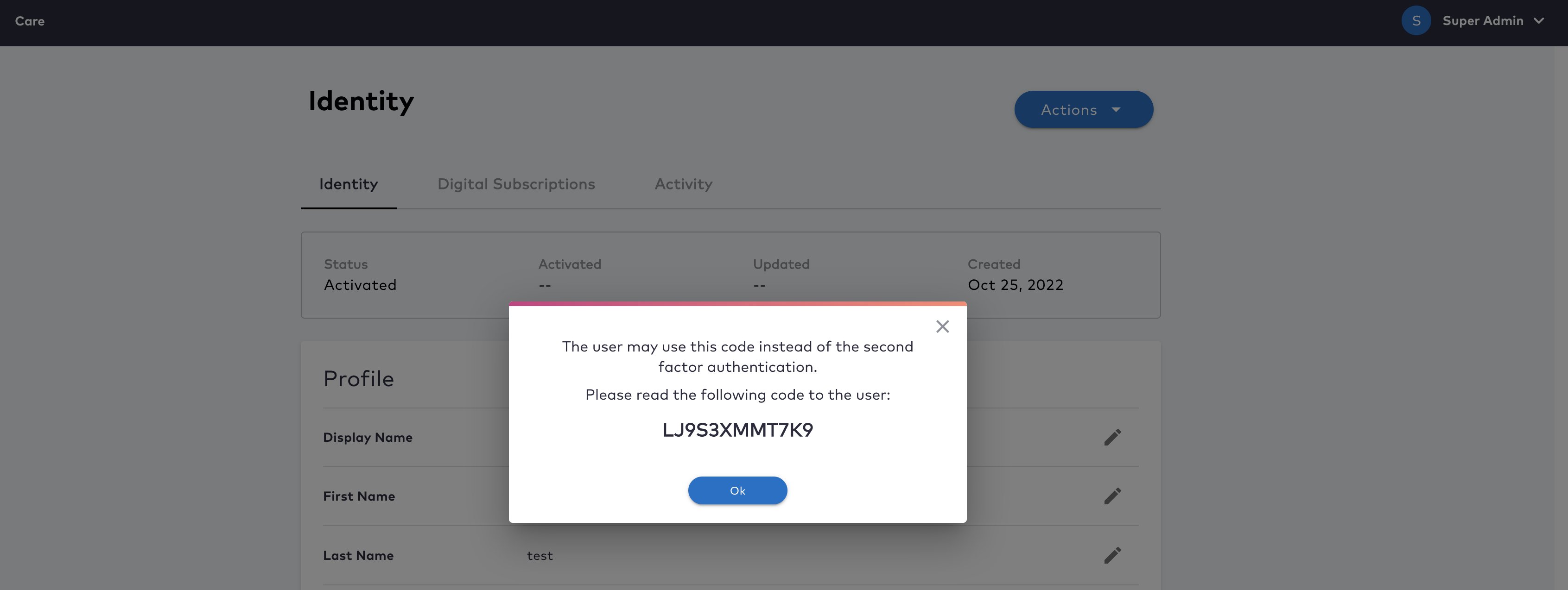
- Click OK.
How To Proceed After Successfully Using A Backup Code (BUC)
After the user completes a successful authentication and regains access to their account again, they should perform the following tasks:- Register a new 2FA method to ensure secure account validation in the future.
- Remove any outdated 2FA factors that are no longer functional.
- Generate a fresh set of backup codes for future use.