

- Sign in to the Care console. By default, the Find a User screen appears.
- Find and select a desired user. The selected user’s Identity page opens.
-
In the Roles and Permissions pane, click the

-
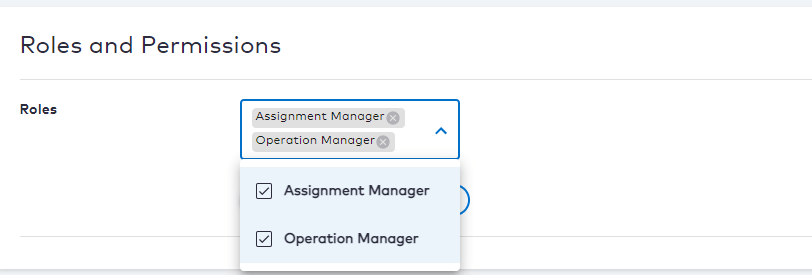
Click the Select… dropdown and choose the relevant role(s) to assign to the selected user by checking the box beside the role name.
-
Click one of the following options:
- Save to save the changes immediately.
- Cancel to revert the changes and return to the user’s Identity page.
-
To remove a role, click the

Assign User Roles
As an admin user or a care representative with the appropriate permissions, you can update or remove roles from a user. The roles available for assignment are dependent on your organizational requirements and can be configured when provisioning your tenant.
Was this page helpful?