

- It is not started by the standard Process Start API, but its own dedicated endpoint, the Session Start API
- It needs a required payload (authN ID and password) in the initial request body
Process Flow
This section describes the Authenticate User from a high-level, “happy path” flow. Preconditions- The user has a registered and activated User ID (i.e., Storefront Gateway User entity) and authN ID (i.e., email or mobile).
- The user is currently anonymous (i.e., they are not authenticated in Storefront Gateway).
- The user navigates to the client application’s login portal, enters their authN ID and password, and then clicks Sign In.
- (Conditional - reCAPTCHA) If the client has integrated Google’s reCAPTCHA service, then Google silently checks whether or not the user needs to provide who they are. If so, Google returns a validation token to the client when the user passes that check. The client passes that token along to Storefront Gateway with the user’s authN ID and password. Storefront Gateway verifies the token on a separate call to Google.
- See the Authentication with reCAPTCHA use case for more details.
- Storefront Gateway consumes and validates the user’s credentials, and checks the User’s current status.
- All Users (or User Profiles, User IDs, etc) are stored in the cloud as Storefront Gateway User data entities.
- A user’s authN IDs are registered and stored as attributes on the corresponding Storefront Gateway User entity.
- A User entity and its authN IDs each have a
status. The Process checks these statuses during sign-on. - If the authN ID has an
activatingstatus, then the user hasn’t verified their email/mobile. - If the authN ID has a
pendingstatus, the user is replacing an email/mobile, but haven’t verified the new one. - If the user attempts to login with an unverified email/mobile, the Process simply issues and sends an action token to that external channel for verification, and then ends without authenticating the user.
- Storefront Gateway does allow users to register a non-verifiable authN IDs as a unique “alias,” and the Authenticate User Process does accept aliases for sign-in. However, the user must have at least one verified email/mobile before they can register and use an alias.
- (Conditional - MFA) If the user has one or more MFA options registered, and they are signing in from a device that is not currently “trusted” by the service, then Storefront Gateway sends a verification code to the end user’s registered MFA channel (either an email, mobile number, or authenticator app). The client prompts the user is prompted to provide that code, and the user does so.
- See the Authentication with MFA use case for more details.
- If the user has passed any additional security protocols, and their credentials are all valid, then Storefront Gateway opens a user session on the server.
- The user is now authenticated in Storefront Gateway.
- The client may want to run the
GET /userand any other entity management APIs to load the relevant user profile or otherwise “authenticated view” of the application.
- The Storefront Gateway User is currently locked after reaching the maximum number of failed authentication attempts.
- Invalid or unknown authN ID. User not found in the Storefront Gateway data store.
- The Storefront Gateway User (and/or the authN ID) is not yet verified.
App Settings
Certain aspects of the Process’ behaviour are controlled by configurable system settings. Your organization can manage these and other settings in the Storefront Gateway Admin console.User Journey Flow Diagram
This diagram illustrates the standard user journey with the Authenticate User Process, and some of the paths the Process can take based on settings and/or user input.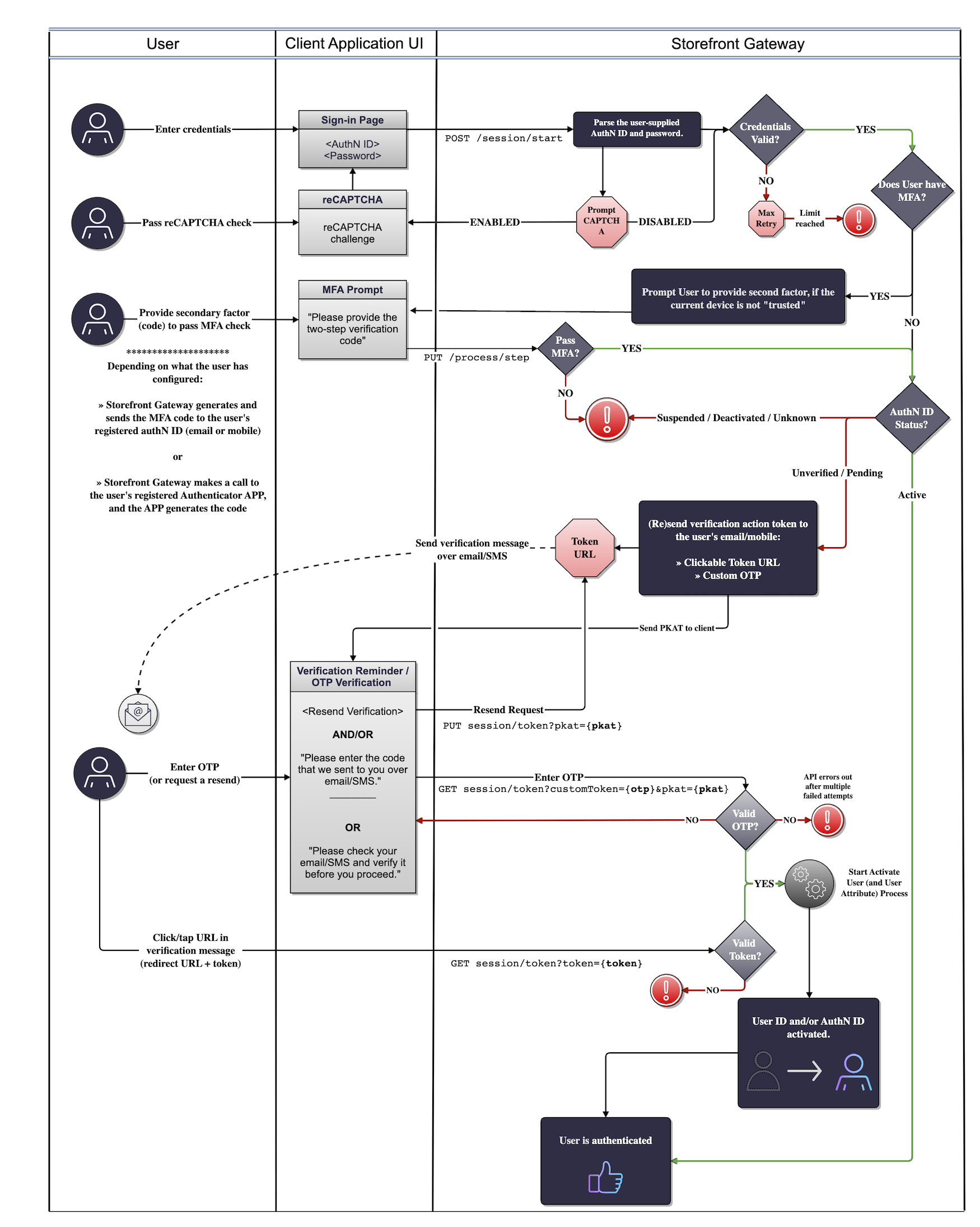
Use Cases
The following links provide guided walkthroughs of the Authenticate User Process:- Standard user authentication (authN ID + password)
- Authentication with reCAPTCHA
- Authentication with MFA
- Authentication errors
See Also
- If the user attempts to sign in with a registered but unverified email address or mobile number, then the Process will (re)send an action token to that channel for verification. This is functionally similar to (but distinct from) the Send Verification Process.
- The Onboard and Authenticate with Social Account Process facilitates an alternative, passwordless authentication method for users.
- This Process supports clients integrating with Invisible reCAPTCHA. See Google’s own reCAPTCHA documentation for more information on how to build reCAPTCHA into your application.
- Standard User Authentication
- User authentication with reCAPTCHA
- User Authentication with MFA
- Authentication Errors