

- The first or initial Onboard and Authenticate Process handles user onboarding, authentication, and account association for existing users. All existing users with a verified AuthN ID start and finish with this flow that supports MFA, FIDO2, and One-Time Password (OTP).
- New users (users that don’t exist yet) start with the initial Onboard and Authenticate flow and continue with the Onboard, Authenticate, and Activate Process (also known as the Finish Login and Enroll Process). This second process completes the creation, activation and verification of a User ID in the Storefront Gateway system. Optionally, the new user may be required to set their password or register factors for MFA. Once the password is updated in the Storefront Gateway Data store, the authentication identifier (authN ID) is processed, and the current user is verified in the Storefront Gateway environment.
- Additionally, this second Onboard, Authenticate and Activate Process may be invoked when a user logs in with an authN ID and OTP/Magic Link.
The Process supports reCAPTCHA Invisible Badge (v2, v3, enterprise) on the first prompt for user onboarding and authentication. Some of the relevant App Settings for this feature are:
Multi-factor Authentication (MFA)
The user is prompted to enter or register a second factor. Some of the relevant App Settings for this feature are:
Subscription and Account Management
Storefront Gateway supports integration with external B/OSS platforms and retrieves subscription data, payment methods, purchases, and associates accounts with a valid user. Some of the relevant App Settings for this feature are:
Onboard and Authenticate Process Flow
The Storefront Gateway Identity App supports several configurable flows out of the box and provides dynamic pages to guide the user through their journey. Your organization’s configuration uses App Settings and user inputs to determine which UI pages are rendered and what processes are called throughout the user journey.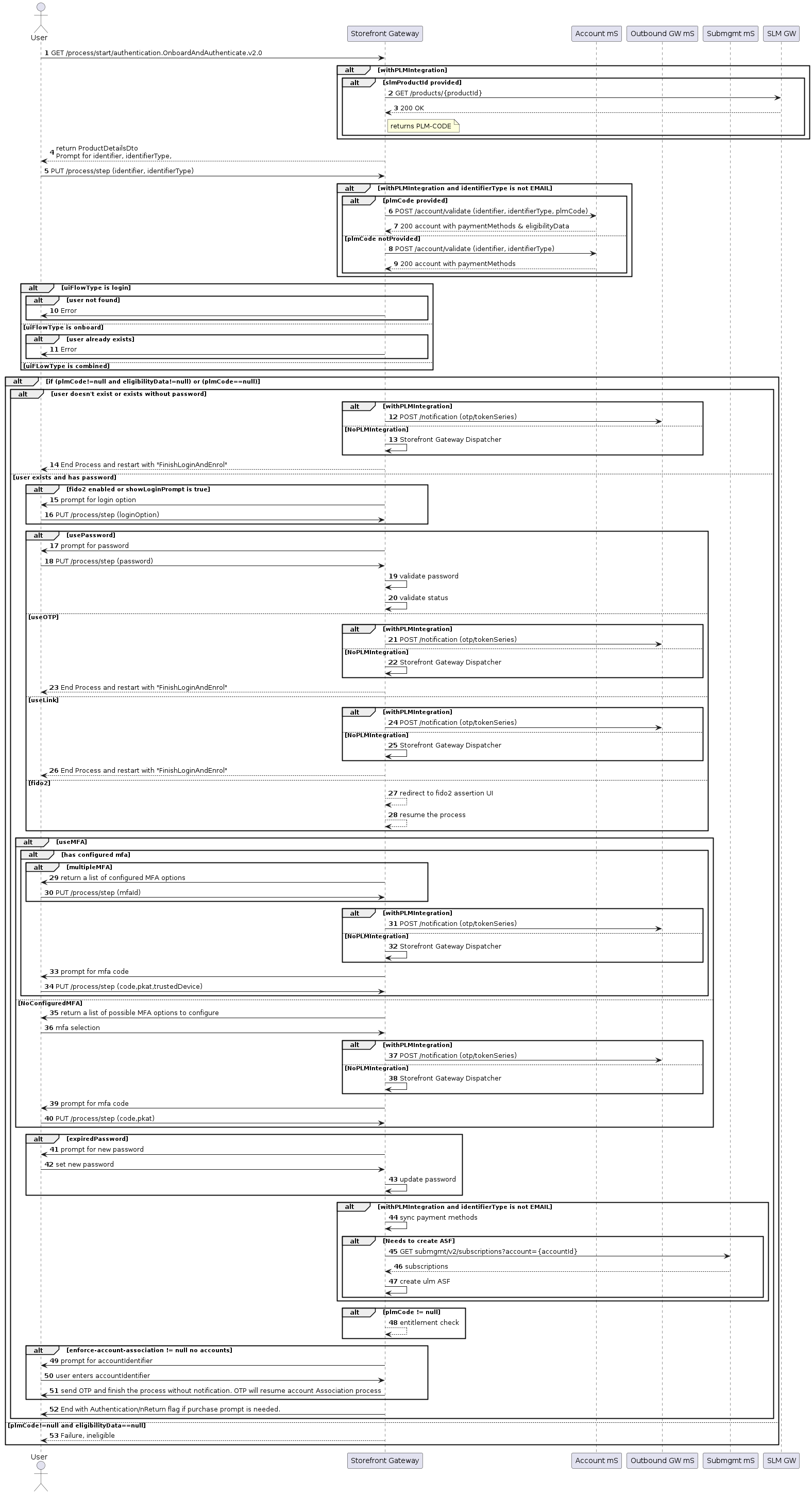
- The user has a password.
- The User ID exists in Storefront Gateway.
- Storefront Gateway queries the external billing support or operations system (B/OSS) to retrieve a product code (PLM Code). The PLM Code returns metadata that contains the Product Id, purchase URL, and terms of service. Note: The user is processed as a regular ULM user if no PLM code is returned.
- The user navigates to the application’s login/sign-in page and selects their identifier to use such as their email address or mobile number.
- reCAPTCHA (Conditional) If the client integrated a reCAPTCHA service, then Google checks the user’s input and if successful, returns a validation token to the client.
- Storefront Gateway consumes and submits the identifier using the PUT /process/step to retrieve the user’s account information.
- The Validate Account process returns the account and relevant information such as the payment method(s) and eligibility data for the specified user. Note: If the user logs in with no password or the User ID doesn’t exist, the current Process exits and invokes the secondary Onboard, Authenticate, and Activate Process. Storefront Gateway generates and sends the user a notification message that contains Access token as a short custom One-time Passcode (OTP) for the next step.
-
The user enters their password for validation. Depending on your App Settings, the following may apply:
- FIDO2 (Conditional) is configured, the user is redirected to another page (UI) to enter their credentials and the current process resumes.
- MFA (Conditional) is configured, the user selects the MFA type from a supplied list of previously registered factors. If the user doesn’t have any registered factors, they’re directed to setup MFA before continuing. This option is controlled by the App Setting minMfaCount.
- Password (Conditional) is expired, and the user is prompted to enter a new password. This option is controlled by the App Setting passwordLifeTimeSeconds. Note: If the user chooses to enter an OTP or Magic Link, the current Process exits and invokes the secondary Onboard, Authenticate, and Activate Process to complete authentication.
-
Storefront Gateway updates the payment methods and invokes
GET submgnt/v2/subscriptionsAPI to retrieve the subscriptions to associate with the specified account and performs an entitlement check. Note: If no PLM code is available, the current Process prompts a regular ULM user for the account id to complete the account association using the Associate Account to User Process.
- The existing user is successfully logged in and has access to services according to their subscription and entitlements.
- The user receives a purchase prompt on their UI (if required).
- The product code (PLM) is invalid.
- The provided mobile number or email is already registered to an existing Storefront Gateway User.
- The mobile number or email doesn’t pass validation rules.
- The provided password does not match the password complexity settings.
- The user selects an unsupported MFA method.
- The user enters an invalid OTP/TOTP that may be caused by incorrect digits, expired code, or wrong pkat.
- The user doesn’t have any associated accounts or payment methods set up and therefore isn’t eligible to use the requested service.
Response Parameters
Depending on where the user is on their journey, the Onboard and Authenticate Process records events and returns these properties as required:Onboard, Authenticate and Activate Process Flow
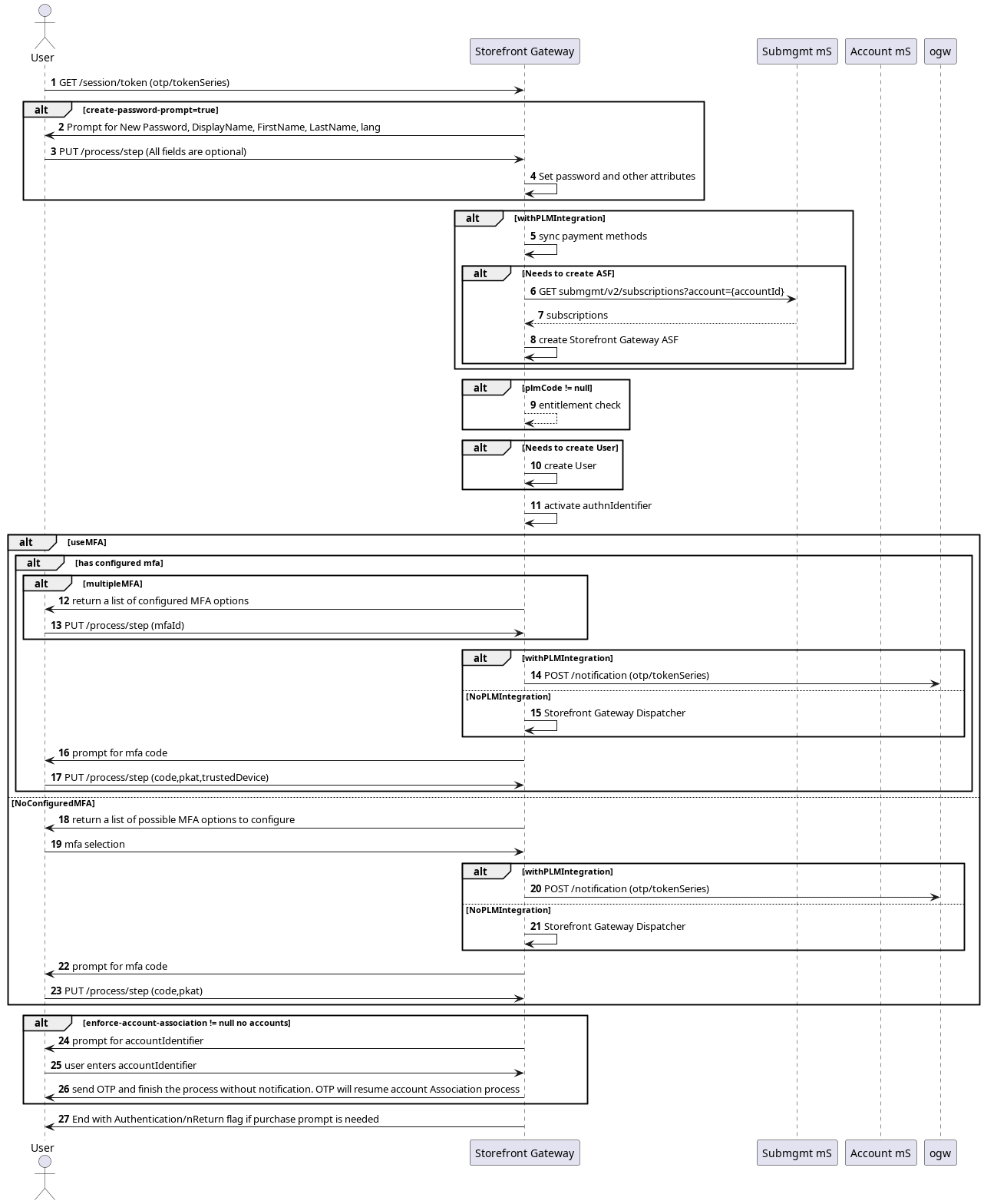
Storefront Gateway provides user onboarding, authentication and activation using the Onboard, Authenticate and Activate Process. A new user navigates to a login page to sign themselves up by providing an AuthN ID (mobile/email), password, and registration details. Once the user is activated and authenticated, they can log in to access the service(s), and/or make a subscription purchase. This process is also used for existing users that sign in with an OTP or Magic Link. The user already has a verified authN ID in Storefront Gateway. This second process is different from the Onboard and Authenticate Process because it starts with theGET session/token Process. The current user has an access token from the first Process to complete their onboarding and authentication journey.
This section describes the Onboard, Authenticate and Activate Process from a high-level, “happy path” flow.
- The User ID doesn’t exist in Storefront Gateway.
- The user has no password.
- The user has an access token.
- The user navigates to your application’s sign-in page, and submits the OTP they received from the initial Onboard and Authenticate Process.
-
Storefront Gateway updates the payment methods and invokes
GET submgnt/v2/subscriptionsAPI to retrieve the subscriptions to associate with the specified account and performs an entitlement check. Note: If no PLM code is available, the current Process completes the account association using the Associate Account to User Process. -
Storefront Gateway prompts the user for a password and additional information that includes: First Name, Last Name, Display Name, and Language. The process sets the password and other attributes using the
PUT /process/stepAPI. - Storefront Gateway creates the User entity and activates the authentication identifier (AuthN ID).
- Note: If MFA is enabled and/or needs to be configured, Storefront Gateway sends a corresponding pkatStorefront Gateway Action Token to your client application. The client application retains this information for onboarding flows where the user needs to enter their OTP.
- If no PLM code is available, the current Process prompts a regular ULM user for the account id to complete the account association using the Associate Account to User Process.
- The user receives a purchase prompt on their UI (if required).
- A new User entity exists in Storefront Gateway with a verified AuthN ID (mobile/email).
- The new user’s password is created/updated.
- The new user is successfully logged on.
- The provided password does not match complexity settings.
- The mobile/email does not pass validation rules.
- The client submitted a request with a missing expected input parameter (e.g., no email or mobile provided).
- The user selects an unsupported MFA method.
- The user enters an invalid OTP/TOTP that may be caused by incorrect digits, expired code, or wrong pkat.
- The user doesn’t have any associated accounts or payment methods set up and therefore isn’t eligible to use the requested service.
- Password Option – In the onboarding or authentication flows, this Process creates a new password for a new user or updates a password if the user doesn’t have one and is required to set one. Several password options are controlled through the App Settings.
- Collect User Data – Your client application prompts for additional information such as the user’s First Name, Last Name, Display Name, and Preferred Language in the onboarding flow.
- Subscription and Account Management – Storefront Gateway supports integration with external B/OSS platforms and retrieves subscription data, payment methods, purchases, and associates accounts with a valid user. If the user doesn’t have any active subscriptions, a purchase prompt can be enabled to guide the user through a subscription purchase.
Response Parameters
Depending on where the user is on their journey, the Onboard, Authenticate and Activate Process records events and returns these properties:Application Settings
Certain aspects of the Process’ behavior are controlled by configurable App Settings.
Debug mode allows UI developers and QA to get some extra information about the REST calls and the relevant response/data. For example we may return user otp that is sent to mobile and this value may be . The caller need to trigger debug mode for each call by passing request header
x-process-debug: true
Use Cases
The following use cases are supported:- Onboard and Authenticate user with email/mobile and password
- Authenticate user with email/mobile and password
- Authenticate user with email/mobile and OTP and set password
- Authenticate user with AuthN ID (mobile/email) and MFA
- Authenticate user with mobile/email and FIDO2
- Authenticate user with mobile/email and OTP/Magic Link (passwordless)
Related Topics
- Onboarding and Authentication Errors
- This Process supports clients integrating with Invisible reCAPTCHA. See reCAPTCHA documentation for more information on how to build reCAPTCHA into your application.
- Action Tokens - Proof Key for Action Tokens (PKATs)
- Onboard and Authenticate Process Step Interfaces
- Onboard and Authenticate with Email Address or Mobile Number
- Authenticate with Email Address or Mobile Number and Password
- Authenticate with Email Address or Mobile Number and OTP (user has no password)
- Authenticate with Email Address or Mobile Number and MFA
- Authenticate with Email Address or Mobile Number and FIDO
- Authenticate Email Address or Mobile Number and OTP/MagicLink (user has password)
- Onboarding and Authentication Errors