

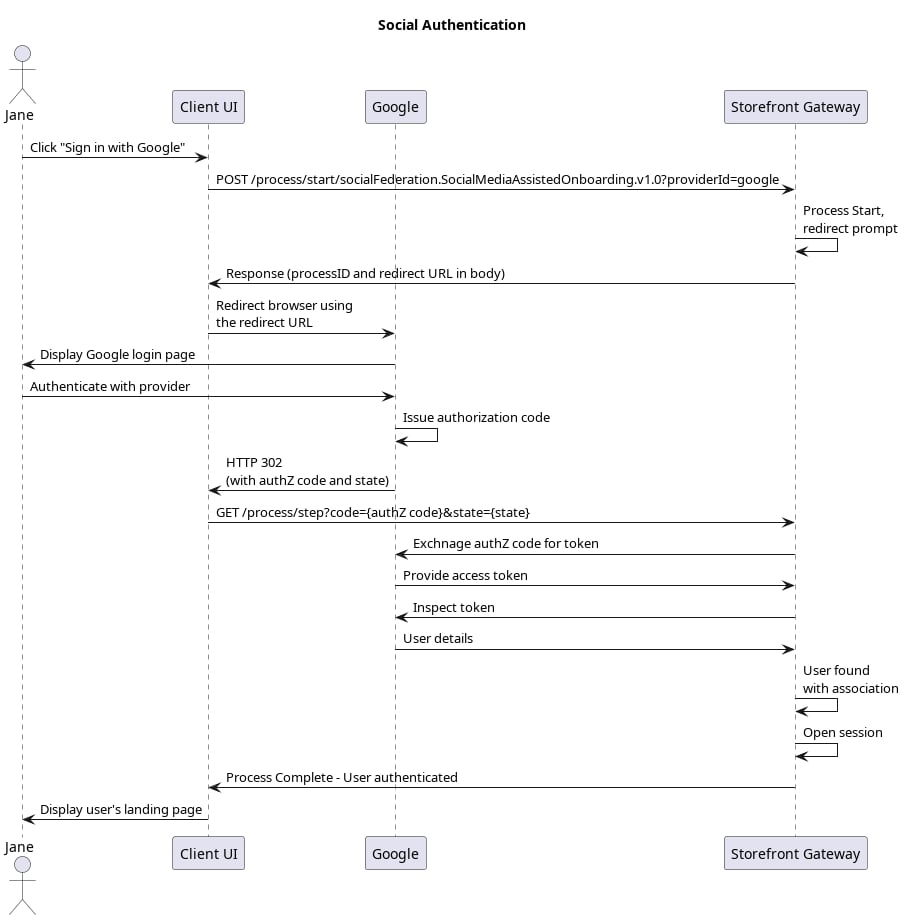
Initial Request
Your client calls the Process Start API to initialize the Process:Response
The Process responds with a request to specify a social provider. The response includes an array of available providers:Next Request: Choose Provider
Your client calls the Process Step API, and passes the selected provider to Process.Response: Redirect URL
The Process responds with a redirect for the client to follow:Next Step: Redirect to Social Provider
Your client must then redirect to the location provided in therequestUrl parameter. This URL redirects to the selected social provider (in this example, Google), and includes the request for certain “scopes” or user resources as defined by OAuth 2.0 authorization framework. The user then authenticates with the provider, and grants the provider permission to share basic information (their name, email address, etc) with Storefront Gateway.
Redirect back to Storefront Gateway
The social provider then redirects back to Storefront Gateway and makes this call to provide Storefront Gateway with an authorization code:
Process Complete
Storefront Gateway then authenticates and Storefront Gateway then redirects back to the client application, and returns a200 HTTP status:
In some cases, the user already has an open session with the social provider in the same browser, so they will not be prompted to sign-in with the provider. From the user’s perspective, they simply click the “Sign In with {Social Provider}” badge and, within a few seconds, they are automatically redirected to the authenticated view of your client application.
Parent topic:Onboard and Authenticate User with Social Account Process