

User Authentication Flow
Preconditions- The User ID exists in Storefront Gateway with a previously verified AuthN ID.
- The user has already created their password.
create-password-prompt is an optional parameter on the UI and is disabled (false). The user doesn’t need to enter their password to complete their authentication. If your organization requires users to enter their password enable create-password-prompt (true) to prompt users for their password.
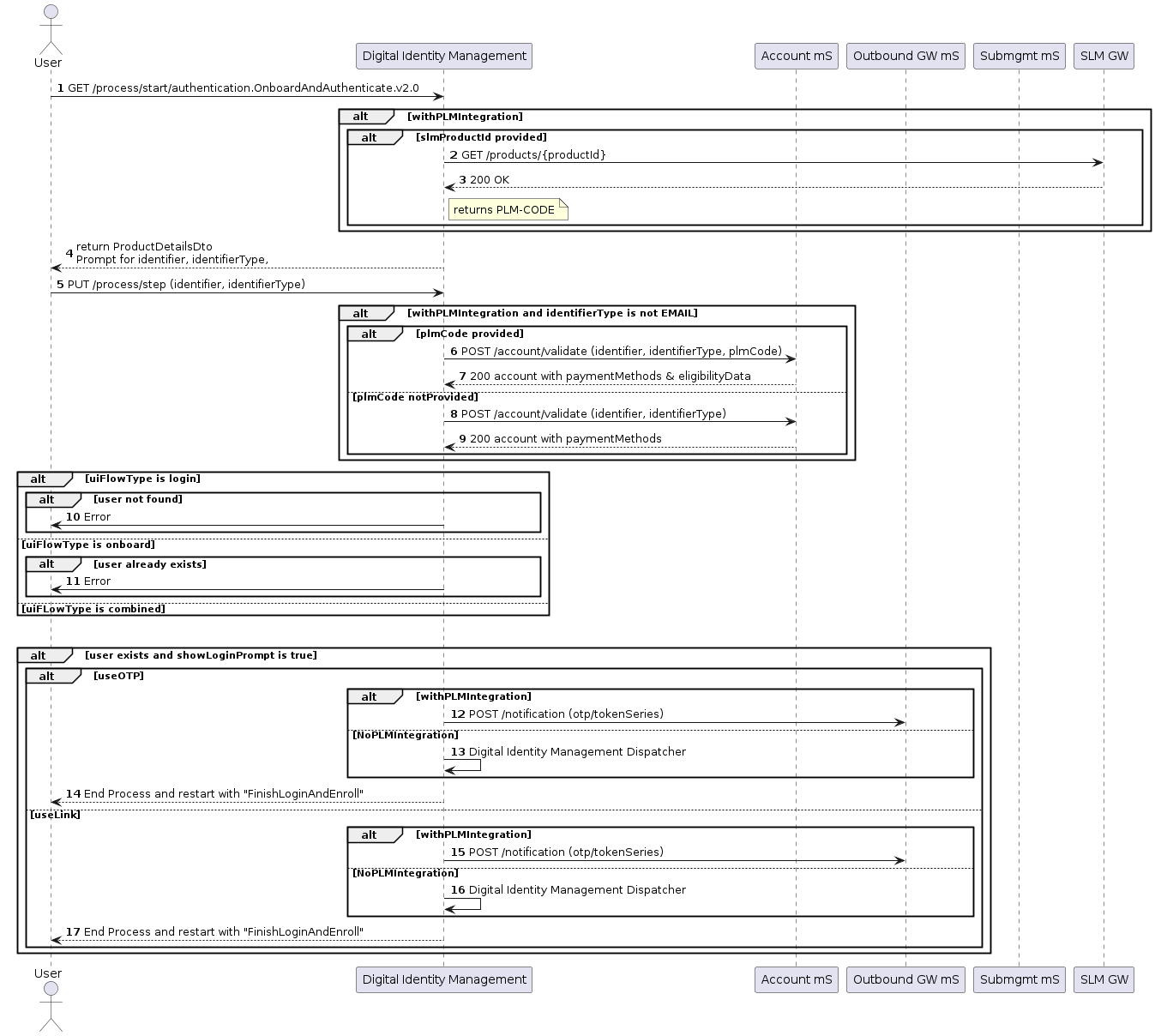
Following is a typical user authentication example for this flow:
- The user navigates to your organization’s login page.
- The user enters a AuthN ID such as their email address or mobile number.
- The user selects their type of login either OTP or MagicLink
- Storefront Gateway sends a verification message with a One-Time Password (OTP) or MagicLink to the user’s email address or mobile number.
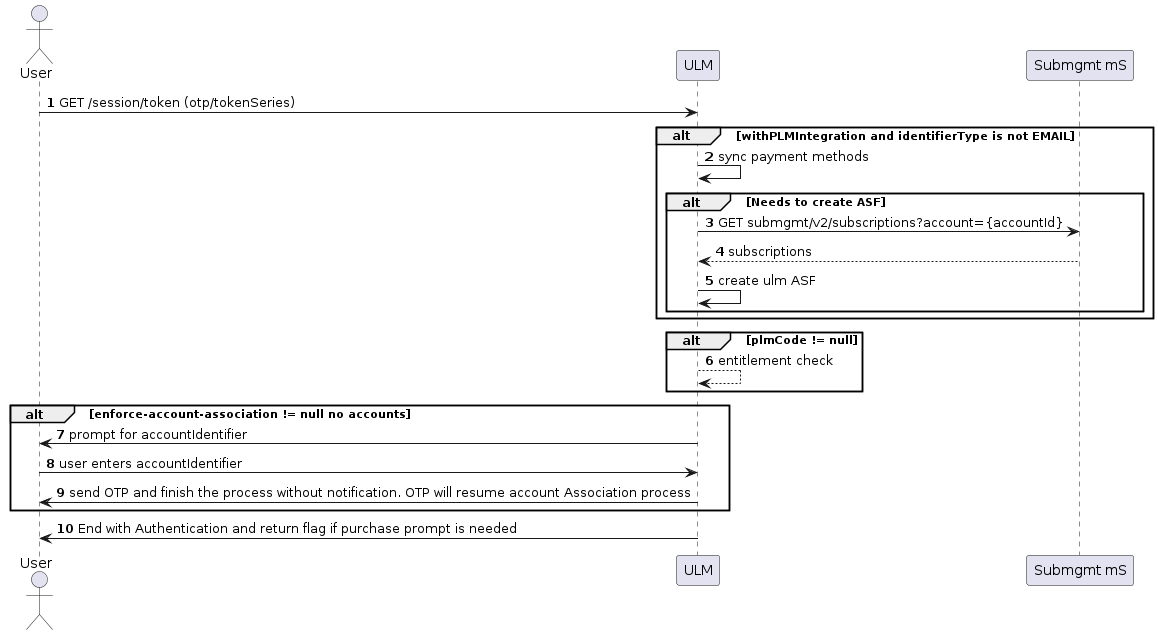
- The user submits the OTP verification code or clicks the MagicLink sent by Storefront Gateway.
- The user is logged in after Storefront Gateway’s successful identity verification.
Authenticate User with Email or Mobile and OTP/MagicLink
The first process begins the user’s journey to verify that the user exists in Storefront Gateway and is using OTP or MagicLink to authenticate. Note: TheshowLoginPrompt is enabled (true) on the UI and prompts the user to select their type of login as either OTP or MagicLink.
Application Settings
Some of the relevant app settings for this use case are:showLoginPromptcreate-password-promptshortTokenExpirationPeriodinMinuteslongTokenExpirationPeriodinMinuteswithAccountDiscoverydiscoverAccountsBy